Home › Utilities › Wondershare UniConverter
Wondershare UniConverter 15.7.3 (Mac)
Updated
The catalogue note
Version 15.7.3.564 of Wondershare UniConverter (formerly Wondershare Video Converter Ultimate) now supports macOS OS X 10.11 and later, with both ARM and 64-bit Intel Macs covered. Beyond platform compatibility, the app remains a capable all-in-one media tool for the Mac.
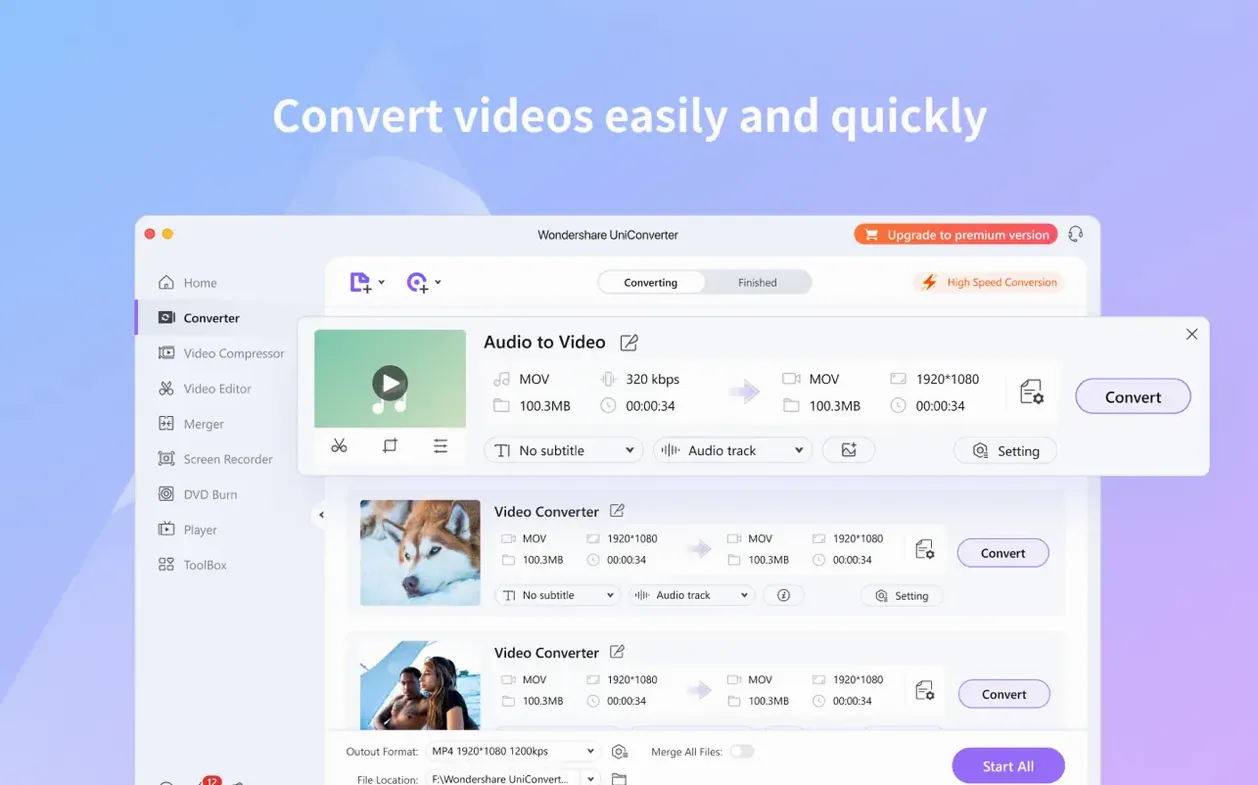
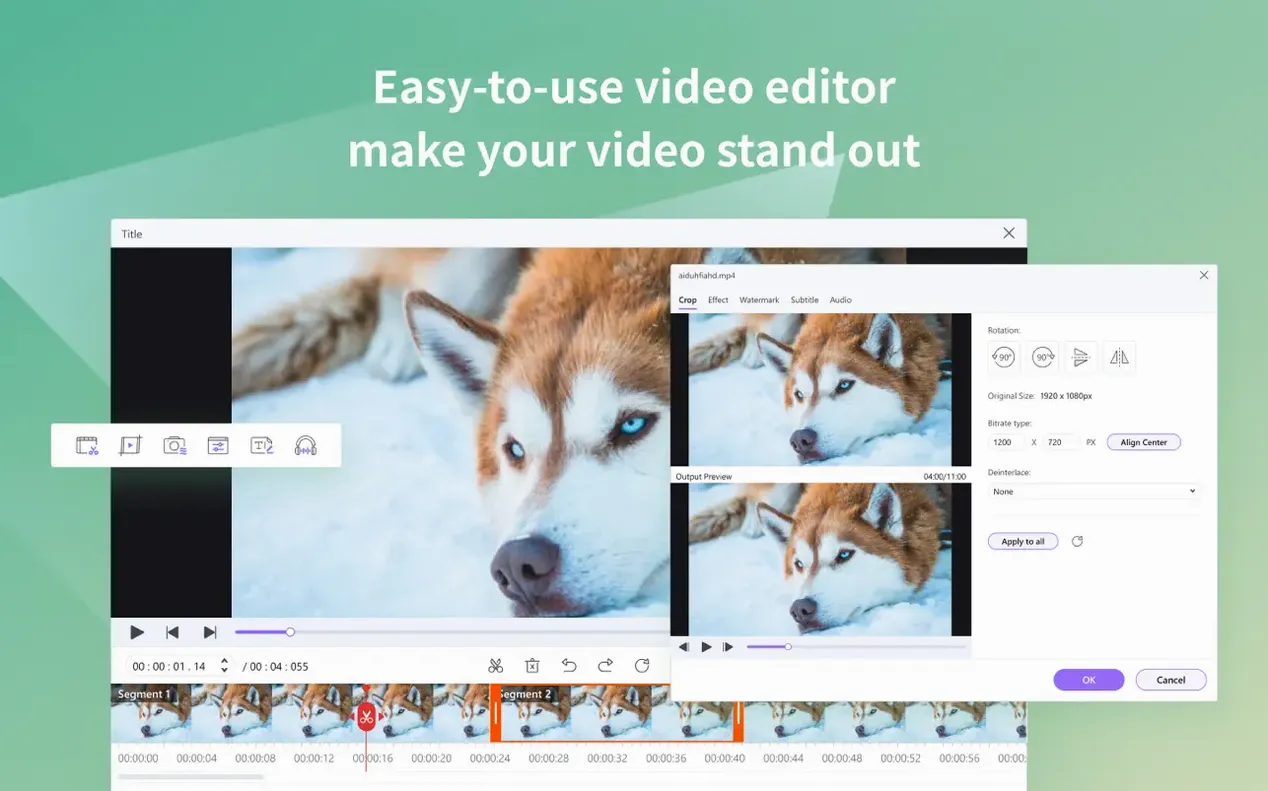
Conversion and editing in one place
UniConverter handles batch conversion of 4K and HEVC/H.265 video, including DRM-protected files. You can split a single file into multiple segments or merge several clips into one output. The crop tool removes black bars when needed, and the built-in DVD burner writes video files or DVD-compatible content to disc. Audio extraction from DVDs and video files is supported, and metadata can be pulled and transferred into an iTunes library.
File management extras
The app also lets you collect metadata from your video files and update your iTunes library during transfer. It will handle one file or a folder full of them, making it a practical addition for anyone who regularly converts, trims or archives video on a Mac.
Mistakes beginners often make
New users tend to jump straight into conversion without checking the output preset. UniConverter ships with a large library of device-specific profiles, and the default selection is not always what you want. The most common error is converting a 4K file to a 1080p preset that re-encodes the video unnecessarily, when a simple copy-stream or a matching-resolution preset would preserve quality and finish faster. Always inspect the resolution and codec fields in the output panel before starting a batch.
Another frequent stumble is assuming that "convert to iTunes" works like a simple copy. It does transfer files, but it also reads metadata and updates your iTunes library entries. If you have carefully organised tags in your source files, double-check that the metadata extraction is mapping correctly — otherwise you may end up with duplicate entries or garbled artist names. A quick preview of the metadata panel before the transfer saves a lot of cleanup later.
Beginners also overlook the crop tool's potential for removing letterbox bars. The tool is straightforward, but many users crop the entire frame rather than just the black bars, losing active picture area. Use the preview window to verify your crop boundaries before committing.
Questions before installing Wondershare UniConverter
Does UniConverter work on Apple Silicon without Rosetta?
Yes. Version 15.7.3.564 runs natively on both ARM and Intel 64-bit Macs. You do not need to enable Rosetta 2 or install any compatibility layers. The installer detects your architecture and places the correct binary.
Will it convert DRM-protected files from my video store?
UniConverter can process DRM-protected files, provided the source format is among the supported input types. The app applies its own decryption routines, but results depend on the specific DRM scheme used by the original file. For standard protected content, it generally works without extra steps.
Works offline for core features
Yes. Once installed, the converter, editor, burner and DVD ripping functions work offline. Only the online video downloader and wireless transfer features require a network connection.
Interface supports 19 languages
The installer includes 19 languages: Russian, English, German, Arabic, Greek, Spanish, Italian, Catalan, Chinese (Simplified), Korean, Dutch, Polish, Slovak, Thai, French, Hindi, Czech, Swedish and Japanese. The language selection is made during installation and can be changed later in the preferences.
A real-world scenario: archiving a lecture series
A university media technician received a batch of 40 lecture recordings in mixed formats — some MP4, some AVI, a few MKV files with embedded subtitles. All were shot at 1080p, but several had hardcoded letterbox bars that needed cropping before distribution. Using UniConverter, the technician set up a batch conversion to MP4 with HEVC encoding, applied the crop filter to remove black bars from the affected files, and split the longer recordings into hour-long segments for easier uploading. The metadata extraction populated the iTunes library with course titles and dates, and the whole batch ran unattended overnight. The DVD burner was used later to produce a backup disc for the department archive.
Gatekeeper fix for launch issues
Snag: The app does not launch after dragging to Applications.
This usually means Gatekeeper is blocking the unsigned binary. The installer notes include a step to bypass Gatekeeper via Terminal — press Enter after the command appears. If you skipped that, run sudo spctl --master-disable in Terminal, launch UniConverter once, then re-enable Gatekeeper with sudo spctl --master-enable. The app will remain whitelisted.
Snag: Converted video has no sound.
Check the output preset's audio codec. Some device-specific presets default to a codec the source file cannot provide. Switch to a general-purpose preset like "MP4 H.264 + AAC" and try again. Also confirm the source file actually contains an audio track — extract it using the audio extraction feature to verify.
Snag: DVD burning fails midway.
This often happens with incompatible media or a too-fast burn speed. Use DVD-R discs rated for 4× or 8× speed, and in UniConverter's burn settings, lower the write speed to 2× or 4×. Also ensure the source video resolution matches DVD standard (720×576 for PAL, 720×480 for NTSC) — the app will rescale, but extreme mismatches can cause errors.
Snag: Online video downloader returns an error for certain sites.
Streaming platforms occasionally update their protocols, which can break download functionality. Check that you are running the latest version (15.7.3.564 covers OS X 10.11 and later). If the problem persists, try copying the video URL directly from the browser address bar rather than from a shared or shortened link.
Precise split points with built-in preview
- The built-in preview player lets you scrub through a video before conversion, so you can set precise split points without leaving the app.
- Batch conversion queues can be reordered by dragging entries up or down — useful when you need a priority file processed first.
- Wireless transfer works to both Apple and Android devices over the local network, no USB cable required.
- The 2D-to-3D conversion option is tucked inside the output preset list under "3D" — it is not a separate mode, just a preset category.
- When converting to iTunes, the app can update your library's metadata automatically, including adding missing album art if it finds embedded cover images in the source files.
Changes in this build
- Compatible with OS X 10.11 and later
- Supports ARM and 64-bit Intel Macs
Before it goes on the Mac
- macOS OS X 10.11 or later
- Apple Silicon or 64-bit Intel processor
Questions from the room
Does Wondershare UniConverter support 4K video?
Yes, it supports 4K video and HEVC/H.265 encoding, and can convert DRM-protected files.
Installing it on the Mac
- Mount the disk image and launch the installer. Use Open Gatekeeper friendly if prompted.
- Press Enter in Terminal to bypass Gatekeeper.
- Drag the app into the Applications folder.
- The app is ready to use.
Notes from the control room
Sign in or open a catalogue account to leave a note.
No notes from the room yet. If you have used this build for a week, a short note helps the next person.