WidgetWall 3.15.2 (Mac)
Updated


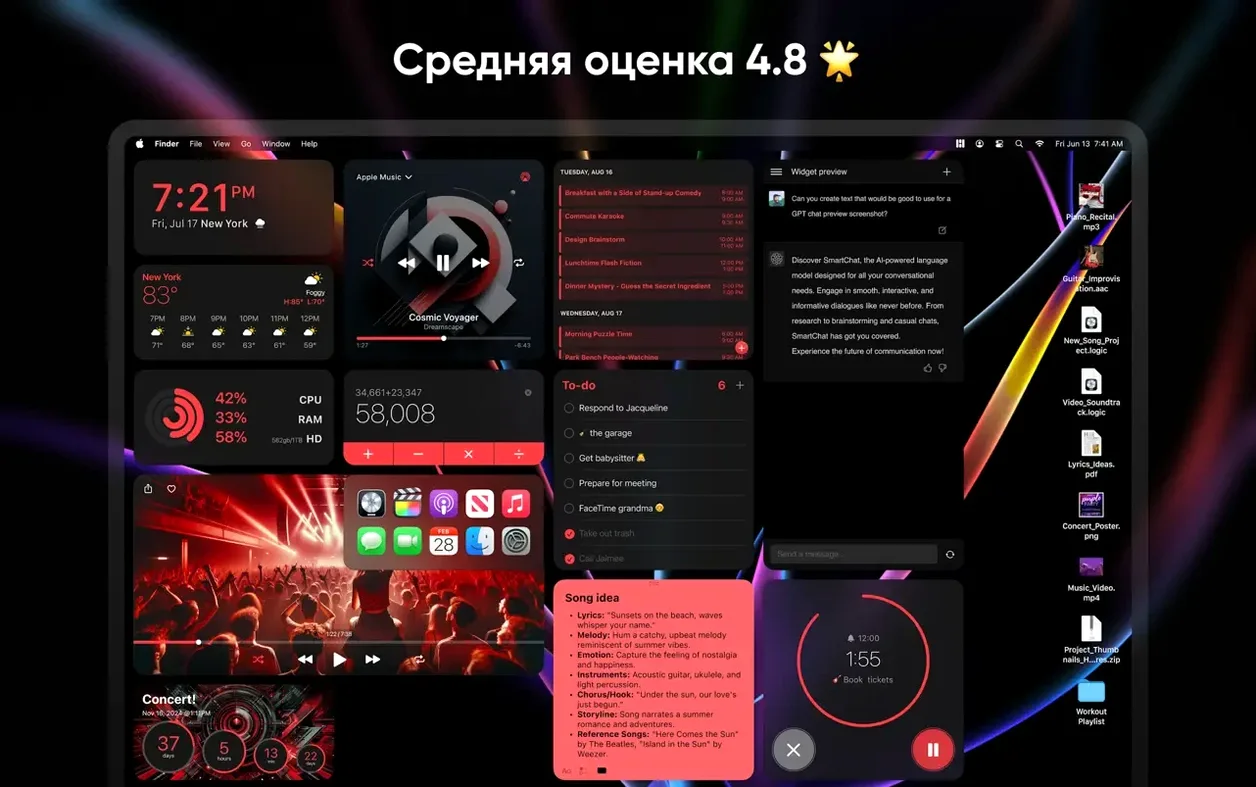
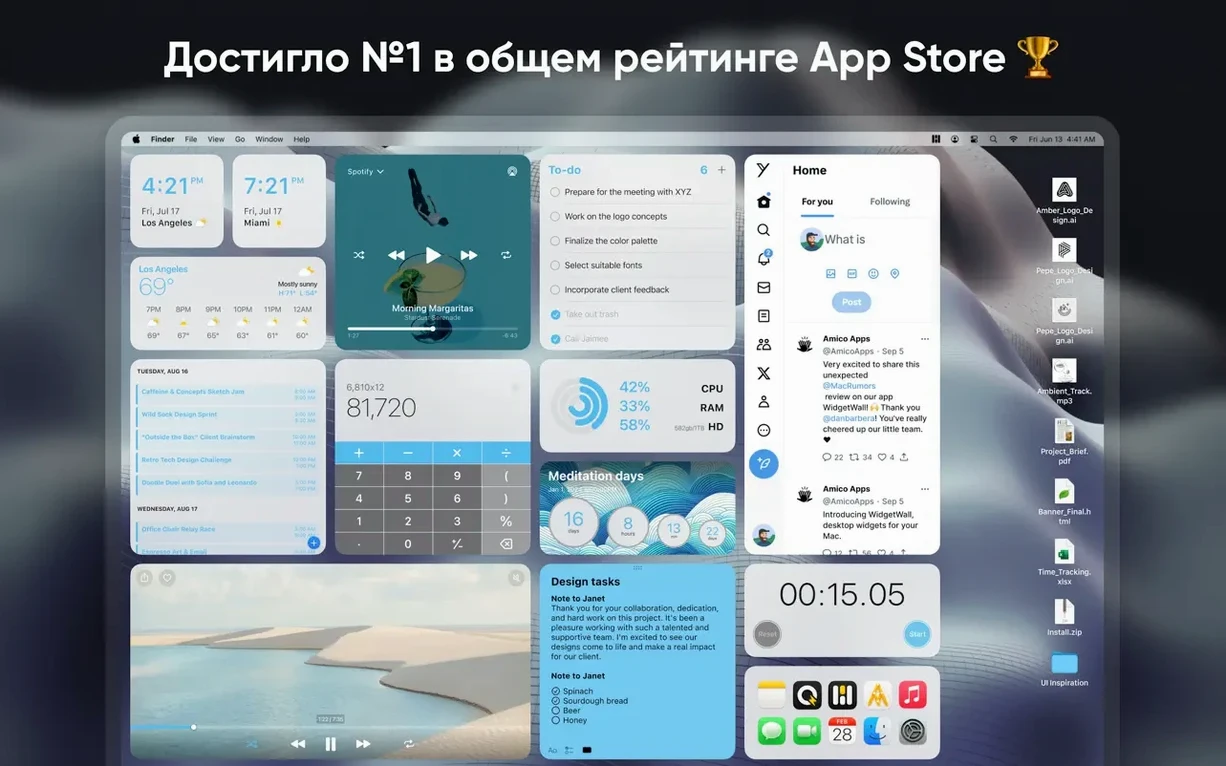
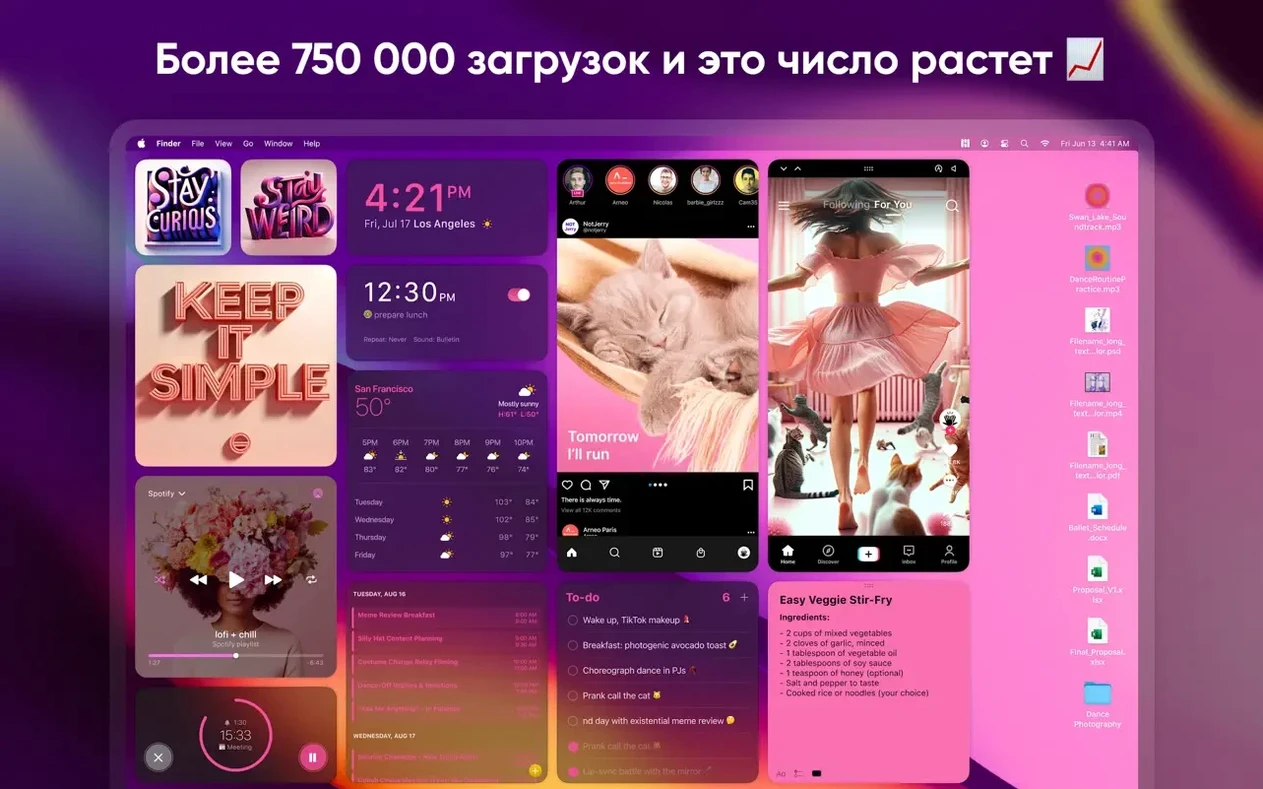
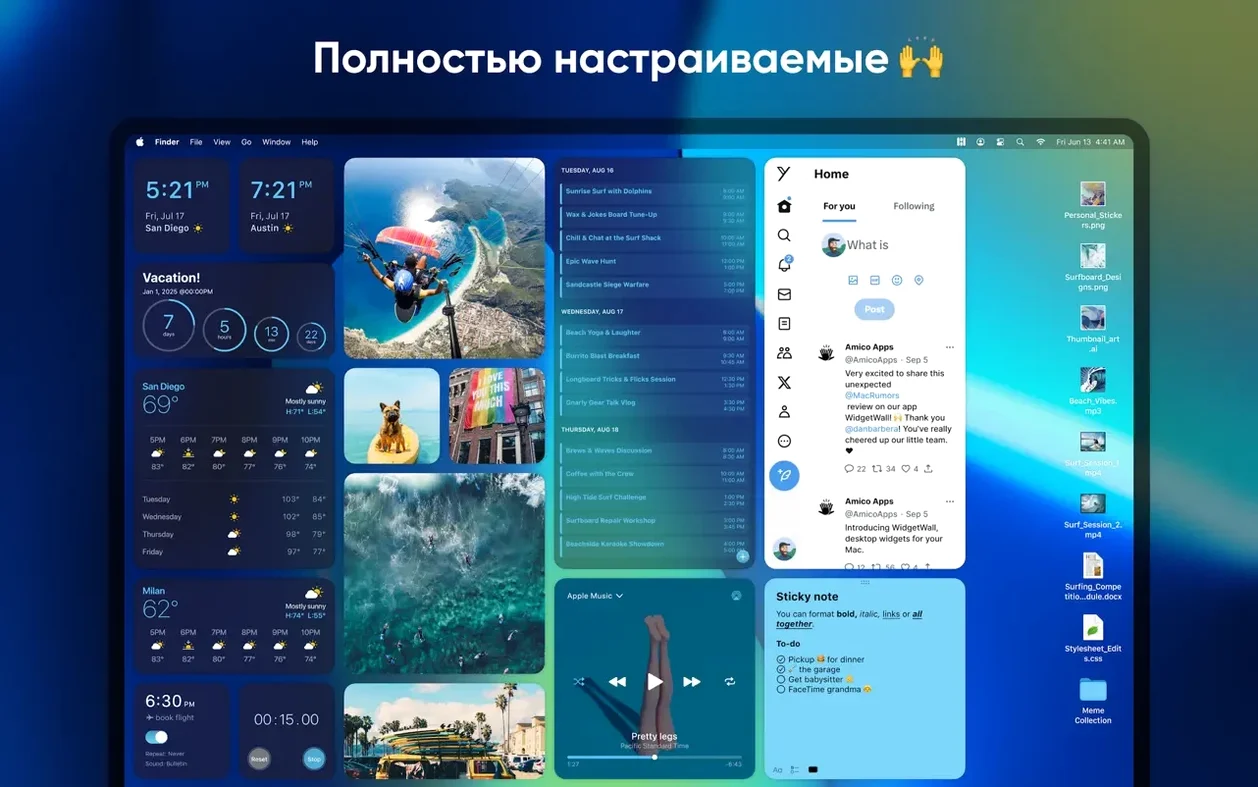
The catalogue note
Open the Widgets panel and you’ll see the Confetti widget first. That’s not a bad place to start — it’s the quickest way to see how a widget behaves on your desktop, and it’s harmless if you drag it around.
First steps to try
- Launch WidgetWall from Launchpad. It installs several widgets automatically, so you’ll have something on screen right away.
- Right-click any widget to switch between small, medium, and large sizes. Start small, then enlarge the ones you actually use.
- Open the widget library and add a Clock or a Calculator. Both are practical and let you test how widgets sit above your windows.
- Try a sticker — the Emoji Browser or a Photos widget — to see how non-utility items look.
- If something feels off, check that you’re on the latest version of WidgetWall. The developers say that matters.
That’s the loop: add, resize, keep or remove. The rest of the catalogue — Weather, Music, Reminders, Pomodoro Timer, White Noise — works the same way, so you can judge each one in under a minute.
Launch at login and two more preferences that earn their place
A few preferences make the difference between widgets that get in the way and widgets that earn their place. Open WidgetWall’s settings before you start arranging things.
- Launch at login. If you want widgets available every time you start your Mac, turn this on. Otherwise you’ll need to open the app manually after each restart.
- Widget opacity. The default might be too solid or too faint depending on your wallpaper. Adjust it so text remains readable but the desktop still shows through.
- Click-through behaviour. Decide whether clicking a widget passes the click to the desktop underneath. For a Clock or Weather widget that you only look at, click-through is useful. For a Calculator or Timer, you’ll want clicks to register on the widget itself.
- Update interval for live widgets. Weather, Stats and Music widgets refresh automatically. A shorter interval keeps data current but uses more resources.
These four settings take about thirty seconds to configure and prevent most early frustrations.
Widgets do not slow down the Mac with standard use
Do widgets slow down the Mac?
WidgetWall runs as a standard Mac application, not a background daemon. Each widget draws its content when visible. A dozen static widgets — Clock, Calculator, Notes — have negligible effect. Live widgets like Weather or Stats do a little work on their update cycle. On a Mac with 8 GB of RAM or more, you won’t notice a difference unless you fill the screen with dozens of video widgets.
Can widgets appear on top of full-screen apps?
No. Widgets live on the desktop layer, below full-screen windows and above the wallpaper. They are visible when you’re on the desktop or when windows leave space around the edges. If you work in full-screen mode most of the time, widgets won’t be visible until you swipe back to a desktop space.
Will the same widgets work after a macOS update?
WidgetWall is updated alongside macOS releases. The current version requires macOS 12 or later and runs on both Intel and Apple Silicon Macs. Keeping WidgetWall up to date is the only precaution needed — the developers handle compatibility on their side.
Do widgets sync across Macs?
WidgetWall is a per-machine application. There is no cloud sync for your widget layout or settings. If you set up widgets on a MacBook and an iMac, you configure each one separately.
Building a practical layout by removing auto-installed widgets
Here is one way to build a practical layout from scratch, not a creative desktop but a working one.
- Remove every auto-installed widget you do not plan to use. Right-click and delete the Confetti, the Emoji Browser, any sticker you added during testing.
- Add a Clock in medium size and place it in the top-right corner. That is where your eyes naturally go for the time.
- Add a Calendar in medium size below the clock. Now you have date and time together, one glance away.
- Add a Reminders widget in large size on the left side. This becomes your task list for the day. Keep it wide enough to read three or four items without scrolling.
- Add a Music widget in small size near the bottom centre. It shows the current track and basic controls without opening the Music app.
- Add a Weather widget in small size next to the clock, top-left. It updates automatically, so you see conditions without checking a browser.
- Open settings and enable launch at login.
That is five widgets. They occupy about a third of the screen. The rest of the desktop remains free for file icons and folders. Adjust sizes and positions over the next few days as you notice what you actually look at.
Adding too many widgets at once makes the desktop noisy
Adding too many widgets at once. WidgetWall installs several by default, and it is tempting to add everything from the library. A desktop with fifteen widgets becomes visually noisy and harder to navigate. Start with three or four, then add one at a time.
Keeping the Confetti widget. It is fun for about ten seconds. After that it is visual clutter that serves no purpose. Remove it early.
Not resizing widgets. Every widget defaults to a medium size. A large Clock is unnecessary — it takes space without giving more information. A small Weather widget is usually enough. Reserve large sizes for widgets that show lists, like Reminders or Notes.
Forgetting about click-through. If you place a widget over an area of the desktop where you regularly click files or folders, enable click-through for that widget. Otherwise you will find yourself clicking the widget instead of the file behind it, wondering why nothing happens.
Set live widgets to a sensible interval — 5 to 15 minutes — and change it only if you need faster updates.
Before it goes on the Mac
- macOS 12 or later
- Intel or Apple Silicon
Questions from the room
How many sizes does each widget come in?
Every widget is available in small, medium, and large sizes, so you can fit them to your desktop layout.
Which languages does WidgetWall support?
WidgetWall is available in Russian, English, Spanish, Traditional Chinese, and French.
Installing it on the Mac
- Mount the downloaded disk image.
- Drag the app to the Applications folder alias.
- After copying finishes, open the app from Launchpad.
Notes from the control room
Sign in or open a catalogue account to leave a note.
No notes from the room yet. If you have used this build for a week, a short note helps the next person.