Updated
The catalogue note
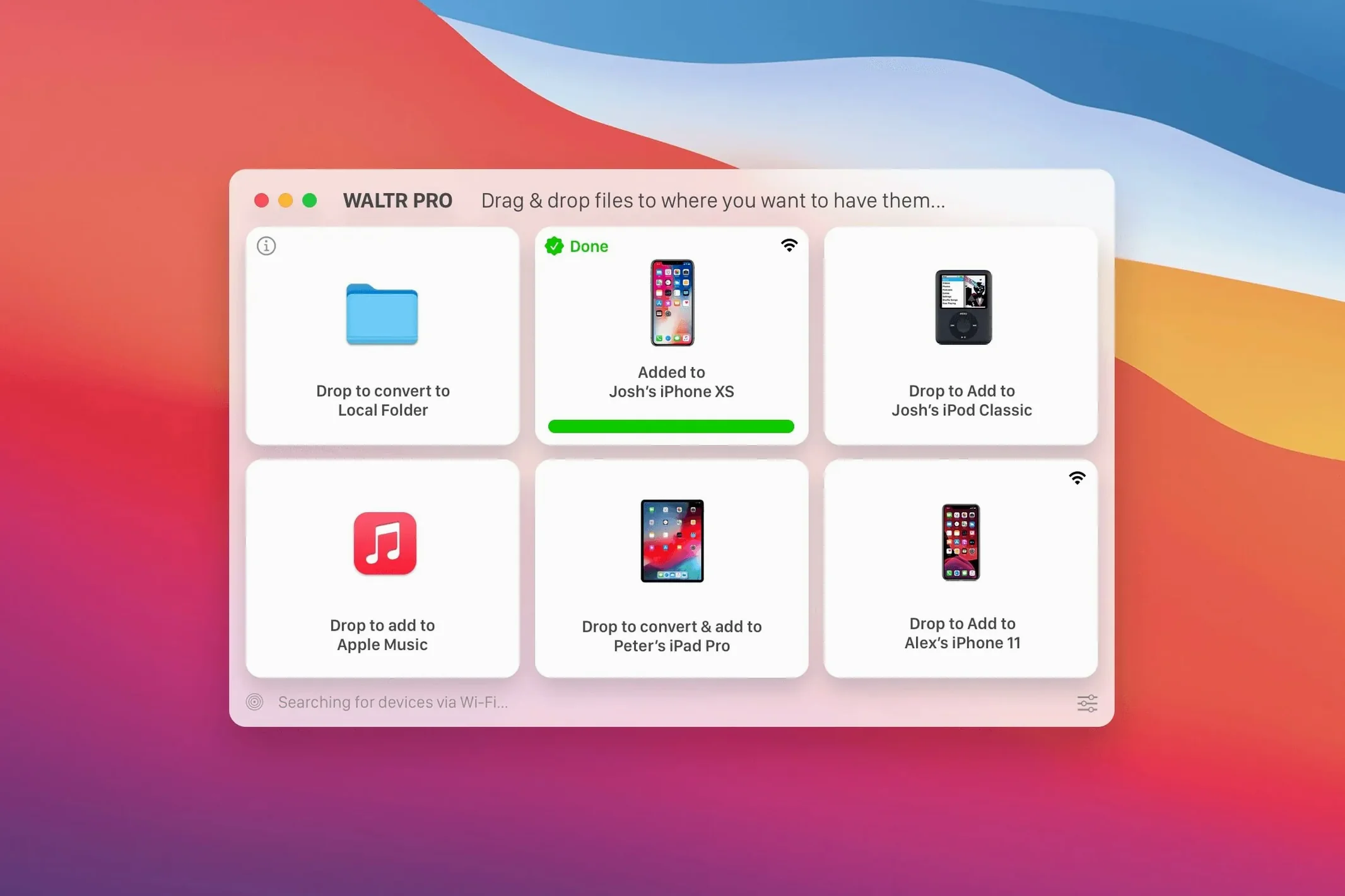
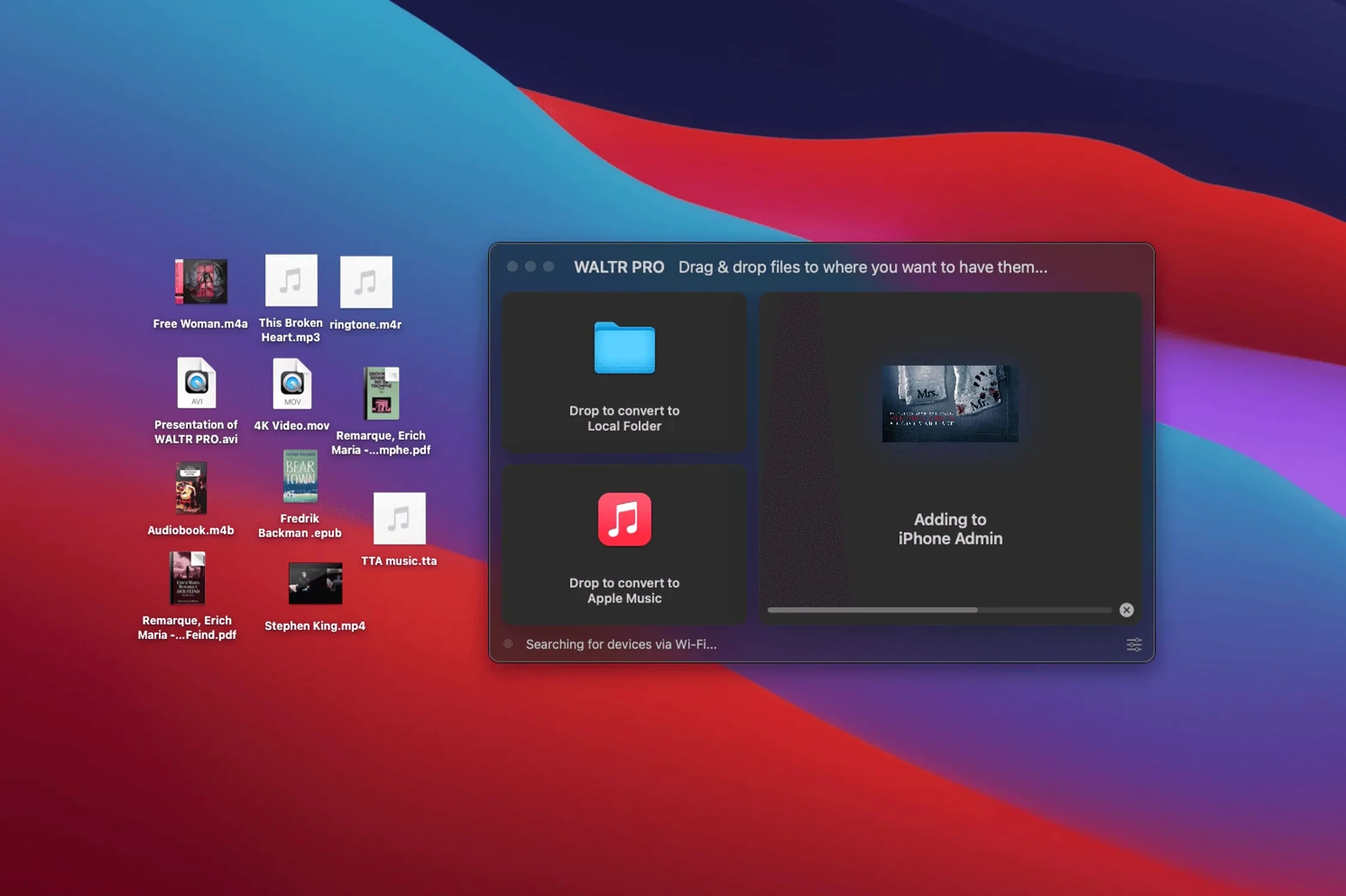
WALTR PRO is a Mac utility that moves media files onto iPhones, iPads and iPods without iTunes or format wrangling. Version 4.0.122 runs on macOS 10.13 or later, supports Apple silicon and 64-bit Intel Macs. The idea is simple: drag an MKV, AVI, FLAC or CUE file onto the app window and it converts and transfers it for playback on the device. All iPhones, iPads and iPods are covered, including the original iPod Classic.
Drag a file iOS normally refuses
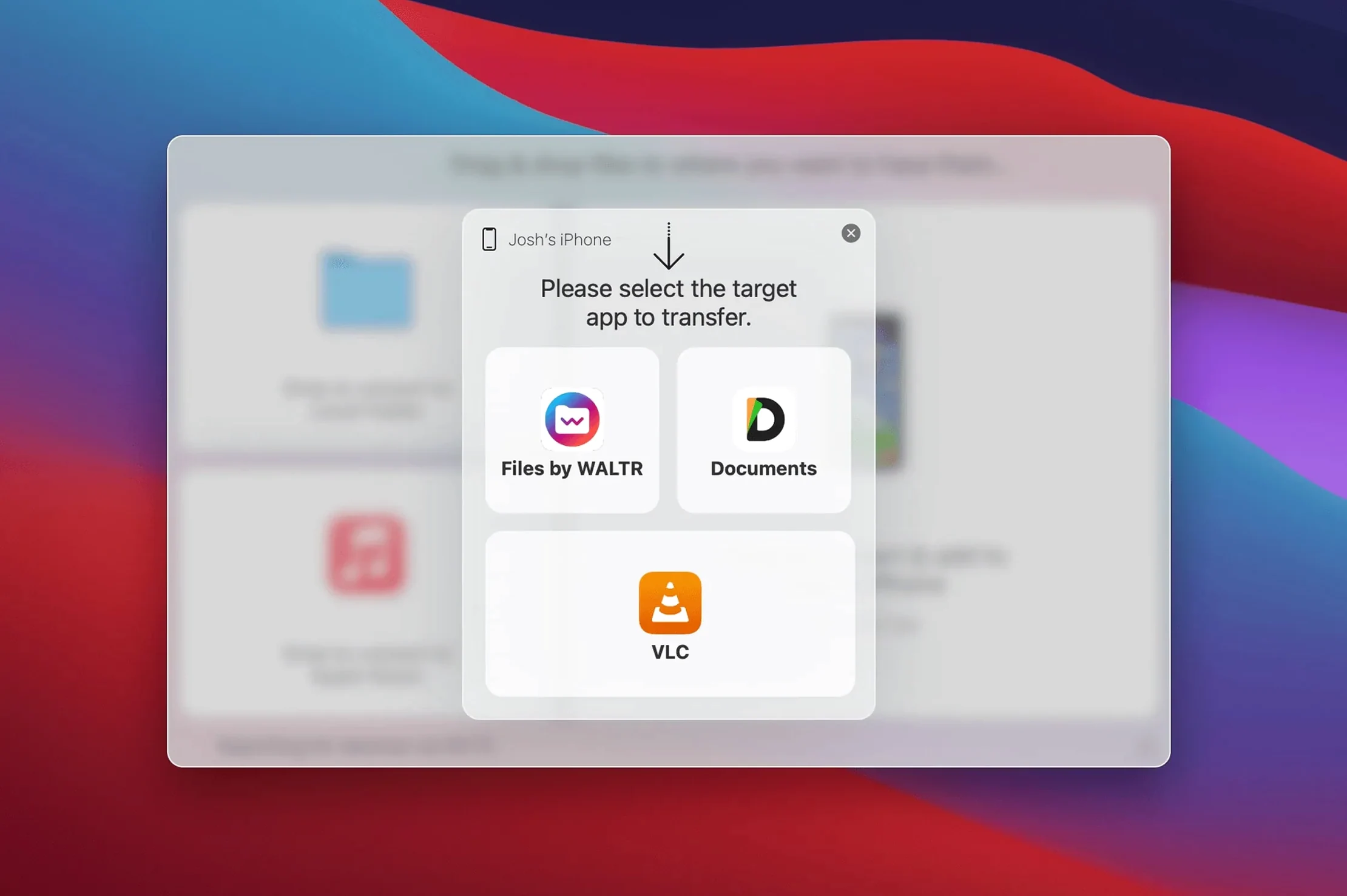
Start with a file that iOS normally refuses — an MKV or FLAC you already have. Connect your iPhone or iPad, open WALTR PRO and drag the file onto the device icon. The app handles conversion in the background; when it finishes, the file appears in the device's Music or Video app. No library sync, no preset juggling. That is the core workflow, and it is worth testing before you dig into settings.
Installation and first run
Installation is a simple drag to Applications, but the unsigned build needs one Gatekeeper bypass. Mount the disk image, run Open Gatekeeper friendly, press Enter in Terminal, then drag WALTR PRO into Applications and launch it. The first launch asks for the usual permissions; grant them and the device should appear in the sidebar.
Fix a device that won’t appear in the sidebar
The most frequent problem is the device not appearing in the sidebar. If that happens, check that your iPhone or iPad is on the same Wi-Fi network as the Mac — WALTR PRO uses wireless transfer, so a network mismatch stops everything. Also confirm that the device is unlocked and its screen is on. iOS sometimes drops idle connections after a few minutes; reconnecting the device via USB momentarily and then switching back to Wi-Fi usually brings it back.
Another common snag: a transferred file that does not show up in the device's Music or Video app. WALTR PRO converts files on the fly, but iOS can be particular about metadata. If the file is an MKV with a non-standard codec, the conversion may complete but the result may not play. The workaround is to re-encode the file beforehand with a tool like HandBrake to a standard H.264 MP4, then drag that into WALTR PRO. For FLAC files, the conversion to ALAC is reliable, but some very high-resolution FLAC files (above 96 kHz) may fail — stick to standard resolutions for best results.
A third snag: the app stalls at "Waiting for device" for no obvious reason. This often happens after a macOS update that resets network permissions. Open System Settings > Privacy & Security > Local Network and ensure WALTR PRO is ticked. If it is not listed, reinstalling the app (drag to Trash, re-drag from the disk image) usually makes it appear.
Test with two or three files first
Set output to ALAC for lossless FLAC transfers
Drag over two or three files first, not your whole music library. This lets you confirm the workflow works on your network and with your device before committing to a large transfer. A single 2-hour MKV takes a few minutes to convert and transfer over Wi-Fi; doing ten at once will queue them and the total time adds up.
Keep your device awake
iOS devices tend to sleep during long transfers, especially if you are not touching them. Set your iPhone or iPad to never auto-lock (Settings > Display & Brightness > Auto-Lock > Never) while a transfer runs. Forget to do this and you may come back to a half-finished file and a "Transfer interrupted" message.
Use the queue for organisation
WALTR PRO's queue view shows the progress of each file. If you drag a batch, you can reorder them by dragging items within the list. Put smaller files first so playback is available sooner, or prioritise a specific album for an upcoming trip.
Confirm the workflow with a small batch before a large transfer
The defaults work for most people, but two adjustments make the experience smoother. First, open Preferences and set the output format for music files to ALAC if you are transferring FLAC — this keeps lossless quality without re-encoding to AAC. The app remembers this choice, so you only set it once.
Second, if you plan to transfer video files regularly, increase the conversion quality slider (if present) to High. The default is balanced, but High gives noticeably better video on larger screens like an iPad Pro, at the cost of slightly longer conversion times. Test with a short clip to see if the difference matters to you.
One more: check the "Automatically open device when connected" option (if available). It saves a click each time you plug in or connect over Wi-Fi, and the sidebar populates faster.
Avoid converting FLAC to AAC when ALAC is an option
Expecting two-way sync
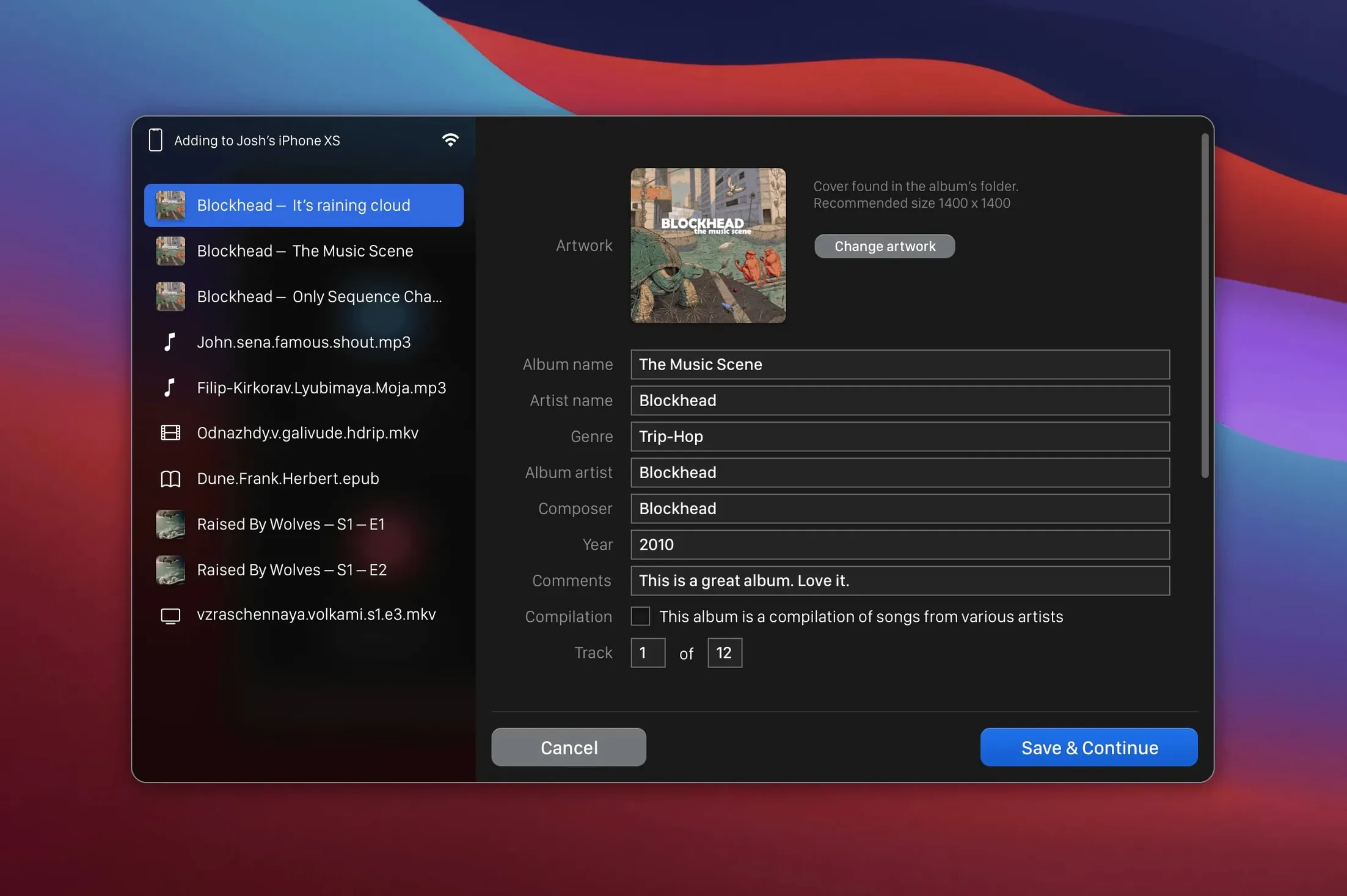
WALTR PRO is a one-way tool: from Mac to device. It does not pull files off the iPhone or iPad, and it does not sync playlists or ratings back to the Mac. Beginners sometimes drag a file, edit the metadata on the device, and expect the changes to appear on the Mac — they won't. Treat it as a simple transfer tool, not a full media manager.
Ignoring file format limits
WALTR PRO converts many formats, but iOS itself has playback limits. It can handle H.264 and HEVC video, and AAC, ALAC and MP3 audio. If you drag a file with an obscure codec (e.g., RealMedia, WMV9), the conversion may produce a file that iOS refuses to play. Test a sample before committing a large folder.
Dragging folders without checking contents
Dragging a whole music folder works, but if it contains album art images, PDFs or other non-media files, WALTR PRO may try to process them and fail silently. Sort your source folder beforehand — keep only the audio or video files you want to transfer. This avoids clutter in the queue and wasted conversion time.
Forgetting to eject the device
After a transfer, ejecting the device from WALTR PRO or from Finder ensures the files are fully written. Pulling the cable or closing the app mid-transfer can leave partial files on the device that iOS may not recognise. A quick eject takes two seconds and prevents playback issues later.
Before it goes on the Mac
- macOS 10.13 or later
- 64-bit Intel or Apple silicon
- English interface
Questions from the room
Which Macs does WALTR PRO support?
WALTR PRO requires macOS 10.13 or later and works on both Intel (64-bit) and Apple silicon Macs.
Installing it on the Mac
- Mount the disk image.
- Run Open Gatekeeper friendly.
- Press Enter in Terminal to bypass Gatekeeper.
- Drag the app to Applications.
- Launch the app.
Notes from the control room
Sign in or open a catalogue account to leave a note.
No notes from the room yet. If you have used this build for a week, a short note helps the next person.