Home › Mac Apps › Topaz Gigapixel AI

Topaz Gigapixel AI 1.5.0 (Mac)
Updated
The catalogue note
Topaz Gigapixel AI 1.3.5 runs on both Apple Silicon and Intel 64-bit Macs, so whether you are on an M-series MacBook or an older Intel iMac, the app will install and work. The package comes in separate ARM and Intel builds, so pick the one matching your processor.
| Detail | Value |
|---|---|
| Version | 1.3.5 |
| Architecture | Apple Silicon, Intel 64-bit |
| macOS | 12 or later |
| Interface | English |
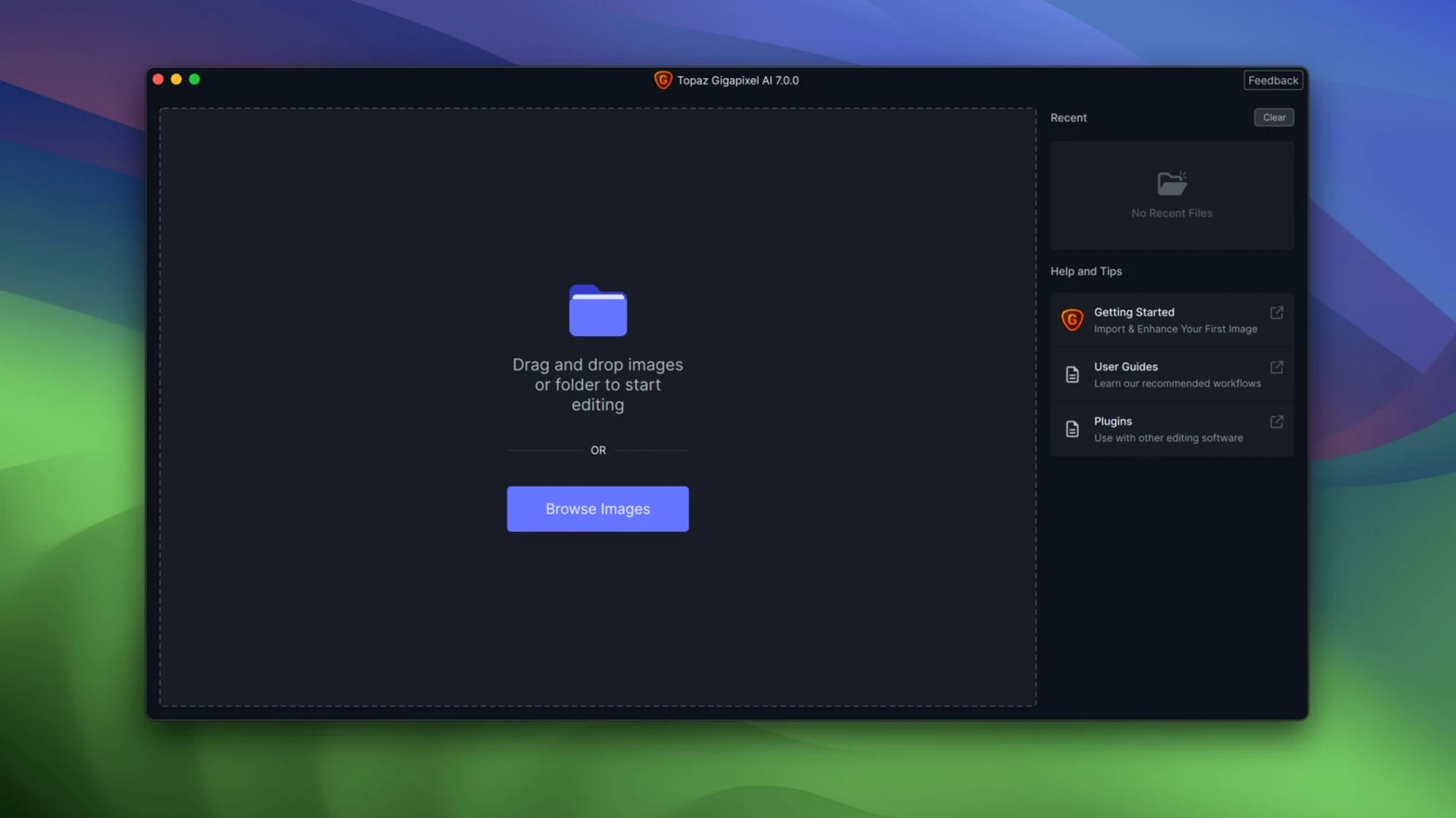
For a first run, open a low-resolution photo and try the upscale slider. The AI preserves detail and clarity while enlarging, and it can remove pixelation and compression artifacts in the same pass. If you work with scanned line art or old PNGs, Gigapixel AI cleans those up noticeably. Batch processing is built in, so you can drop a folder of images and let it run through them overnight. The legacy name still fits: this is the older line, replaced by Topaz Gigapixel, but for quick enlargements it remains a solid tool.
Check that you installed the correct ARM or Intel build
The app fails to open after installation on some machines. If you see nothing happen when you launch it, check that you installed the correct architecture build — ARM for Apple Silicon Macs, Intel for Intel Macs. Installing the wrong one produces a silent crash. Re-run the installer and select the right package.
Another frequent issue: the activation prompt appears every time you start the app. This usually means the Patch.command script did not run properly. Open Terminal, navigate to the folder where you extracted the package, and run chmod +x Patch.command before double-clicking it. You will be asked for your Mac password — enter it, and activation should stick.
If images export with visible tiling or seams, you may be pushing the upscale slider too far in one pass. Gigapixel AI works best when you upscale in stages — take a 300 px image to 600 px, then to 1200 px — rather than jumping straight to 4x or 8x.
Batch processing can stall if you include unsupported file formats. Stick to JPEG, PNG and TIFF; the app does not handle RAW files directly. Convert RAW to TIFF first, then feed the folder to Gigapixel AI.
Zoom the preview window to inspect hair and foliage before export
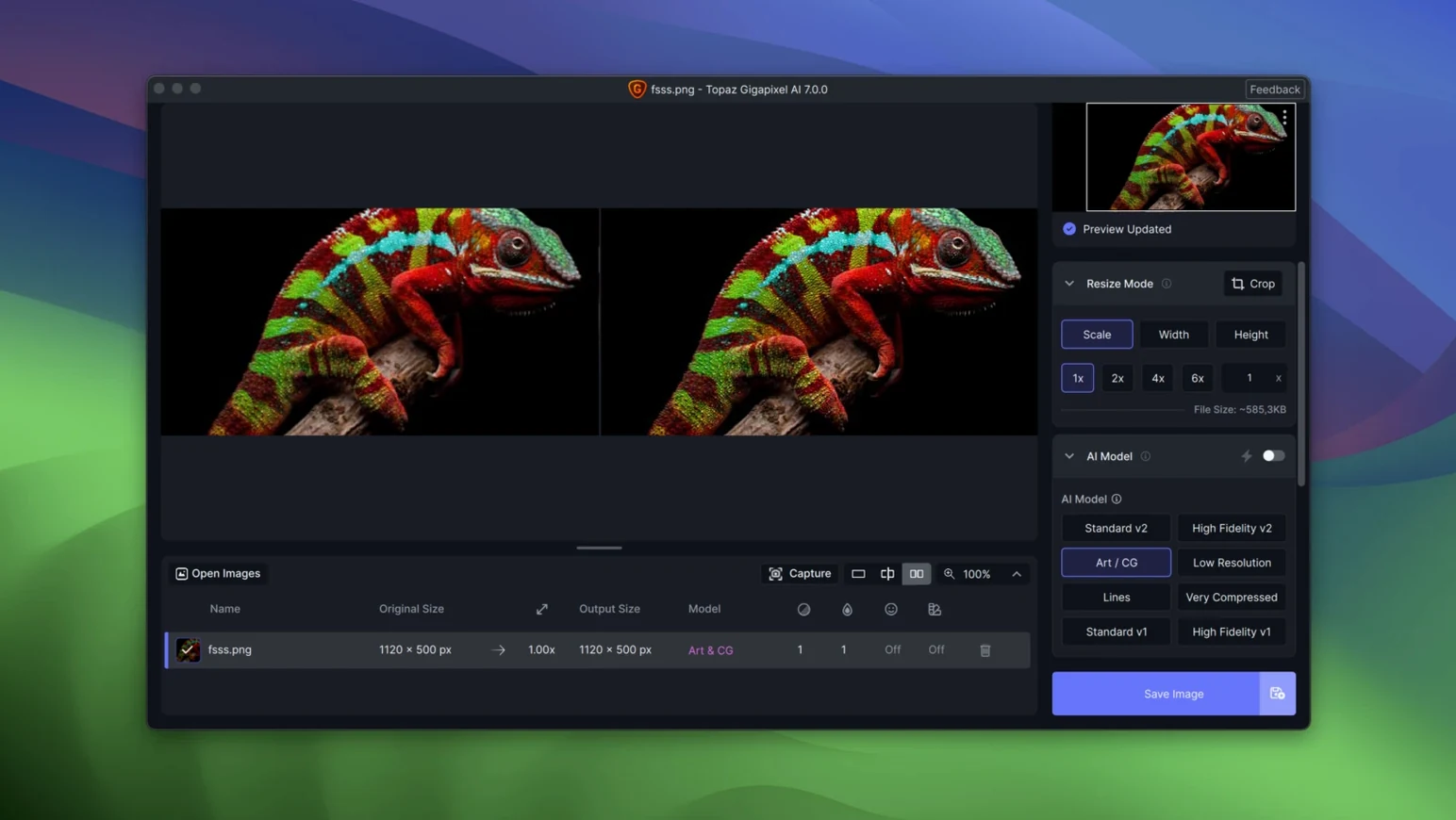
The preview window lets you zoom in to inspect fine detail before you commit to an export. This is useful when checking whether the AI has introduced artefacts in hair or foliage.
You can queue multiple images in the batch processor without closing and reopening the app. Drag new files into the queue while processing is running, and they will be added to the end of the list. The batch processor also remembers your last output folder, so you do not have to select it every time.
The undo command works inside a single edit session. If you apply an upscale preset and do not like the result, press Command-Z to revert to the previous state. You can also compare the current image against the original by toggling the preview overlay, though this feature is labelled only in the interface — look for a side-by-side or split-view button near the preview window.
Gigapixel AI can restore detail in old photos that have scratches or dust. The same AI model that removes compression artefacts also reduces surface noise from scanned prints. This is not advertised heavily but works well on 1990s digital camera JPEGs and scanned newspaper clippings.
A photographer upscales phone headshots from 800 px to print-ready
A photographer I know keeps a folder of client headshots taken on a phone — 800 px wide, heavily compressed, shot in bad light. She opens one in Gigapixel AI, and the app loads it into the preview window. She selects the Face Recovery model from the drop-down, which is designed to restore low-resolution portraits. The preview updates in a few seconds, showing clearer eyes and smoother skin tones. She zooms in to check the edges of the glasses — no blocky artefacts remain.
Next, she sets the upscale factor to 2x and hits Apply. The app processes the image and displays the result. She exports it as a TIFF at 300 dpi, which is enough for a small print. Then she drags the remaining 40 headshots into the batch queue, sets the same model and upscale factor, and lets it run. She returns twenty minutes later to find all files exported and waiting in a subfolder named after the current date.
After that, she opens a scan of a 1970s wedding photo — low contrast, faded, with compression blocks in the dark areas. She tries the Standard model first, then switches to Low Resolution for a second pass. The AI removes the blocks and sharpens the edges of the bride’s veil. She exports the result as a PNG for archiving.
Finally, she drags a set of line-art PNGs into the queue — black-and-white diagrams from a textbook. The AI cleans up the jagged edges and fills in broken strokes. She sets the output to 4x and exports them as PNGs. The whole session takes under an hour, including batch processing.
Runs natively on macOS Ventura and Sonoma for both ARM and Intel
Can I run Gigapixel AI 1.3.5 on macOS Ventura or Sonoma?
Yes. The app supports macOS 12 and newer, which includes Monterey, Ventura, Sonoma and any later releases. It is compiled for both ARM and Intel, so it runs natively on M-series Macs and under Rosetta 2 on Intel-based machines.
Does it work with Apple Silicon natively, or does it need Rosetta?
The ARM build runs natively on Apple Silicon. No Rosetta translation is needed. If you accidentally install the Intel build on an M-series Mac, it will still work under Rosetta 2, but you will get better performance from the ARM package.
How do I know which build to download?
Check your Mac’s processor. Open the Apple menu, select About This Mac, and look for the chip line. If it says Apple M1, M2 or M3, download the ARM build. If it says Intel Core i5, i7 or i9, download the Intel build. The two packages are labelled clearly in the download folder.
Is the interface only in English?
Yes. The app uses English for all menus, labels and dialogs. There is no language selector. If you are comfortable navigating English software, you will have no trouble.
Can I use it for commercial work?
The activation included in the package allows full use of the app. There are no restrictions on output resolution or number of exports. Many photographers use it for client work, printing and archiving.
Does it require an internet connection?
No. The AI models are stored locally. Once the app is installed and activated, you can run it offline. Batch processing, previews and exports all work without an internet connection.
What about the newer Topaz Gigapixel — should I use that instead?
Topaz Gigapixel AI 1.3.5 is the last release of the legacy line, replaced by the newer Topaz Gigapixel. The newer version has additional models and faster processing, but the legacy version still produces good results for standard upscaling, portrait restoration and artefact removal. It is a capable tool for anyone who does not need the latest features.
Changes in this build
The 1.5.0 update tightens up internal processing routines and squashes a few lingering export glitches on Apple Silicon.
Before it goes on the Mac
- macOS 13 or later
- Apple Silicon or Intel 64-bit
Installing it on the Mac
- Run the TopazGigapixel.pkg package for your architecture.
- Open Patch.command and enter your Mac password when prompted.
Notes from the control room
Sign in or open a catalogue account to leave a note.
No notes from the room yet. If you have used this build for a week, a short note helps the next person.