
Typora 1.14.15 (Mac)
Updated
The catalogue note
Read and write Markdown
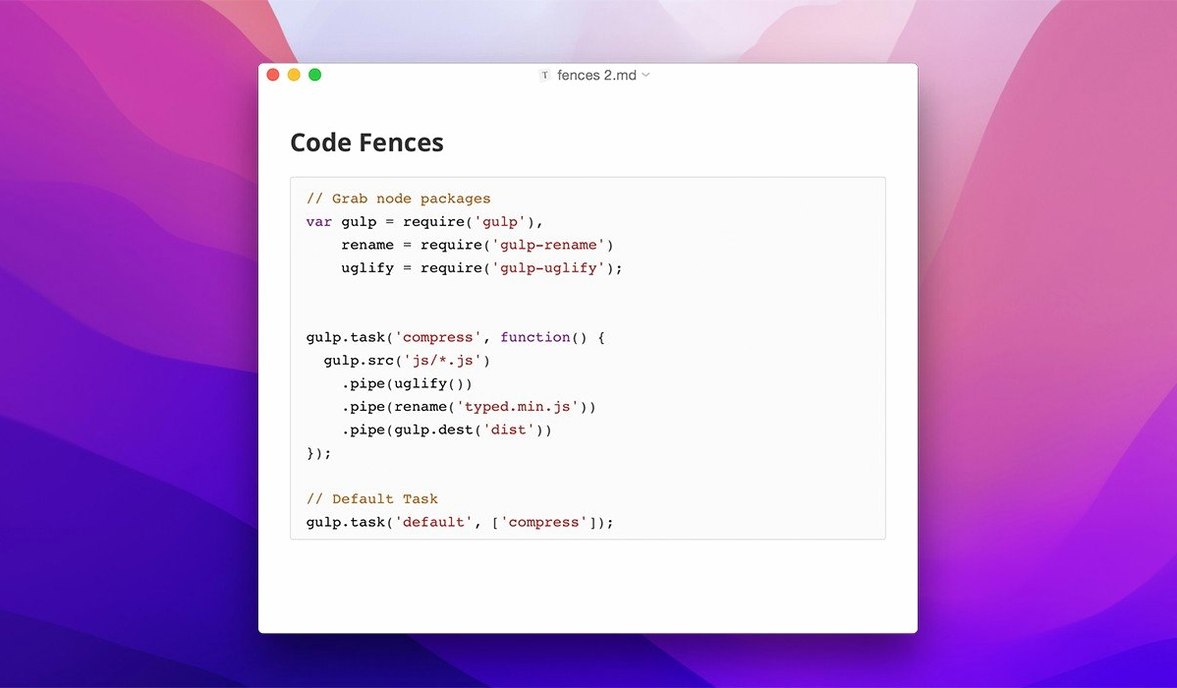
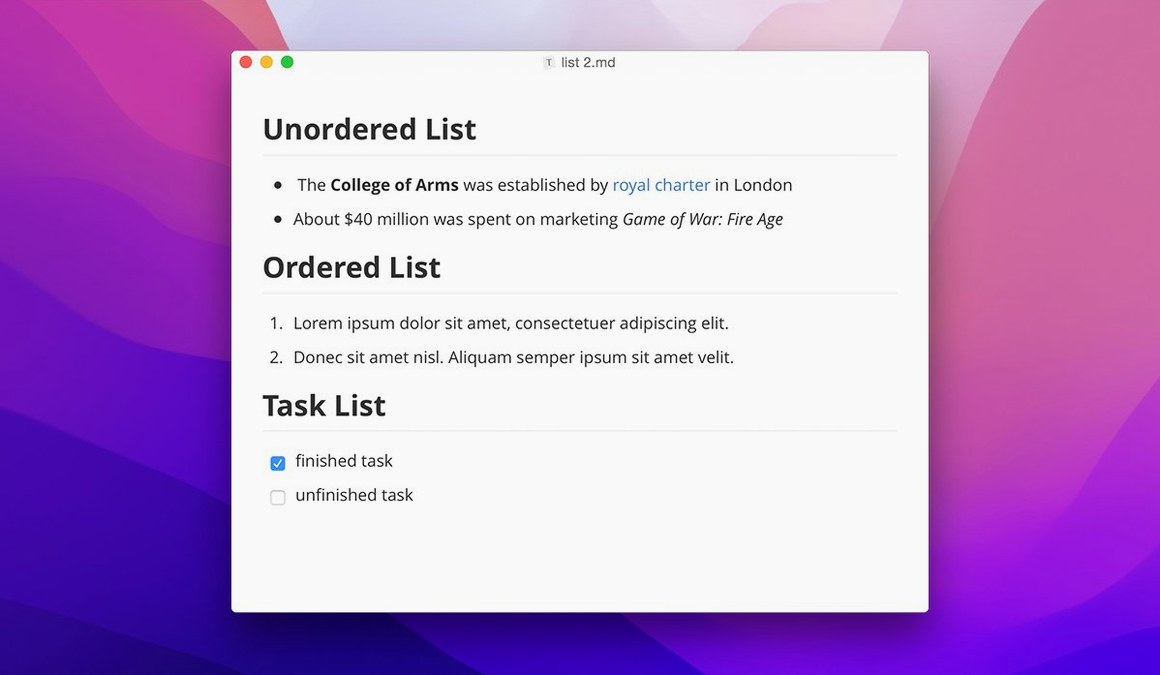
Typora lets you read and write Markdown without toggling between edit and preview modes. Formatting appears as you type, so you see headings, bold text and lists rendered immediately. You can also write in source mode and export to other formats via Pandoc.
Customise the look with CSS themes
The editor supports custom CSS themes, allowing you to adjust the visual style of your writing environment. This is useful if you prefer a dark interface or specific typography for long-form work.
Navigate files with keyboard shortcuts
Version 1.14 adds keyboard navigation in the file tree, making it quicker to move between documents without reaching for the trackpad. The current release (1.14.10) also fixes content that was clipped in the welcome panel.
How Typora compares with other Mac editors
I know a few Markdown editors well enough to say where Typora sits. Compared to iA Writer, Typora gives you more control over themes and file organisation. iA Writer focuses on a single, focused writing view with minimal distraction, whereas Typora lets you browse a file tree, show non-Markdown files and customise the CSS. iA Writer also charges separately, but that isn't the point here.
Another common alternative is Ulysses. Ulysses offers a more comprehensive writing environment with a library-style management system, snippets and full-screen mode. Typora is leaner: it does not impose a library structure, so you work with your files as they sit in folders. Some writers prefer that simplicity. Ulysses also has a different licensing model.
Then there is MacDown, the open-source editor that introduced many Mac users to live Markdown preview. MacDown splits the screen into an edit pane and a preview pane, which is exactly what Typora avoids. If you want a single, unified view where the rendered text replaces the raw syntax, Typora is the cleaner option. MacDown also has not been updated recently, whereas Typora remains actively maintained.
Opens standard .md files without conversion
Can I use Typora with existing Markdown files without converting them? Yes. Typora reads standard .md files and works with your existing folder structure. There is no need to import or convert anything.
Does Typora save files automatically? The editor tracks changes, but it does not have a traditional autosave timer. You save manually or rely on your operating system's recovery options. This is worth knowing if you are used to a text editor that saves every few seconds.
Can I export to formats other than HTML and PDF? Typora supports light-weight export to several formats, including Word and plain text, provided you have Pandoc installed on your system. The export is handled via the file menu. Version 1.14.10 fixed a specific issue with Pandoc export from source mode.
Will it work on an older Mac? Yes. The system requirement is macOS 10.13.6 or later, and both Intel and ARM are supported. I have run it on machines from that era without problems.
Show hidden files in Preferences first
When you first open Typora, the interface is clean. A few settings are worth changing immediately. In the Preferences menu, look for the section that controls the editor's behaviour. I recommend turning on the option to show hidden files and folders in the sidebar if you work with dotfiles or .git directories. Also enable the option to show non-Markdown files — you will then see text files and other assets without switching to the Finder.
The context-menu style on macOS can be set to match the system look or a custom style. If you find the default context menu too small or too large, adjust this setting early. For keyboard users, the file tree navigation works well, but you need to enable it in Preferences.
Welcome panel clipping fixed by updating or resizing
One common snag: the welcome panel clips content in certain window sizes. This was fixed in version 1.14.10, so make sure you are running that release. If the welcome panel still shows clipped text, resize the window slightly to trigger a redraw.
Another issue: Pandoc export fails if you export from source mode without having Pandoc installed. The fix is to install Pandoc separately, or switch to the live preview mode before exporting. Version 1.14.10 also addressed this specific case, so updating helps.
Some users find that the file tree does not refresh when they add or remove files in the Finder. This is a caching quirk. Typora picks up changes when you switch folders or restart the app. There is no live file-watching in the sidebar, so keep that in mind if you move files around frequently.
Finally, if you are accustomed to seeing Markdown syntax symbols (like asterisks and hash signs) while typing, Typora's inline preview may feel disorienting at first. You can switch to source mode at any time using the View menu, and then back to preview mode when you want to see the formatted result. Many writers get used to the live rendering after a few sessions.
Changes in this build
Before it goes on the Mac
- macOS 10.13.6 or later
- 64-bit Intel or Apple Silicon
Questions from the room
Does Typora work on both Intel and Apple Silicon Macs?
Yes, Typora supports both 64-bit Intel and ARM (Apple Silicon) Macs, running macOS 10.13.6 or later.
What languages does Typora support?
Typora's interface is available in 32 languages, including English, German, French, Spanish, Japanese, Chinese, Russian and Arabic.
Installing it on the Mac
Notes from the control room
Sign in or open a catalogue account to leave a note.
No notes from the room yet. If you have used this build for a week, a short note helps the next person.