Updated
The catalogue note
Vellum is for people who write books and want them to look right without wrestling with layout engines. It takes a manuscript and turns it into Kindle, Kobo, Apple Books, and other ebook formats, and it can produce a matching print edition from the same source.
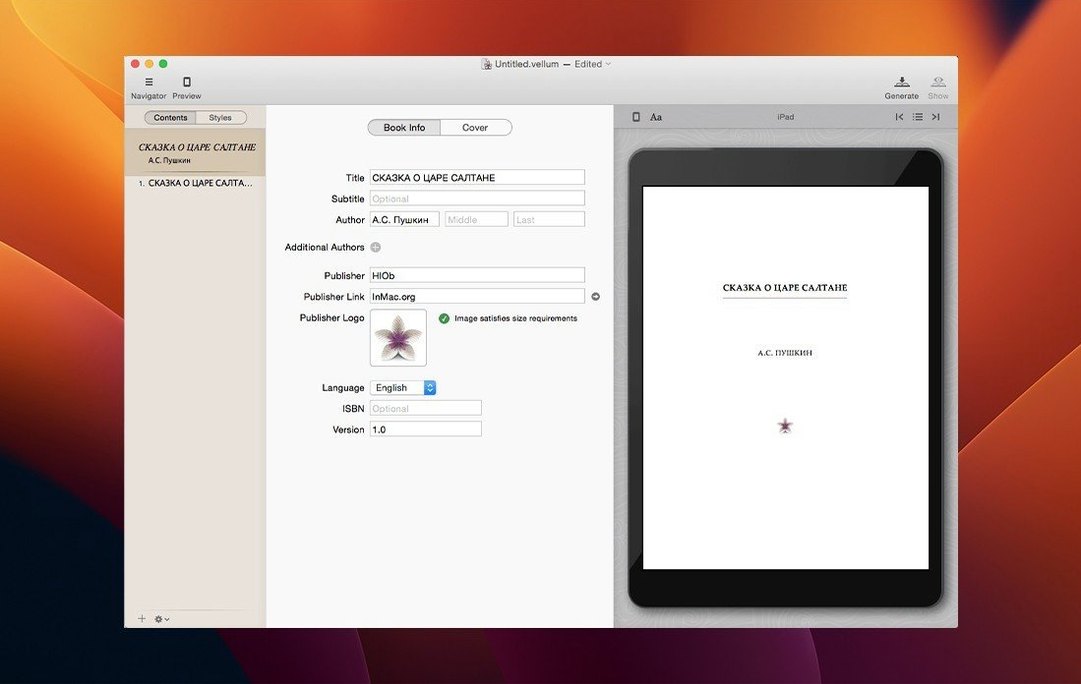
Import a manuscript and preview device layouts
Start by importing a manuscript and letting Vellum build the title page and table of contents automatically. Then click through the device previews — Kindle, Kobo, Apple Books, and others — to see how your typography and spacing behave on each screen. The preview updates instantly as you edit, so adjusting margins or fonts gives you immediate feedback.
Print and regeneration
If you plan a paperback, generate the print edition alongside the ebook. Vellum handles widows and spread balancing, so the page breaks look deliberate. After any change, regenerate the ebook files to keep everything in sync. You can even assemble multiple books into a boxed set from the same project.
Explore the built-in chapter style system
The first thing to do after opening Vellum is to spend a few minutes with the style system. Vellum ships with several built-in styles, and it applies one consistently to every chapter — including new ones you add later. Pick one that matches your genre or your personal taste, but do not treat it as permanent. You can switch styles at any point, and the preview will update across the whole book instantly. That is the quickest way to understand how much of the formatting is handled for you.
This time, look at the automatically generated title page and table of contents. Vellum creates these from your chapter headings and metadata. If the title page does not include a copyright notice, add one using the built-in copyright-page editor inside the app. It is a small panel that saves you from pasting boilerplate text from a separate document.
Set the trim size early if you plan a print edition. Vellum adjusts margins, page numbers, headers, and footers automatically when you select a different trim size, so there is no manual rework. Try a few sizes — 5 x 8 inches for a novel, 6 x 9 for non-fiction — and watch the page count change in the preview. That alone tells you whether your manuscript needs tightening or can breathe more.
Adjust default paragraph spacing first
Vellum keeps its settings minimal by design. Still, a few choices make a difference from the start:
- Default paragraph spacing. The built-in styles use standard indentation and spacing, but you can adjust the base style to use block paragraphs with a blank line between them, which some readers prefer on screens.
- Drop caps or no drop caps. Some styles enable drop caps on the first paragraph of each chapter. If that feels too decorative for your book, switch to a style without them, or modify the style to remove the drop cap rule.
- Chapter heading layout. You can choose between centred, left-aligned, or decorative chapter titles. The preview shows the effect immediately, so it is easy to compare three options in under a minute.
- Page numbering for print. Decide whether page numbers start on the first chapter or on the title page. Vellum handles the placement, but you choose the starting point.
None of these settings are buried in menus. They are visible in the style editor, which is one of the main panels in the app window. Once you set them, they apply to the entire book. You can still override individual elements later if needed, but the global approach saves time.
How Vellum compares with similar Mac apps
Several Mac apps aim at the same audience — authors and small publishers who need formatted ebooks and print editions without learning InDesign. Here is how Vellum positions itself among them.
Scrivener is a writing environment first. It handles outlining, research notes, and multiple drafts. Its compile function can generate ebooks, but the output requires careful tweaking of compile settings, stylesheets, and formatting presets. Vellum does not compete on writing features; it takes a finished manuscript and focuses entirely on the layout and export. For authors who prefer to write in Scrivener and format separately, Vellum accepts Scrivener's exported files as input.
Pages from Apple can export to ePub, and it is free. For a simple novel with no special formatting, it works. But Pages lacks dedicated ebook controls: no automatic table of contents generation based on heading styles, no device previews, no print-ready PDF with widow control. Vellum covers those gaps. If you have ever fought with Pages to get a consistent drop cap across chapters, Vellum feels like a relief.
Calibre is a powerful, free ebook management and conversion tool. It can convert almost any format to almost any other, and it includes an editor for manual tweaking. Calibre gives you full control, but that control comes with a steep learning curve and a non-native interface on macOS. Vellum is the opposite: it does fewer things, but those things are polished and immediate. For a one-book project, Calibre can feel like too much tool; Vellum is more contained.
Each app has its place. Vellum sits in the middle: more specialised than Pages, more automated than Calibre, and purely about formatting rather than writing like Scrivener.
Open a 280-page non-fiction project from the recent list
I open Vellum on a Tuesday morning. The project I worked on last week is still in the recent list — a 280-page non-fiction manuscript with ten chapters and a handful of images. I click it open.
The preview shows the print layout in a 6 x 9 inch trim size, two-page view. I notice that one image in chapter four has shifted slightly after I adjusted the margins last time. The preview updates instantly as I drag the image back into position. No recompile, no waiting.
I switch to the Kindle preview to check how the same image looks on a 6-inch screen. It is centred and scaled correctly. The chapter title style I chose last week — centred, small caps, a thin rule underneath — looks the same across all device previews, which is the point of a single style applied consistently.
I add a new chapter at the end of the manuscript. Vellum automatically applies the same heading style and body text style. I paste in the text, and the table of contents updates to include the new chapter title. I open the copyright-page editor and update the edition notice. That takes ten seconds.
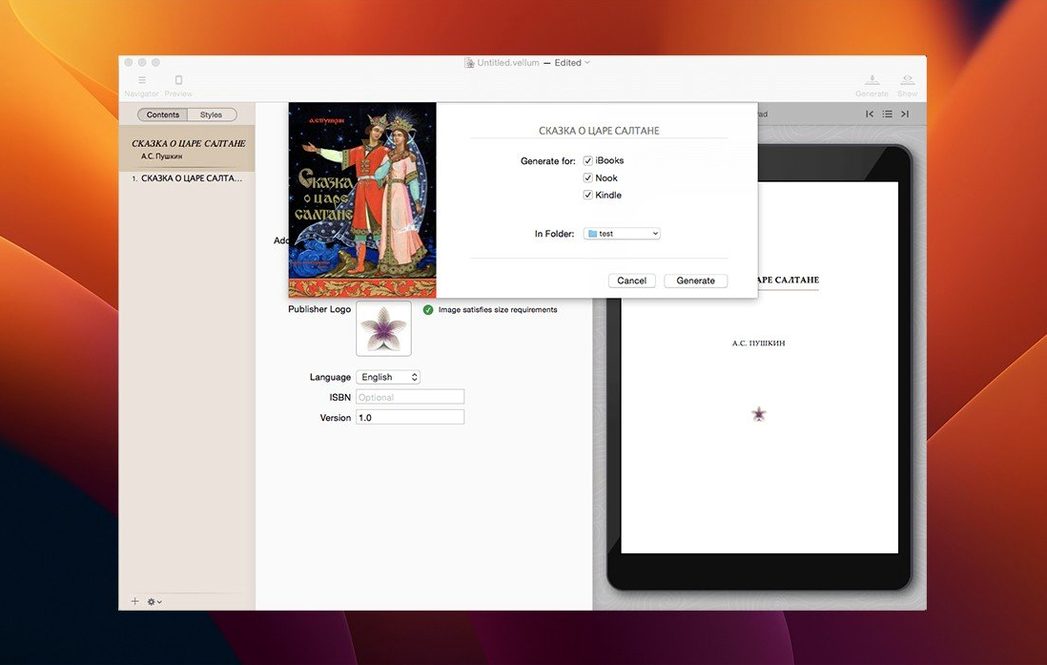
Finally, I generate the ebook files for Kindle and Apple Books. The app produces both from the same source in one go. I also generate the print PDF, which includes page numbers, running headers, and balanced spreads. I close Vellum. The session lasted maybe twenty minutes, most of it spent reading the preview rather than wrestling with settings.
Create a boxed set without merging files manually
Boxed sets are common in series fiction — three or four novels sold together as one ebook or print volume. Vellum handles this directly without merging files manually.
Start by creating a new project in Vellum and importing the first book's manuscript. The app builds the title page, table of contents, and chapter structure. Apply your chosen style and check the preview across devices. Once the first book looks right, add the second manuscript using Vellum's boxed set feature — it appears as a new section within the same project, with its own title page and chapter list.
Repeat for each book in the set. The table of contents now includes all chapters from all books, grouped by book. You can reorder the books by dragging them in the sidebar. The style applies uniformly, so every book in the set shares the same typography, margins, and heading layout.
For the print edition, Vellum handles page numbering across the entire set as one continuous book. Headers and footers adjust automatically. You can add a single copyright page for the whole set or keep separate copyright pages per book — the app gives you that choice per section.
When you generate the ebook, it produces one file containing all books. The Kindle and Apple Books previews show the complete set with a unified table of contents. The print PDF runs from the first book's opening page to the last book's closing page, with no manual stitching.
This workflow saves the headache of assembling individual epub files into a collection using external tools. It also means any later corrections — a typo in book two, a style change — are applied to the whole set when you regenerate. For an author preparing a trilogy or a publisher bundling a series, it cuts the process from hours to minutes.
Changes in this build
Vellum 4.2.1 has landed with no fanfare — a quiet update that keeps the ebook builder in line with the latest macOS builds.
Before it goes on the Mac
- macOS 14.6 or later
- Intel 64-bit
Questions from the room
Can Vellum create both ebooks and print editions?
Yes, it can generate ebook and print editions together from the same manuscript, with separate previews for each output.
Does Vellum support multiple ebook platforms?
It generates files for Kindle, Kobo, Apple Books, and other platforms, with device-specific previews so you can check each one.
Installing it on the Mac
- Mount the downloaded disk image.
- Drag the app into the Applications folder alias.
- Open the app from Launchpad once the copy finishes.
Notes from the control room
Sign in or open a catalogue account to leave a note.
No notes from the room yet. If you have used this build for a week, a short note helps the next person.