Home › Utilities › Parallels Desktop
Parallels Desktop 27.1.0 (Mac)
Updated
The catalogue note
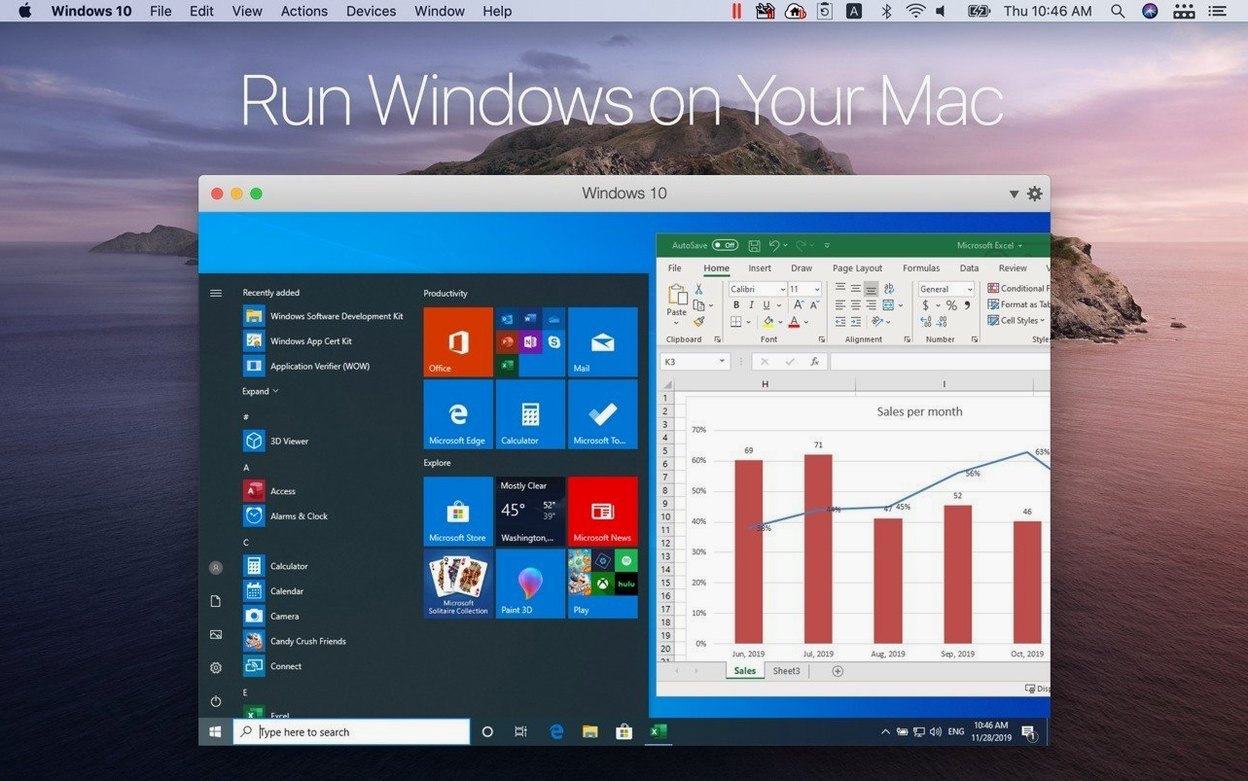
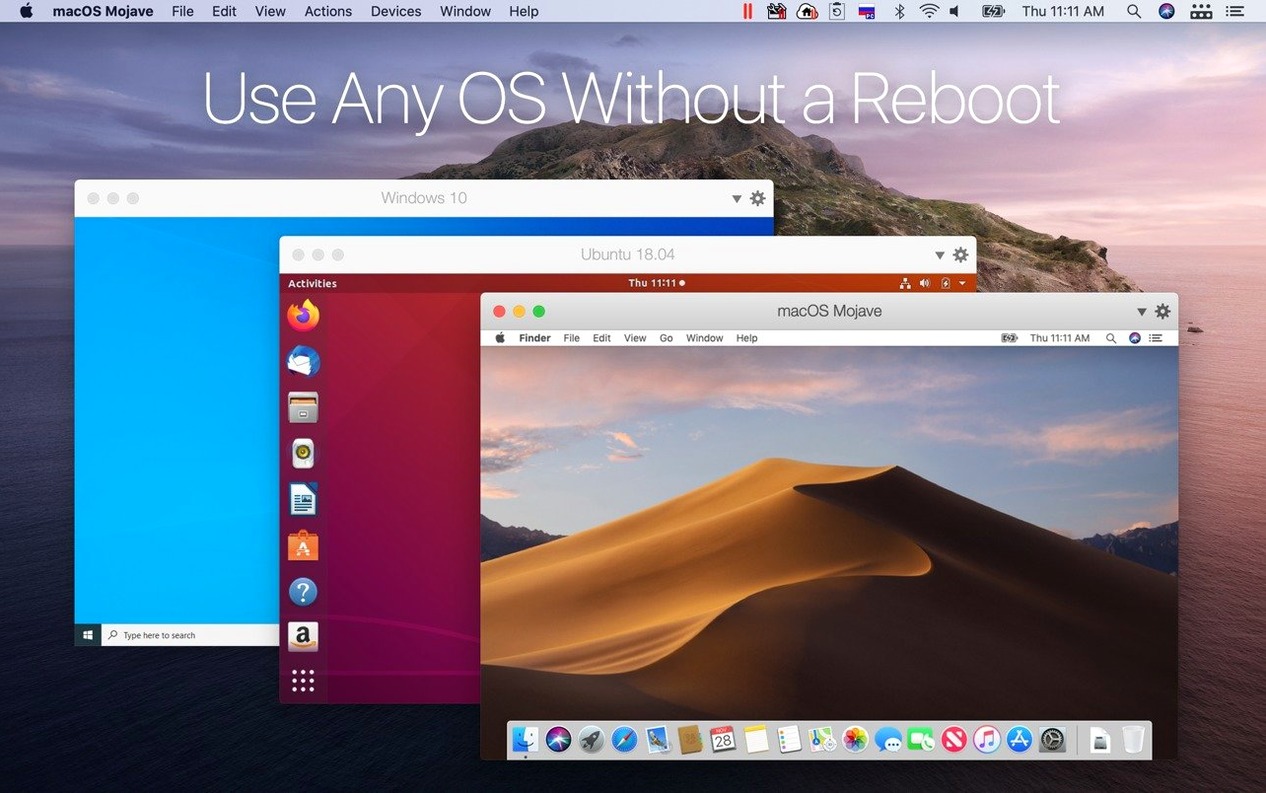
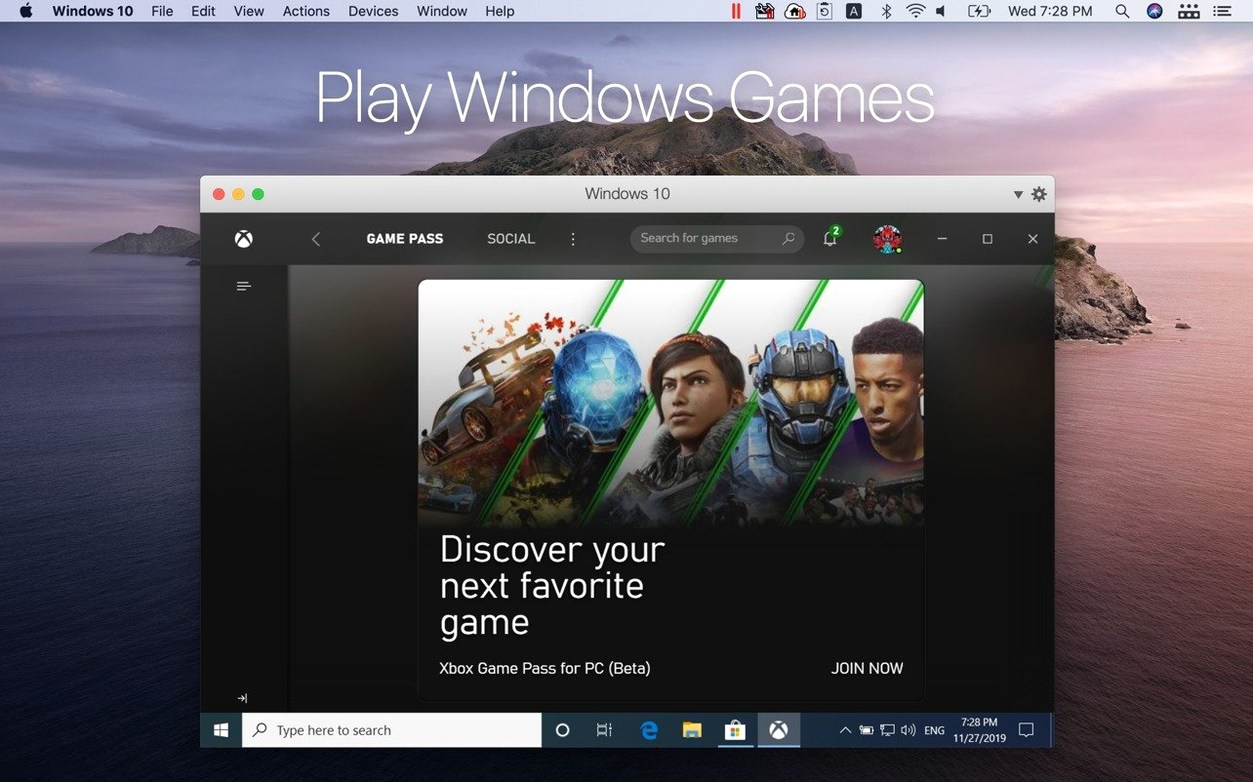
You need a Windows-only application on your Mac. Parallels Desktop 27 lets you run it without rebooting. Here is how one realistic task unfolds – installing and using a Windows app on a Mac with Apple silicon.
Task – install a Windows app and drag files between systems
Host system – macOS 26 or later. The guest can be Windows, Linux, Ubuntu, or (until version 27) Boot Camp. Version 27 removes Boot Camp support entirely.
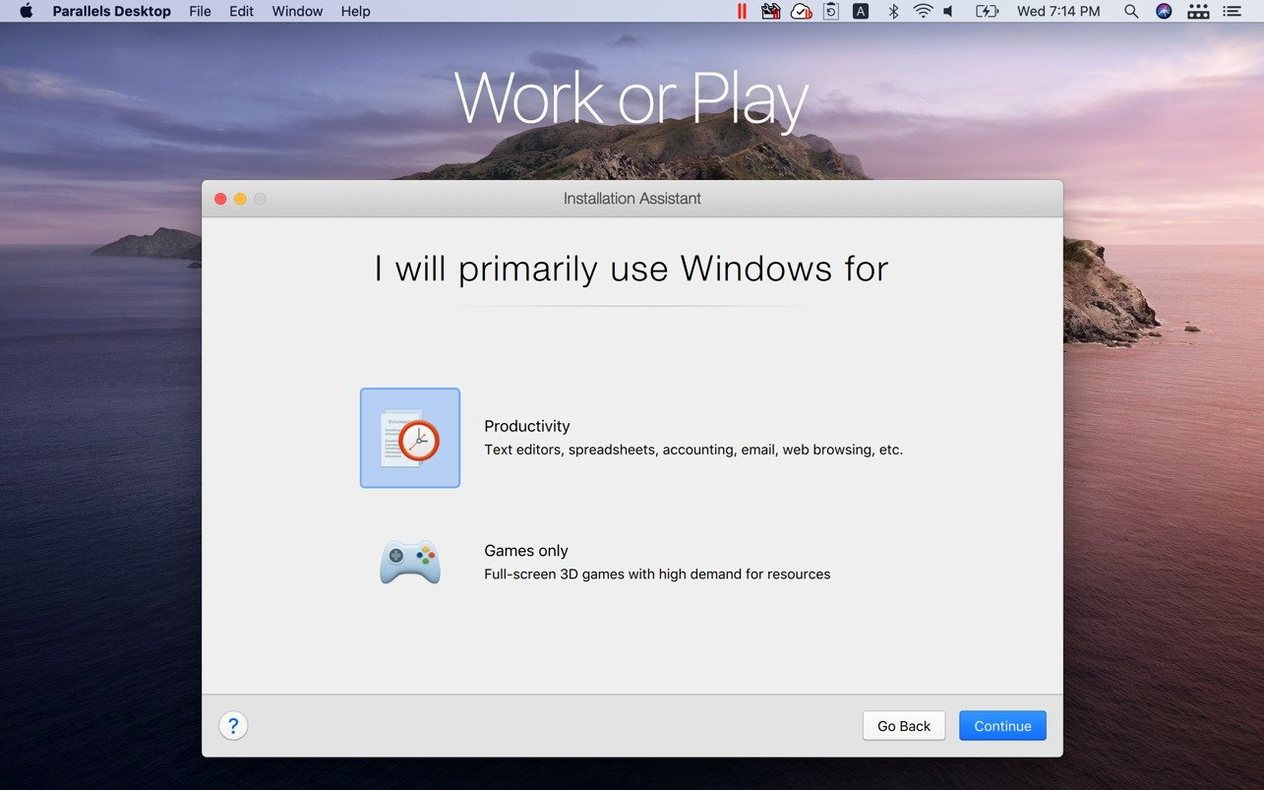
Setting up the virtual machine – after installing Parallels Desktop, you choose a guest OS from the assistant. For Windows on Apple silicon, Parallels Desktop is the first Microsoft-authorised solution; it handles ARM-based Windows builds correctly.
Installing the application – inside the VM, you install the Windows app normally. Once it runs, you can drag files directly from the Mac Finder into the Windows application window. No shared folders or network shares required.
ARM SystemReady certification – version 27.0.2 (58673) is certified as ARM SystemReady SR 3.1 (VE band). This means the virtual machine meets ARM’s own firmware and boot standards, which improves compatibility with ARM-based Linux distributions and Windows on ARM.
New guest OS support – out-of-the-box support now includes Ubuntu 26.04 LTS (ARM and x86_64 emulation), Fedora 44, Debian 13.6, and Kali Linux 2026.2.
Adjust these settings before installing any guest system
Out of the box, Parallels Desktop works. But a few adjustments make the difference between a usable VM and one that feels native. Here is what I change before installing any guest system.
Memory and CPU allocation
The assistant picks sensible defaults, but I reduce the CPU count by one or two cores from what the host can spare. On a Mac with Apple silicon, leaving at least two cores for macOS keeps the system responsive when the VM is busy. Memory is trickier: 4 GB is enough for a lightweight Linux desktop, 8 GB for Windows 11 on ARM. Going above 8 GB for a single VM rarely helps unless you run memory-heavy applications inside it.
Shared folders and clipboard
By default, Parallels Desktop shares your Mac home folder with the VM. I turn this off and only share the specific folders I need. The reason is simple – Windows Defender scans every file it sees, and scanning your entire home folder slows down both systems. For clipboard sharing between Mac and Windows, I keep it on. Copying text and images across systems is one of the features that saves real time.
Coherence mode settings
Coherence mode hides the Windows desktop and taskbar, showing only individual Windows application windows on the Mac desktop. Before enabling it, I set Windows to use a solid colour background (not the default wallpaper) and disable the Windows taskbar auto-hide. This prevents visual glitches when switching between Coherence and windowed mode.
Moving data between a Windows-only accounting app and Numbers on Mac
Let me walk through a session that mirrors what I do weekly. I run a Windows-only accounting package that has no macOS equivalent, and I need to move data between it and Numbers on the Mac.
1. Start the VM. I open Parallels Desktop from the Applications folder. The Windows 11 on ARM VM appears in the Control Center. One click starts it. The VM boots in about twenty seconds – roughly the same as a native Windows laptop.
2. Launch the Windows application. Inside the VM, I open the accounting software from the Windows Start menu. The application window appears inside the Parallels window. I resize it to fill about half my Mac display.
3. Switch to Coherence mode. From the Parallels menu bar icon, I select "Coherence". The Windows desktop disappears. Now the accounting software has its own window on the Mac desktop, with a standard Mac window title bar. The application's menu bar still shows Windows-style menus, but I can move and resize the window exactly like a Mac app.
4. Transfer data between systems. I export a report from the accounting software as a CSV file. Back in macOS, I open Numbers. I drag the CSV file from the Windows application's export dialog straight onto the Numbers window. Parallels Desktop handles the file transfer. I can also copy text from the Windows app (Command-C works) and paste it into a Numbers cell (Command-V). Both directions work.
5. In the Windows application's file open dialog, I navigate to the shared folder that maps to my Mac's Documents directory. The file is there, ready to use. No network shares, no cloud uploads.
6. Shut down. When I finish, I close the Windows application and suspend the VM from the Parallels menu. Suspending saves the VM state and uses no CPU. Restarting later takes about five seconds.
Parallels Desktop vs. VMware Fusion and UTM for running Windows on Mac
Parallels Desktop is not the only way to run Windows on a Mac. Here is how it stacks up against two alternatives.
VMware Fusion
VMware Fusion offers similar functionality – run Windows and Linux VMs on Apple silicon Macs. Both products support ARM-based guest operating systems and shared folders. The main difference is integration depth. Parallels Desktop's Coherence mode is more polished; VMware Fusion's Unity mode works but feels less refined. Parallels Desktop also includes tighter integration with macOS features like the menu bar and Dock. For users who need Windows apps to feel like Mac apps, Parallels Desktop has the edge.
UTM
UTM is a free, open-source virtualization tool based on QEMU. It supports a wider range of guest architectures, including x86_64 emulation on Apple silicon. UTM is more flexible but requires more manual configuration. Setting up shared folders, clipboard sharing, and USB passthrough takes extra steps. Parallels Desktop automates these tasks. UTM is a good choice for tinkerers and developers who need non-ARM guests; Parallels Desktop suits users who want a turnkey solution for running Windows applications.
Version 27 dropped Intel Mac support and changed daily workflow
Version 27 of Parallels Desktop brought two significant changes that affect daily workflow.
- Removal of Intel Mac support. If you still use an Intel Mac, you cannot install version 27. The final version that supported Intel Macs was version 26. For users on Apple silicon, this means the development team focuses entirely on ARM optimization – no legacy code paths to maintain.
- Removal of Boot Camp support. Version 27 no longer supports Boot Camp virtual machines. Users who previously converted their Boot Camp installation to a Parallels VM must keep version 26 or recreate the VM from scratch using a Windows on ARM installation. This change simplifies the product but breaks an upgrade path some relied on.
Version 27.0.2 (58673) adds stability and security fixes. In practice, this means fewer unexpected VM crashes and better handling of macOS security updates. The ARM SystemReady SR 3.1 certification improves boot reliability for ARM Linux distributions – particularly relevant if you run Ubuntu or Fedora as a guest.
Testing old Windows VST2 plugins in a Windows 11 on ARM VM
I work as a sound engineer. Many audio plugins for Windows – particularly older VST2 instruments and effects – never received macOS versions. I keep a Windows 11 on ARM VM inside Parallels Desktop specifically for testing these plugins.
The workflow is straightforward. I install the Windows version of a DAW (Reaper in my case) inside the VM. I copy the plugin DLL files to the VST folder. The DAW scans and loads them. I route audio from the Mac's audio interface through Parallels Desktop's audio driver, which passes it to the Windows DAW. The latency is higher than native – about 20 milliseconds – but it is acceptable for testing and preset editing.
For actual mixing, I run native macOS plugins. But for that one obscure compressor plugin from 2008 that only exists as a Windows VST, Parallels Desktop is the only way to use it on a Mac. The shared clipboard lets me copy preset values between the Windows plugin and macOS text editors. Without Parallels Desktop, that plugin would be unusable.
Changes in this build
Build 27.1.0-58756 has landed. The full release notes sit over at kb.parallels.com, so you'll want to check there for the precise list of adjustments — particularly around macOS 26 compatibility and Apple Silicon handling.
Before it goes on the Mac
- macOS: 26 or later
- Architecture: Apple Silicon only
Questions from the room
Can I still use Boot Camp with Parallels Desktop 27?
No. Support for Boot Camp was removed in version 27. You can run Windows, Linux, or macOS as guest systems, but not a Boot Camp partition.
Does Parallels Desktop 27 work on Intel Macs?
No. The source data lists macOS 26 as minimum and architecture as Apple Silicon only.
What interface languages are available?
Russian, English, German, Spanish, Italian, Simplified Chinese, French, and Japanese.
Installing it on the Mac
- Mount the downloaded disk image.
- Run the standard installation procedure.
Notes from the control room
Sign in or open a catalogue account to leave a note.
No notes from the room yet. If you have used this build for a week, a short note helps the next person.