Home › Utilities › Path Finder

Path Finder 26.1.10 (Mac)
Updated
The catalogue note
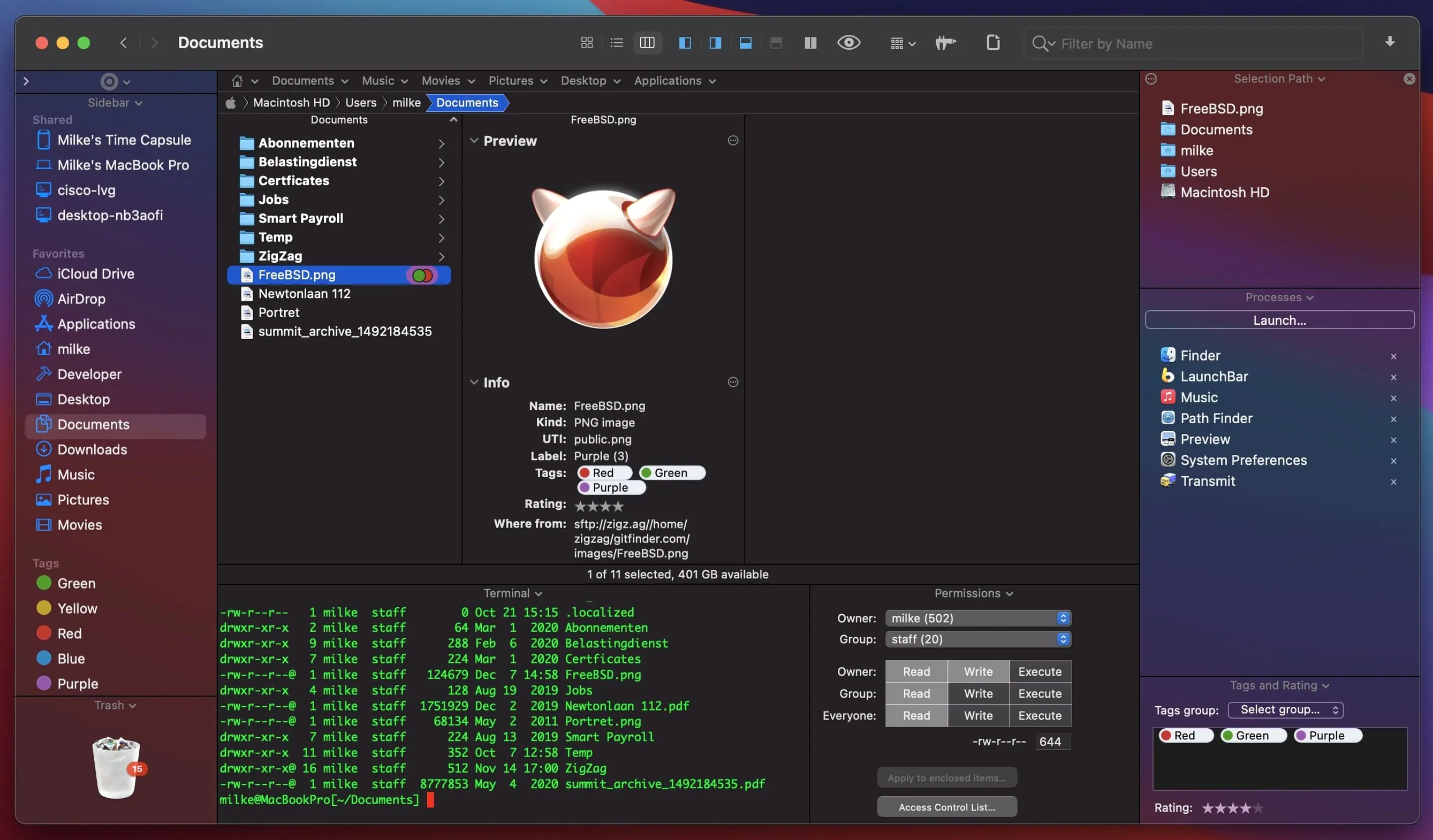
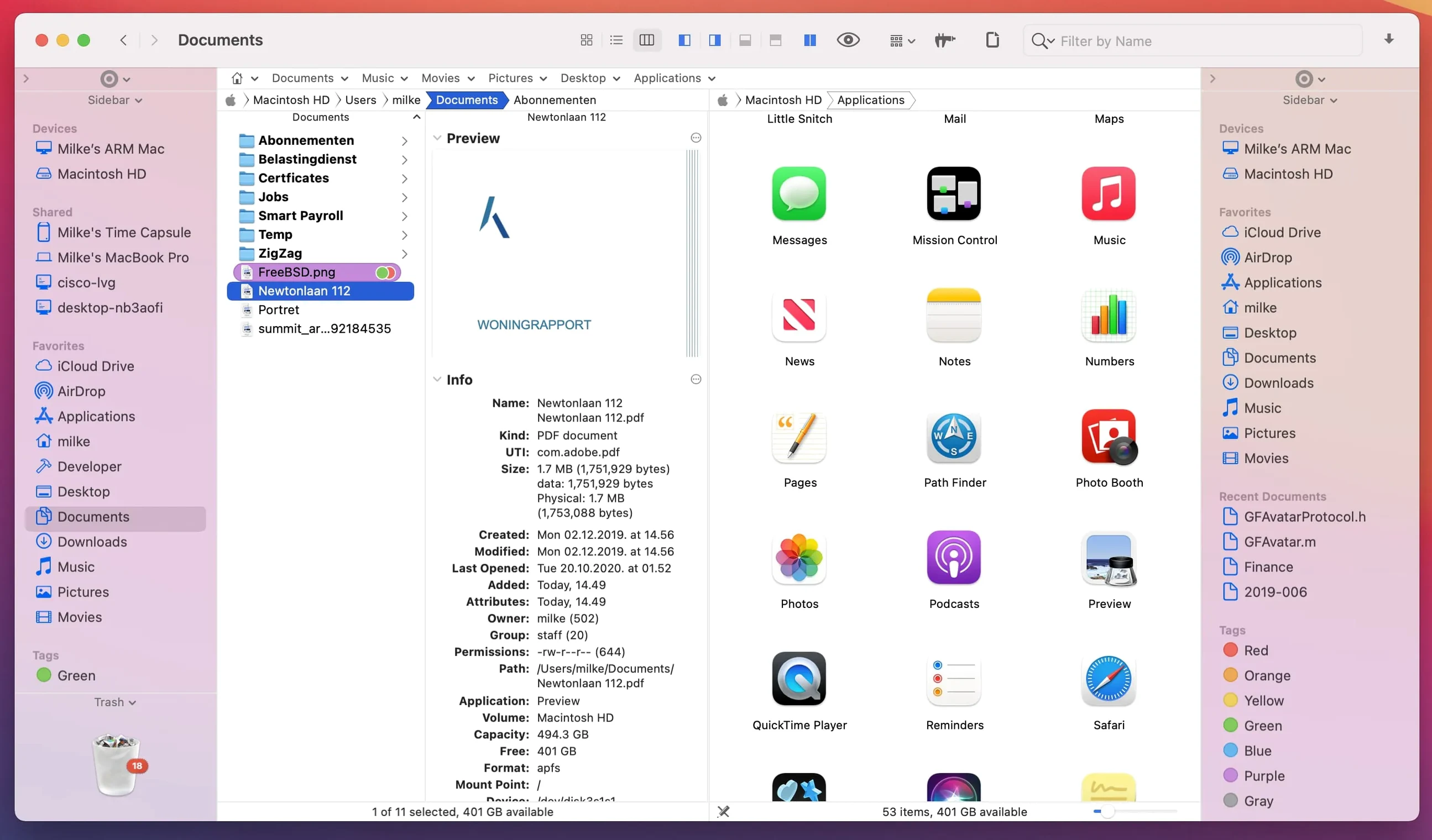
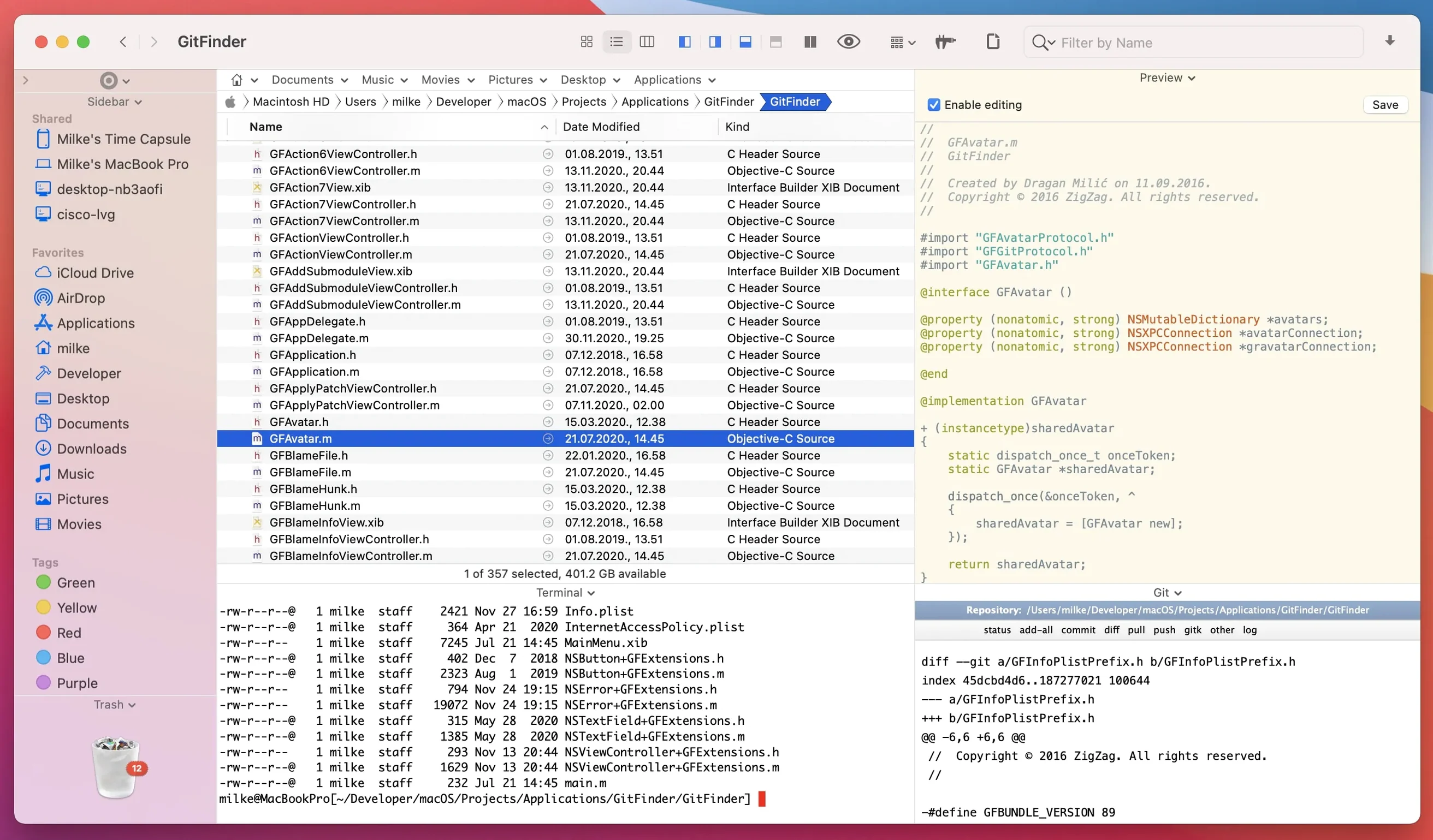
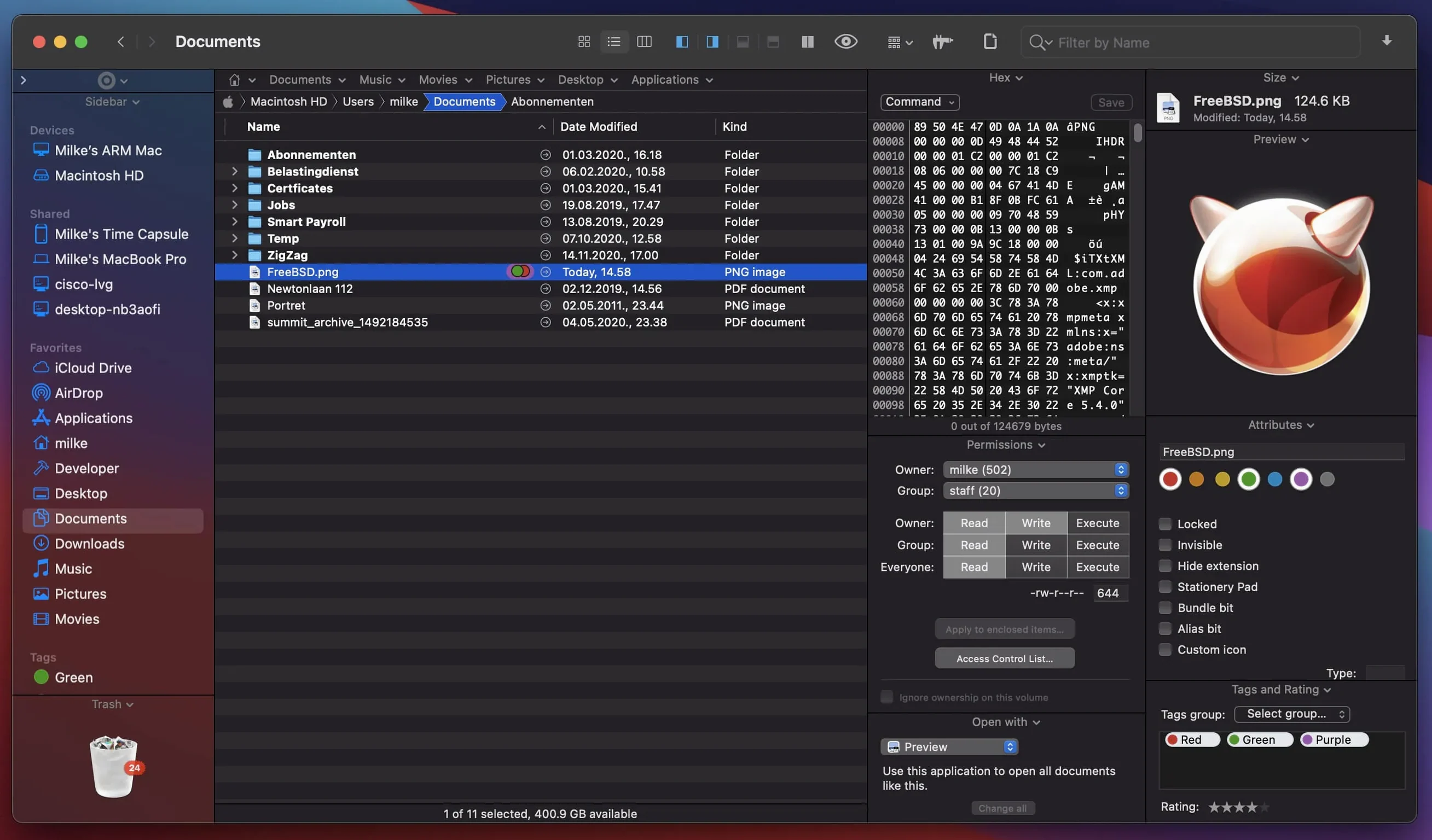
The dual-pane view is the first thing I check in any file manager, and Path Finder handles it properly. Two folders side by side, drag between them, and the tabs sit above each pane. It is a working environment for moving files around, not just a prettier Finder.
People who live in two folders and want drag-and-drop between panes
- People who live in two folders at once and want drag-and-drop between panes.
- Searching by keyword, extension, or type when Finder's spotlight is not enough.
- Handling archives without launching a separate app.
- Installing and uninstalling applications, including cleaning up leftover files.
- Quick disc image conversion for CD, DVD, and Blu-ray images.
- Browsing remote folders through the built-in FTP client.
- Customising system hotkeys to match your muscle memory.
Dense interface with many options that needs initial setup
- It is a utility, not a replacement for Finder's system integration; some macOS features may still route through Finder.
- The interface is dense. There are many options, and the first session will involve some setup.
- You may need to adjust Gatekeeper settings during installation, which is normal for third-party Mac apps.
Runs on macOS 13 Ventura or later on Intel and Apple Silicon
Path Finder 26.1.9 runs on any Mac with macOS 13 Ventura or later, covering both Intel (x86 64-bit) and Apple Silicon machines. The installer arrives as a disk image; you mount it, drag the application to your Applications folder, and open it. No Rosetta dependencies are listed, so the native Apple Silicon build should behave like any modern Mac app.
The application ships in nineteen languages, from English and German through to Korean, Polish and both Simplified and Traditional Chinese. That breadth suggests a team that expects a genuinely international user base, not a token localisation.
Lives alongside Finder but system dialogues still use the standard sheet
Path Finder lives alongside the regular Finder rather than replacing it entirely. Some macOS system dialogues — the ones that open when an app asks for a file — still call the standard Finder sheet. That is not a flaw; it is how macOS works. What Path Finder does is give you a richer workspace for the file management tasks you control directly.
- FTP client: The built-in FTP module means you can connect to a remote server without launching FileZilla, Transmit, or Cyberduck. Handy for quick uploads or editing files on a web host.
- Archive handling: Unpack and create archives without the Unarchiver or Keka. The tool handles common formats inside the same window.
- Process management: You can view and quit misbehaving processes, overlapping with what Activity Monitor does. Useful when you are already in a file-manager workflow and do not want to switch apps.
- Application installer/uninstaller: Installing an app from a .dmg is one thing; uninstalling and removing its plists, caches, and support folders is another. Path Finder bundles both actions.
- Disc image conversion: Convert CD, DVD, or Blu-ray images between formats. That is a niche tool, but when you need it, you do not want to hunt for a separate utility.
- System hotkeys: Remap keyboard shortcuts at the system level from within the app. This overlaps with third-party tools like Karabiner-Elements, but keeps the configuration in one place if you are already using Path Finder.
- Preview panel: The previewer handles documents, audio, and video files. It works like Quick Look but lives inside the file manager window, letting you browse through files without opening them in separate apps.
For anyone who already uses cocoatech path finder as their daily driver, the release notes for version 26.1.9 show the kind of polish you expect: fixed batch rename limits, corrected drag-and-drop animations, and label badge rendering in icon and list views. These are not headline features, but they matter when you work in the app for hours.
Two panes side by side for moving audio stems from Downloads to a project folder
Tuesday morning. I open Path Finder and see two panes side by side. The left pane shows a project folder from yesterday; the right pane is a Downloads directory full of reference audio stems.
I select six WAV files in the right pane, switch the preview panel to waveform view, and listen to a couple of them to confirm they are the right takes. No need to open QuickTime or Audacity. Satisfied, I drag them across to the left pane — the dual-pane layout means the destination is visible the whole time.
Halfway through the transfer, I realise the filenames are inconsistent. I select all six, open the batch rename tool, and rename them with a project prefix and a three-digit counter. The tool completes without hitting the old 31-file limit that version 26.1.9 specifically fixed.
A colleague emails me a ZIP archive of session notes. I right-click it in the right pane and choose "Extract here" from the archive module. The contents appear in a new subfolder instantly.
Later, I need to upload a mix to a client server. Instead of opening a dedicated FTP app, I use Path Finder's built-in FTP client directly from the toolbar. The remote folder mounts as if it were a local volume. I drag the mix file across.
Before lunch, I notice an old app I no longer use. I select it in the Applications folder, choose the uninstall module, and let Path Finder scan for its support files. It finds three caches and a preference file in ~/Library. I delete them all in one pass.
That session is not unusual. The app stays open all day, and I rarely touch the regular Finder. If you search for path finder mac or path finder 11 out of curiosity, you will find a long history of this tool evolving — version 26.1.9 is simply the current, stable iteration of that same idea.
Changes in this build
- Fixed double-click behaviour when clicking an icon in List View.
- Fixed a batch rename limitation affecting 31 renamed files.
- Fixed multiple-item selection in List View.
- Fixed label/tag colour badges and iCloud status/download icons in Icons, List, and Columns views.
- Fixed drag-and-drop selection drawing in Icons View.
- Fixed drag-and-drop cancellation slide-back animation in all view types.
- Fixed menu item icons on macOS 27 Golden Gate.
- Fixed minor UI and compatibility issues on macOS 27 Golden Gate.
Before it goes on the Mac
- macOS 13 Ventura or later
- Apple Silicon or Intel
- Interface languages: English, German, French, Spanish, Italian, Portuguese, Dutch, Polish, Russian, Czech, Slovak, Swedish, Finnish, Danish, Norwegian, Japanese, Korean, Traditional Chinese, Simplified Chinese
Installing it on the Mac
- Mount the disk image, then run
Open Gatekeeper friendly. - Press Enter in Terminal to bypass Gatekeeper.
- Drag the app to the Applications folder.
- Open the app when installation is complete.
Notes from the control room
Sign in or open a catalogue account to leave a note.
No notes from the room yet. If you have used this build for a week, a short note helps the next person.