One Switch 1.35.4 (Mac)
Updated
The catalogue note
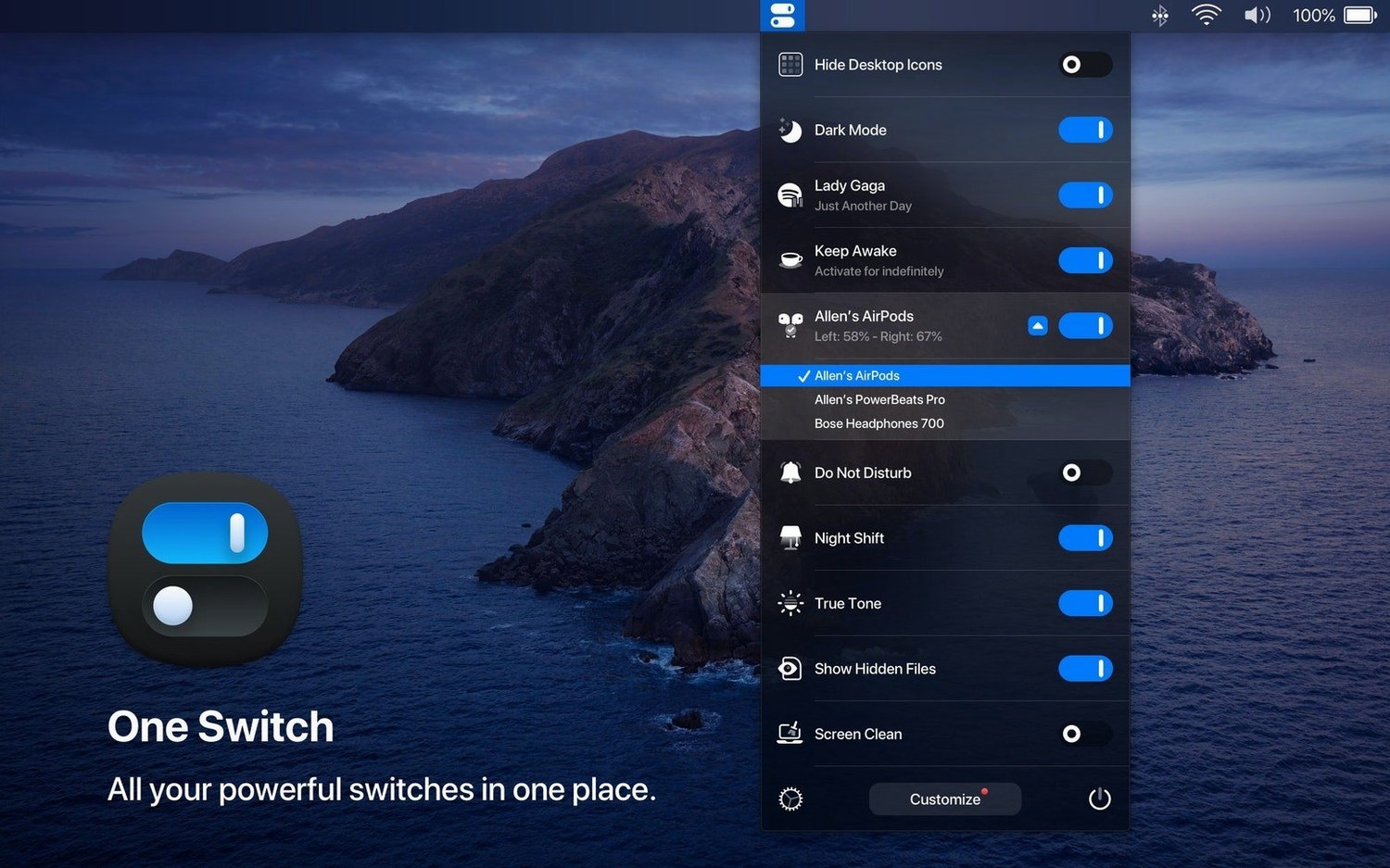
If you've ever juggled several menu bar utilities for toggling Dark Mode, hiding desktop icons, or connecting AirPods, One Switch consolidates those into one position rotary switch. The current version, 1.35.4, keeps the core idea intact while adding a layer of polish.
Menu bar app with quick system toggles
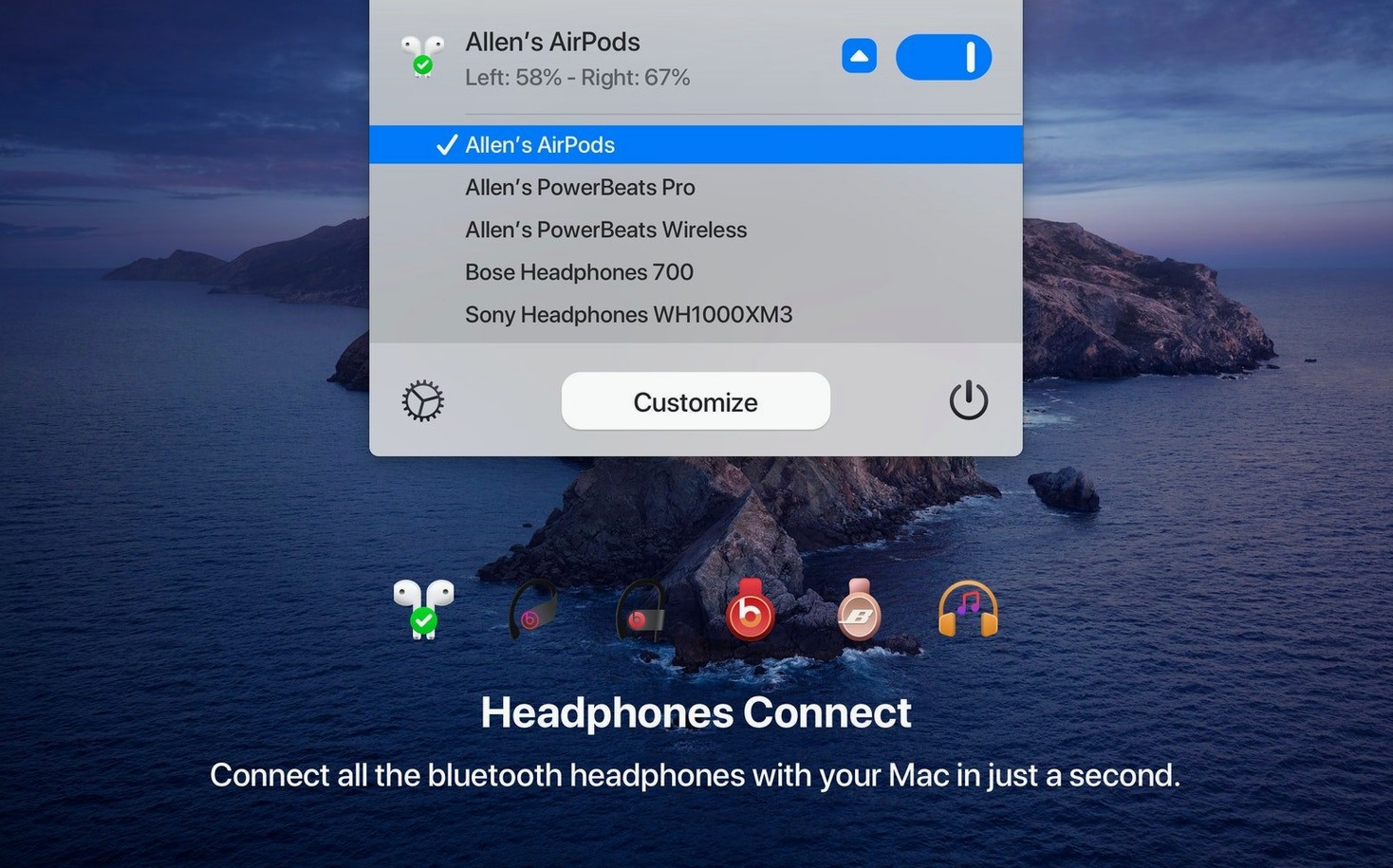
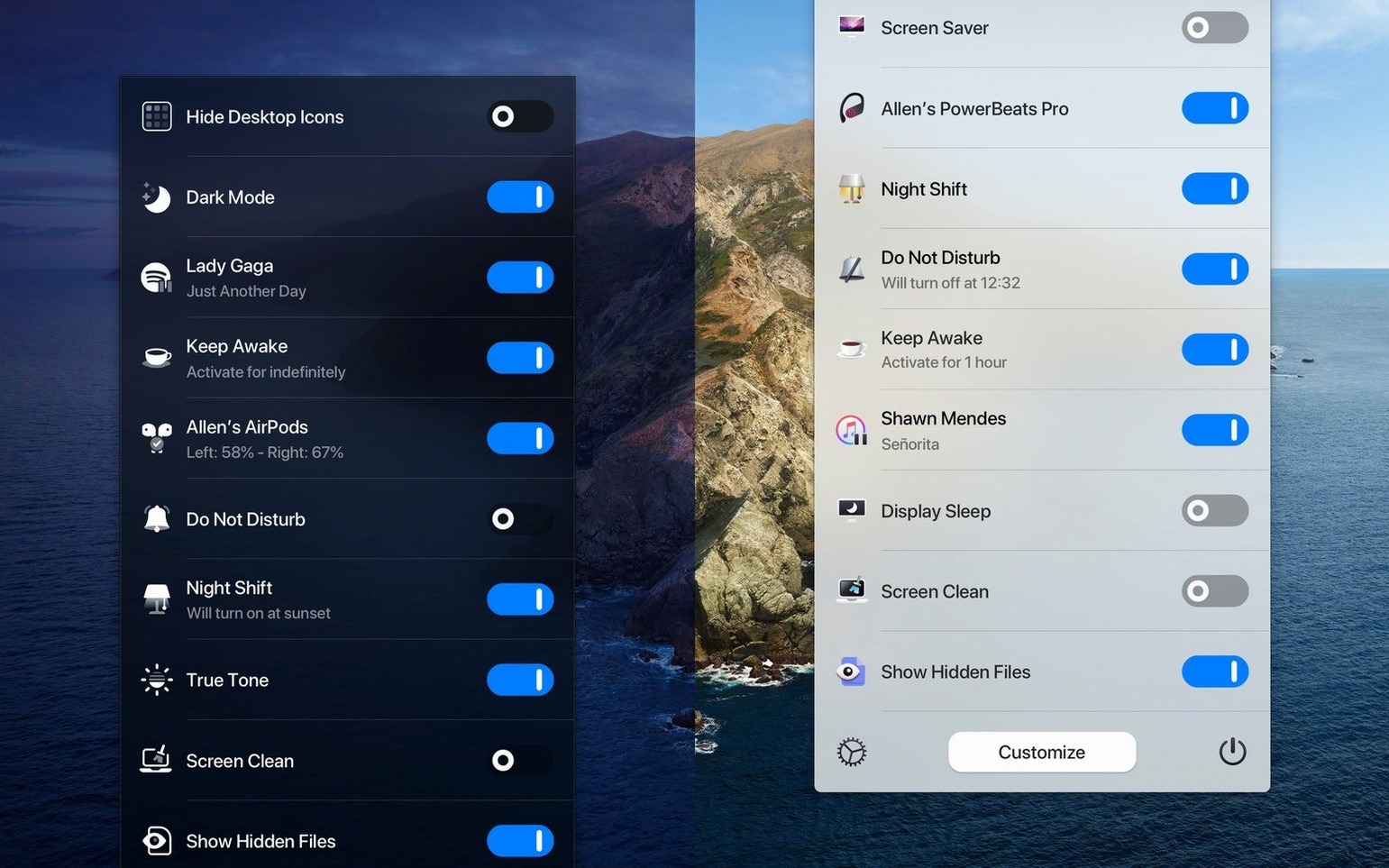
The app still lives in the menu bar, offering quick switches for common system actions. You can send the Mac to sleep, set automatic sleep and wake times, and hide or show desktop icons. AirPods connection is one tap away. What hasn't changed is the ability to customise which switches appear, so you can disable the ones you rarely use and keep the menu bar tidy.
Multilingual support now available
The headline change is multilingual support. Alongside English, the interface now speaks German, Italian, Japanese, Korean, Portuguese, Russian, and Spanish. The update is listed for macOS 10.15 and later, running on both Intel and Apple Silicon. If you've been relying on One Switch as your system control hub, this version simply makes it more accessible to a wider audience.
Up to seven switches visible at once
One Switch has a few details that don't get mentioned in the feature list but become noticeable after a week of use. The app supports up to seven switches at the same time, which is enough for most setups without cluttering the menu bar. The order of those switches can be rearranged, letting you put the ones you use most at the top of the popover. There is no visual indicator that reordering is possible — you just drag them.
The Do Not Disturb switch works with macOS's own scheduling, so if you already have a focus mode set up, the toggle respects it rather than fighting it. The screen saver start button does exactly one thing, no sub-menus. The automatic appearance scheduling uses the system's sunset and sunrise data, not a custom time, which avoids one more thing to configure. None of these are advertised heavily, but they reduce friction.
How it differs from other Mac toggles
One Switch versus Shortcuts automations
macOS Shortcuts can toggle Dark Mode, hide desktop icons, and set Do Not Disturb, but each action requires building a shortcut, adding it to the menu bar or a keyboard shortcut, and managing separate triggers. One Switch gives you all of those toggles in one popover without any setup. The trade-off is that Shortcuts can chain actions together; One Switch cannot run a sequence of switches. If you only need individual toggles, One Switch is faster to reach.
One Switch versus vanilla system menus
Apple provides Control Centre and the menu bar extras for Wi-Fi, Bluetooth, display, and sound. Hiding desktop icons and starting the screen saver are not part of that set. You would need a separate utility or a keyboard shortcut for each. One Switch bundles those missing controls alongside the standard ones. The downside is that you are adding a third-party app for something Apple could have included. The upside is that it works the same way on every Mac you install it on.
One Switch versus dedicated toggle apps
Apps like NightOwl (Dark Mode only) or HiddenMe (desktop icons only) do one job and do it well. One Switch replaces several of those single-purpose apps, which reduces the number of menu bar icons and background processes. The limitation is that if you need a very specific toggle — like disabling Wi-Fi while keeping Bluetooth on — a dedicated app might offer more granularity. One Switch keeps its switches simple.
Video editor's start-of-session routine
A video editor working on a MacBook Pro in a shared studio has a routine. At the start of the session, they hide desktop icons to keep the screen clean, turn on Do Not Disturb to avoid notifications during cuts, and connect AirPods for monitoring. At the end, they set the Mac to sleep after thirty minutes of inactivity via the automatic sleep and wake schedule. Without One Switch, that sequence means opening System Settings three times and clicking through sub-menus. With One Switch, it is three clicks in the menu bar popover. The editor keeps the app configured to show only those four switches — Dark Mode is not needed because the timeline is bright — and the menu bar stays sparse.
Crowded popover from enabling every switch
The most common error is installing the app and leaving every switch enabled. One Switch defaults to showing all available toggles, and beginners assume that is the only layout. The result is a popover that feels crowded, with switches like Screen Saver or AirPods that they never use. The fix is to open the preferences and disable anything irrelevant. The app remembers the selection, and the popover becomes much quicker to scan.
Another mistake is not realising that the automatic sleep and wake times override the system's own Energy Saver settings. Beginners set a schedule in One Switch and a different one in System Settings, then wonder why the Mac wakes at the wrong hour. One Switch's schedule works independently; you need to choose one or the other.
It does not. It only connects to previously paired AirPods. If the AirPods have never been paired with that Mac, the switch does nothing. That is not a bug, but it catches people who assume it works like the Bluetooth menu.
Lastly, the appearance automation (Light and Dark mode during the day) uses the system's location-based sunrise and sunset. If location services are off for the system, the automation falls back to a fixed schedule that may not match your actual daylight. Beginners turn it on, see no change, and assume the feature is broken. Enabling location services for the system in Privacy & Security settings resolves it.
Changes in this build
- Added multilingual support: German, Italian, Japanese, Korean, Portuguese, Russian, and Spanish.
- Version 1.35.4 listed on the app page.
Before it goes on the Mac
- macOS 10.15 or later
- Intel or Apple Silicon
- Interface language: English
Installing it on the Mac
- Mount the downloaded disk image.
- Drag the app into the Applications folder alias.
- After copying finishes, launch the app from Launchpad.
Notes from the control room
Sign in or open a catalogue account to leave a note.
No notes from the room yet. If you have used this build for a week, a short note helps the next person.