Updated
The catalogue note
You know that moment when a package won't install, or you just want one file out of it without committing to the whole thing? That's where Pacifist earns its keep.
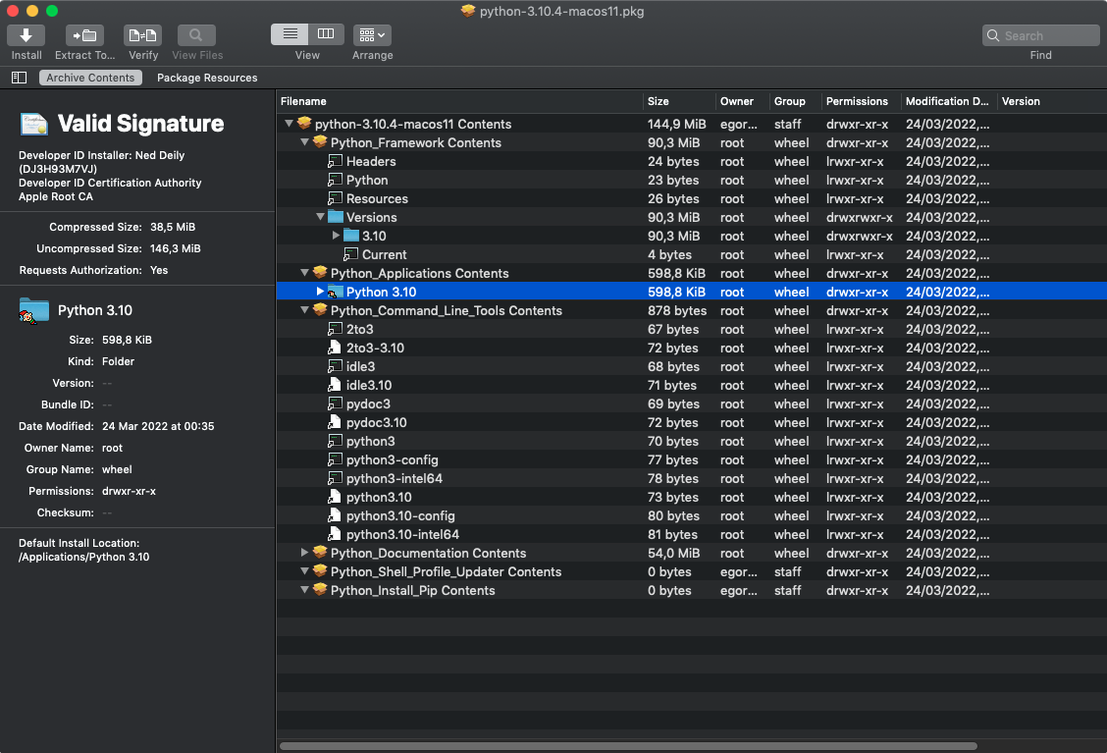
How does Pacifist open a .pkg without installing it?
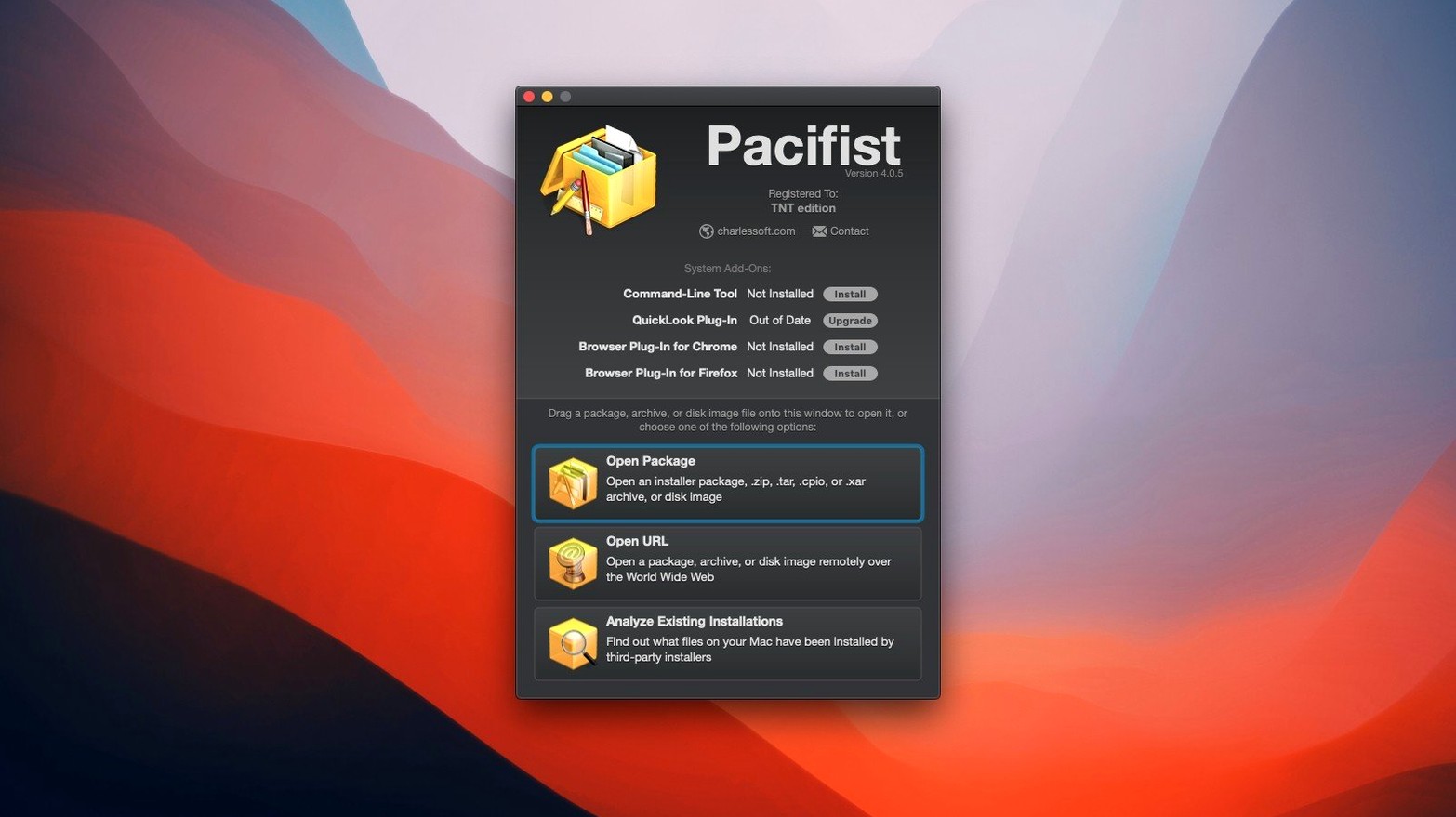
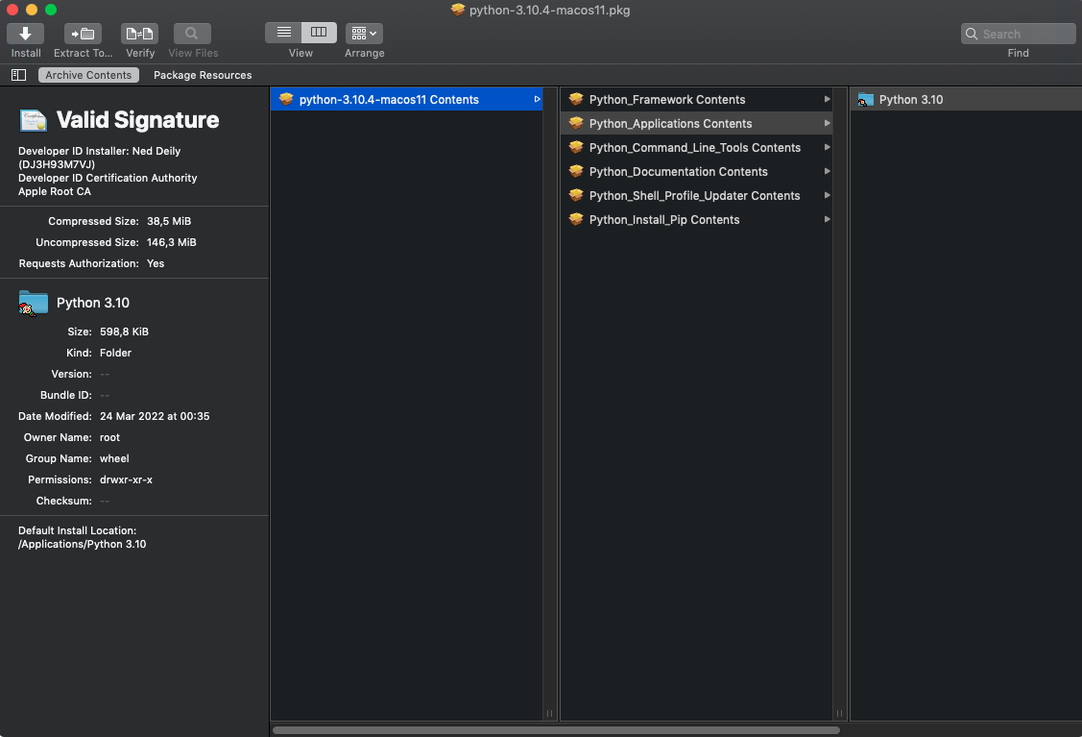
Just drop the package onto the Pacifist window. It lists every component — payload, scripts, even the installer's metadata — and you can extract anything to a folder of your choosing.
Can you check an installed app for missing files?
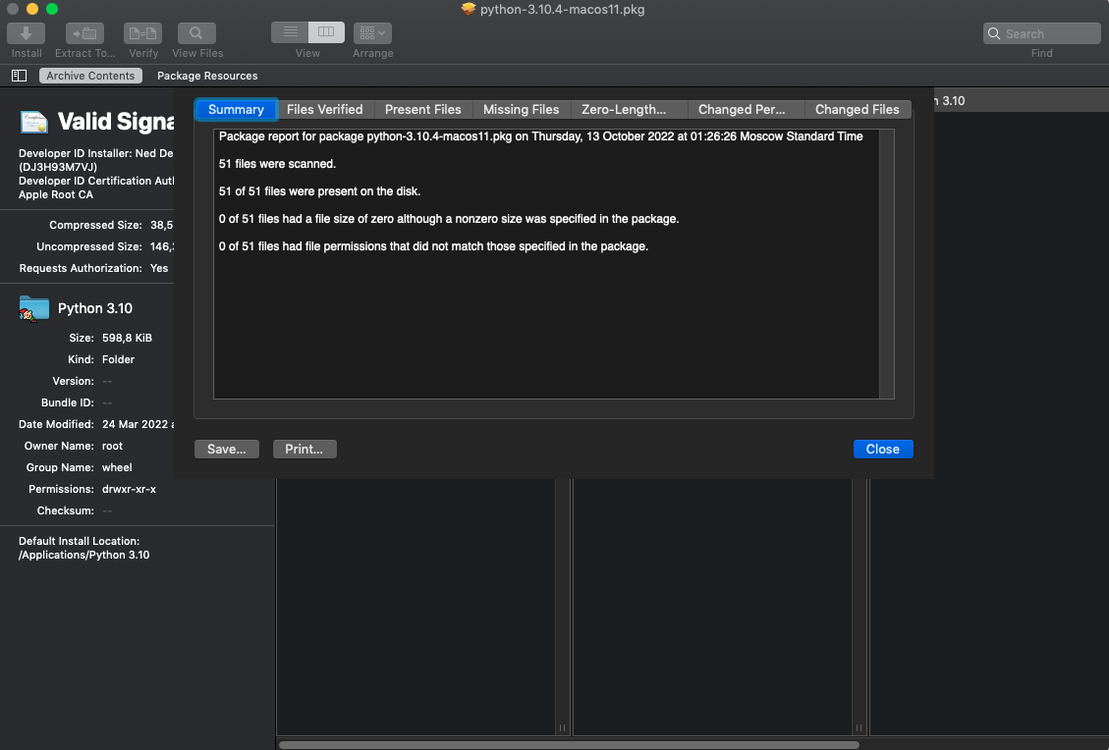
Yes. Point Pacifist at the original package and it compares what's on disk against what should be there. Handy after a botched update or a manual deletion.
What about kernel extensions?
Pacifist identifies which installer placed each kext and whether it's an Apple or third-party one. Useful before you disable SIP for any reason.
Pull missing files from original installers without redeploying
System administrators and IT support staff benefit daily. When a remote machine is missing a framework or a preference pane, you can pull the exact file from the original installer package and push it over without re-running the whole deployment. Developers also find it useful — extracting assets from .xcarchive or .pkg builds without launching Xcode or a full installer is faster when you only need a single library or icon set.
Power users who maintain older Macs or custom installs will appreciate the control. If you keep local copies of macOS installer packages for offline reinstalls, Pacifist gives you surgical access to individual components. The same applies to anyone who has ever deleted a system file by accident and needs to restore it from the original package without reinstalling the OS.
For home users, the value shows up in specific scenarios: recovering a lost printer driver from a downloaded .pkg, extracting a single audio codec from an archive, or inspecting what a package will do before double-clicking the installer. It is a utility you reach for a few times a year, but those times are precisely the ones where a full reinstall would be wasteful.
Avoid boot failures by extracting to a temp folder first
- Extracting to the system location without verifying the destination. If you extract a file to
/System/Libraryand it replaces a signed component, macOS may refuse to boot or the app may crash. Always extract to a temporary folder first, then move the file manually. - Thinking it replaces the normal installer. Pacifist extracts files; it does not run post-install scripts. Some packages need those scripts to register components or set permissions. If you skip the installer, the extracted files may not work correctly.
- Forgetting about SIP. Opening certain installer packages or extracting files to protected locations may require disabling System Integrity Protection temporarily. Beginners often wonder why the extraction fails silently — check SIP status first.
- Using it on a running system for system files. If you extract a kernel extension while SIP is disabled and the system is live, you risk instability. The safer route is to extract to a separate volume or use Recovery mode.
Basic extraction works on macOS Ventura and newer
Does Pacifist work with macOS Ventura or newer? The current version 4.1.4 is listed for macOS 10.15 through 11.x, but it can run on macOS 10.14.6 or later. Users on newer versions have reported that basic extraction still works, though some package formats introduced after Big Sur may not be fully supported.
Can Pacifist open .dmg files that are encrypted? It can open standard .dmg images, but encrypted disk images require the password to mount first. Once mounted, Pacifist sees the contents as a normal volume. For encrypted archives like .zip with a password, you need to decrypt them separately first.
Will it interfere with existing software? No. Pacifist does not install background services or modify system files during its own operation. It reads package data and writes files only where you tell it to. The only system-level change is the initial Gatekeeper bypass during installation.
Do I need to disable SIP permanently? No. SIP only needs to be off while you install Pacifist itself, because the app is not notarised. After that, you can re-enable SIP. If you later extract files to protected locations, you may need to disable SIP again temporarily, but day-to-day use with user folders or non-system destinations requires no SIP changes.
Test extraction on a non-critical package first
- Test on a non-critical package first. Download a small .pkg from a trusted source — a driver or a font installer — and extract a single file to your desktop. Verify the file opens correctly. This builds confidence before you touch anything important.
- Enable the Quick Look plugin if you need it. The TNT release has the Quick Look plugin disabled by default. If you want previews of .pkg contents in Finder, you may need to activate it manually or use an alternative method.
- Keep a copy of the original installer package. Pacifist is an extraction tool — it does not modify the source. But once you have extracted files, you may be tempted to delete the original. Keep it. You never know when you need a different file or a later version.
- Use the "Install Files" button with caution. It places items back into their original system paths. For beginners, manual extraction to a temporary folder and then moving files yourself is safer until you understand the package structure.
- Search for pacifist mac download on the developer's site to ensure you have the latest version. Older builds may not handle modern package formats correctly, especially those from macOS Tahoe and later.
Pacifist is a specialised tool — you do not reach for it every day, but when you need it, the alternatives (re-downloading a whole package or reinstalling the OS) are far more time-consuming. A few careful tests in the first week will teach you where it fits in your workflow.
Disk images and common archives are all fair game, so it's not just for installers.
Changes in this build
- Updated for macOS Tahoe.
- Improved accuracy when parsing and extracting images from asset catalogs.
- Miscellaneous bug fixes.
Before it goes on the Mac
- macOS 10.14.6 or later
- Intel processor
- English interface
Questions from the room
Can Pacifist show me what's inside a downloaded package before I install it?
Yes. Pacifist opens .pkg files and shows every component, letting you inspect or extract files without running the installer.
Does Pacifist work with macOS 11 Big Sur?
Version 4.1.4 is listed for macOS 10.15 through 11.x, and the app itself requires macOS 10.14.6 or later.
Can Pacifist tell me if a kernel extension came from Apple?
Yes, it identifies which installer placed the kext and whether it belongs to Apple or a third-party developer.
Installing it on the Mac
- Mount the disk image and run the Open Gatekeeper friendly command.
- Press Enter in Terminal to bypass Gatekeeper.
- Drag the app to your Applications folder.
- Launch Pacifist and use the License.pacifist-license file from the Extra folder for activation.
- Disable SIP before installing.
Notes from the control room
Sign in or open a catalogue account to leave a note.
No notes from the room yet. If you have used this build for a week, a short note helps the next person.