NotchNook 2.0.8 (Mac)
Updated
The catalogue note
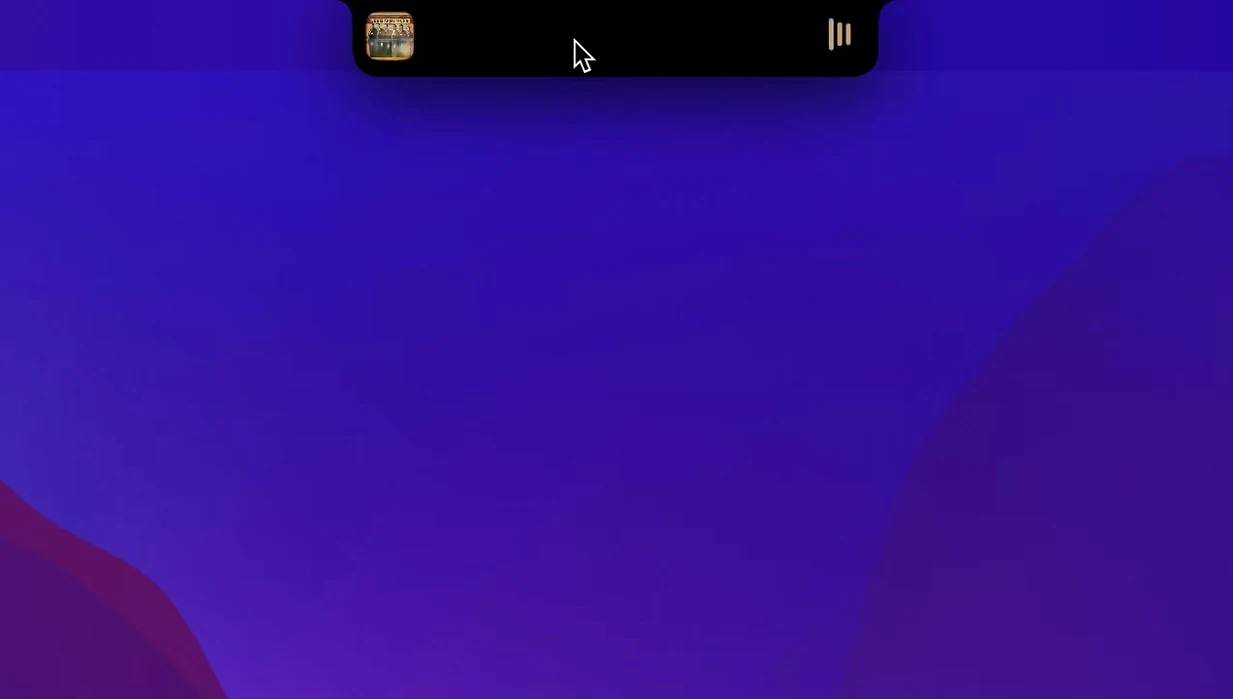
NotchNook turns the MacBook notch into an interactive control area, extending the space with widgets and media controls.
Tools worth the second look
- Music controls sit right in the notch area, so you can skip tracks or adjust playback without leaving the current app.
- The calendar view drops a quick glance at your schedule, no need to open another app.
- A file shelf lets you park files temporarily, handy for dragging items between folders or into upload fields.
Why experienced users will care
Beyond the obvious convenience, the deeper value is in the workflow. The shelf works like a staging area, and the media controls respond without stealing focus. NotchNook supports Intel and Apple silicon Macs, and runs on macOS 14.6 or later. The interface is available in over twenty languages, including English, German, Arabic, and Japanese, so the layout adapts to your system language without extra fiddling.
Tools worth the second look
Expect the notch to act as a popover zone, not a second menu bar
The most common slip is expecting the notch to behave like a second menu bar. It doesn't — it's a dedicated popover zone. New users often click the notch expecting a dropdown, then wonder why nothing happens. The trick is to hover or click the NotchNook indicator, not the notch itself. Another early stumble: dragging a file into the shelf but forgetting to click the shelf area first. The shelf only accepts drops when its window is active. Users also tend to overload the shelf with too many files at once, then lose track of what's parked there. Keep it to two or three items per session, and clear it after each move.
Beginners sometimes ignore the widget configuration. The default set includes a calendar and music controls, but you can swap in Live Activities or other modules from the app's preferences. Not doing that means missing half the utility. Finally, a few people expect it to replace the macOS menu bar entirely. NotchNook complements it, not replaces it. The menu bar stays; the notch just gains purpose.
Runs on macOS 14.6+ with no background daemons
NotchNook requires macOS 14.6 or later. It runs on both Apple silicon (ARM) and Intel (x86 64-bit) Macs. The app is lightweight in the sense that it doesn't install background daemons or kernel extensions — it operates as a standard macOS app launched from your Applications folder. You'll see a small icon in the menu bar when it's active. The notch area itself is not physically altered; the app overlays its interface on top of the system notch region.
Languages are handled system-wide. If your macOS is set to English, German, Arabic, or one of the other supported languages, NotchNook's labels and menus will match. The full list includes Russian, Spanish, Italian, French, Japanese, Chinese (Simplified and Traditional), Korean, Dutch, Norwegian, Polish, Portuguese, Romanian, Serbian, Turkish, Ukrainian, Finnish, Hindi, Czech, Swedish, Hungarian, Vietnamese, Greek, Danish, Hebrew, Catalan, and Afrikaans. That's coverage for most European and major Asian markets without extra configuration.
File shelf stays put across app switches in version 1.6.2
Version 1.6.2 fix is the current build. The update history before that is not documented here, but the 1.6.2 fix addresses stability points that affect daily use. The file shelf now holds its position more reliably across app switches. Music controls respond faster to input — a previous quirk where the play/pause button sometimes lagged behind a key press is gone. Widgets no longer flicker when the notch area is accessed repeatedly in quick succession, which happened on some Intel machines.
The language support was also expanded in recent updates. Users running macOS in Arabic or Hebrew now see properly right-aligned interface elements, which wasn't the case in earlier builds. For everyday use, the difference is subtle: you just don't think about it. The app stays out of the way until you need it, and the notch interaction feels more consistent across different Mac models.
More than music controls — includes shelf and widgets
There are a few other utilities that try to make the notch useful. One alternative is MediaMate, which focuses almost entirely on music playback controls and system volume. It's simpler — no shelf, no widgets — but its media integration is deeper, showing album art and track progress. NotchNook gives you more flexibility with the shelf and calendar, but MediaMate is better if all you want is Now Playing.
Another option is NotchDrop, a free open-source tool that only provides the file shelf function. It's lighter and faster to load, but has no media controls, calendar, or Live Activities. NotchNook wins on breadth of features, but NotchDrop is a good choice if you only need the shelf and prefer minimal setup.
BetterTouchTool can also assign actions to the notch area, but it's a general-purpose automation app — not notch-specific. You can trigger scripts, shortcuts, or window snapping from a notch gesture, but there's no built-in shelf or media popover. NotchNook is more specialised: it gives you a ready-made notch interface without scripting. For users who want instant widgets and controls without configuration, NotchNook is the direct path. For power users who already script their Mac, BetterTouchTool might feel more familiar.
Drag a PDF from Finder to the notch while working in Logic Pro
Monday morning. You open your MacBook and launch NotchNook from the Applications folder. A small indicator appears near the notch. You're working on a client mix in Logic Pro, referencing a PDF of notes. You drag the PDF from Finder onto the NotchNook shelf — it sits there as a thumbnail. Later, you drag it into the Logic session window. No desktop clutter.
Mid-session, a track finishes bouncing. You hover over the notch area and the music controls pop up. You skip to the next track in Apple Music without leaving Logic. The calendar widget shows your next meeting is in thirty minutes — you see it without switching to Calendar. A notification from Slack appears as a Live Activity in the notch. You glance at it, decide it can wait, and keep working.
At the end of the session, you clear the shelf — a quick click removes the remaining PDF. The notch returns to its idle state. No extra windows, no distraction. The whole interaction took maybe four hover events across two hours. That's the point: NotchNook stays invisible until you need it, then disappears again. For a notch nook download experience that feels native, it's one of those apps you install once and forget about — until it saves you a click.
Some users search for notchnook crack or notchnook free alternatives, but the official version from lo.cafe is straightforward. A quick notchnook mac search brings up the developer's page. For notchnook download, the disk image install is simple: open, drag, launch. That's it.
Changes in this build
Version 2.0.8 lands with no specific feature call-outs — a maintenance bump keeping the utility in line with the current macOS toolchain.
Before it goes on the Mac
- macOS 14 or later
- Apple Silicon or Intel 64-bit processor
Questions from the room
Does NotchNook work on both Intel and Apple silicon Macs?
Yes, NotchNook supports both Intel and Apple silicon Macs, provided you run macOS 14.6 or later.
Installing it on the Mac
- Open the downloaded disk image.
- Drag the app to the Applications folder alias.
- Once the copy finishes, open the app from Launchpad.
Notes from the control room
Sign in or open a catalogue account to leave a note.
No notes from the room yet. If you have used this build for a week, a short note helps the next person.