

Updated
The catalogue note
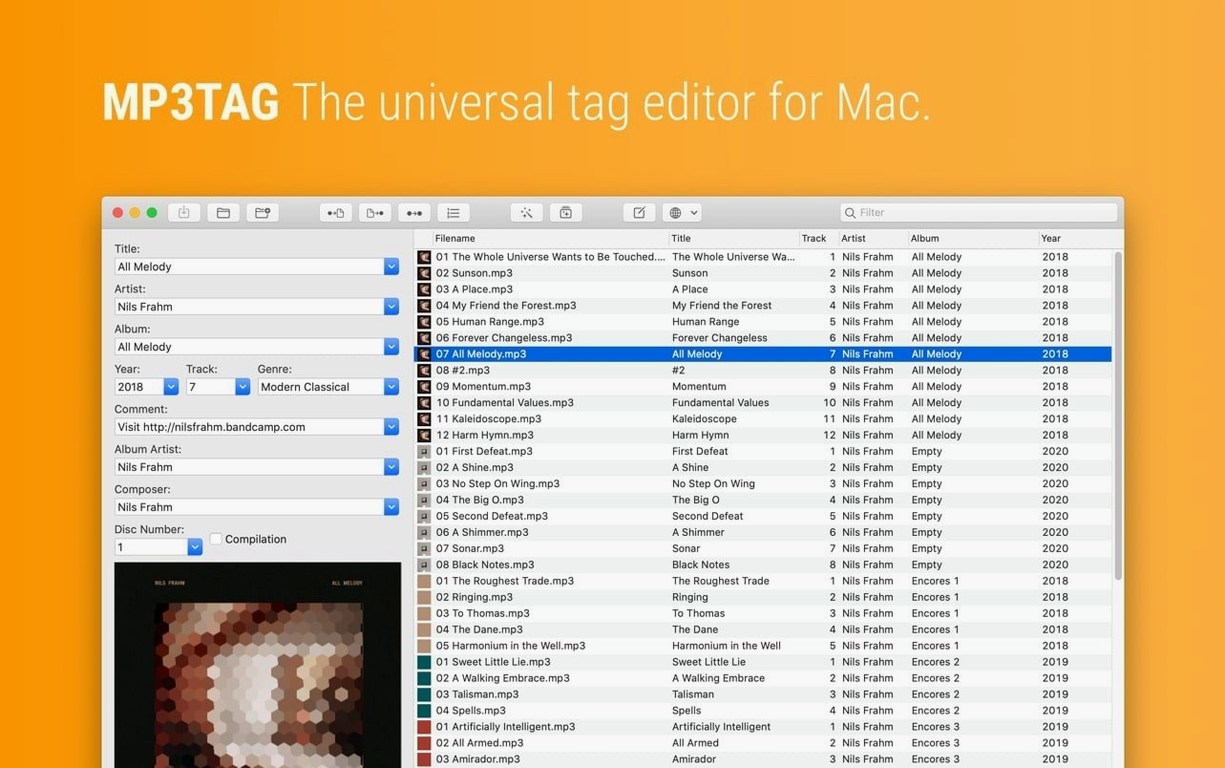
Start with the Action Groups window, because that is where Mp3tag saves you from repetitive work. Define a set of tag operations once, then apply them to a whole folder of files in one go.
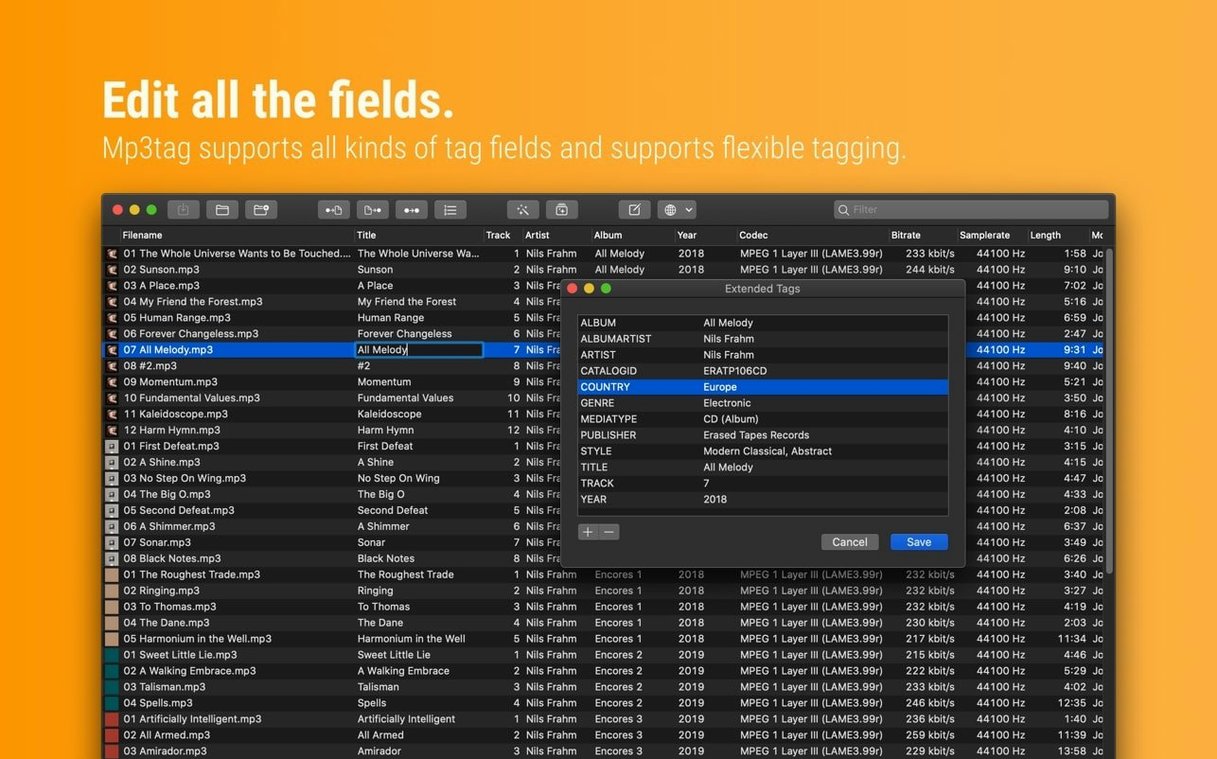
Batch tag editing — select hundreds of tracks, change artist, album, genre or any other field in one pass. No per-file clicking.
Filename renaming from tags — build a naming scheme from tag values (artist, title, track number) and Mp3tag rewrites the filenames to match. The reverse also works: read a pattern from existing filenames and fill the tags.
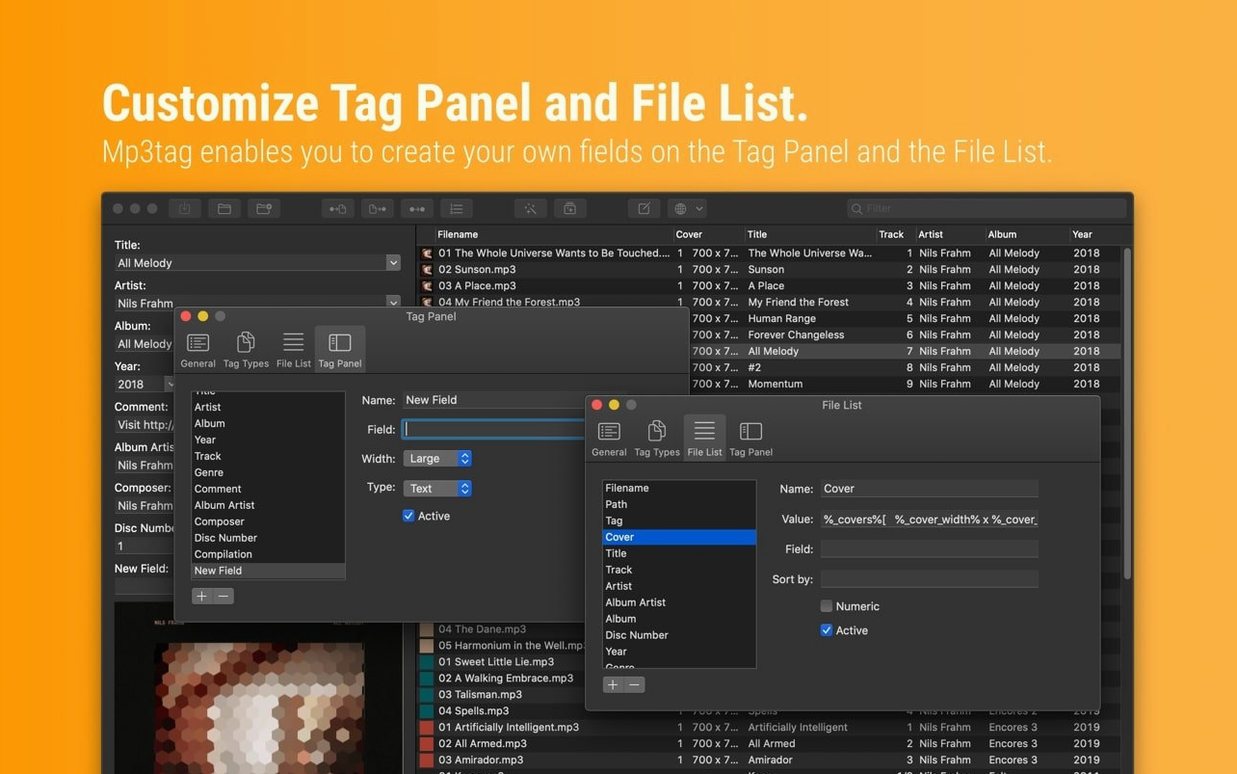
Cover art handling — set embedded cover images, and resize or convert them to a specific format directly in the tag editor. Useful when a 3000-px PNG is too heavy for a portable player.
Character and word replacement — clean up tags and filenames by swapping one string for another, or stripping unwanted characters entirely. Handy for normalising inconsistent metadata.
Universal format support — it edits metadata for MP3, FLAC, AAC, M4A, OGG, WAV and most other common audio formats, which is why it is called the universal tag editor.
Polish jazz collector's monthly FLAC workflow
A friend of mine runs a small community radio station and also maintains a personal archive of rare 1980s Polish jazz LPs he has digitised. Every month he pulls a dozen newly ripped FLAC files off his portable recorder. Before Mp3tag, he would open each file in a different tagging utility, type the same artist name eleven times, and then spend another hour resizing the cover scans by hand. Now he keeps an action group called "Jazz LP import" that sets the genre to "Jazz", strips any leading zeros from the track numbers, and resizes the embedded cover to 600×600 pixels. He selects the files, runs the action group, then hits the MusicBrainz tag source to pull the remaining details. The whole batch is done in under two minutes.
Replaces media player as default metadata editor
Mp3tag works well with the Finder's Quick Actions and Automator workflows. You can set it as the default application for opening audio files that contain metadata, so double-clicking a FLAC in the Finder opens Mp3tag rather than a media player. The tag panel updates immediately when you switch files, which is useful when you are dragging tracks from a Finder window into the app's list view.
For podcasters who use GarageBand or Logic Pro, Mp3tag handles the final metadata pass after export: set the episode number, title, show name and cover art in one batch for an entire season's files. The app respects macOS's colour-coding and tagging in the Finder, so you can colour-label files before importing them into Mp3tag and keep track of which ones need review.
Not tied to MusicBrainz database like Picard
There are a handful of metadata editors on macOS, and each takes a different approach.
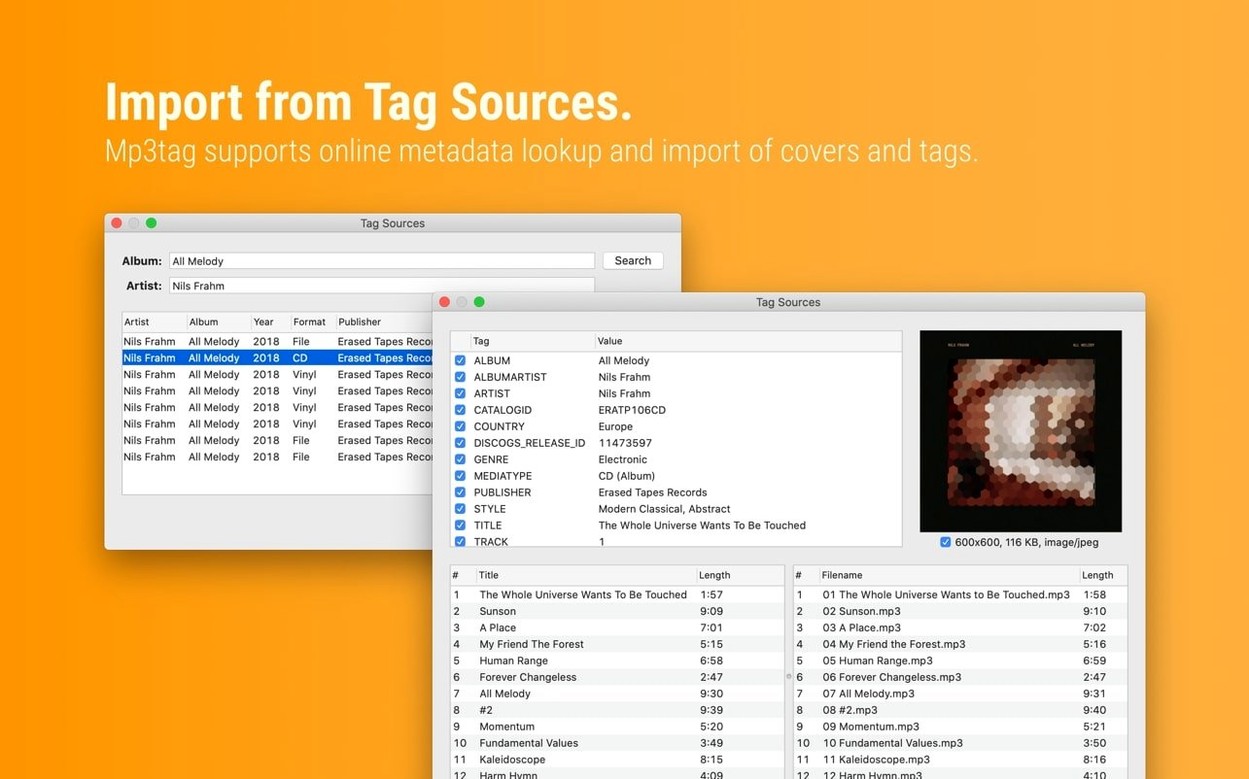
MusicBrainz Picard is tightly coupled to the MusicBrainz database. It excels at identifying tracks from audio fingerprints and pulling the correct metadata, but its batch editing features are more limited. Mp3tag gives you more control over the tag fields themselves, and you can use Discogs as an alternative tag source.
Meta (from Nightbirdsevolve) is a simpler tool focused on single-file editing. It has a clean interface and works well for quick fixes, but it does not offer action groups, filename-to-tag parsing, or the same depth of batch operations. Mp3tag is better suited for processing large libraries where consistency across hundreds of files matters.
Kid3 is another cross-platform tag editor. It supports a wide range of formats and has scripting capabilities, but its interface feels more utilitarian. Mp3tag's action groups and tag sources are more approachable for users who want to set up a workflow once and reuse it without writing scripts.
Test basic operations on a dozen files first
- Start with a small test folder. Copy a dozen files into a temporary folder and try the basic operations — rename from tag, replace characters, and run an action group. This way you see what happens before applying changes to your main library.
- Use the Discogs and MusicBrainz tag sources early. They are the fastest way to fill missing metadata. Select a few tracks, open the tag source window, and let Mp3tag search the databases. You can preview the results before applying them.
- Save your first action group. Even if it only sets the genre and removes leading zeros, saving it means you never have to recreate that workflow. Action groups appear in the sidebar and can be applied to any selection of files.
- Check the cover art settings. By default, Mp3tag keeps the original image dimensions. If you are working with a portable player that expects smaller covers, set a maximum size and format in the cover options before importing images.
- Undo is your friend. Mp3tag keeps an undo history for the current session. If a batch edit goes wrong, you can revert the changes without closing the app.
Action Groups crash on macOS 27 is fixed
The latest update fixes three specific issues that affected regular workflows:
- Action Groups no longer crash on macOS 27. If you use multiple action groups, the previous crash when adding new ones is gone. The Actions Groups window behaves as expected now.
- Cover changes survive extended tag edits. Previously, if you edited the cover art in the Tag Panel and then used Extended Tags before saving, the cover change would be lost. That data is now preserved.
- Unsaved tag edits are no longer discarded. Using Cover Search, Tag Sources, Converters, Auto-Numbering or Actions before saving the Tag Panel would ignore unsaved changes. Those operations now respect the current tag panel state.
The decimal BPM fix is worth noting for DJs who work with beat-grid data. When writing MP4 tags, fractional BPM values (for example, 123.45) are no longer truncated to integers. This matters if you export tempo information from analysis tools and want to preserve the precision for beat-matching software.
Changes in this build
Mp3tag 1.15.0 landed. The developer has not listed specific changes, so check the internal version history after updating for the full rundown.
Before it goes on the Mac
- macOS 10.14 or later
- Intel 64-bit processor
Questions from the room
Does Mp3tag work on Apple Silicon Macs?
Yes, the official download page states native Apple Silicon support, alongside Intel 64-bit builds.
What macOS version do I need?
Mp3tag requires macOS 10.14 or later.
Installing it on the Mac
A 13 MB download for Intel Macs on macOS 10.14 or later. Get it installed in four moves and then point it at the folders that need sorting.
- Mount the disk image and open Open Gatekeeper friendly.
- Press Enter in the Terminal window that appears to bypass Gatekeeper.
- Drag the application into your Applications folder.
- The app is ready to use.
Notes from the control room
Sign in or open a catalogue account to leave a note.
No notes from the room yet. If you have used this build for a week, a short note helps the next person.
Also filed under Utilities
The whole Utilities rack Movavi Video Converter22.5.0 Utilities 79 MB
 Movavi Screen Recorder23.1.1 Utilities 110 MB
 MouseBoost Pro5.3.0 Utilities 17 MB
 Mountain Duck5.3.2 Utilities 187 MB
 Nook X2026.11.03 Utilities 36 MB Updated
 Mole1.14.0 Utilities 20 MB
 NotchFlow1.2.2 Utilities 122 MB
 NotchNook2.0.8 Utilities 41 MB Updated