Home › Utilities › Mountain Duck

Mountain Duck 5.3.2 (Mac)
Updated
The catalogue note
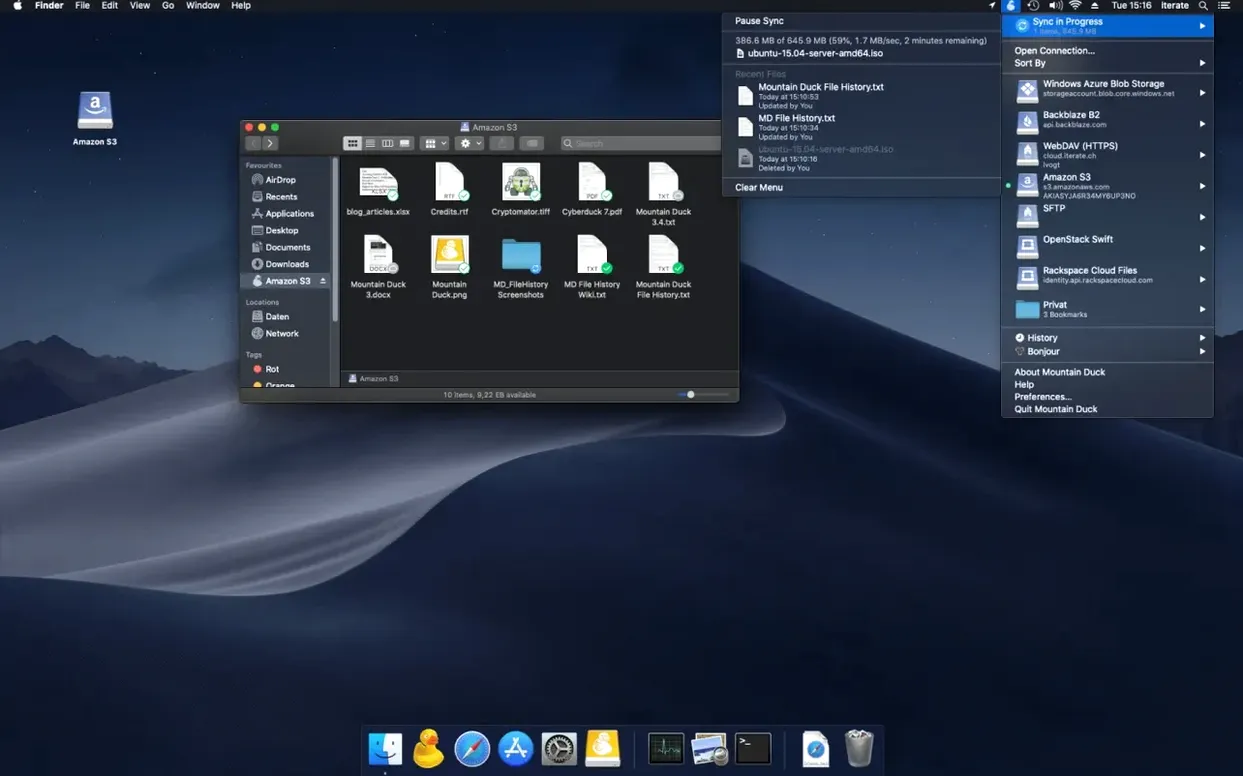
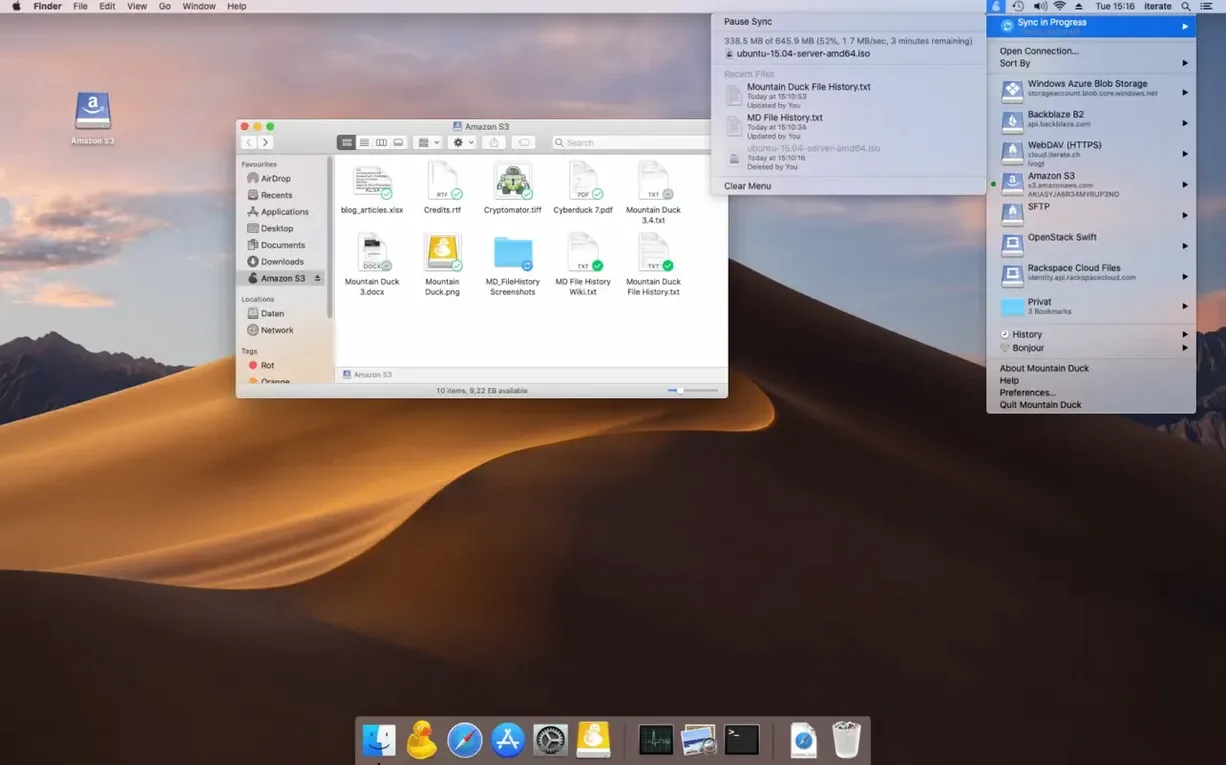
A producer sends you a folder of stems via Dropbox. Instead of opening the browser, downloading a zip, and keeping track of where it landed, you mount the Dropbox account as a disk in Finder. The folder appears like any other volume; you drag the stems straight into Logic. Mountain Duck does exactly that, and it covers more than just Dropbox.
Mounts FTP, SFTP, WebDAV, SMB, and cloud storage as Finder disks
- Mounting FTP, SFTP, WebDAV, SMB, and cloud storage (Amazon S3, Google Drive, Backblaze B2, Azure, OpenStack Swift) as a Finder disk.
- Keeping selected files and folders stored offline, so you can work on the train without a connection.
- Uploading changes in the background whenever a connection is available.
- Sharing bookmarks with Cyberduck if you already use it.
Requires macOS 13 or later and caches files only when needed
- Requires macOS 13 or later; runs on both Apple Silicon and Intel 64-bit Macs.
- Other files are only cached when needed, so the mount doesn't eat your whole disk.
- Interface languages cover the usual set – English, German, Spanish, Polish, Japanese, and plenty more.
One workflow: importing a client’s voice-over session from Google Drive
A client delivers a voice-over session as a folder of WAV files, shared via Google Drive. You open Mountain Duck, locate your Google Drive bookmark, and double-click it. The remote folder mounts as a disk named something like “Google Drive” on your desktop and in the Finder sidebar.
Inside that disk, you navigate to the client’s shared folder. The files appear as regular items — no cloud icons, no sync status overlays unless you enable them. You select the takes you need and, because Smart Synchronisation is active by default, Mountain Duck downloads each file only when you open it. In practice: you double-click a WAV, it plays in Quick Look, then you drag the whole folder into your DAW’s audio browser. The transfer happens in the background; you don’t wait for a full download before starting to work.
After editing, you export the mixed voice-over track and save it back into the same mounted folder. Mountain Duck uploads the change silently once the connection allows. The client sees the new file inside Google Drive without you ever touching a browser or a sync client.
If you expect to work on the same session repeatedly, you can mark the folder as “Make Available Offline.” The entire folder stays on your local disk, and Mountain Duck syncs any changes when you reconnect. Next time you mount the drive, the folder is already there, ready to open even without Wi-Fi.
Rewards audio post-production and music producers who handle session files
Mountain Duck is useful for anyone who regularly moves files between a Mac and remote storage, but it rewards specific workflows more than others:
- Audio post-production and music producers who receive session files, stems, or voice-over takes from collaborators. Mounting a cloud or SFTP drive means you can browse, audition, and import files directly from the Finder without staging a local copy first.
- Video editors working with rushes stored on an S3 bucket or an FTP server. The Finder mount lets you preview clips in Quick Look or load them into Final Cut Pro without downloading the entire project folder.
- Developers and sysadmins who need to browse server directories, edit config files in their usual text editor, or transfer assets to a web server without opening a separate FTP client. The Finder integration keeps everything in one window.
- Anyone working with multiple cloud accounts — Dropbox for one client, Google Drive for another, an S3 bucket for a third. Instead of running three sync apps, you mount them all from one menu bar app.
Integrates at the file-system level for Quick Look and drag-and-drop
Mountain Duck integrates at the file-system level, so it works with whatever you already use. A few natural pairings:
- Finder itself is the main interface. You can use Quick Look to preview files, drag items between volumes, rename, delete, and organise folders just as you would on a local disk. Spotlight search works inside mounted volumes if the volume supports it, though results depend on the remote server’s indexing.
- Cyberduck shares bookmarks with Mountain Duck. If you already have a Cyberduck setup with dozens of FTP and cloud bookmarks, they appear automatically in Mountain Duck’s bookmark list. You maintain one set of credentials.
- Automator or Shortcuts can act on files inside a mounted volume as long as the volume is already connected. For example, you could build a Quick Action that renames files in a mounted S3 bucket, though the actual rename still happens through Mountain Duck’s file-system bridge.
- Cryptomator vaults work with Mountain Duck’s encryption-at-rest support. If you store sensitive session files on a cloud provider, you can mount a Cryptomator vault through Mountain Duck and the files remain encrypted on the remote side.
- macOS Time Machine does not back up the mount itself, but any files you have marked for offline storage are local and get included in your regular Time Machine backup if they sit in
~/Library/CloudStorageor similar paths.
Installs from a downloaded disk image with no extra drivers
Mountain Duck 5.3.2 runs on macOS 13 or later, on both Apple Silicon and Intel 64-bit machines. The app installs from a downloaded disk image: you drag it to the Applications folder, then launch it from Launchpad. No extra drivers or kernel extensions are required — it uses the system’s native file provider APIs.
The interface is minimal: a menu bar icon opens a list of bookmarks and connection status. Mounted volumes appear in the Finder sidebar under “Locations” and on the desktop if you have that preference enabled. The app itself uses a small amount of disk space for its cache; the size depends on how many files you open or mark offline. Language support covers the list you’d expect for a European and Asian audience — 35 languages in total.
If you search for mountain duck torrent or mountain duck mac to find the download, the official disk image is the only file you need. After installation, you add your first bookmark by choosing the protocol (FTP, SFTP, WebDAV, SMB, or one of the cloud providers) and entering the server details or signing in with OAuth. From there, the remote storage behaves like a local disk.
Before it goes on the Mac
- macOS 13 or later
- Apple Silicon or Intel 64-bit
Questions from the room
Can I use Mountain Duck offline?
Yes, files and folders you mark as available offline stay stored on the local disk, and you can open them without a connection.
Which storage services does Mountain Duck support?
It supports FTP, SFTP, WebDAV, SMB, Amazon S3, Google Cloud Storage, Google Drive, Dropbox, Backblaze B2, Azure Cloud Storage, and OpenStack Swift.
Installing it on the Mac
- Open the downloaded disk image.
- Drag the app to the Applications folder.
- Launch Mountain Duck from Launchpad after the copy finishes.
Notes from the control room
Sign in or open a catalogue account to leave a note.
No notes from the room yet. If you have used this build for a week, a short note helps the next person.