Home › Utilities › Movavi Video Converter

Updated
The catalogue note
Anyone who regularly moves media between devices or platforms ends up needing a format switcher. Movavi Video Converter 22 Premium handles video, audio and image files without fuss. Here are the first things a newcomer should try.
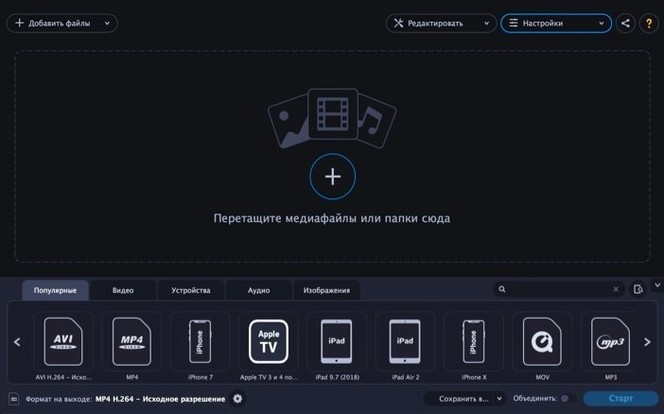
- Drag-and-drop a test file — the app accepts AVI, MKV, MOV, MP4, MPEG, WebM and WMV on the input side. Drop a short clip and see the format list populate.
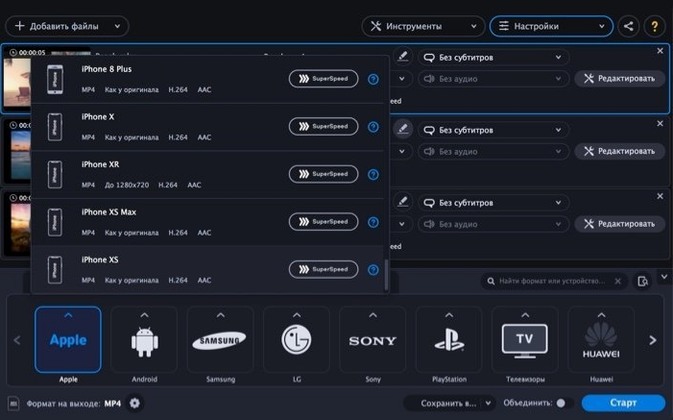
- Pick a device profile — ready-made presets exist for Apple, Samsung, Nokia and Sony devices. Select your phone model and the converter sets resolution and codec automatically.
- Convert a still image — output to BMP, GIF, JPEG, PNG or TIFF. Good for batch-resizing a folder of screenshots before sending them elsewhere.
- Make a GIF — the video-to-GIF function is straightforward. Trim a section of a clip and export directly as an animated GIF.
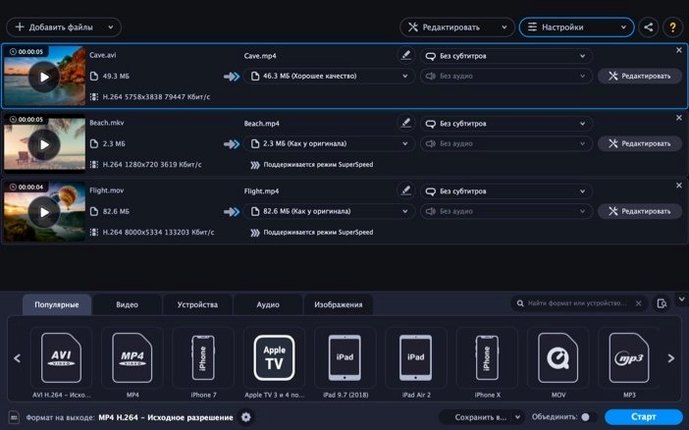
- Enable SuperSpeed mode — this toggle speeds up processing on Intel Macs. Useful when converting a long MKV file to MP4 for editing.
- Check the output folder — after conversion, the app opens the destination folder automatically. Saves a search.
One podcaster's move from phone video to clean MP3
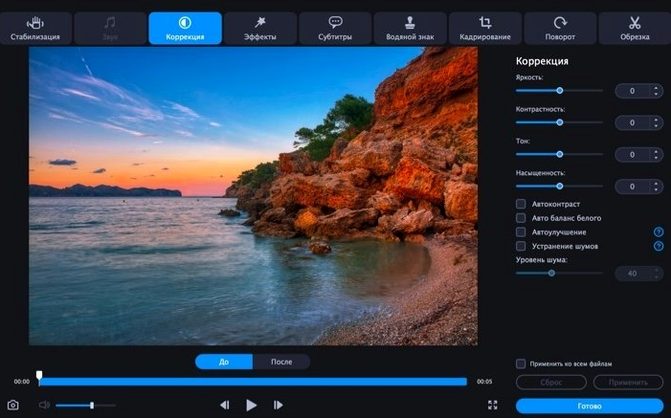
A friend of mine runs a small interview podcast. He records his guests on a phone — usually MOV or MP4 — and then needs the audio as a clean MP3 for editing in his DAW. Before he found Movavi Video Converter, he was opening QuickTime, exporting audio, then running it through another tool to trim silence. Now he drops the whole batch of interview files onto the converter, checks the audio output format, and sets a trim point for the start and end of each clip. The batch folder scan means he can point the app at his "raw recordings" folder and let it process everything overnight. The volume normalisation in the editing panel also saves him from manually adjusting levels across four different speakers.
For the occasional video clip he uploads to social media, he uses the same tool to convert to MP4 at a lower resolution, crops the frame to a square aspect ratio and adds a simple text intro. One app covers the audio extraction and the light video prep. He doesn't need to keep three separate utilities installed anymore.
Where HandBrake falls short and Movavi picks up
There are a handful of other conversion apps on macOS that cover similar ground. Here is how Movavi Video Converter compares with three of them.
- HandBrake — free and open-source, HandBrake is excellent at video encoding but has no audio extraction to MP3 as a dedicated output step, no image conversion and no built-in editing for volume or colour. You would pair it with a separate tool for those tasks. Movavi bundles everything into one window.
- Permute — designed for simplicity and speed on Mac, Permute focuses on drag-and-drop conversion with a clean interface. It lacks the editing panel (no crop, no text overlay, no stabilisation) and does not offer device-specific presets. For a user who needs more than format switching, Movavi adds those extra steps without leaving the app.
- FFmpeg-based GUI tools (e.g. iFFmpeg) — these give you the raw power of FFmpeg under a graphical shell. They are flexible but the learning curve is steeper. Setting up a two-pass conversion with custom filters requires reading documentation. Movavi hides that complexity behind dropdowns and toggles, which suits a user who does not want to think about codec parameters.
Each alternative has its strengths. Movavi sits somewhere in the middle: more features than a pure converter, less complexity than a full transcoding suite.
HEVC handling improvements in the latest maintenance build
Version 22.5.0 is a maintenance update rather than a feature overhaul, but a few changes affect daily workflow:
- Improved handling of HEVC files — the latest build handles hardware-accelerated decoding on Intel Macs more reliably. Users converting iPhone HEVC footage to MP4 or AVI should see fewer format detection issues.
- Updated device profiles — the presets for newer Apple and Samsung models have been refreshed. If you own a recent iPhone or Galaxy device, the converter now picks a more accurate output resolution and codec combination.
- Localisation fixes — several menu strings in the Polish, Turkish and Korean language packs were corrected. For users running the app in those languages, the interface is now more consistent.
- Stability improvements for batch operations — the app handles large folder imports more predictably when SuperSpeed mode is active. This matters when you queue up several hours of footage overnight.
None of these changes alter the core workflow. They refine parts of the app that experienced users would notice after a few weeks of daily use.
Output folder auto-open saves one extra click
A few features in Movavi Video Converter are not obvious from the main window but save time once you know they are there.
- Output folder auto-open — after a conversion finishes, the Finder window pops up with the exported file selected. You do not have to navigate to the destination manually.
- Batch folder import — instead of dragging files one by one, you can select a folder and the app scans it for all supported media types. This works well for processing an entire "to convert" directory in one go.
- Format filtering in the output list — when you click the output format dropdown, the list shows only formats compatible with the source file. You will not see video codecs offered for an audio-only file, which reduces clutter.
- Preset search — the device profile list includes a search field. Typing "Samsung" narrows the list immediately, which is faster than scrolling through dozens of presets.
- Progress indicators per file — in a batch conversion, each file gets its own progress bar. If one file fails, you can see which one it was without guessing.
These details do not appear in the marketing copy, but they shape the feel of the app when you use it daily. A converter that stays out of your way is one you keep installed.
That covers the basics. The interface stays simple enough that a first run doesn't feel like a training session.
Before it goes on the Mac
- macOS 10.13 or later
- Intel 64-bit processor
Questions from the room
What video formats does Movavi Video Converter support for input?
It supports AVI, MKV, MOV, MP4, MPEG, WebM and WMV for input, and the same list for output plus MPG.
Installing it on the Mac
- Mount the disk image and run Open Gatekeeper friendly.
- Press Enter in Terminal to bypass Gatekeeper.
- Drag the app to the Applications folder.
- Open the app after copying is complete.
Notes from the control room
Sign in or open a catalogue account to leave a note.
No notes from the room yet. If you have used this build for a week, a short note helps the next person.