Home › Utilities › MouseBoost Pro

MouseBoost Pro 5.3.0 (Mac)
Updated
The catalogue note
MouseBoost Pro is a macOS Finder extension that puts a toolbox of right-click actions and file utilities where your cursor already is.
What you can do with it
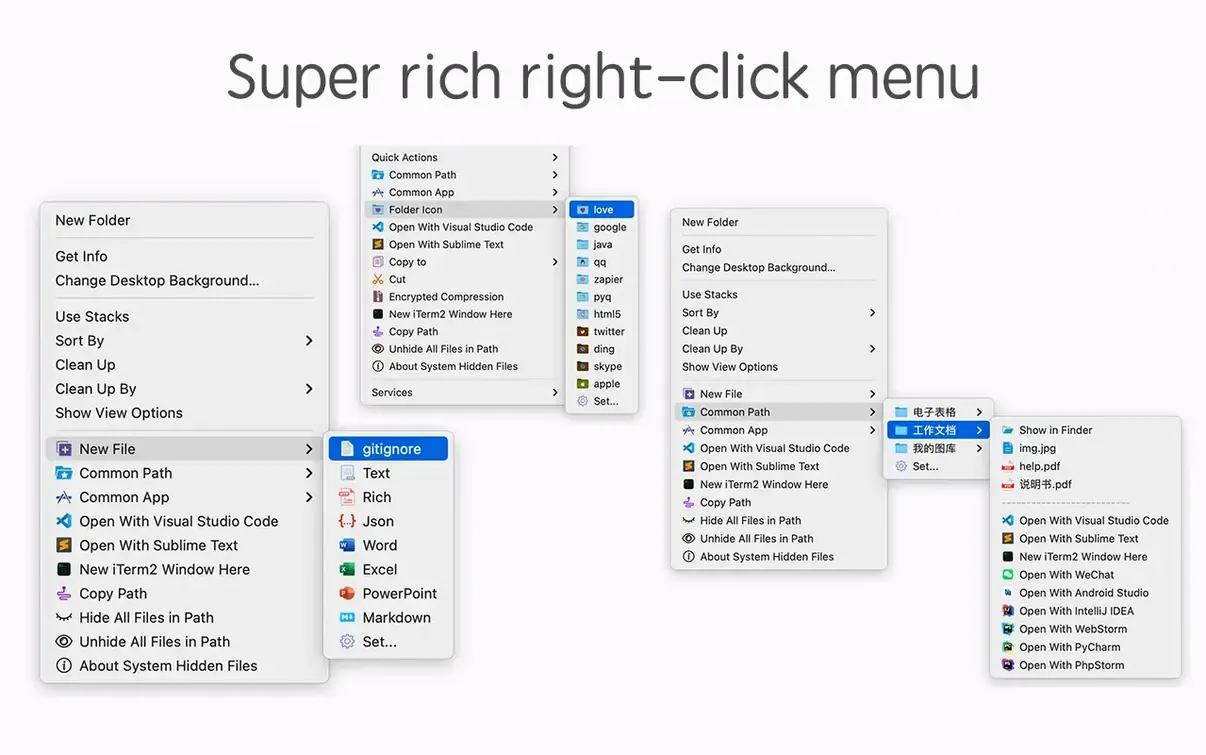
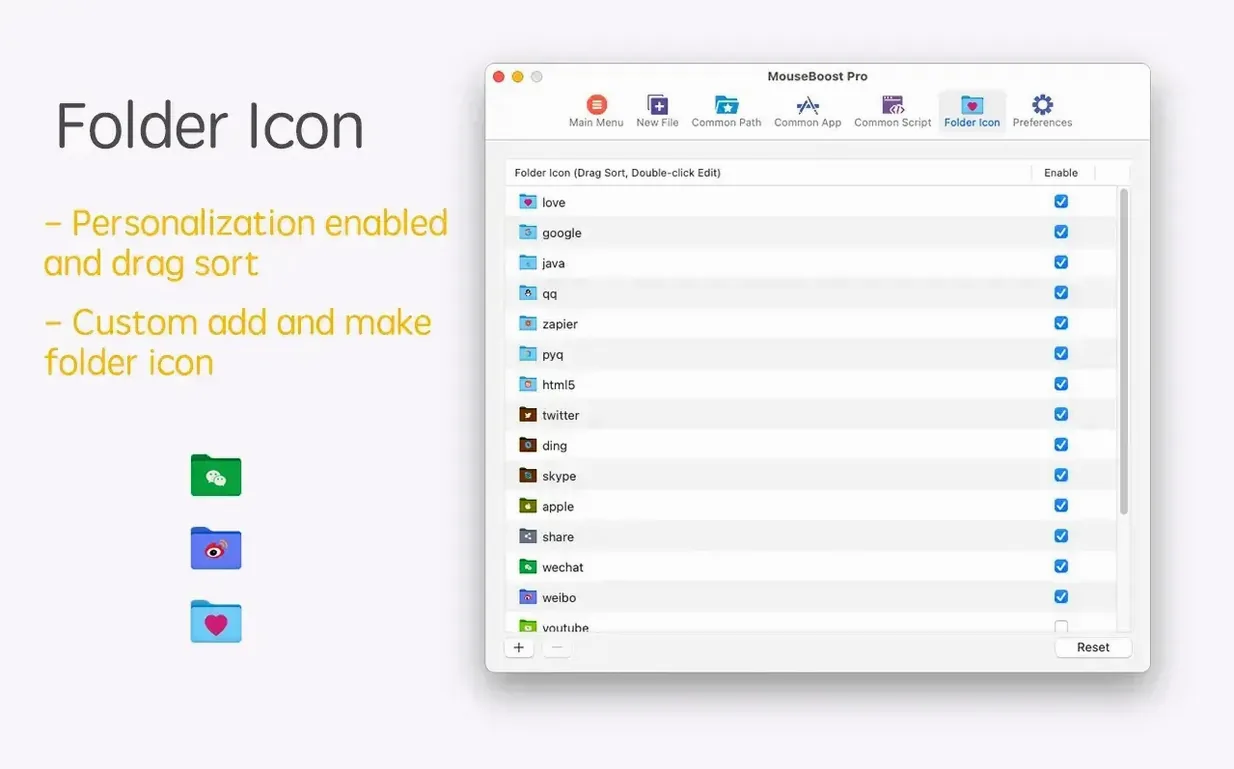
The menu is yours to arrange. You can hide or show specific files, move, copy, cut, and change folder icons without opening a separate app. For quick checks, it calculates MD5, SHA1, SHA256, and other file hashes, and it can copy the current path in one click. Encrypted compression is built in, which saves a step when you need to send something safely.
Who it's for
If you spend your day in the Finder and keep reaching for the Terminal or a second utility app, MouseBoost Pro makes sense. It runs on both Apple Silicon and 64-bit Intel Macs, so the same setup works across older and newer hardware.
Interface is English only, supports macOS 10.11+
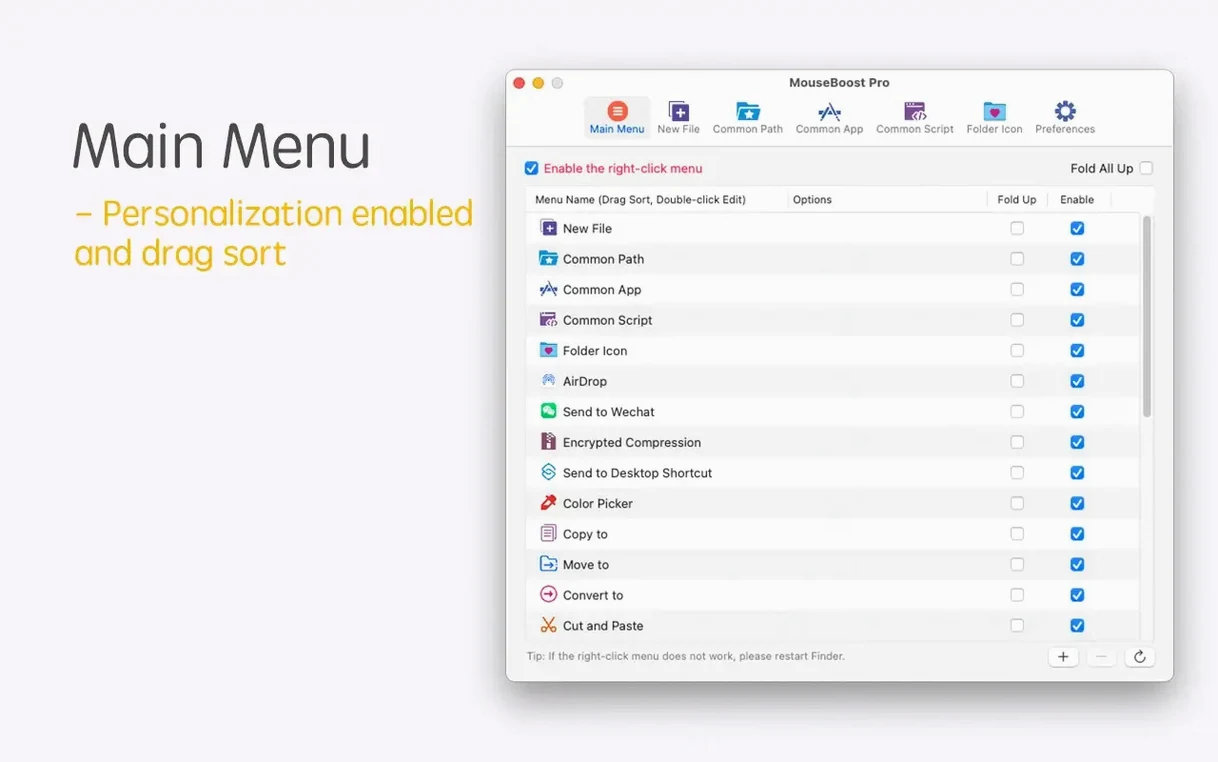
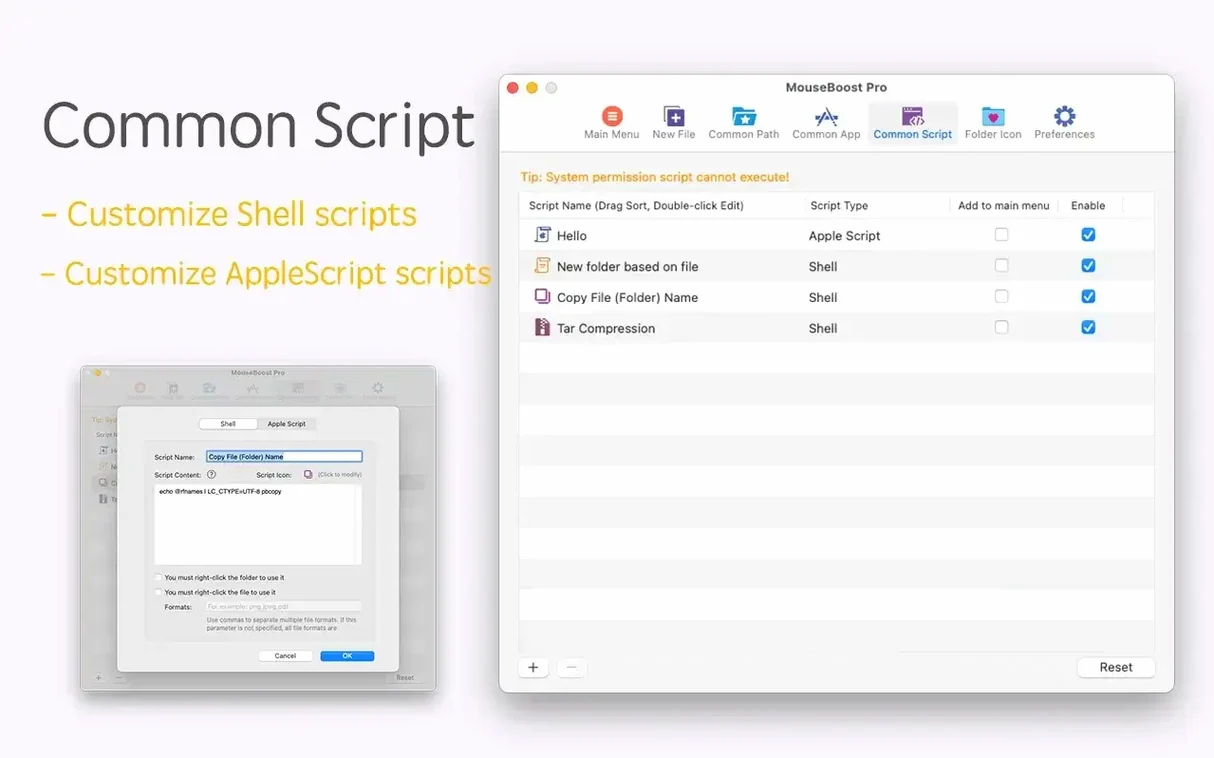
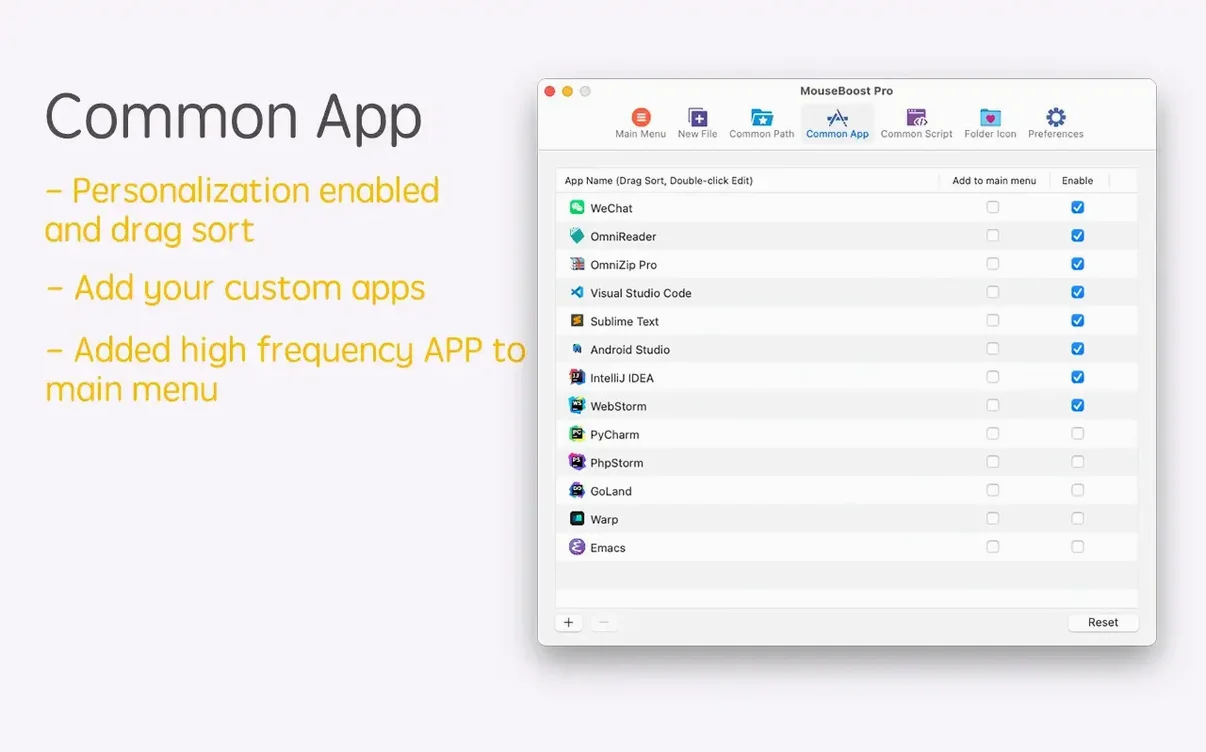
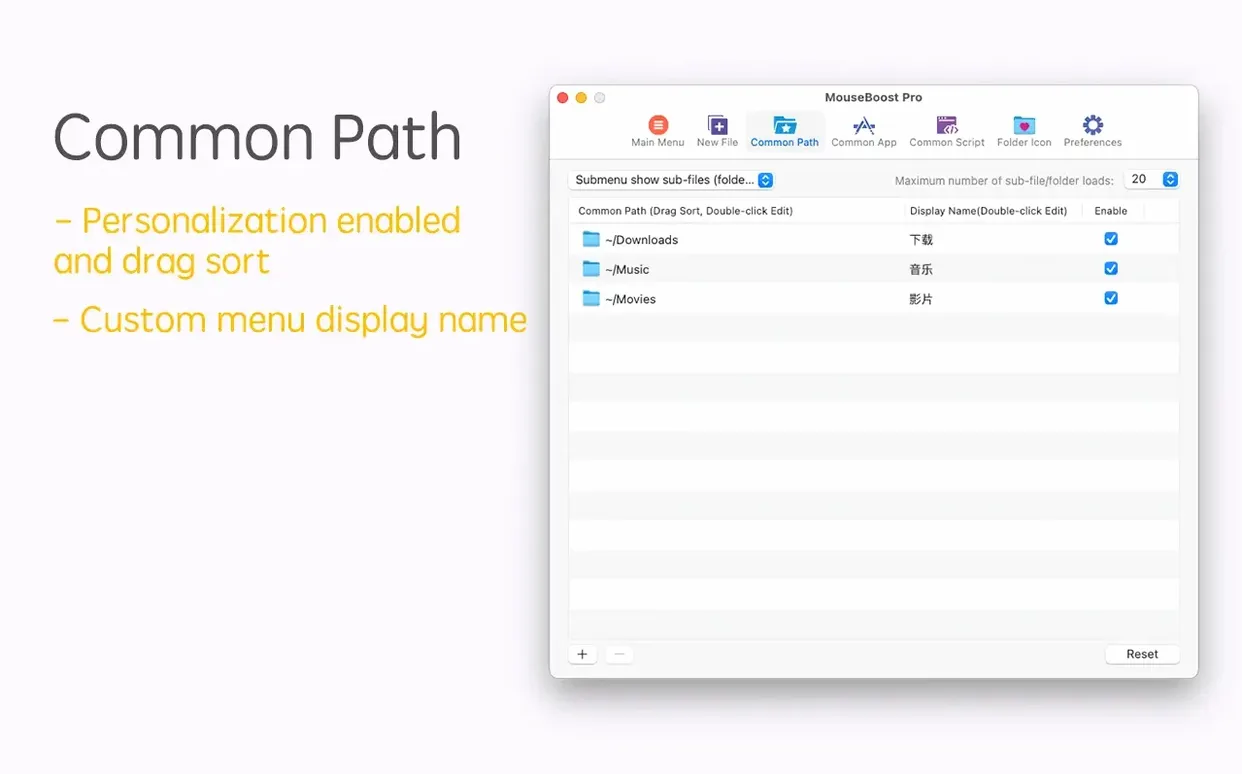
The interface is English only, and it supports macOS 10.11 and later. The right-click menu is fully customisable, and you can sort all menus yourself, so the actions you use most stay on top.
Walk through right-click menus on folders, files, and desktop
Give yourself an hour to walk through the right-click menu item by item. Open a folder, a single file, a few selected files, then the desktop – each context shows different options. Mark down the ones you will use daily: for me those were copy path, new file from template, and hide file. Drag them to the top of their category using the sorting panel. The rest you can leave in place or hide if the menu gets long.
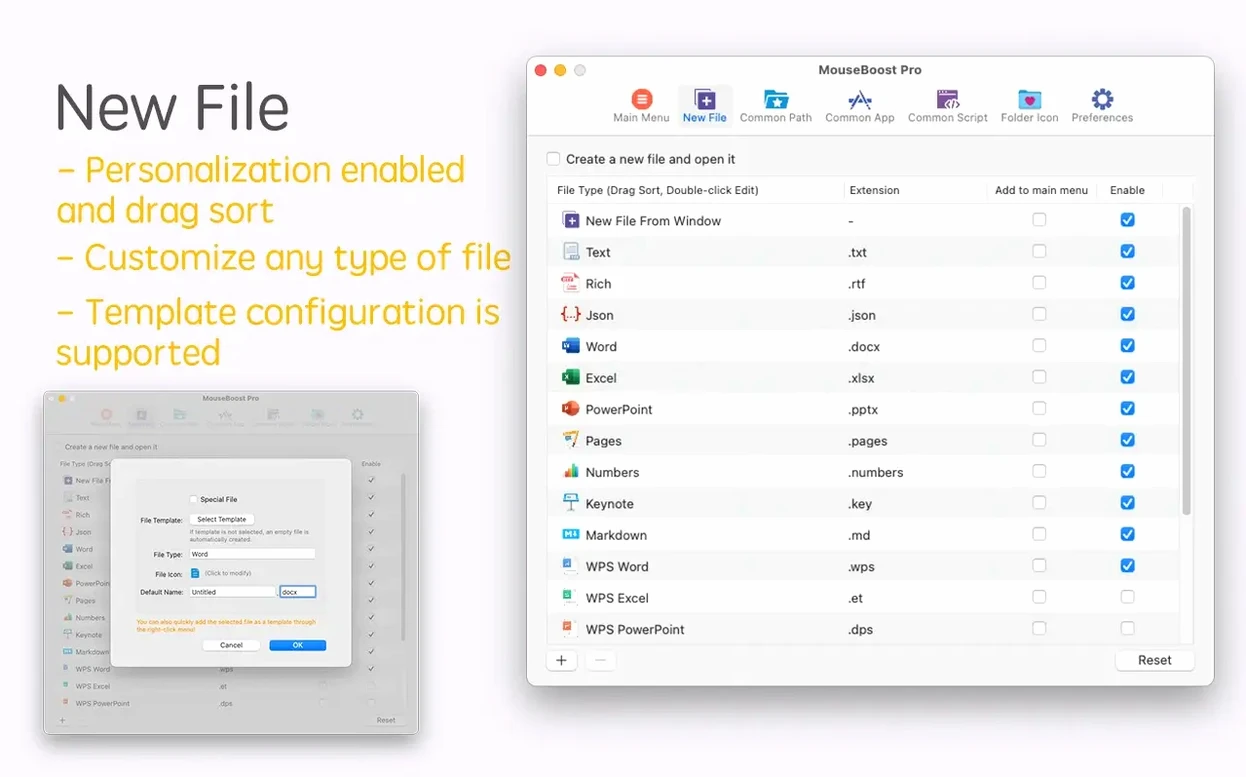
Set aside a few minutes to create your own file templates. The custom file creation feature works well for starter HTML, Markdown, or shell script files. Make one template per project type and name them clearly – template.html and readme.md are good starting points. They appear in the New File submenu straight away.
Test the encrypted compression on a small folder before you need it for real. Pick something with a few files, right-click, choose compress with encryption, enter a password, and confirm the result opens correctly. This way you know the workflow works on your machine before a deadline depends on it.
Gatekeeper blocks the app: run Terminal command from disk image
The right-click menu does not show the new items
This happens most often right after installation. Open System Settings (or System Preferences on older macOS), go to Extensions, find Finder Extensions, and make sure MouseBoost Pro is ticked. If it was already ticked, untick it, wait a few seconds, and tick it again. Restart the Finder by holding Option and right-clicking the Finder icon in the Dock, then choosing Relaunch.
Some actions are greyed out
Certain actions only work on specific selection types. For example, folder icon change only appears when you right-click a folder, not a file. Copy path works on anything, but hash calculations need one or more files selected. Check you are clicking in the right context before assuming something is broken.
Sort menus yourself to keep favorite actions on top
The install steps mention bypassing Gatekeeper via Terminal. If you skipped that step and the app does not launch, go back and run the Terminal command from the disk image instructions. After that, drag the app into Applications again and launch it. You only need to do this once.
Custom file templates do not appear
Make sure the template files are saved in the location MouseBoost Pro expects – the app's preferences panel shows the template folder path. If you saved them elsewhere, move them there or change the path in preferences. Templates need to be plain text or a recognised format; binary files like images will not show up in the New File submenu.
Real-world scenario: a freelance designer organising project assets
A graphic designer working on a branding project receives a folder of client assets: logos, fonts, colour swatches, and reference images, all mixed together with no structure. The client sent the files as a zip with a long, unhelpful name. Instead of opening a separate archive utility and a file manager, the designer right-clicks the zip and uses encrypted compression to re-package the original just in case, then extracts the contents. With the files visible, they select all logos, right-click, and choose Move to Folder – creating a new subfolder called Logos on the spot. The same process handles Fonts and References. To keep the Finder tidy, they right-click the original zip, choose Hide File, and it disappears from view. Finally, they copy the full path of the project folder to paste into an email to the client. No Terminal, no extra apps, no dragging between windows.
Workflow: batch-rename a set of screenshots with a numbered prefix
- Select all the screenshot files in a folder. They are named
Screen Shot 2025-03-01 at 14.22.15.pngand similar. - Right-click on any selected file and choose Batch Rename from the MouseBoost Pro menu.
- In the renaming panel, choose the option to insert text at a specific position. Set the position to the beginning of the filename.
- Type
v2_as the text to insert. The preview updates to show the new names:v2_Screen Shot 2025-03-01 at 14.22.15.png. - If you have a list of exact names you want to use instead, switch to the rename-from-list support added in version 5.2.8. Paste your list, check the preview, and apply.
- Click Rename. The files update in place within a second. The original names are gone, so confirm you are happy with the preview before committing.
This workflow replaces the old routine of renaming files one by one or launching a dedicated batch tool. It stays inside the Finder, and the preview catches typos before they happen.
Changes in this build
- Added quick preview for folder trees.
- Added aspect ratio selection and automatic OCR copy.
- Improved scrolling capture.
- Added support for inserting text at a specific position in batch renaming.
- Added rename-from-list support in batch renaming.
- Added a maximum depth setting for file and directory trees.
- Fixed known issues.
Before it goes on the Mac
- macOS 10.11 or later
- Apple Silicon or 64-bit Intel
- Interface language: English
Questions from the room
Does MouseBoost Pro work on Apple Silicon Macs?
Yes, MouseBoost Pro supports both ARM and 64-bit Intel architectures.
Can I customise the right-click menu in MouseBoost Pro?
Yes, you can customise the right-click menu and sort all menus yourself.
What file checks does MouseBoost Pro provide?
It can calculate MD5, SHA1, SHA256, and other file information directly from the context menu.
Installing it on the Mac
- Mount the disk image and run Open Gatekeeper friendly.
- Press Enter in Terminal to bypass Gatekeeper.
- Drag the app into Applications.
- Launch the app when installation is complete.
Notes from the control room
Sign in or open a catalogue account to leave a note.
No notes from the room yet. If you have used this build for a week, a short note helps the next person.