
Nook X 2026.11.03 (Mac)
Updated



The catalogue note
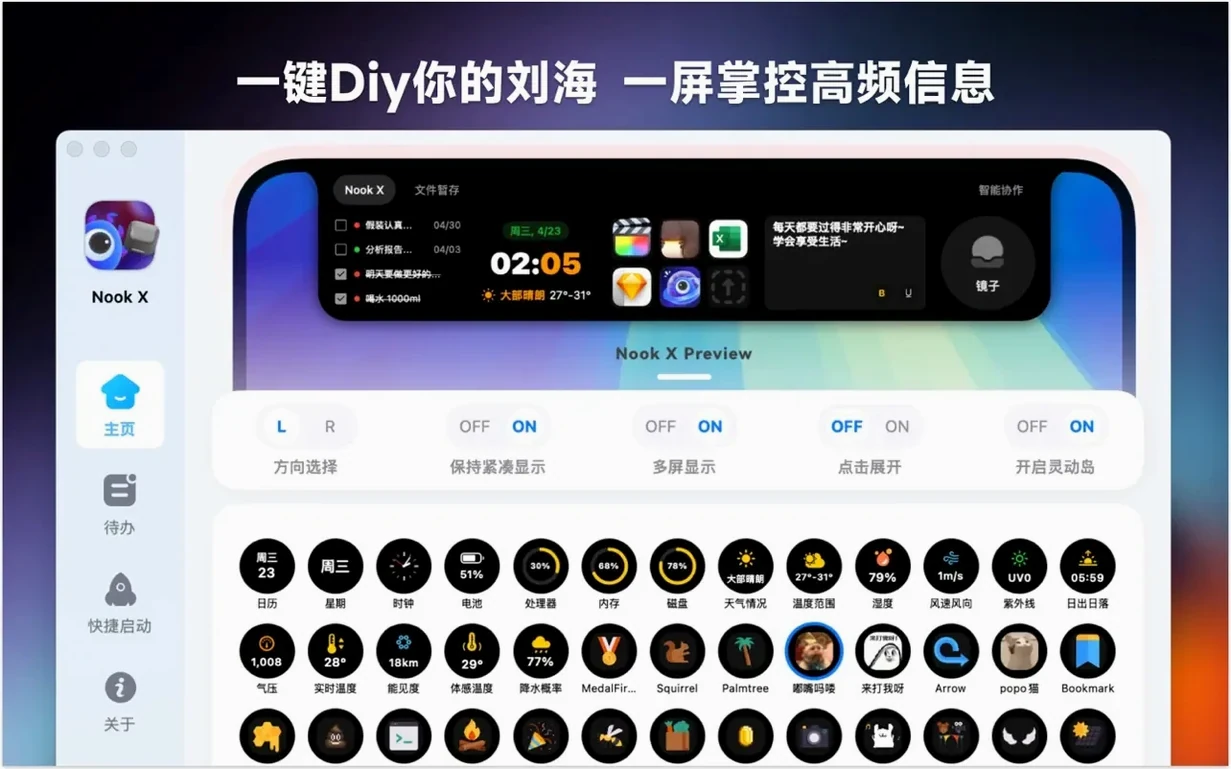
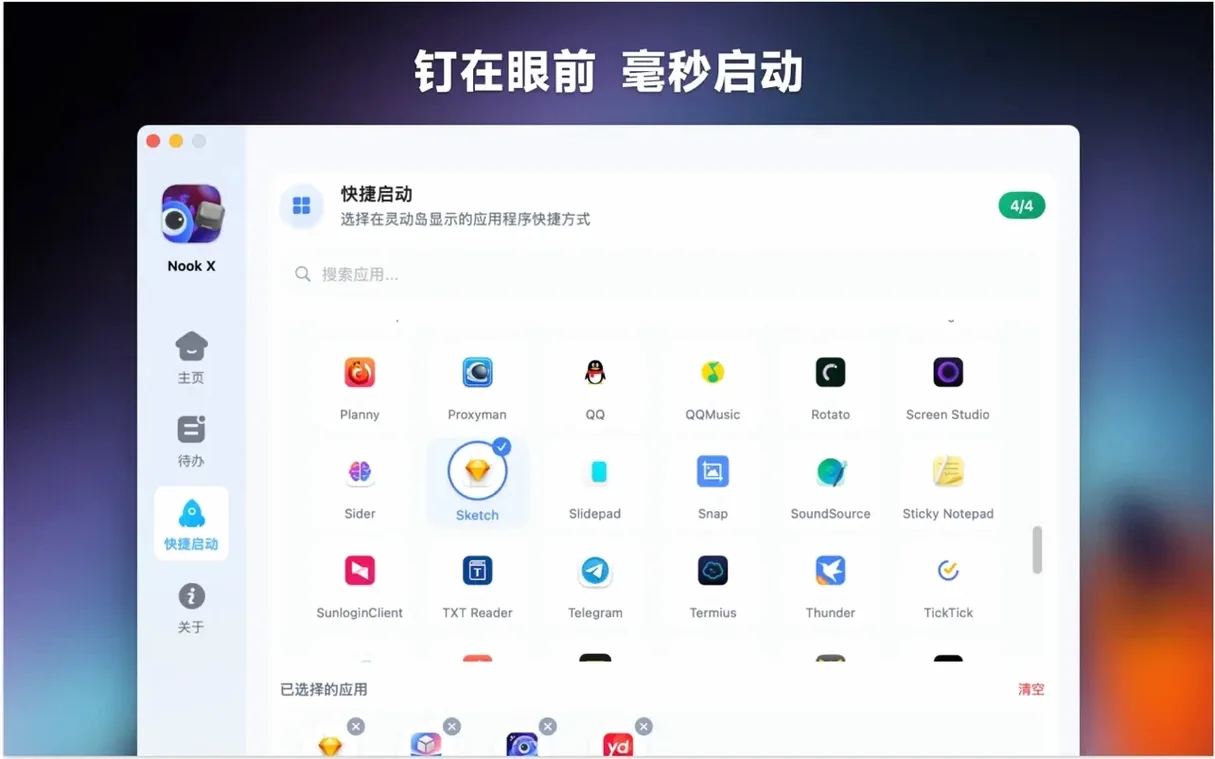
Nook X is a macOS utility that bundles task management, a music player with automatic lyrics, and AI chat into a single app.
2026.09.15 keeps the same trio of features
Version 2026.09.15 keeps the same feature set as before. There are no new additions in this release, so the focus stays on the existing trio: to-do lists, lyrics playback, and conversation.
How does the music side work?
The built-in player handles popular audio formats and can display song lyrics automatically in karaoke mode. That makes it handy for quick listening sessions without opening a separate media app.
What about tasks?
To-do lists come with reminders and priorities, which covers the basics of personal planning. Nothing fancy, but it works alongside the rest of the app.
Which Macs will run it?
Nook X requires macOS 13 or later and supports both Apple Silicon and Intel 64-bit Macs. The interface is translated into fourteen languages, including English, German, Spanish, Japanese, and Korean.
Sits alongside Notes and Reminders as a secondary layer
Nook X sits alongside the usual macOS tools rather than replacing them. If you use the built-in Notes app for quick thoughts or Reminders for shopping lists, you might find Nook X useful as a secondary layer that keeps music and AI chat in the same window as your tasks. It does not sync with Apple's Reminders or Calendar, so it works best as a standalone companion.
The app uses the notch area on MacBooks with a notch screen, which is where its name comes from. That placement means it stays out of the way when you are working in other apps. You can trigger it from the menu bar or a keyboard shortcut, depending on how you set it up.
Voice input relies on macOS speech recognition, so it works with the system's built-in microphone and any external mic you have connected. If you already use dictation in other apps, the transition feels natural. The AI chat can pull in text from your clipboard or from tasks you have created, which saves switching windows.
For music, the player reads audio files from your local library or any folder you point it at. It does not integrate with Apple Music or Spotify, so you need to have your own files. That is fine if you keep a collection of MP3s, FLACs, or other common formats.
Learn a song's lyrics while tracking study tasks
This is a scenario I have seen people use the app for. You want to learn a song's lyrics while keeping track of what you need to study. Here is how that plays out from start to finish.
- Open Nook X and create a new task list called "Song study." Add tasks like "Listen to track three times," "Read through lyrics once," and "Sing along without looking." Set a priority for each and a reminder for the end of the day.
- Switch to the music player and load the song you are working on. The automatic lyrics display kicks in, showing the text in karaoke mode as the track plays.
- If you get stuck on a phrase, use the AI assistant to translate it or ask for context. Type or speak the question — voice input works here too.
- As you finish each task, mark it done in the list. The app keeps the music playing in the background, so you do not lose your place.
- When the session ends, review the completed tasks. You can create new ones from the AI chat if the assistant suggested something worth following up on.
This workflow uses all three features in one go. The notch keeps the app accessible without covering your main window.
Lyrics don't show for some songs
A few things catch people out when they first use Nook X. Here are the ones I hear about most often.
Lyrics do not show up for some songs. The app pulls lyrics from embedded metadata or an online source. If your file lacks embedded lyrics and the app cannot find them online, the display stays blank. Fix this by adding lyrics to the file's metadata using a tagging tool, or try a different source for the same track.
Voice input does not respond. macOS speech recognition needs to be enabled in System Settings under Accessibility or Keyboard. If it is off, the app cannot hear you. Also check that your microphone is not muted and that Nook X has permission to access it in Privacy & Security settings.
Tasks disappear after restart. This usually happens if the app did not save its data before closing. Make sure you quit Nook X through the menu rather than force-quitting it. The app writes data to local storage, so a clean quit helps avoid corruption.
AI chat gives odd answers. The assistant works best with clear, specific questions. Vague prompts produce vague replies. Try rephrasing or breaking a question into smaller parts. If the issue persists, check your internet connection — the AI model requires it.
Task manager and music player work offline
These come up regularly in conversations about Nook X. I have answered them in plain terms here.
Does it need an internet connection for all features? No. The task manager and music player work offline. Only the AI chat and lyrics lookup need a connection. You can use the app for planning and listening without being online.
Can I use it on an Intel Mac? Yes. The app supports both Apple Silicon and Intel 64-bit Macs, as long as you are on macOS 13 or later. Performance should be fine on either architecture for the tasks it handles.
Is the notch required? The app is designed to use the notch area on MacBooks that have one, but it also works on Macs without a notch. On those machines, it appears as a menu bar item or a floating window. You do not lose any functionality.
How do I switch the interface language? Nook X offers fourteen languages. You change it in the app's preferences under the language setting. The interface updates immediately without restarting the app. Available languages include English, German, Spanish, Italian, French, Japanese, Korean, and several others.
Can I export my tasks? The app stores tasks locally. There is no built-in export to CSV or other formats, so you would need to copy them manually if you want to move them elsewhere. That is a limitation worth knowing about if you plan to switch tools later.
Changes in this build
Build 2026.11.03 has landed with no public changelog attached. The developer's release notes contain no specifics, so it's a quiet maintenance cycle — likely housekeeping for recent macOS updates.
Before it goes on the Mac
- macOS 13 or later
- Apple Silicon or Intel 64‑bit
Questions from the room
Does Nook X show song lyrics automatically?
Yes, the music player can display lyrics automatically in karaoke mode.
Which macOS versions are supported?
Nook X requires macOS 13 or later and runs on both Apple Silicon and Intel 64-bit Macs.
Can I set reminders for tasks?
Yes, the to-do lists support reminders and priorities.
Installing it on the Mac
- Open the downloaded disk image.
- Drag the app onto the Applications folder shortcut.
- Once copying finishes, launch Nook X from Launchpad.
Notes from the control room
Sign in or open a catalogue account to leave a note.
No notes from the room yet. If you have used this build for a week, a short note helps the next person.
Also filed under Utilities
The whole Utilities rack NotchFlow1.2.2 Utilities 122 MB
 NotchNook2.0.8 Utilities 41 MB Updated
 Mp3tag1.15.0 Utilities 13 MB Updated
 One Switch1.35.4 Utilities 7 MB
 Movavi Video Converter22.5.0 Utilities 79 MB
 Movavi Screen Recorder23.1.1 Utilities 110 MB
 MouseBoost Pro5.3.0 Utilities 17 MB
 Mountain Duck5.3.2 Utilities 187 MB