Mole 1.14.0 (Mac)
Updated
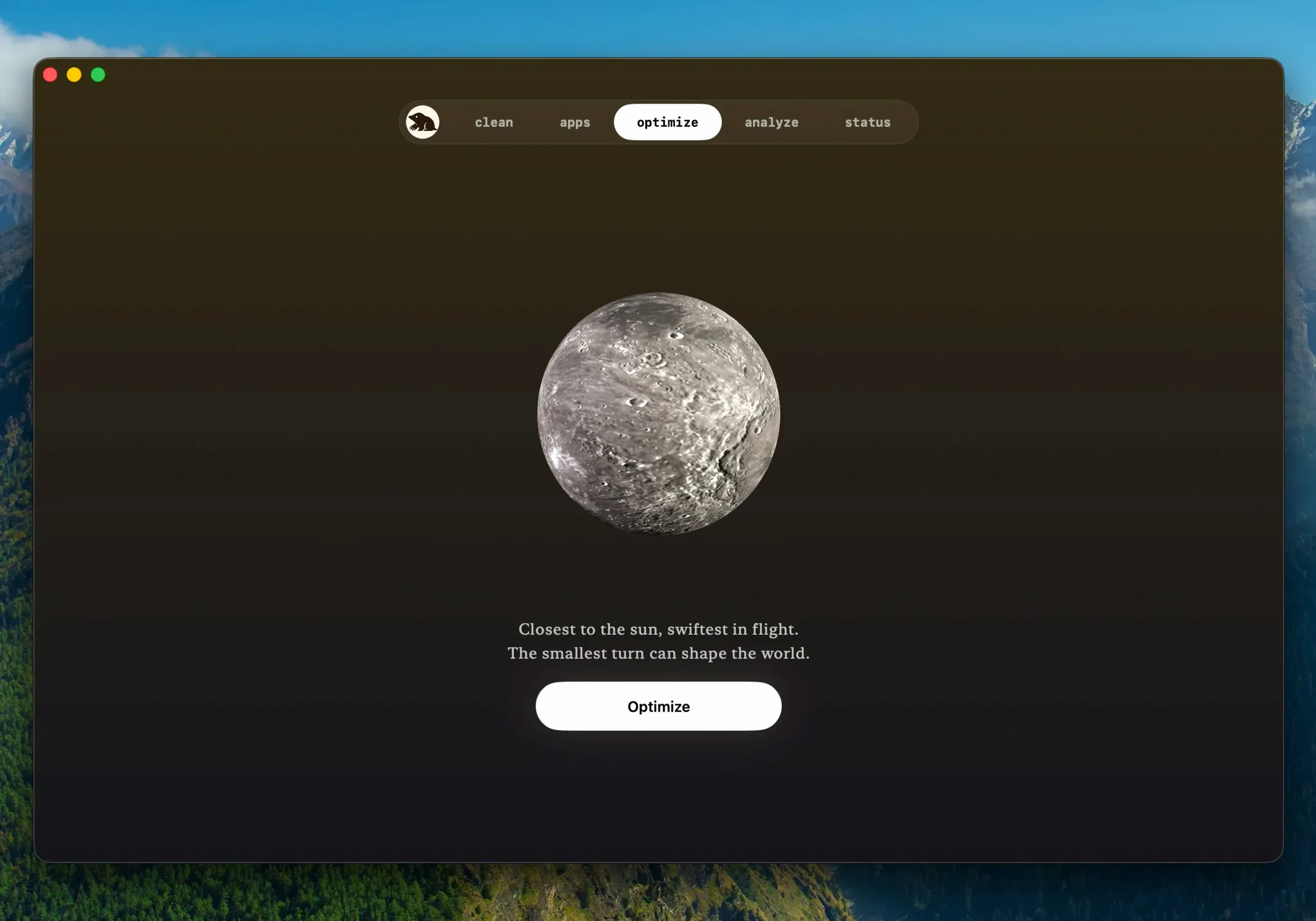
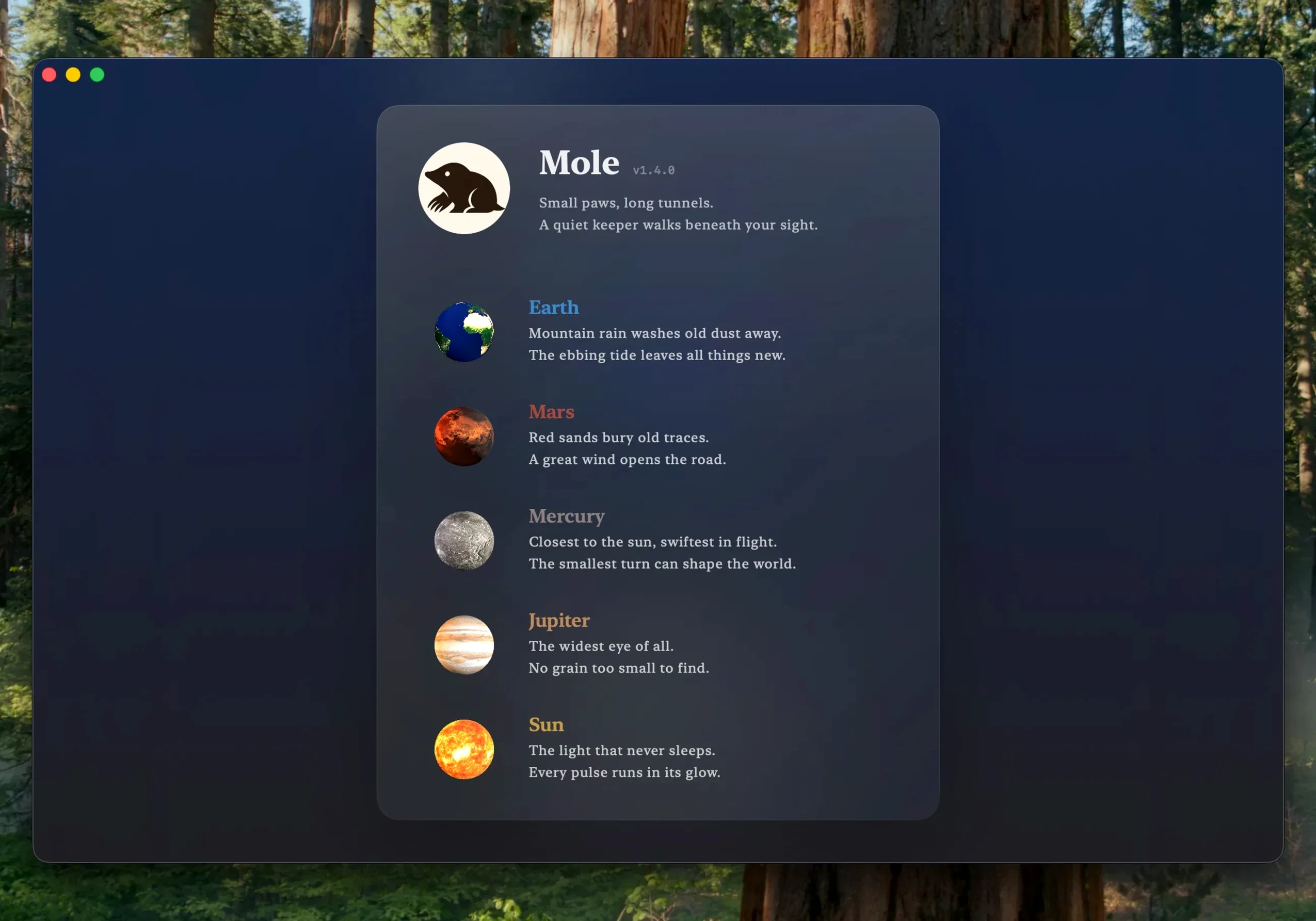
The catalogue note
It also detects a newer build of the same version, so you are not left guessing whether the copy you have is current.
What Mole does
- Removes application leftovers that survive an uninstall.
- Cleans startup items in the Dock.
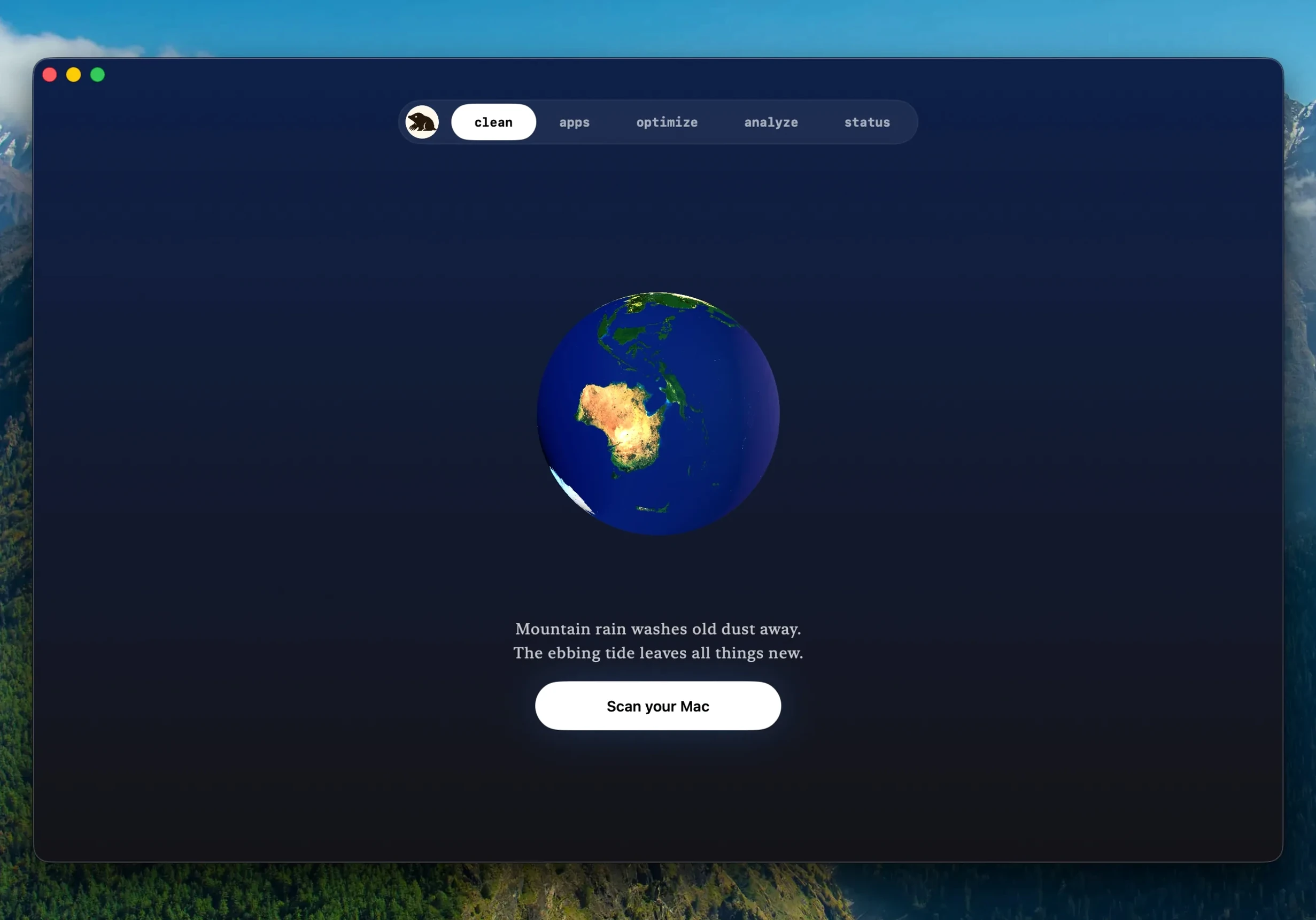
- Runs system maintenance tasks with a single click.
- Skips suspicious items when there is doubt, which keeps the cleanup conservative.
Scanning and cleaning happen locally by default. File contents and browsing history stay on your machine; nothing is uploaded to the network. That matters if you are tidying a work machine with sensitive data on it.
Catches app remnants on macOS 14 or later
Mole suits anyone on macOS 14 or later who wants a straightforward way to clear out app remnants and keep the Dock tidy, without hand-editing library folders. It runs on both Apple Silicon and x86 64-bit Macs, and full disk access is supported for deeper scans. The interface covers nine languages, so it works well in mixed teams or for non-English speakers. The Mac app is a separate download from the CLI project, which keeps the two tools distinct if you only need the graphical version.
Three groups that benefit from one-pass leftover cleanup
The users who benefit most from Mole tend to fall into three groups. The leftover files these applications scatter across Library folders accumulate quietly, and Mole catches them in one pass rather than requiring a manual hunt through ~/Library/Application Support.
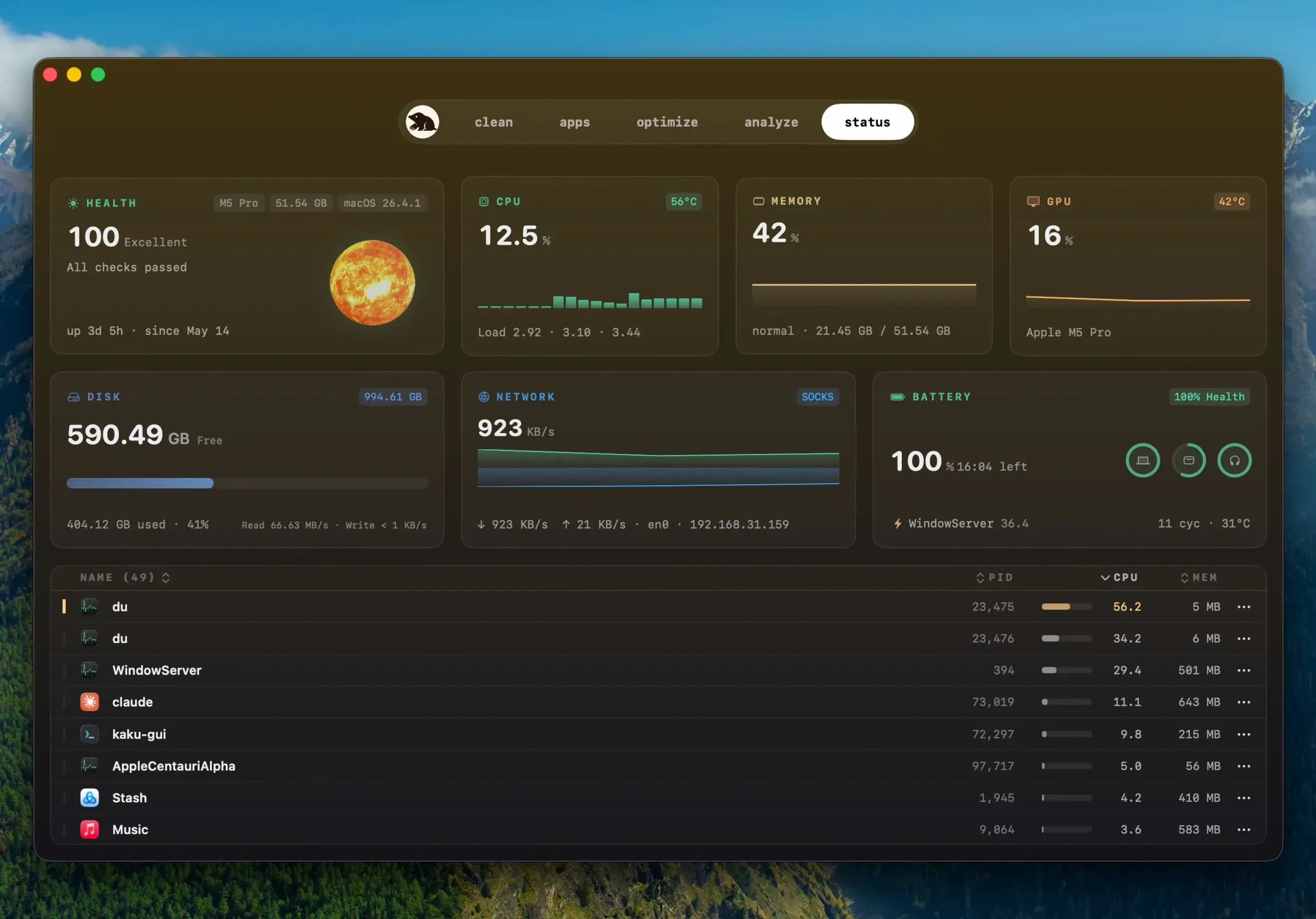
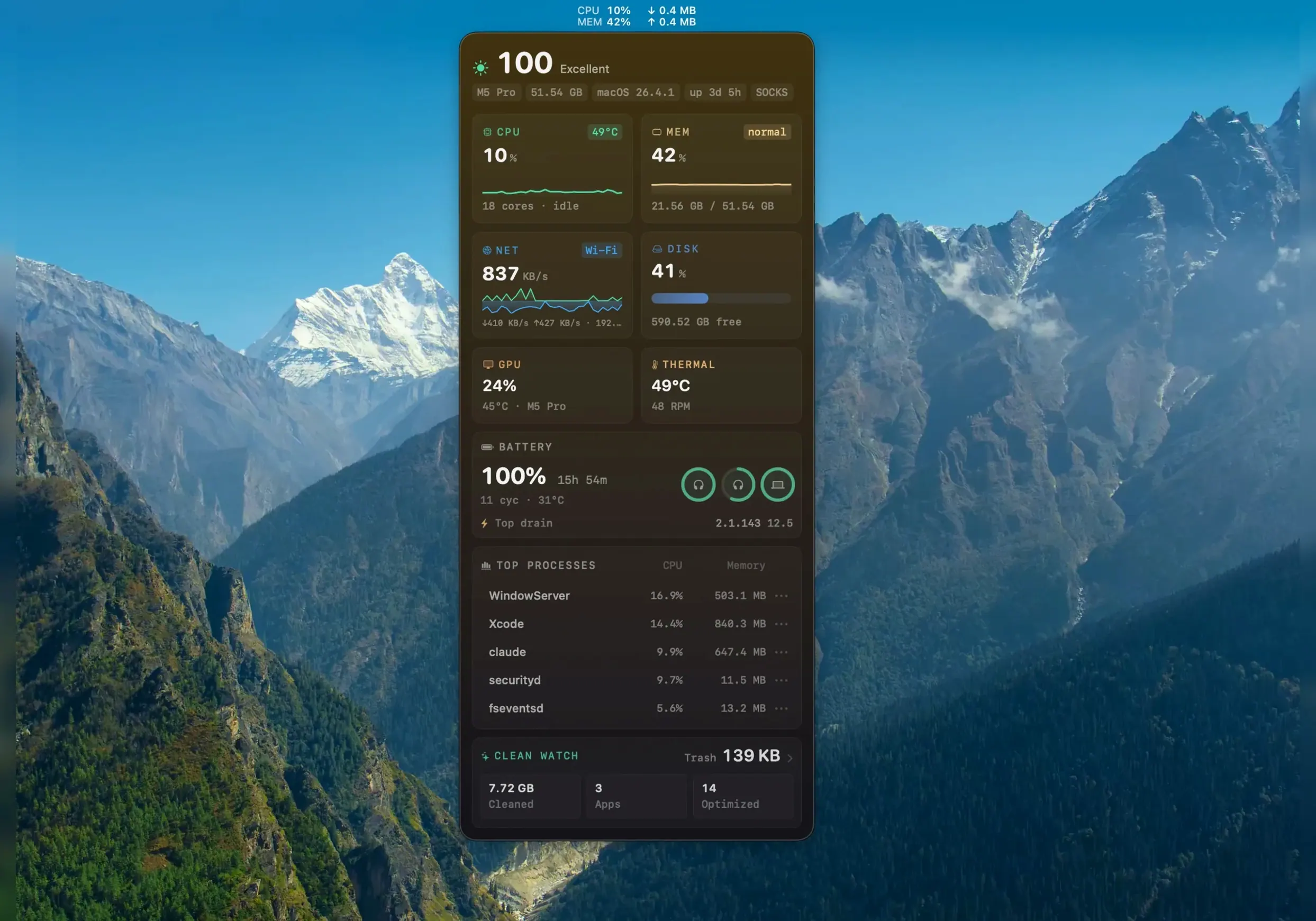
That is useful for monitoring a machine under load — during a render, a large export, or a long compile — without opening Activity Monitor or a third-party dashboard separately.
Third, teams or households sharing a Mac. The one-click system maintenance tasks and the ability to clean caches, logs and temporary files without deep technical knowledge make it a practical tool for non-admin users who just want the machine to feel responsive again. The nine interface languages also mean a shared machine can switch to a language the next user is comfortable with.
Grant full disk access early for deep scans
- Grant full disk access early. The deep scan option needs it, and granting it once avoids repeated permission prompts. Open System Settings > Privacy & Security > Full Disk Access, add Mole, then quit and relaunch the app.
- Run a scan without cleaning first. Let Mole show you what it finds. Look through the list — the file names and sizes are displayed before any action starts. This gives you a sense of what the tool considers removable and helps you decide what to keep.
- Start with caches and logs. These are the safest categories for a first cleanup. Application leftovers and Dock items can wait until you have seen how the tool handles the simpler tasks.
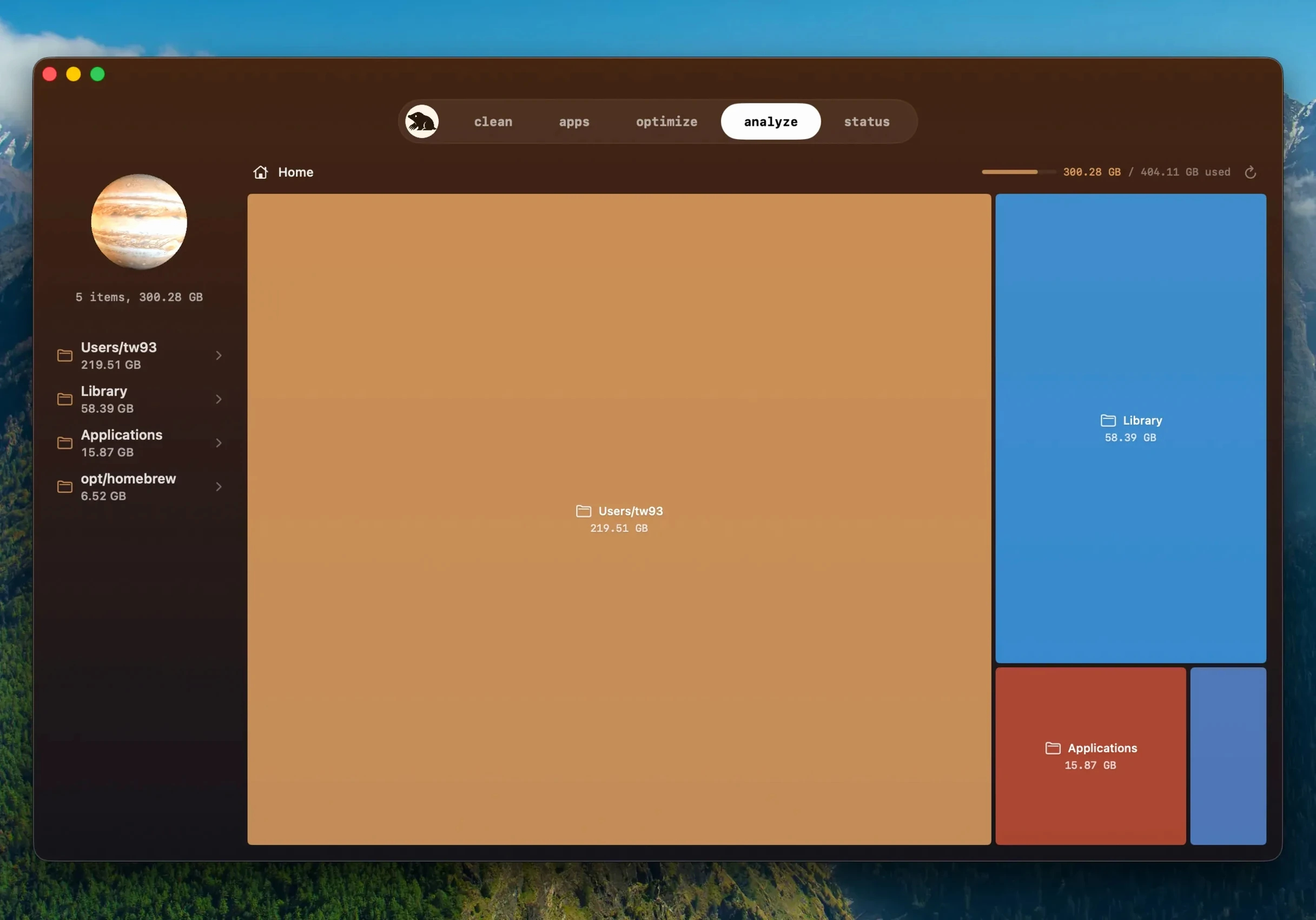
- Check the disk space tree map. It visualises where storage is being used. If a single folder stands out, you can investigate it before deciding whether to clean or leave it.
- Let the machine idle for a few minutes first.
Removing remnants of apps you already trashed
This workflow targets the most common cleanup scenario: removing the remnants of applications you have already uninstalled by dragging them to the Trash.
- Open Mole and select the scan type that covers application leftovers. The tool scans locally and shows a list of found items with their sizes.
- Review the list. Each entry shows the file path and size. If you recognise an application you no longer use, mark it for removal. If you are unsure about an item, leave it unchecked — Mole skips suspicious items when in doubt, but you can also make the call manually.
- Confirm the action. Mole does not start cleaning without your approval. Once confirmed, it removes the selected leftovers.
- After the cleanup finishes, open the disk space tree map to see the change in storage distribution. This confirms the space was freed and shows whether any other large directories remain.
- Optional: run the system maintenance task. A single click triggers it, and it handles routine upkeep without needing further input.
If you later reinstall one of the removed applications, it will recreate its support folders cleanly. There is no harm in having cleared the old ones.
Cleared four NLE trials and plug-in installers in one pass
A freelance video editor works on a Mac shared between editing sessions and client reviews. Over six months, the machine accumulated leftovers from four different NLE trials, two audio post-production suites and a handful of effect plug-in installers. The editor noticed the Dock was cluttered with startup items from tools no longer present, and the Mac felt slower to wake from sleep.
Using Mole, the editor ran a scan that caught the application remnants from the uninstalled NLEs, cleaned the startup items in the Dock, and cleared temporary render caches that the editing software had left behind. The real-time system panel showed the CPU temperature drop by a few degrees after the maintenance tasks completed. The editor did not need to open Terminal or dig through hidden Library folders — the whole process took under ten minutes, and the machine felt noticeably more responsive during the next export session.
For someone working with deadlines, that kind of time saving matters more than the exact gigabyte count recovered.
Changes in this build
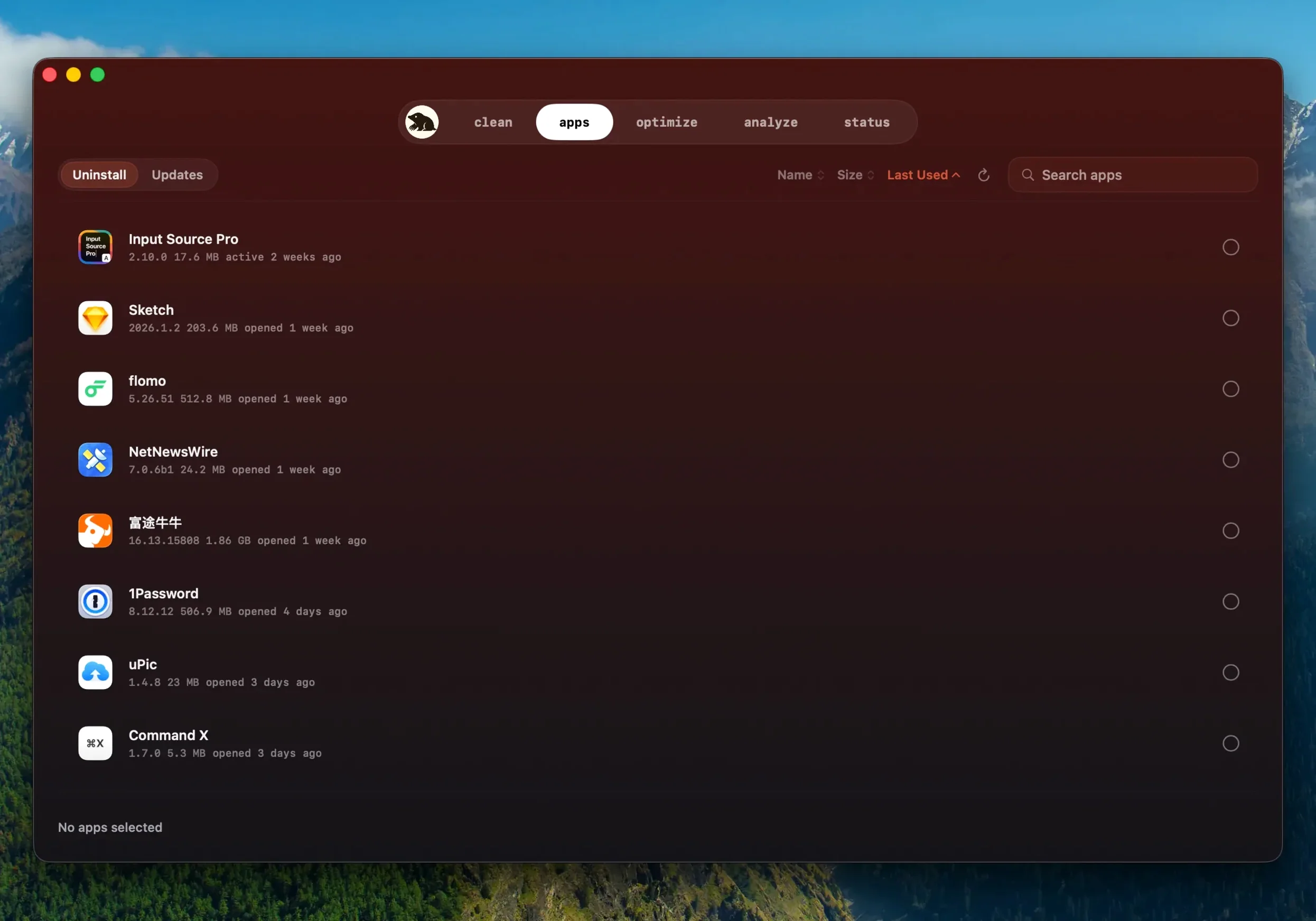
- Apps downloaded from websites can update inside Mole.
- A newer build of the same version is detected.
- The app asks before quitting a running app and reopens it after installation.
Before it goes on the Mac
- macOS 14 or later
- Apple Silicon or Intel (x86 64-bit)
- Full disk access is supported
Questions from the room
Does Mole upload my data anywhere?
No. Scanning and cleaning are performed locally by default, and file contents and browsing history are not uploaded to the network.
What Macs does Mole support?
Mole requires macOS 14 or later and runs on both ARM and x86 64-bit Macs.
Which languages does Mole support?
The interface is available in English, German, Spanish, Italian, Traditional Chinese, Simplified Chinese, Korean, French, and Japanese.
Installing it on the Mac
- Open the downloaded disk image.
- Drag the app into the Applications folder alias.
- Once copying finishes, launch the app from Launchpad.
Notes from the control room
Sign in or open a catalogue account to leave a note.
No notes from the room yet. If you have used this build for a week, a short note helps the next person.