MediaMate 3.8.4 (Mac)
Updated
The catalogue note
MediaMate is the kind of utility that quietly improves how you interact with your Mac every day. It replaces the standard macOS volume, brightness, and now playing HUDs with compact, custom alternatives that sit unobtrusively on screen.
Requires macOS 13 Ventura or later on both Apple Silicon and Intel Macs
macOS — macOS 13 Ventura or later.
Architecture — both Apple Silicon (ARM) and 64-bit Intel Macs are supported.
Interface — English.
Replaces the volume and brightness HUDs and adds a now playing display
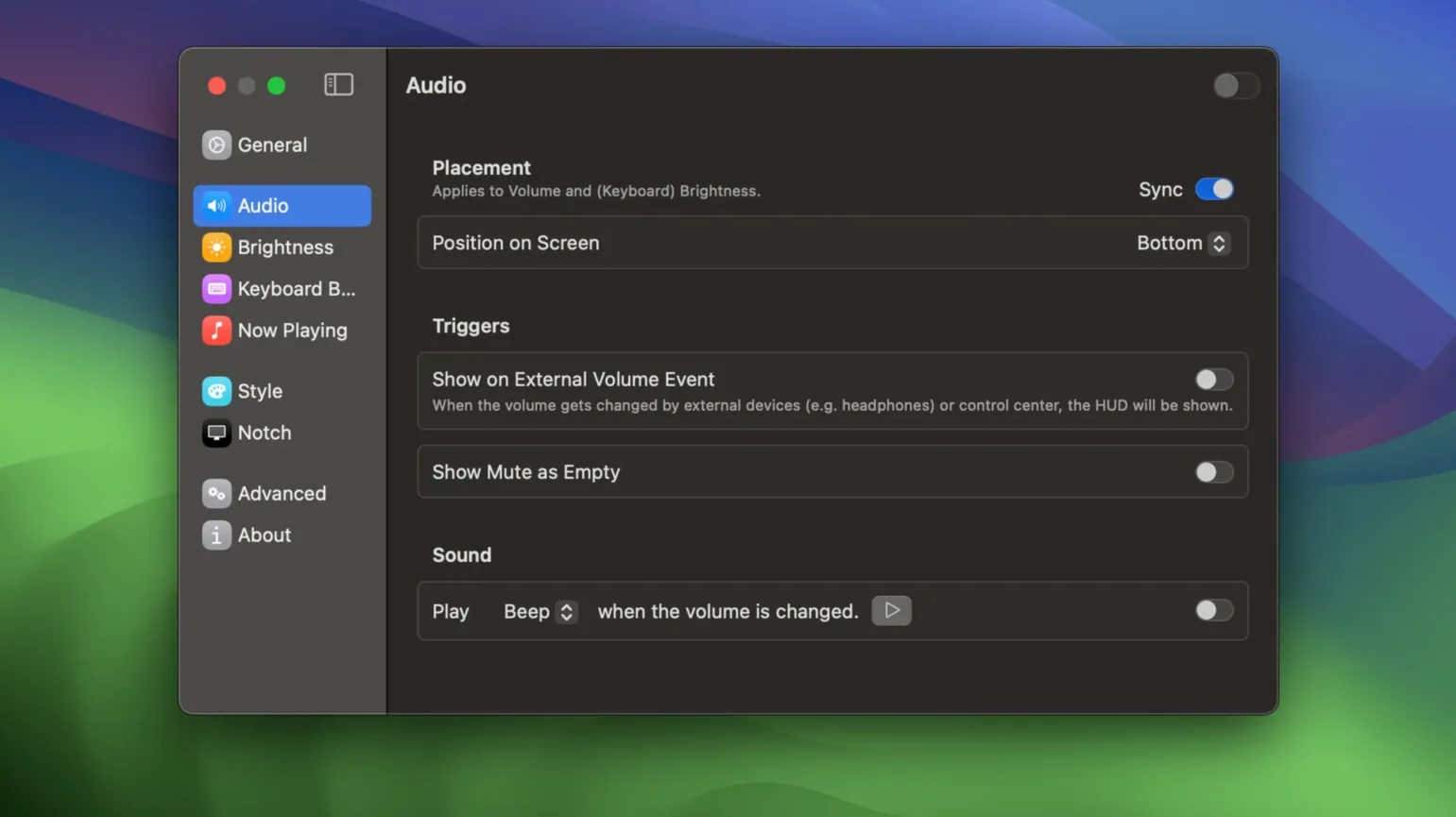
Custom volume HUD — replaces the built-in volume overlay with a smaller, more elegant display.
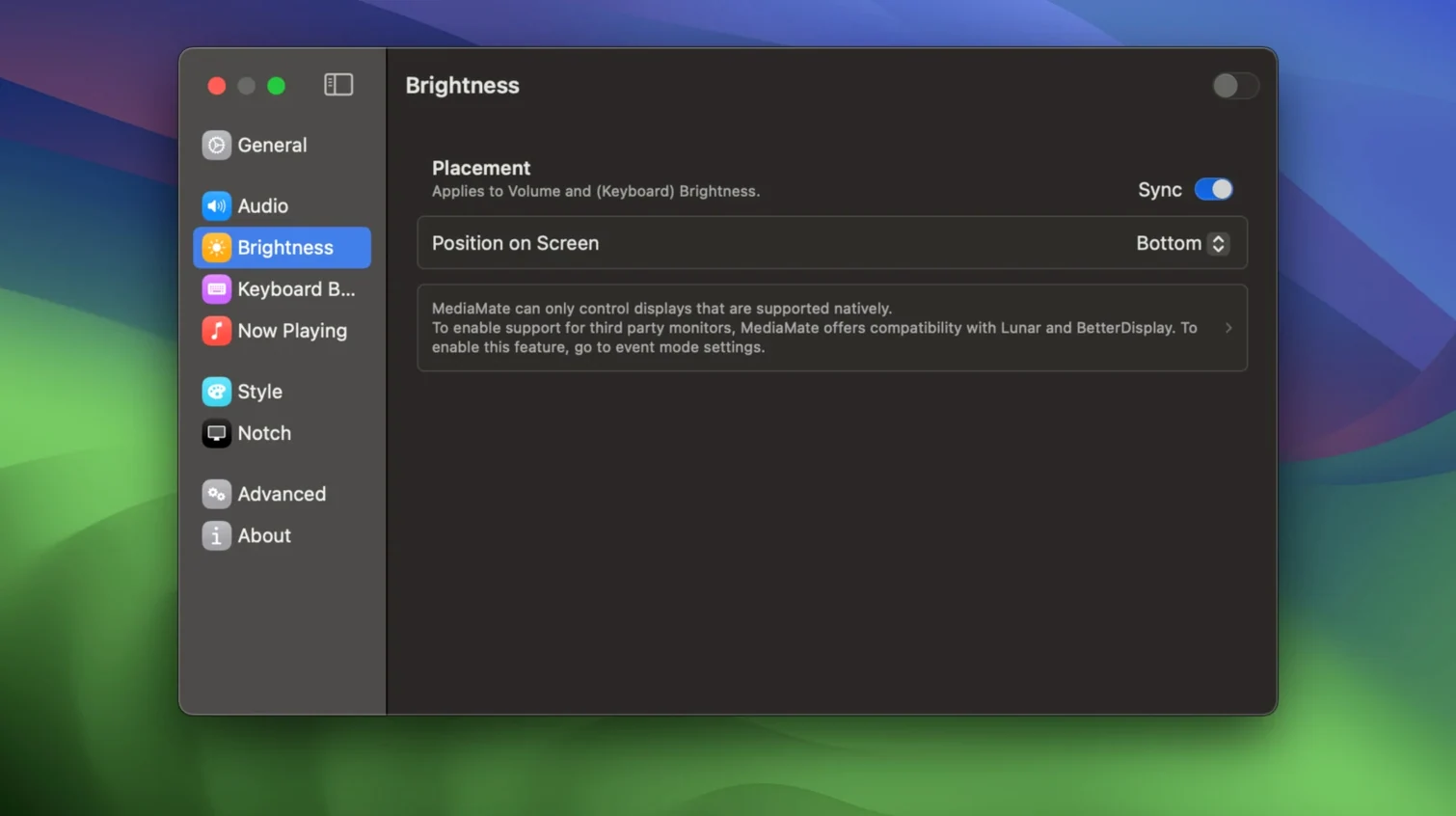
Custom brightness HUD — the same treatment for screen brightness adjustments.
Now playing display — shows the current media title and controls from any app.
Touch Bar support — Touch Bar Macs require a separate mode to work properly.
BackgroundMusic and BetterTouchTool don't cover the same ground
MediaMate sits in a small category of Mac apps that replace system HUDs. Two common alternatives are BackgroundMusic and BetterTouchTool, though neither covers exactly the same ground.
BackgroundMusic is focused on per-app audio control and volume automation. It can suppress the system volume HUD as a side effect, but it does not replace the brightness HUD or offer a now playing display. If you only need volume management and audio routing, BackgroundMusic is a lighter choice — but you lose the keyboard backlight controls and the unified media display that MediaMate provides.
BetterTouchTool is a broader automation tool that can assign custom actions to keyboard shortcuts, trackpad gestures, and the Touch Bar. It can trigger volume or brightness changes, but it does not replace the system HUDs with its own visuals — it relies on macOS defaults. MediaMate is more specialised: it exists solely to make those HUDs better, without the complexity of a general-purpose automation suite.
Magnet and similar window managers are not relevant here — they address window layout, not system feedback overlays. MediaMate fills a specific gap that most utilities ignore.
A night editor adjusts keyboard backlight without the standard macOS HUD
A freelance video editor works late on a MacBook Pro with a Touch Bar. The room is dark, so keyboard backlight brightness gets adjusted several times per session — up when referencing notes, down when grading footage. The standard macOS brightness HUD is large and blocks part of the timeline. MediaMate replaces it with a compact overlay that shows only a small indicator near the menu bar area, staying out of the way.
The same editor often listens to reference tracks through QuickTime Player or Spotify. The now playing display shows the track name and lets them skip or pause without switching apps. On a Touch Bar Mac, they enable the separate Touch Bar mode, which moves the controls to the Touch Bar itself — no need to look down at the screen for media info.
This workflow benefits from consistency: volume, brightness, keyboard backlight, and media playback all share the same visual style and behaviour. No hunting for different HUDs in different corners of the screen.
Adds a keyboard backlight HUD and now playing from any app
- Keyboard backlight brightness controls — macOS does not show any HUD for keyboard backlight by default. MediaMate adds one, making it visible and adjustable like volume and screen brightness.
- Now playing from any app — the media display picks up playback from Spotify, Apple Music, QuickTime Player, and most other apps that use the system media framework. No need to configure per-app support.
- Touch Bar mode is optional — on Macs with a Touch Bar, you can choose to run MediaMate in its standard mode or enable a separate Touch Bar mode. This avoids conflicts with Touch Bar-based volume sliders if you prefer one over the other.
- Compact size on all Macs — the replacement HUDs are smaller than the system originals on both built-in displays and external monitors, which matters when you are working on a small laptop screen.
Answers before you install
Does it conflict with other system UI tweaks
MediaMate replaces the standard macOS volume and brightness HUDs at the system level. Most other UI tweak apps (Bartender, Ice, Hidden Bar) do not touch these HUDs, so conflicts are rare. If you use a tool that also modifies HUD behaviour, you may need to disable that feature in one of them. The Touch Bar mode is separate and can be toggled off if another app manages Touch Bar controls.
Intel Macs work only if running macOS 13 Ventura or newer
MediaMate requires macOS 13 Ventura or later, regardless of architecture. If your Intel Mac runs Ventura or newer, it will work. Earlier macOS versions are not supported — the app relies on system frameworks introduced in Ventura.
No restart needed—HUD replacement starts right after launching
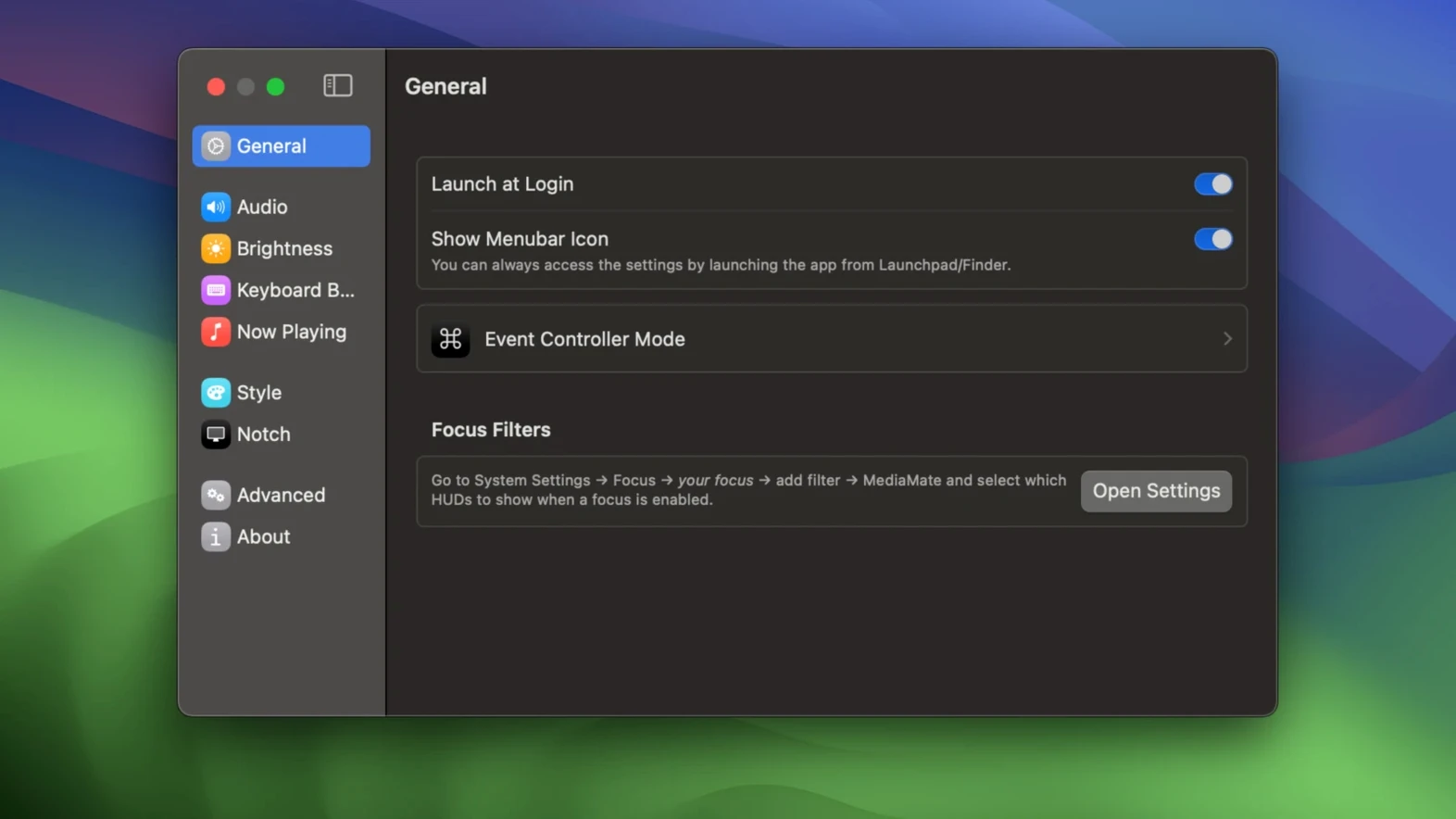
No restart is required. The installation is a standard drag to Applications. After launching, MediaMate starts replacing the HUDs immediately. It adds a menu bar icon for quick access to settings and quitting.
Can I keep the original macOS HUDs as a fallback
MediaMate does not disable the system HUDs permanently — it intercepts the volume and brightness events and displays its own overlay instead. If you quit MediaMate, the standard macOS HUDs return. There is no permanent change to system files.
For users who want to test it without commitment, this makes it easy to revert. No mediamate license key or mediamate crack is needed to evaluate the behaviour — the mediamate mac app runs as-is after installation. The current version 3.8.4 is the same build available for download.
Before it goes on the Mac
- macOS 13 Ventura or later
- Apple Silicon or 64-bit Intel processor
Installing it on the Mac
- Open the downloaded disk image.
- Drag the app to the Applications folder.
- Once copying finishes, launch the app from Launchpad.
Notes from the control room
Sign in or open a catalogue account to leave a note.
No notes from the room yet. If you have used this build for a week, a short note helps the next person.