MacBooster 8.3.0 (Mac)
Updated
The catalogue note
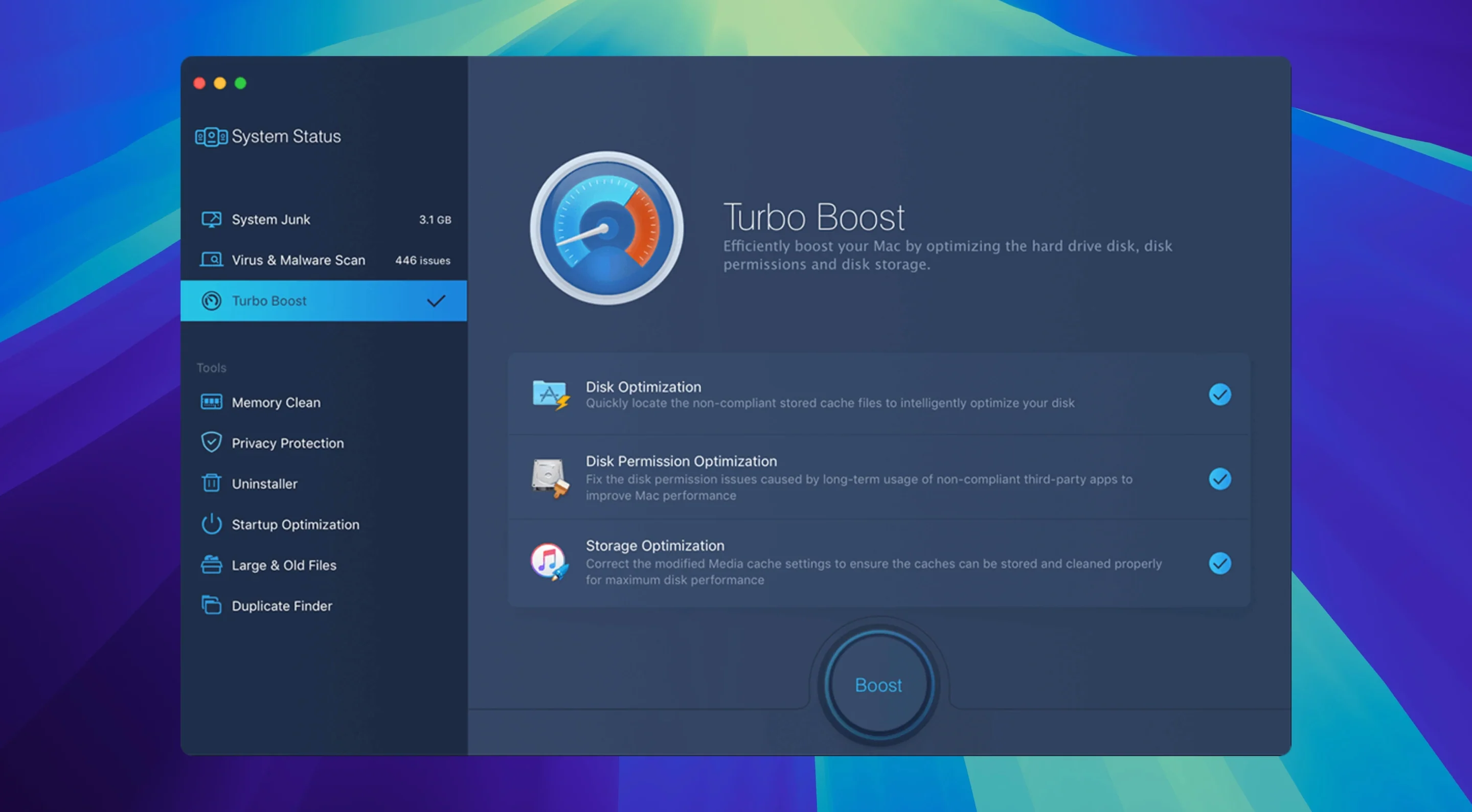
If you already use Onyx or CleanMyMac for maintenance, you know the difference between a surface-level cleaner and a tool that can actually fix system-level quirks. MacBooster 8.3.0 sits closer to the latter camp. Beyond the usual junk scan and one-click fix, it offers disk permission repair and memory flushing — two routines that still matter on macOS if you run legacy software or hit the occasional kernel panic.
| Detail | Value |
|---|---|
| Version | 8.3.0 |
| Developer | IObit |
| OS support | macOS 11.5 and later, Intel & Apple Silicon |
| Languages | 14 (including EN, DE, FR, ES, IT, PT, NL, RU, DA, SV, TR, JP, ZH-CN, ZH-TW) |
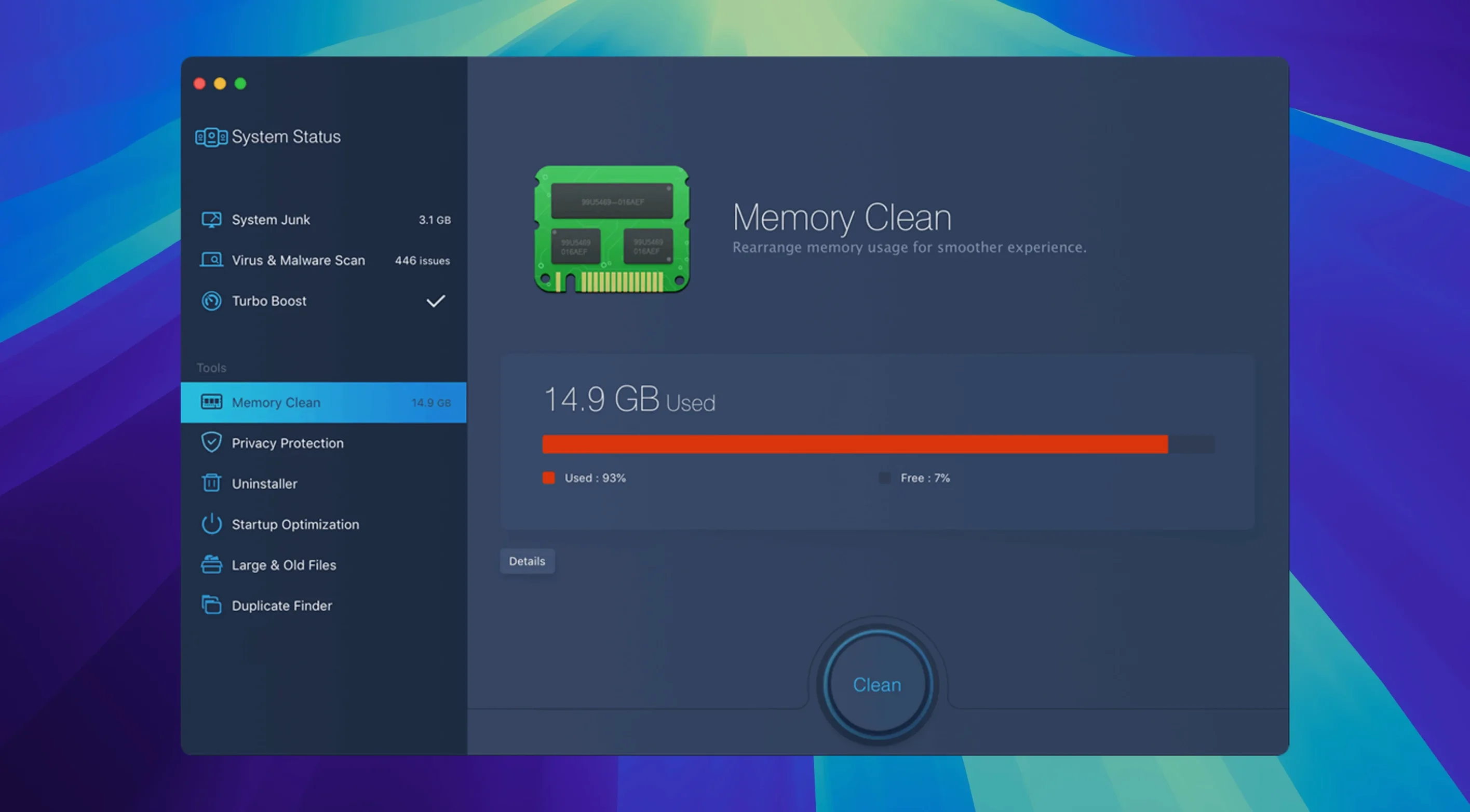
Disk permission repair is worth mentioning because newer macOS versions still accumulate permission mismatches after app updates or migration. Memory cleanup, meanwhile, frees inactive RAM without a reboot — useful when you are bouncing large audio sessions or compiling code. Malware scanning rounds out the security side, though IObit markets it as a supplemental layer rather than a primary antivirus. The interface stays clean and the one-click approach works, but the power is in the individual modules you can run selectively. For a utility that handles both housekeeping and deeper system tasks, MacBooster 8.3.0 earns its place on a maintenance drive.
Don't let the one-click scan remove caches you need
New users tend to treat MacBooster like a fire-and-forget solution. They run the one-click scan, approve everything, and move on. That is rarely the optimal approach. The automatic cleanup can remove browser caches you might still want — temporary files that store login states or site preferences, for instance. A better habit is to review what the scan flags before committing to deletion.
Another frequent error is running memory cleanup immediately after launching the system. macOS manages RAM dynamically; flushing it without first observing whether performance is actually degraded can waste time and, in some cases, force the system to reload data from disk that it had already cached. Let the machine settle, open your usual workload, and only then decide if the memory module is needed.
Beginners also overlook the disk permission repair tool. Many assume macOS handles this automatically on every update. It does not always catch everything, especially after migrating from an older Mac or restoring from Time Machine. Skipping this step can leave permission mismatches that cause apps to behave unpredictably — usually manifesting as "You don't have permission" errors on files you own.
Finally, there is the habit of ignoring the malware module because it is bundled with a cleaner. MacBooster's malware scanner is not a replacement for a dedicated security suite, but it catches adware and potentially unwanted programs that slip past Safari's default warnings.
MacBooster vs free Onyx, paid CleanMyMac X, and focused DaisyDisk
MacBooster 8.3.0 shares territory with Onyx, CleanMyMac X, and DaisyDisk, but each takes a different angle.
Onyx is free and gives granular control over system maintenance — rebuilding LaunchServices databases, clearing system caches, running maintenance scripts. It does not, however, include malware scanning or memory flushing in the same integrated interface. MacBooster bundles these features into a single dashboard, which reduces the number of tools you need to keep installed.
CleanMyMac X offers a broader feature set: space lens, shredder, and a more polished interface. It also includes a malware scanner. The trade-off is that CleanMyMac X tends to be heavier on disk and more aggressive with its background helpers. MacBooster stays lighter and feels closer to a traditional utility — you launch it, run what you need, and quit. It does not install menu bar agents by default.
DaisyDisk focuses solely on visual disk space analysis. It is excellent for finding large files and folders, but it does not handle junk cleanup, malware removal, or permission repair. MacBooster's duplicate file finder and large file scanner cover similar ground, though without the interactive treemap that makes DaisyDisk intuitive for visual explorers. If your main concern is storage mapping, DaisyDisk remains the specialist; for everything else, MacBooster provides a broader toolkit.
Runs natively on Intel and Apple Silicon with no Rosetta needed
MacBooster 8.3.0 requires macOS 11.5 or later and runs natively on both Intel and Apple Silicon Macs. The installer occupies roughly 70 MB of free disk space. No Rosetta translation layer is needed on ARM machines — the app ships as a universal binary.
Installation follows a standard drag-to-Applications pattern, though the disk image includes a Gatekeeper bypass step that involves a single Terminal command. This is a known workaround for IObit's distribution method and is safe if you trust the source. Once in place, the app launches without background daemons or login items.
Language support covers fourteen locales, so the interface can switch between English, German, French, Spanish, Italian, Portuguese, Dutch, Russian, Danish, Swedish, Turkish, Japanese, Simplified Chinese, and Traditional Chinese. That is broader than most competitors and useful in shared studio environments or teams with mixed language preferences.
Duplicate and large file scanners hide in the toolbox
The duplicate file finder and large file scanner are tucked inside the toolbox rather than the main cleanup screen. Beginners often miss them because the one-click scan does not trigger these modules automatically. Running them separately after a standard cleanup can recover significantly more space, especially on drives cluttered with old downloads or project copies.
The photo cleaning tool targets duplicate and similar images. It is not as thorough as dedicated photo management software, but for a quick sweep of your Pictures folder it saves launching a separate app.
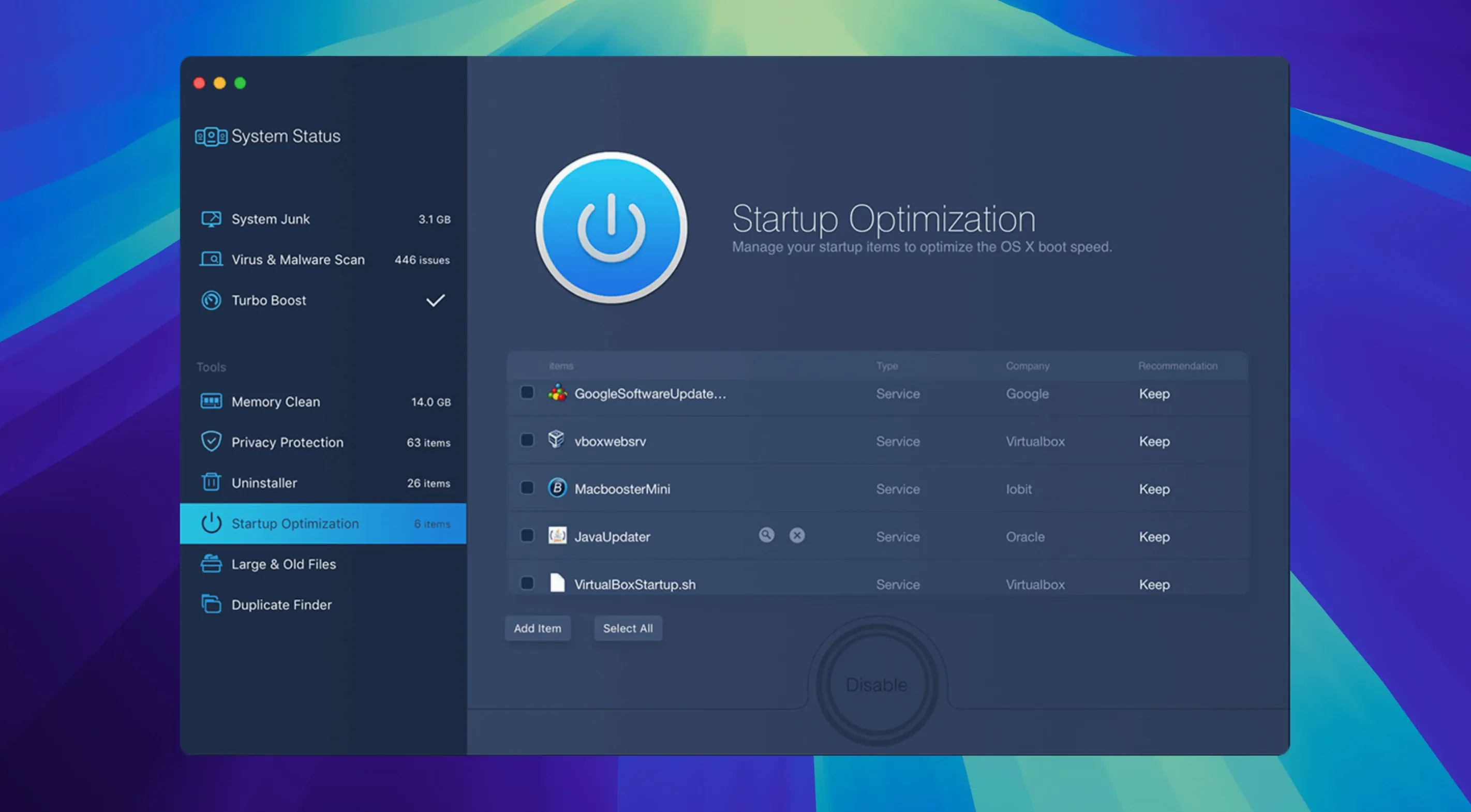
Startup item management is another feature that sits in the toolbox rather than the main interface. MacBooster lists them clearly and allows disabling without hunting through System Settings or the Terminal.
Privacy cleaning covers chat logs, browsing history, and recent file lists across multiple browsers. It is one of the few modules that runs automatically when you select the one-click scan, so users who only use the quick option already benefit from it without knowing.
For anyone searching for offline activation references, terms like macbooster 8 license key free or macbooster 8 pro sometimes appear in forum discussions. The version described here is 8.3.0, and the standard installation path is the one documented above. Third-party key generators or macbooster crack files carry obvious risks and are not needed to evaluate the tool's core functionality.
Before it goes on the Mac
- macOS 11.5 or later
- Intel or Apple Silicon processor
- 70+ MB of free disk space
Installing it on the Mac
- Mount the disk image and run the Gatekeeper-friendly installer.
- Press Enter in the Terminal window to bypass Gatekeeper.
- Drag the app to the Applications folder.
- Launch the app when installation completes.
Notes from the control room
Sign in or open a catalogue account to leave a note.
No notes from the room yet. If you have used this build for a week, a short note helps the next person.