Home › Utilities › Little Snitch

Little Snitch 6.5 (Mac)
Updated
The catalogue note
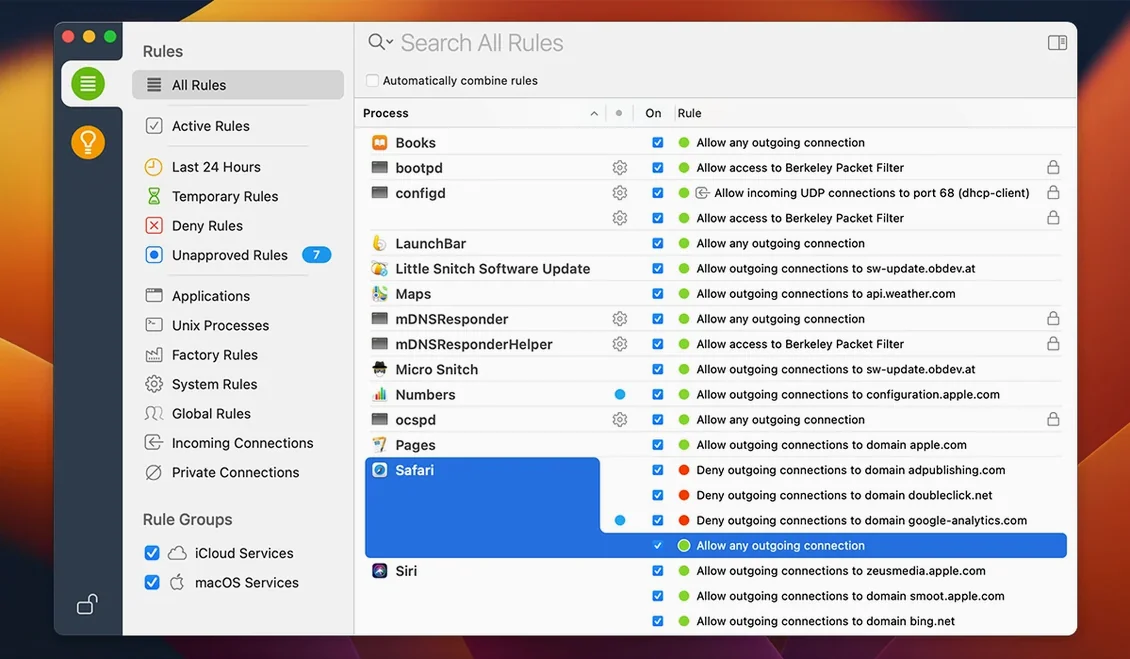
Every outbound connection from your Mac is a decision. Little Snitch makes those decisions visible and puts you in charge. When an app tries to reach a server, you get an alert with the option to allow or deny it. The rule you choose is remembered and applied automatically next time, so you build a policy that fits how you actually work.
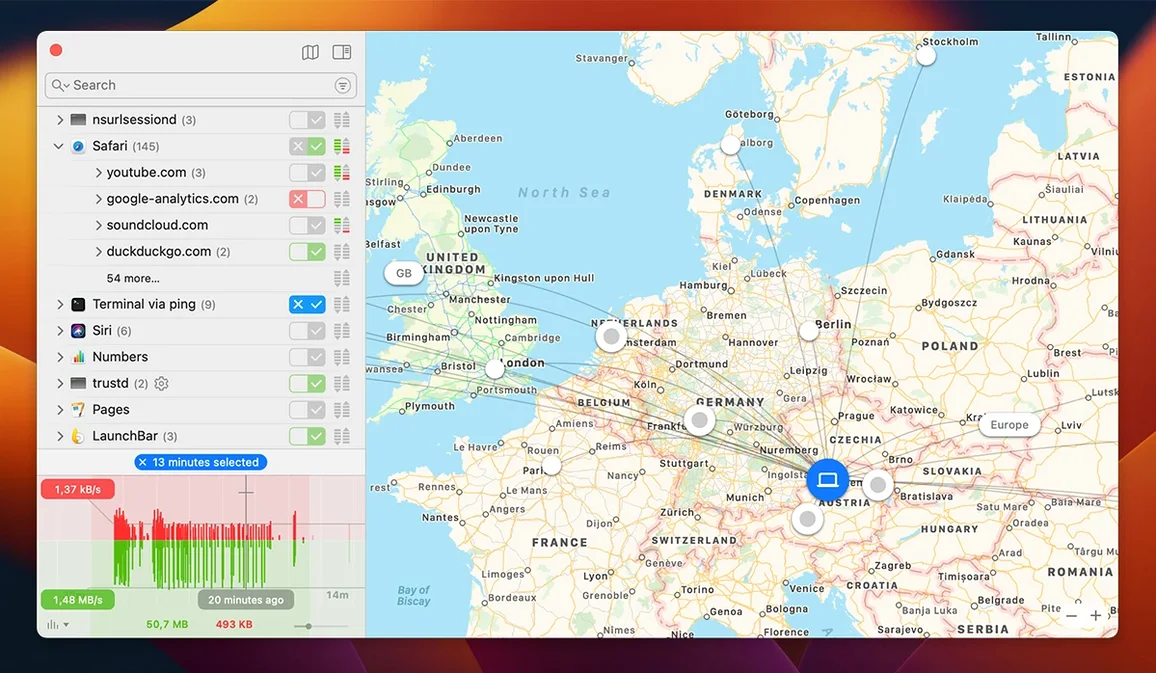
Shows an interactive world map of connection locations
| Item | Detail |
|---|---|
| Developer | Objective Development |
| Category | Utilities |
| Version | 6.5 |
| macOS | 14 or later |
| Architecture | Intel and Apple Silicon |
| Languages | English, German |
Beyond the alerts, the main window shows network activity as an app and server list, an interactive world map of connection locations, and an hourly traffic history. If you don't want to be interrupted, Quiet Mode postpones notifications and decisions until you're ready. Scriptable control comes via the command-line tool, and version 6.5 swaps the old kernel-extension filtering for a newer engine, with improved encrypted DNS handling and a label change from traffic amount to traffic volume.
Modern filtering engine won't slow your Mac or flood alerts
Most people wonder whether Little Snitch will slow down their Mac or flood them with alerts. The filtering engine in version 6.5 replaces the older kernel-extension approach, so the architecture is modern and works with both Intel and Apple Silicon machines. It does not degrade everyday performance noticeably – the alerts appear only when an app you haven't yet ruled on tries to connect. Once you've built a set of rules, the prompts become infrequent.
Another common question is whether it blocks legitimate traffic. It doesn't block anything by default. It asks. If you deny a connection your mail client needs, the connection simply fails and you can adjust the rule. The system learns your choices over time.
People also ask about uninstalling. The standard process is to remove the previous version before installing the new one, and the included instructions walk you through activation and removal. No lingering kernel extensions remain after version 6.5, since the new engine is not based on them.
Some wonder if the command-line interface is only for advanced users. It is, but the main app works fine without it. The CLI is there if you want to script rules or integrate with other tools.
Runs on macOS 14 or later for Intel and Apple Silicon
Little Snitch 6.5 requires macOS 14 or later. It runs on both Intel and Apple Silicon Macs, so the architecture is covered regardless of which generation you use. The interface is available in English or German – you choose during setup or switch later in the preferences.
The filtering engine is the core component. Because it no longer relies on kernel extensions, the installation is cleaner and the system extension model is used instead. The Network Monitor runs as a separate view inside the main window, showing active connections as an app and server list, a world map with server locations, and an hourly traffic history graph. The map is interactive – you can zoom and pan to see where your traffic goes.
The alert window appears when a new connection attempt happens. It shows the app name, the destination server, and the protocol. You can allow once, allow always, deny once, or deny always. The rule is stored and applied without further prompts.
Quiet Mode is a toggle in the menu bar. When enabled, alerts are postponed and decisions are deferred until you turn it off. This is useful during installs, updates, or when you're running a batch process and don't want interruptions.
The command-line tool snitch lets you query and modify rules, view connection logs, and toggle settings from a terminal or a script. It supports the same rule types as the GUI.
Menu-bar item alerts you to each outbound connection attempt
You start the Mac in the morning. Little Snitch loads as a menu-bar item and shows a small icon. No alerts appear until an app tries to make an outbound connection.
You open a browser. Immediately, an alert pops up: the browser wants to connect to its update server. You recognise the server, click Allow Always, and the rule is stored. The browser loads the page. A moment later, a system process tries to reach a time server. You allow that too.
You launch a DAW – Reaper, in this case. It tries to check for a licence online. You allow it. Then a plugin installer tries to phone home. You don't recognise the server, so you deny it once. The plugin still works, but the connection is blocked. You note the server name and research it later.
Mid-session, you need to download a sample library. You don't want to be interrupted by every connection, so you click the menu-bar icon and enable Quiet Mode. The downloads proceed without prompts. Once the downloads finish, you disable Quiet Mode and review the postponed alerts in the main window. You approve the ones you trust and deny the rest.
At the end of the day, you open the Network Monitor and look at the hourly traffic graph. You see a spike during the download session. The world map shows connections to servers in several countries – mostly where the sample library was hosted. Nothing unexpected.
You close the Mac. Little Snitch saves its state and will resume monitoring next time.
Adds macOS 27 Golden Gate compatibility and app bundle integrity monitoring
Version 6.5 brings several practical improvements that affect how you interact with the firewall day to day.
- macOS 27 Golden Gate compatibility. If you run that version, Little Snitch works without additional steps.
- App bundle integrity monitoring. While an app is running, Little Snitch checks whether its bundle has been modified. If something changes, you are alerted – useful for spotting tampered apps.
- Experimental NAT64 support. For networks that use NAT64 to translate IPv6 to IPv4, the filtering now handles the translation. This is marked as experimental, so it may be refined in future updates.
- Improved encrypted DNS handling. Encrypted DNS queries (DNS over HTTPS, DNS over TLS) are now tracked more accurately. The firewall sees the actual destination rather than the resolver alone.
- Inbound connections no longer use hostnames. The firewall now relies on IP addresses for inbound connection rules, which makes the rules more deterministic.
- Two bug fixes. A rare crash during exact-match process search in the rules list is gone, and expired temporary rules now appear correctly under Suggestions > Expired instead of being hidden.
- Label change. The interface now says traffic volume instead of traffic amount. The data is the same, but the wording is more precise.
Click server dots on the world map to spot unexpected traffic
The interactive world map in the Network Monitor is not just decorative. You can click on a server dot to see its address and the app that connected to it. This makes it easy to spot unexpected traffic to unfamiliar locations.
You can hover over a bar to see the exact volume for that hour. This helps identify usage patterns without digging into logs.
The command-line tool is not just for scripting. If you prefer working in a terminal, you can use snitch --list-rules to see your current rules, snitch --add-rule to create one, or snitch --quiet-mode on to toggle Quiet Mode without touching the mouse.
Quiet Mode itself remembers its state across reboots. If you enable it, it stays enabled until you turn it off. No need to re-enable after a restart.
The alert window shows a small icon for the app making the connection. If you see an icon you don't recognise, it's a clue that something unexpected is running. You can click the icon to reveal the app in Finder.
Little Snitch monitors network connections to help you control which apps access the internet. The same goes for little snitch torrent or little snitch mac torrent – the standard installation process is straightforward and documented.
Changes in this build
- Adds compatibility with macOS 27 Golden Gate.
- Monitors app bundle integrity while running.
- Adds an experimental NAT64 implementation.
- Improves encrypted DNS handling.
Before it goes on the Mac
- macOS 14 or later
- Intel or Apple Silicon
- Languages: English, German
- Activation included
Questions from the room
Does Little Snitch work on Apple Silicon Macs?
Yes, Little Snitch 6.5 supports both Intel and Apple Silicon architectures, and requires macOS 14 or later.
Can I control Little Snitch from the terminal?
Little Snitch includes a command-line tool, so you can script connection rules and monitoring.
What happens when I deny a connection?
The app's attempt to reach that server is blocked, and the rule you set is applied automatically in the future.
Installing it on the Mac
- Remove the previous version of Little Snitch before installing the new one.
- Follow the included installation and activation instructions.
Notes from the control room
Sign in or open a catalogue account to leave a note.
No notes from the room yet. If you have used this build for a week, a short note helps the next person.