Home › Utilities › MacDroid Pro
MacDroid Pro 2.10.0 (Mac)
Updated
The catalogue note
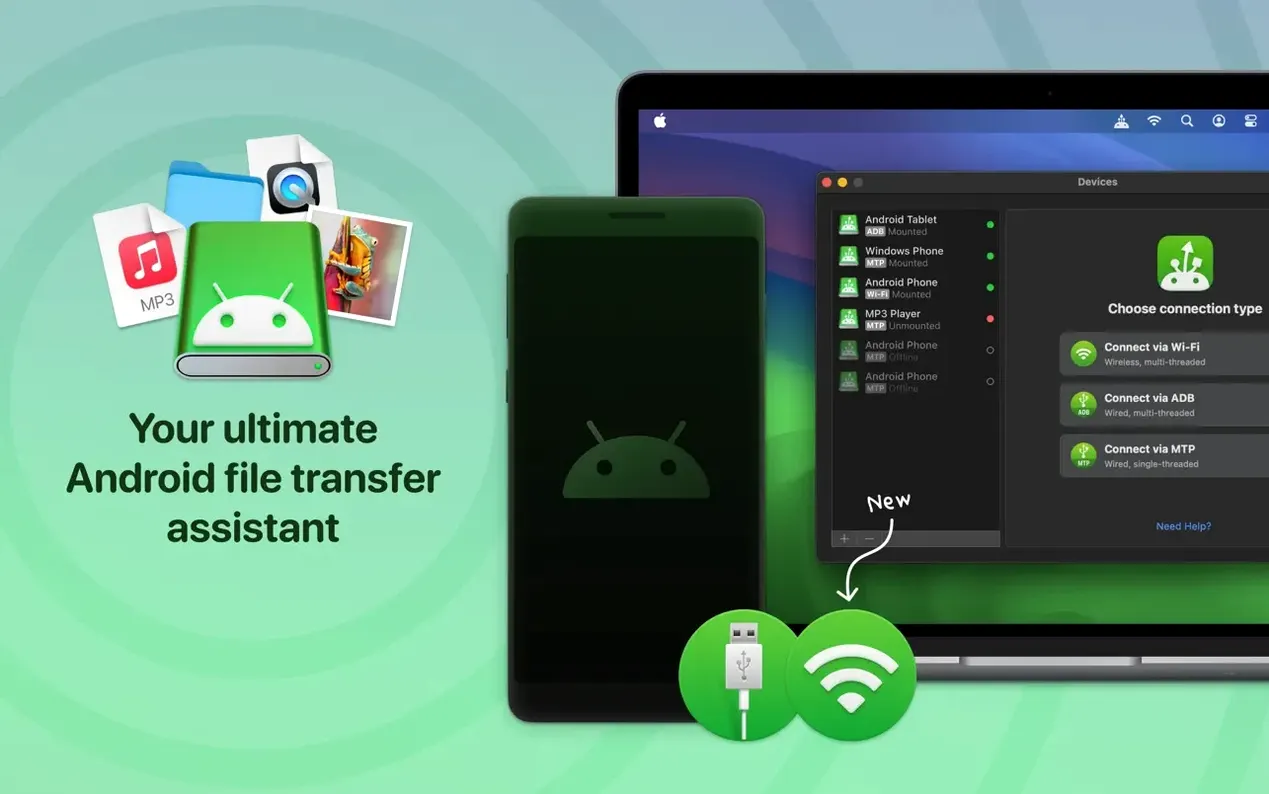
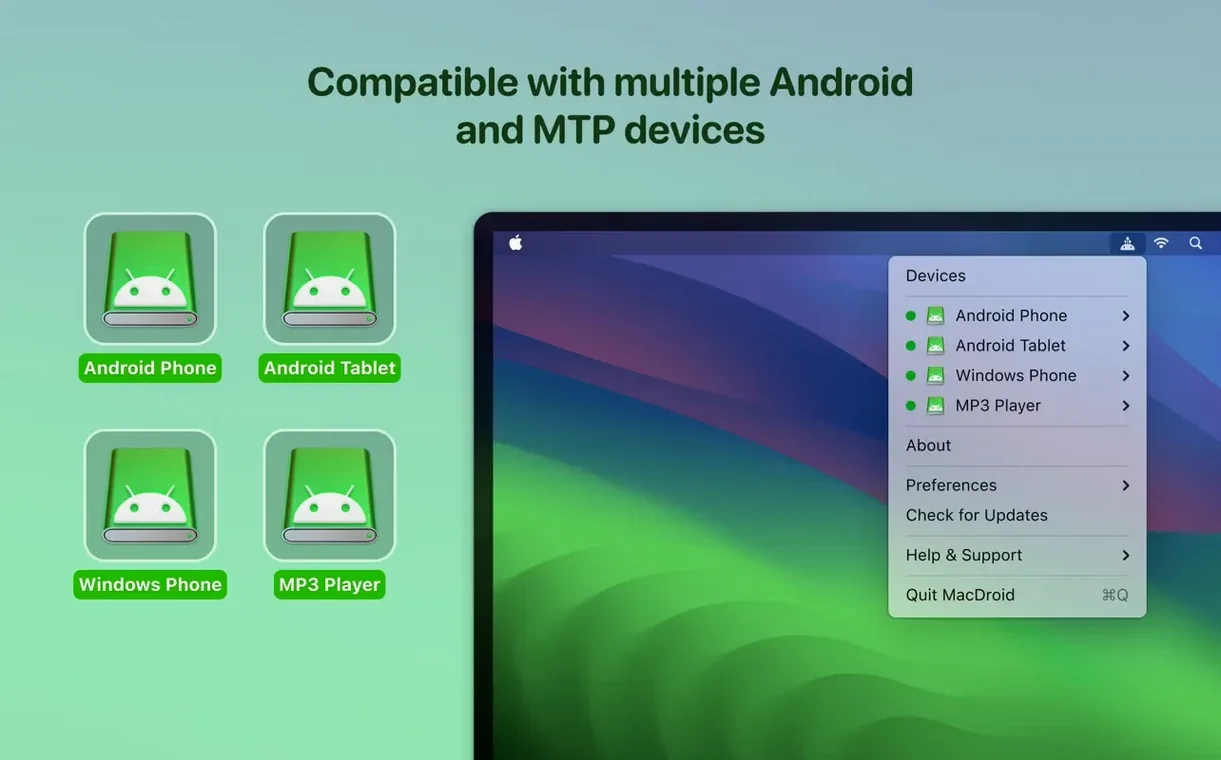
Anyone who works with both a Mac and an Android phone or tablet will eventually need to move files between them. MacDroid Pro is the tool for that job — it handles transfers over USB or Wi-Fi, works with internal and external Android storage, and supports MTP and ADB connections. This is a quick look at whether it runs on your machine and what it actually does.
macOS 11.5 or later — the app runs on Big Sur and newer. Works on both Intel and Apple Silicon Macs.
Connection methods — USB cable or wireless. Version 2.10.1206 improved MTP and ADB connection stability for some devices.
File types — files, folders, music, photos, and videos. You can move whole directory trees, not just individual files.
Storage access — reads both internal phone storage and any SD card or USB drive attached to the Android device.
Interface languages — English, German, Spanish, Italian, Chinese (Simplified), Korean, Portuguese, French, Hindi, Czech, Japanese. Traditional Chinese was added in version 2.10.1206.
Performance — loading of file and folder listings was made faster in the current release.
Photographers and videographers editing on a Mac
The app is useful for anyone who owns both a Mac and an Android device, but a few groups get more out of it than others.
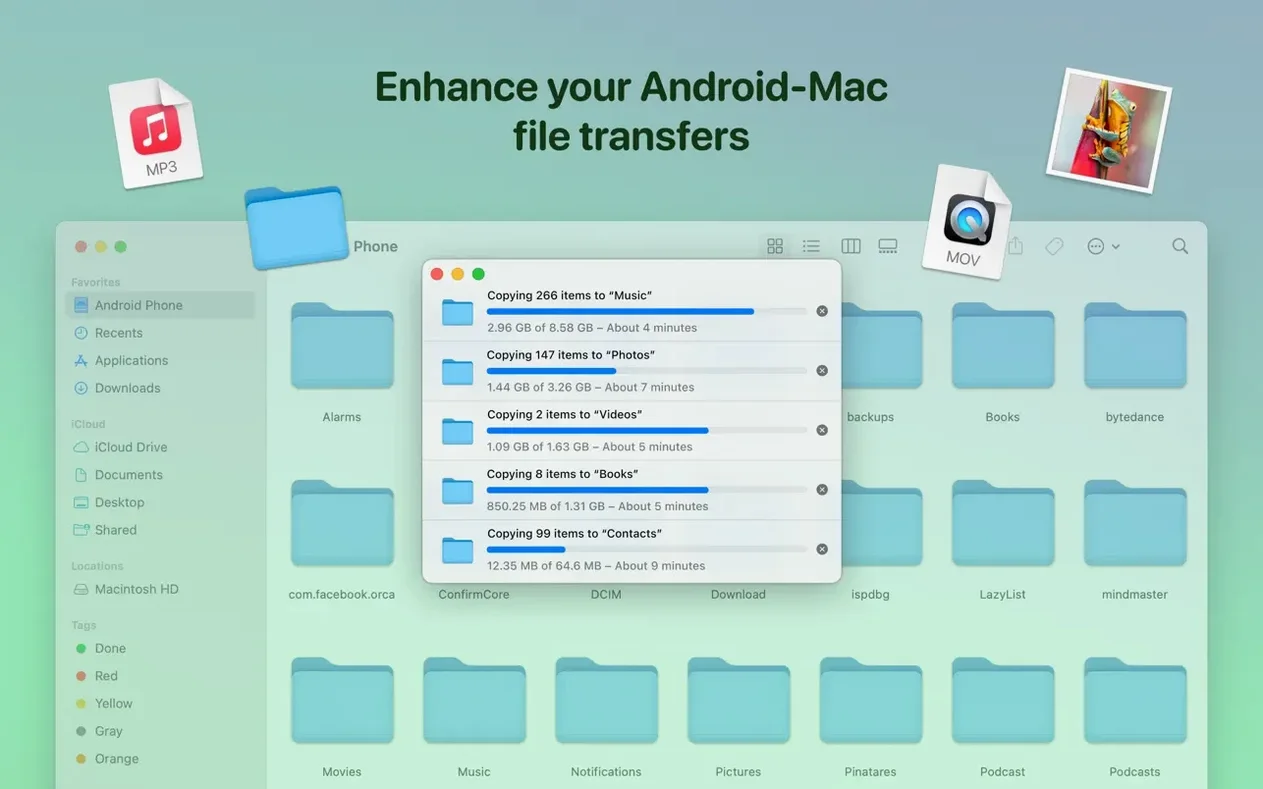
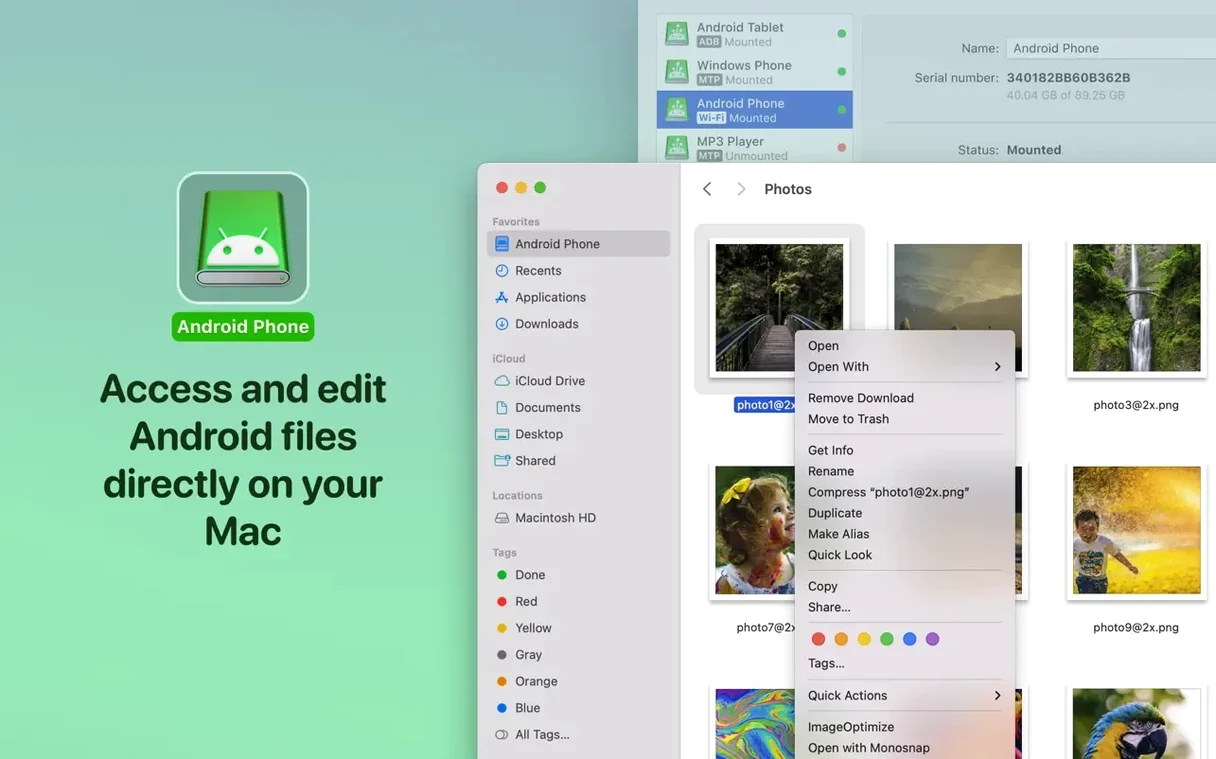
Photographers and videographers — shooting on an Android phone or tablet and editing on a Mac means transferring raw files or large video clips regularly. MacDroid Pro mounts the device as a disk drive, so you can open a photo in Capture One or DaVinci Resolve directly from the phone's storage without copying it to the Mac first. That saves time and avoids duplicating files until you are ready to archive them.
Music producers and DJs — moving playlists, sample packs, or full session folders between a Mac studio machine and an Android device used for playback or recording. The app handles whole directory trees, so you can drag a folder of WAV files or Ableton project assets across in one go. Editing files in place means you can trim a sample on the Mac and leave the edited version on the Android storage without a separate export step.
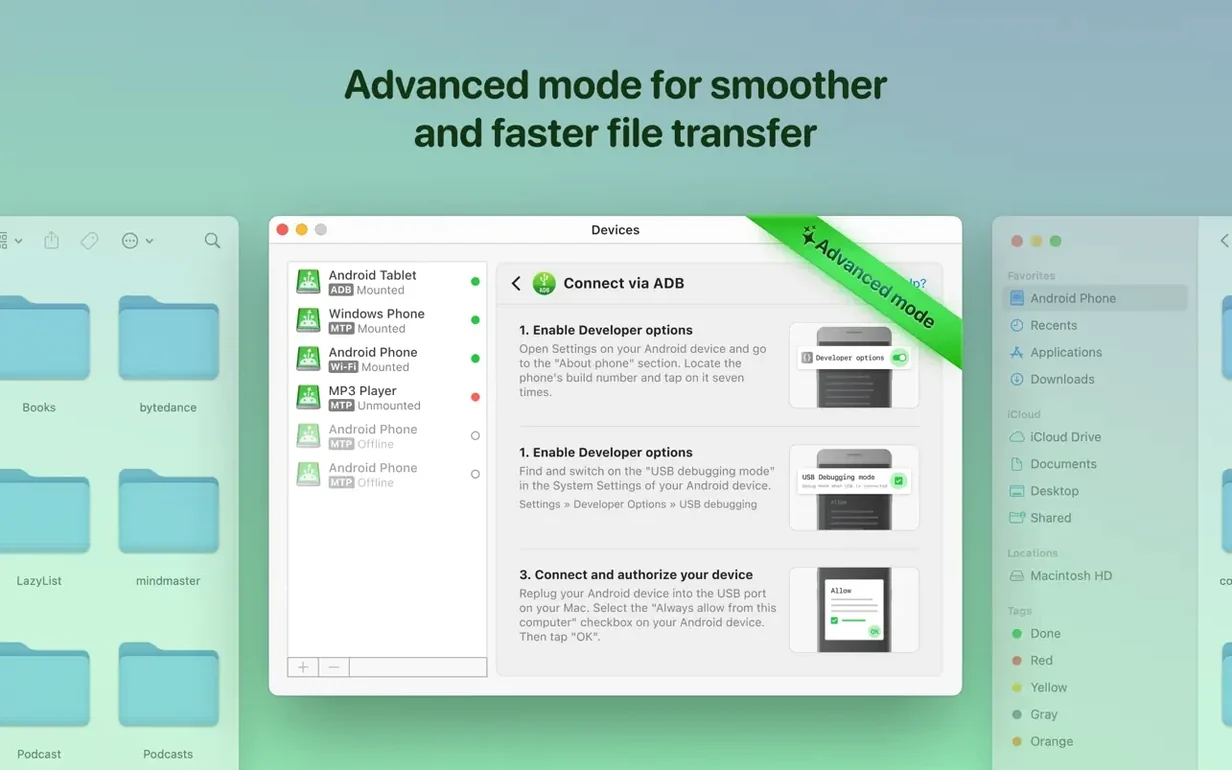
IT administrators and field technicians — pushing configuration files, logs, or firmware updates to Android devices from a Mac workstation. The ADB connection mode is particularly relevant here: it gives low-level access that MTP sometimes restricts. The improved ADB connection stability in version 2.10.1206 makes this workflow more reliable for day-to-day use.
People who switch between macOS and Android daily — anyone who keeps work documents, PDFs, or eBooks on both platforms. Setting up a wireless connection means files sync without plugging in a cable each time. The app remembers previously connected devices, so reconnecting is a matter of a couple of clicks.
A concrete workflow: transferring a photo album from Android to Mac
This is a typical task for someone who shoots with their phone and edits on a Mac. It uses the USB cable connection and takes advantage of the faster file listing in version 2.10.1206.
- Connect the Android device to the Mac with a USB cable. Unlock the phone and tap "Allow" on the file transfer prompt if it appears.
- Open MacDroid Pro. The device should appear in the sidebar within a few seconds. If it does not, check that MTP is enabled on the Android side (Settings → Connected devices → USB).
- Click the device to mount it. The internal storage and any external SD card show up as separate volumes.
- Navigate to the DCIM/Camera folder or whichever folder contains the photos you want.
- Select the album folder, or use Cmd-click to pick individual images. The listing loads noticeably faster than in earlier versions — a folder with several hundred photos appears in a second or two.
- Drag the selected items to a folder on the Mac, or right-click and choose "Copy to Mac". The transfer proceeds over USB at the speed of the cable connection.
- Once the files are on the Mac, you can edit them in Photos, Lightroom, or any other app without touching the originals on the phone. If you prefer, you can edit the files directly on the Android storage — just open them from the mounted volume and save.
That is the entire workflow. No cloud uploads, no third-party sync tools, no emailing files to yourself.
Faster folder navigation for large file libraries
The update from 2.10.0 to 2.10.1206 introduced several practical improvements that affect how the app behaves during regular work.
- Faster folder navigation. Loading of file and folder listings was made faster. If you browse a phone with thousands of photos or a cluttered download folder, the difference is noticeable — the list populates more quickly after clicking into a directory.
- MTP connection reliability. Connection and operation with devices via MTP were improved. Some Android phones used to disconnect mid-transfer or fail to mount on the first attempt. That happens less often now.
- ADB connection improvements. Connection to some devices via ADB was improved. If you rely on ADB for debugging or for devices that do not support MTP properly, this is a meaningful fix.
- File download fix. File downloading issues when the cache volume was changed were fixed. If you had moved the cache to an external drive or a different location, downloads could fail silently. That is resolved.
- Listing accuracy. Issues with incorrect file and folder listings were fixed. Empty folders that appeared non-empty, or files that showed incorrect sizes, should no longer appear.
- Traditional Chinese interface. Traditional Chinese was added as a language option. Users who prefer that locale now have it available alongside the existing eleven languages.
Choosing your default connection mode first
Out of the box, MacDroid Pro works with default settings. But a few adjustments make the experience smoother for specific use cases.
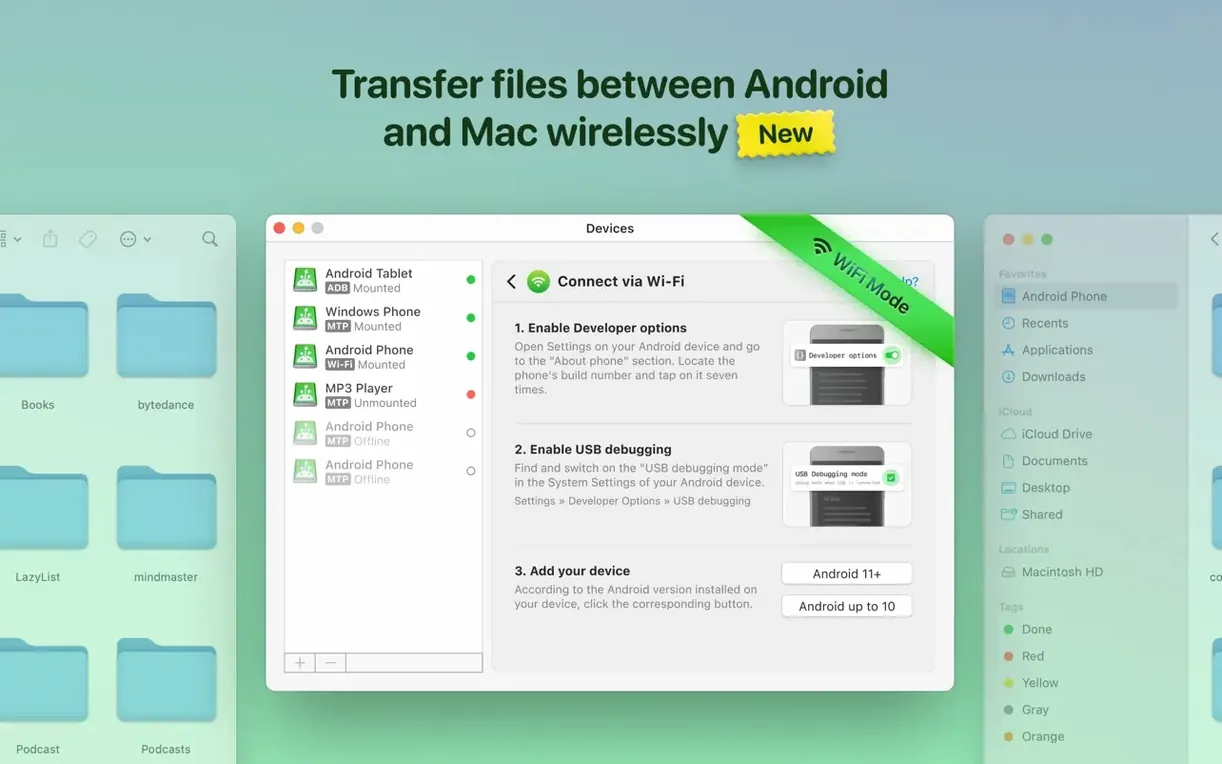
Choose your default connection mode. The app supports MTP, ADB, and Wi‑Fi. If you primarily use a cable, stick with MTP — it is the most straightforward and works with the widest range of devices. If you connect to devices for development or testing, ADB may be more reliable. For quick transfers without a cable, Wi‑Fi mode is convenient once the initial pairing is done.
Enable automatic mounting. If you connect the same Android device regularly, turning on automatic mounting saves a click — the device appears as a mounted volume as soon as it is detected.
Set the cache location. By default, MacDroid Pro uses the system cache. If you have limited internal storage, point the cache to an external drive or a larger volume. This avoids issues with downloads failing due to insufficient space, a problem that was fixed in version 2.10.1206 but is still worth setting up correctly.
Adjust wireless settings. If you use Wi‑Fi mode, check that the Mac and Android device are on the same network. The app shows the connection status in the main window. For large transfers, a USB cable is faster, but wireless is fine for occasional document or photo syncs.
These are the settings I adjust when setting up MacDroid Pro for a new machine. The rest of the defaults are fine for most people.
Changes in this build
Before it goes on the Mac
- macOS 11.5 (Big Sur) or later
- Intel or Apple Silicon
Questions from the room
Does MacDroid Pro work with all Android devices?
It supports Android devices and MTP. Connection improvements in version 2.10.1206 helped some devices that previously had trouble, but compatibility can vary by manufacturer.
Installing it on the Mac
- Mount the disk image and run Open Gatekeeper friendly.
- Press Enter in Terminal to bypass Gatekeeper.
- Drag the app into the Applications folder.
- Open the app when installation is complete.
Notes from the control room
Sign in or open a catalogue account to leave a note.
No notes from the room yet. If you have used this build for a week, a short note helps the next person.