Home › Utilities › Magic Disk Cleaner
Magic Disk Cleaner 6.1.1 (Mac)
Updated
The catalogue note
Magic Disk Cleaner 5.4.0 requires macOS 15.6 or later and runs on both Intel and Apple Silicon Macs. That covers most studio machines still on current systems, though if you're on an older OS, you'll need to update first.
No Rosetta needed and one-click deletion with consent
The app is universal, so no Rosetta translation is needed on Apple Silicon. It searches for temporary files immediately after launch and can delete them directly with one click, but it never removes anything without your consent.
Scan, review, approve in eight languages
Beyond the core cleanup, the interface is available in English, German, Spanish, French, Italian, Japanese, and several other languages. The workflow is simple: let it scan, review what it found, then approve the deletion.
Installation on macOS
You'll mount the disk image and use a Terminal command to bypass Gatekeeper once, then drag the app to your Applications folder. After that, launch it and you're set.
Two adjustments that make regular maintenance easier
Magic Disk Cleaner works fine out of the box, but a couple of adjustments make it more useful for regular maintenance. The app starts scanning immediately on launch, which is convenient if you always want a fresh overview. If you prefer to trigger scans manually, check whether the automatic scan toggle is on and turn it off — that way the app sits ready without consuming resources until you ask it to work.
Language preferences matter too. The interface supports Russian, English, German, Spanish, Italian, Simplified Chinese, Portuguese, Finnish, French, and Japanese. Set yours before the first real cleanup so you are not deciphering button labels mid-scan.
Open, scan, review, approve in under a minute
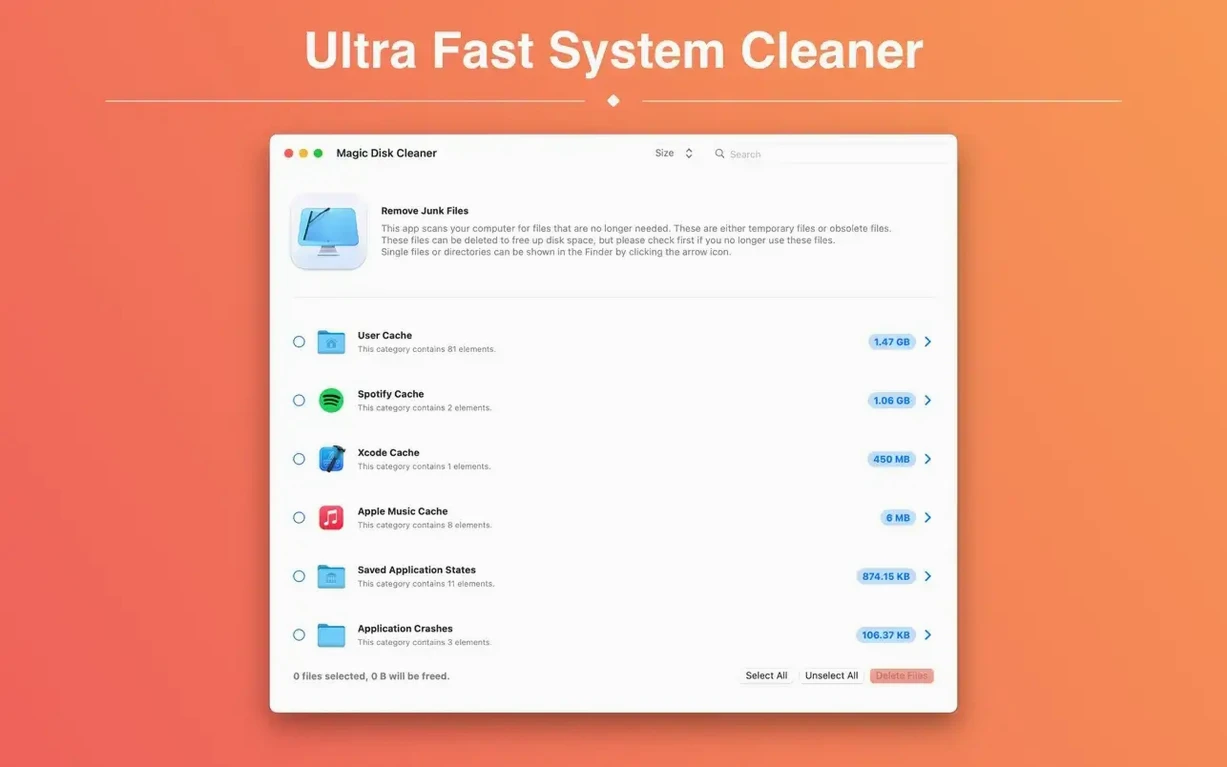
Open Magic Disk Cleaner. It begins searching for temporary files immediately unless you disabled that. Let the scan finish — it takes a short while depending on how full your drive is. When the results appear, you see a list of temporary files the app has found, grouped by category or location.
Review the list carefully. The app does not delete anything without your consent, so this is the moment to decide. Look for cache files from applications you no longer use, leftover installer packages, or log files that have accumulated over days of work. Select the items you want removed. One click deletes them all at once.
After deletion, close the app or leave it open for another scan if you are cleaning multiple machines. The whole cycle takes a few minutes and frees noticeable space on a busy studio drive.
Never deletes anything without asking you first
The app's main strength is that it never deletes data without asking. That sounds basic, but many cleaning utilities bundle a "smart" mode that skips confirmation for files they deem safe. Magic Disk Cleaner keeps the decision with you. For studio work where cache files might hold session data you still need, this is a genuine relief.
Another detail: the app supports both ARM and x86 architectures natively. If you run plugins or DAWs under Rosetta for compatibility reasons, the cleaner still works at full speed because it is universal. No extra translation layer slows things down.
The language list is broader than most similar tools. Finnish and Japanese are included alongside the usual European options, which matters if you work with clients or collaborators who prefer those interfaces.
Application caches from audio software can hold presets and authorisation data
The most common error is assuming every temporary file is safe to delete. System caches are usually fine to remove, but application caches — especially from audio software — sometimes contain presets, recent project lists, or offline authorisation data. Magic Disk Cleaner shows you what it found, but it does not tell you which app created each file. If you do not recognise a path, leave it for the next scan and check the folder manually first.
Another mistake is skipping the review step entirely. The one-click deletion is tempting, but you should always glance through the results before clicking. The app waits for your consent, so take the thirty seconds to confirm you are not removing something you might need later.
Some users also forget to run the scan again after installing or updating software. New temporary files appear quickly, and a weekly scan catches them before they accumulate into gigabytes. Magic Disk Cleaner 5.4.0 does not schedule automatic scans, so you need to build the habit yourself.
Finally, if you are on macOS 15.6 or later, the app works fine — but check that your system is actually on that version or newer before installing. The compatibility requirement is strict, and the app will not run on older releases.
Changes in this build
- The permissions setup now lays everything out on one screen, with a clear indicator next to each item that is already authorised.
- The Other Apps window has been rebuilt and now respects your system language.
- The Recycle Bin category properly reports what is sitting in the Trash.
- The section that listed old application versions has been dropped.
Before it goes on the Mac
- macOS 15.6 or later
- Apple Silicon or Intel 64-bit
Installing it on the Mac
- Mount the disk image and run Open Gatekeeper friendly.
- Press Enter in Terminal to bypass Gatekeeper.
- Drag the app to the Applications folder.
- Launch the app when installation is complete.
Notes from the control room
Sign in or open a catalogue account to leave a note.
No notes from the room yet. If you have used this build for a week, a short note helps the next person.