Magnet 3.0.7 (Mac)
Updated
The catalogue note
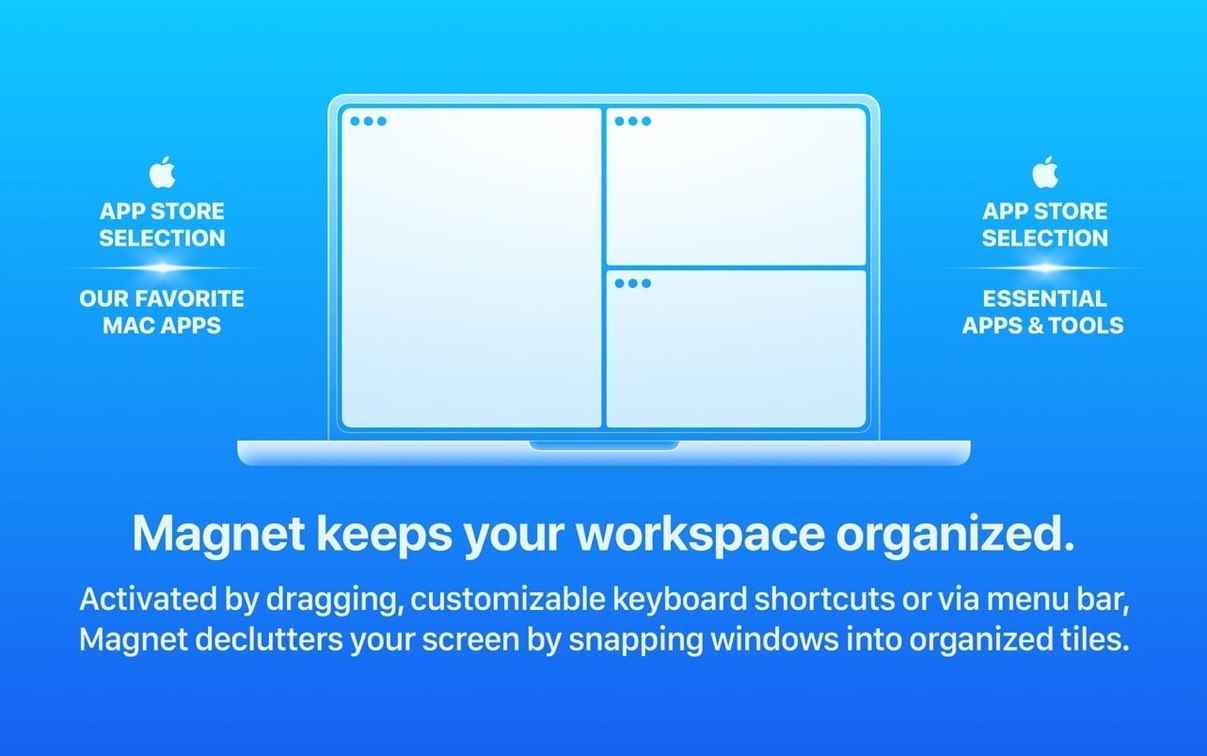
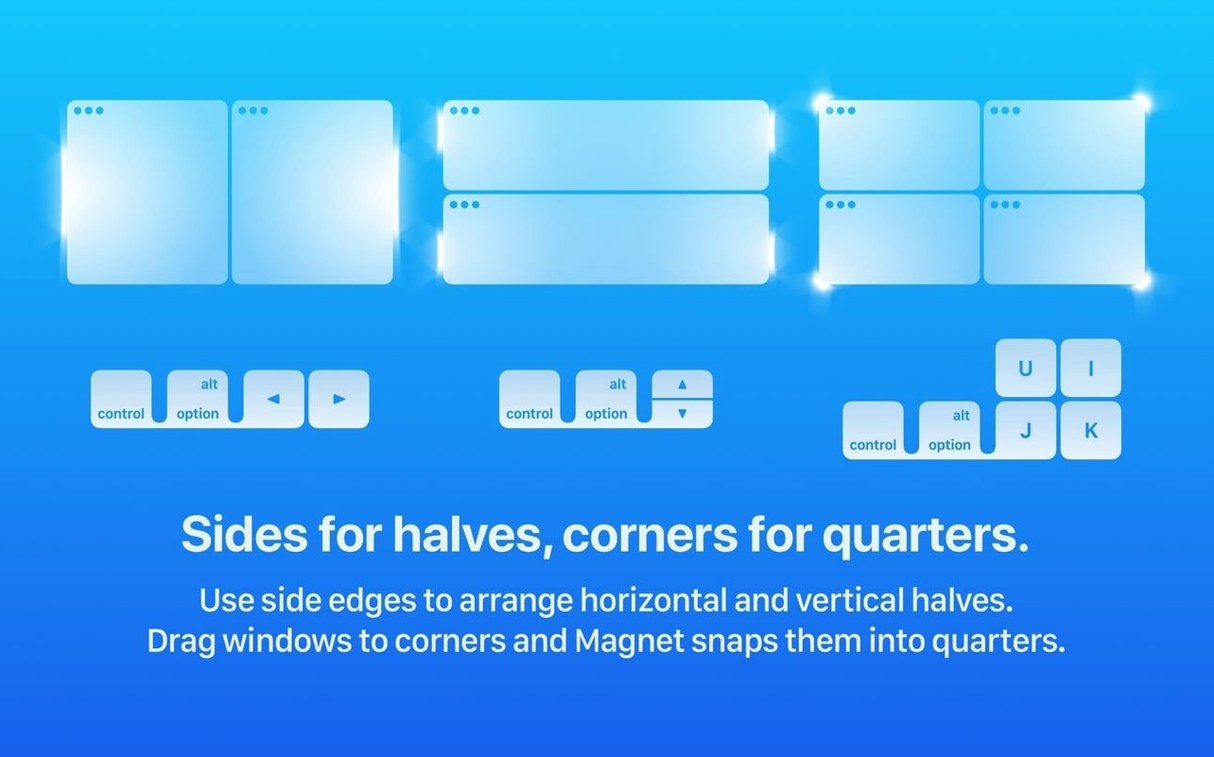
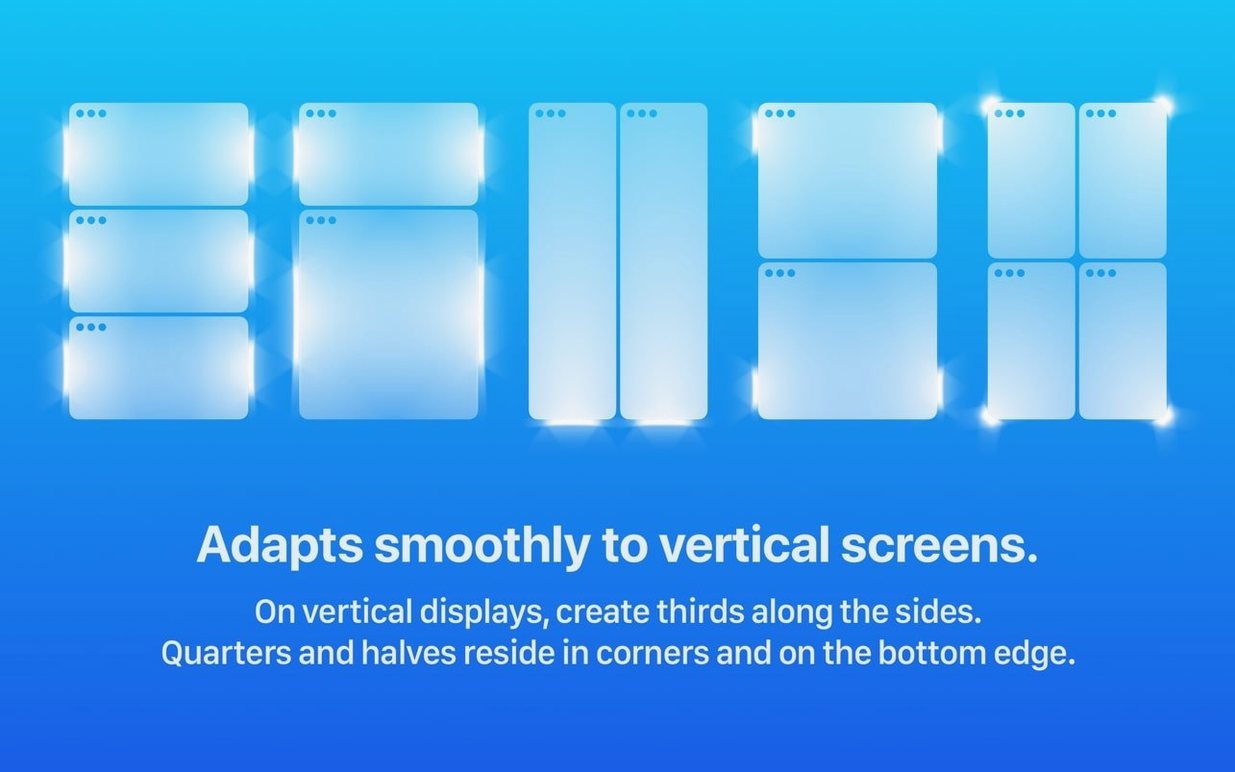
People who juggle several apps at once — editors, developers, anyone with a cluttered desktop — are the ones who reach for a window manager. Magnet extends macOS's built-in snapping so you can arrange windows by dragging them to screen edges or by pressing hotkeys. The first thing to try is dragging a window to the left edge: it fills half the screen. Then drag another to the right edge and you have a side-by-side pair. Quarter-screen corners work the same way, and custom layouts let you save a setup you use daily. Hotkeys are quicker once muscle memory kicks in — assign one for full-screen and one for halves. For a newcomer, the drag gestures alone are enough to feel the difference.
What to Try First
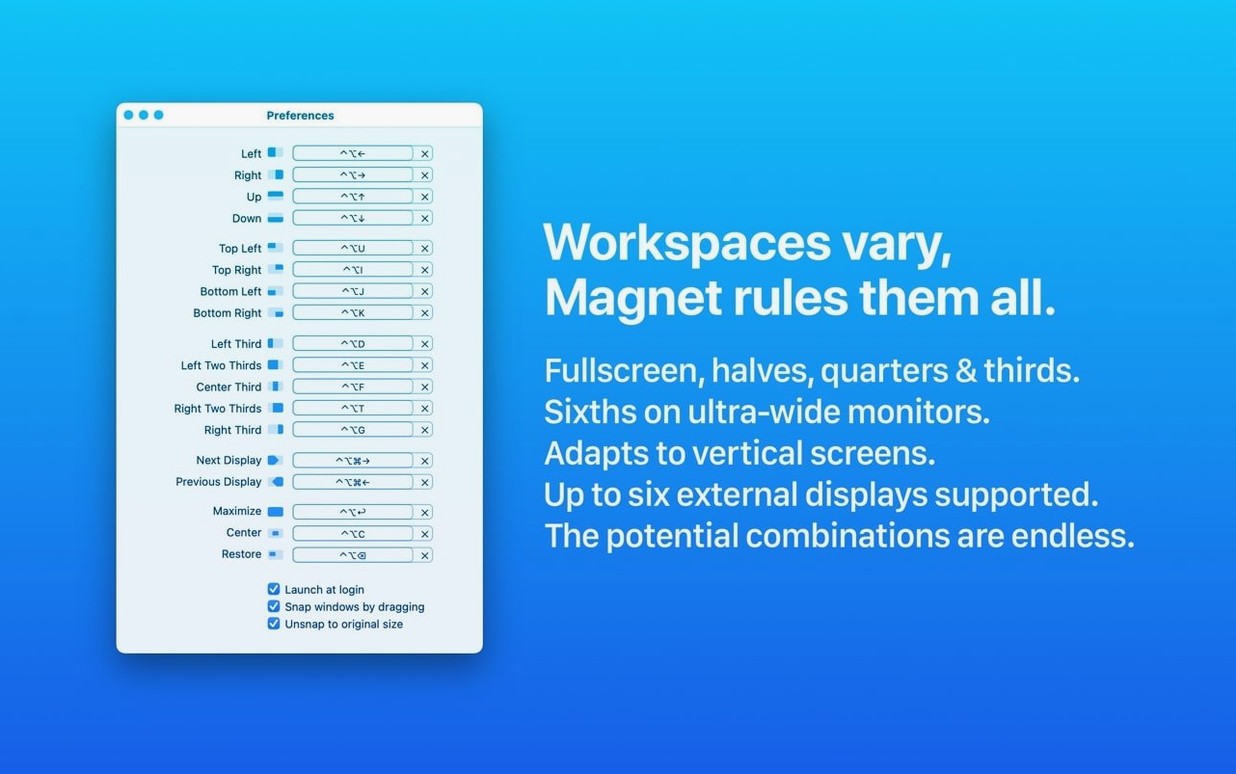
Start with the basics: drag a window to any edge or corner and watch it snap. Use the menu bar icon to cycle through layout options. If dragging feels slow, open Preferences and set hotkeys for the actions you use most. The interface is available in fourteen languages, so switching to your native one takes a moment.
Keyboard shortcuts for quarter positions and custom layouts
Once the drag behaviour is comfortable, explore the keyboard shortcuts for quarter positions and custom layouts. These are where Magnet's efficiency shows — you can tile a screen without touching the mouse. It runs on both ARM and x86 Macs, provided you're on macOS 13 Ventura or later.
Adds snapping and keyboard-driven layout alongside Mission Control
Magnet works alongside macOS's own window management rather than replacing it entirely. Mission Control, Spaces, and Stage Manager remain available — Magnet adds the snapping and keyboard-driven layout that Apple left out of the base system. If you already use third‑party launchers like Alfred or Raycast, you can set them to trigger Magnet’s shortcuts without conflict, as long as the hotkeys don’t overlap.
On a multi‑display setup — up to six external screens — Magnet treats each display independently. A window dragged to the edge of one monitor snaps within that monitor’s bounds, not across the whole desktop. This is useful for keeping code on one screen and a browser on another, each tiled without manual resizing. The same hotkeys work on every display, so you don’t need separate configurations per screen.
It also plays well with full‑screen apps. A window in full‑screen mode stays there; Magnet only arranges windows in the normal desktop space. If you switch Spaces with trackpad gestures or keyboard shortcuts, the tiled windows stay in their assigned positions within each Space.
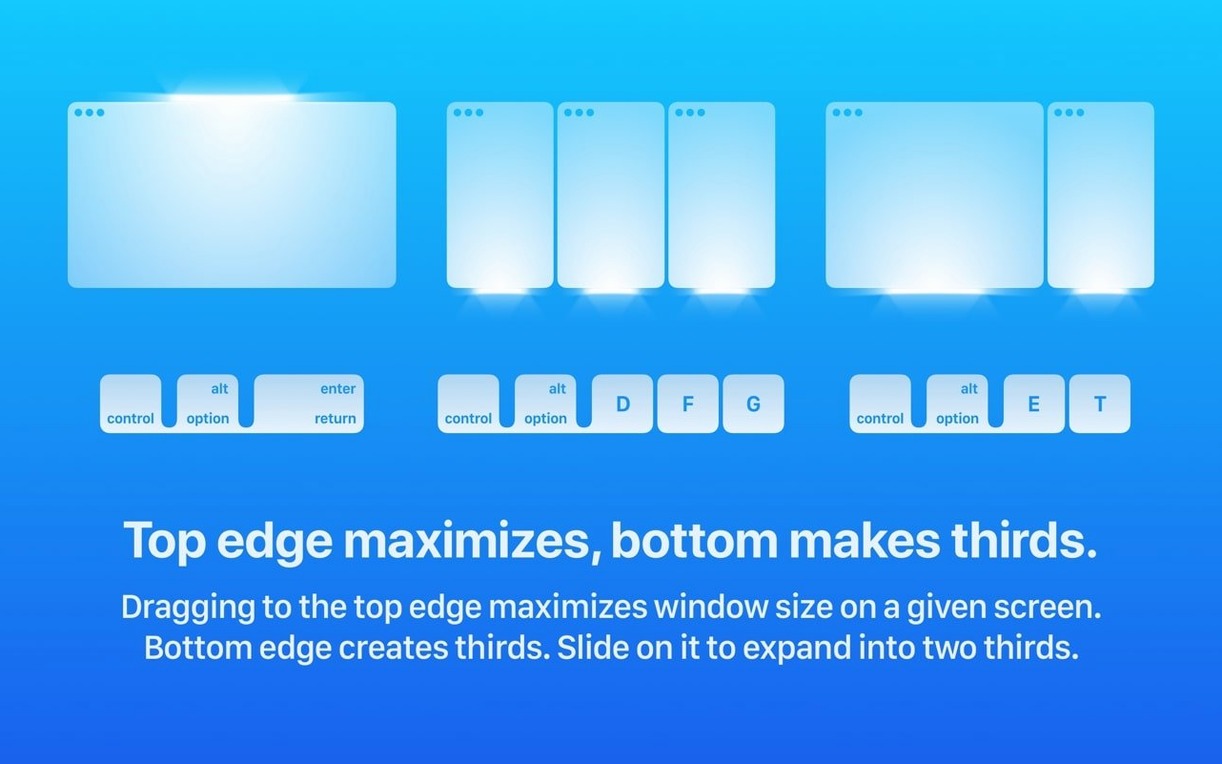
Dragging to the top edge goes full-screen, not half-screen
New users often drag a window to the top edge expecting it to go full‑screen — that is macOS’s green‑button behaviour, not Magnet’s. Magnet snaps to halves on the left and right edges, and to quarters on corners. To make a window full‑screen with Magnet, you need to assign a hotkey or use the menu bar option; dragging to the top does nothing unless you set it in Preferences.
Another frequent oversight is not checking whether another app already uses the same hotkey combination. Magnet’s defaults — Control+Option+Arrow keys for halves, for example — sometimes clash with built‑in macOS shortcuts or those in development tools. Opening Magnet’s Preferences and scanning for conflicts saves time later.
Some people also expect Magnet to remember window positions between restarts or monitor disconnections. It does not save layouts persistently. Custom layouts exist for saving a specific arrangement, but if you unplug an external display and plug it back in, you will need to re‑tile the windows manually.
Simpler than BetterSnapTool with fewer options
BetterSnapTool is the closest alternative. It offers the same drag‑to‑snap behaviour and hotkey support, but adds window‑resizing to preset sizes and a few extra visual customisations. Magnet is simpler — fewer options, less configuration — which can be an advantage if you just want halves and quarters without tweaking every pixel.
Rectangle is a free and open‑source option with a very similar feature set. It supports snap zones, keyboard shortcuts, and multiple displays. The main difference is that Rectangle provides more granular snap zones (thirds, two‑thirds) out of the box, whereas Magnet sticks to halves, quarters, and full‑screen. Rectangle also offers a pro version with extra layouts, but the free tier covers what Magnet does. For users who want a no‑cost solution and don’t mind slightly more complex preferences, Rectangle is a strong alternative.
Moom takes a different approach: it focuses on saving and recalling window layouts via a grid system and keyboard shortcuts, rather than drag‑to‑snap. Moom is better for users who need precise pixel placement across multiple monitors, but its learning curve is steeper. Magnet is more immediate — drag and go — which suits people who want speed over precision.
Requires macOS 13 Ventura and runs on both ARM and Intel Macs
It requires macOS 13 Ventura or later and runs on both Apple Silicon (ARM) and Intel (x86‑64) Macs. The app appears in the menu bar after launch and stays there until you quit it. It does not install a background daemon or kernel extension — just the app and its preferences file.
You will need to grant Accessibility permissions in System Settings the first time you use hotkeys, so that Magnet can control window positions. The drag‑to‑snap feature works immediately without extra permissions. The interface is localised into fourteen languages, including English, German, Spanish, French, Japanese, and Simplified Chinese.
Because it is a menu‑bar app, it does not occupy space in the Dock unless you choose to keep it there. It has no dashboard, no separate preferences window that lingers — just the menu bar icon and the Preferences panel. For those who prefer to download magnet for mac via alternative distribution methods, the same requirements apply: macOS 13 or later, and the app must be placed in the Applications folder.
Before it goes on the Mac
- macOS 13 Ventura or later
- Apple Silicon or Intel (x86_64)
Questions from the room
Does Magnet work on Apple Silicon Macs?
Yes, Magnet supports both ARM and x86 (64-bit) architectures, so it runs natively on Apple Silicon and Intel Macs alike.
Installing it on the Mac
- Mount the disk image and run the installer. On first launch, macOS may block it; use the Open Gatekeeper friendly option.
- If Gatekeeper still complains, open Terminal and press Enter to bypass it.
- Drag the app into the Applications folder.
- Launch Magnet once the copy is complete.
Notes from the control room
Sign in or open a catalogue account to leave a note.
No notes from the room yet. If you have used this build for a week, a short note helps the next person.