LaunchOS 2.1.0 (Mac)
Updated
The catalogue note
LaunchOS runs on any Mac with macOS 26 or later, supporting both Intel (64-bit) and Apple Silicon machines. It replaces the built-in Launchpad workflow with a more configurable alternative, giving you control over grid size, app visibility, and now, app removal.
| Detail | Value |
|---|---|
| Developer | Remix Design Studio |
| Version | 2.1.0 |
| Category | Utilities |
| macOS required | 26 or later |
| Architecture | ARM + 64-bit Intel |
| Interface languages | English, Russian, German, Spanish, Italian, Traditional Chinese, Simplified Chinese, Korean, French, Japanese |
If you find Apple’s Launchpad too rigid, this app gives you a similar interface but with practical extras: you can resize the grid, hide apps you never use, and, as of version 2.1.0, uninstall apps directly via long-press or right-click. The status bar menu now includes a restart option too. It is a straightforward replacement for anyone who wants Launchpad’s look with more control.
Does not mirror your existing app arrangement
The most common misstep is expecting LaunchOS to behave exactly like the original Launchpad without any setup. People open it, see the default grid, and assume it mirrors their existing app arrangement — it does not. LaunchOS builds its own view, so you need to hide or reorganise apps yourself. Another frequent error is forgetting that the built-in Launchpad still exists; if you trigger it via a hot corner or the Dock, you get Apple’s version, not this one. You have to either disable the original or set LaunchOS to launch via a gesture or keyboard shortcut.
Beginners also overlook the hiding feature. They delete apps from the Dock or the Applications folder to clean up LaunchOS, when hiding them inside the app is the intended method. The grid size is another point: people stick with the default and never adjust rows and columns, even when their screen resolution would benefit from a tighter or wider layout. And uninstallation — new users in version 2.1.0 sometimes long-press an icon and expect a confirmation dialog like the one in iOS. The app does prompt, but the behaviour is slightly different, so a quick test on a non-essential app helps avoid surprises.
Runs as an independent process, not a system patch
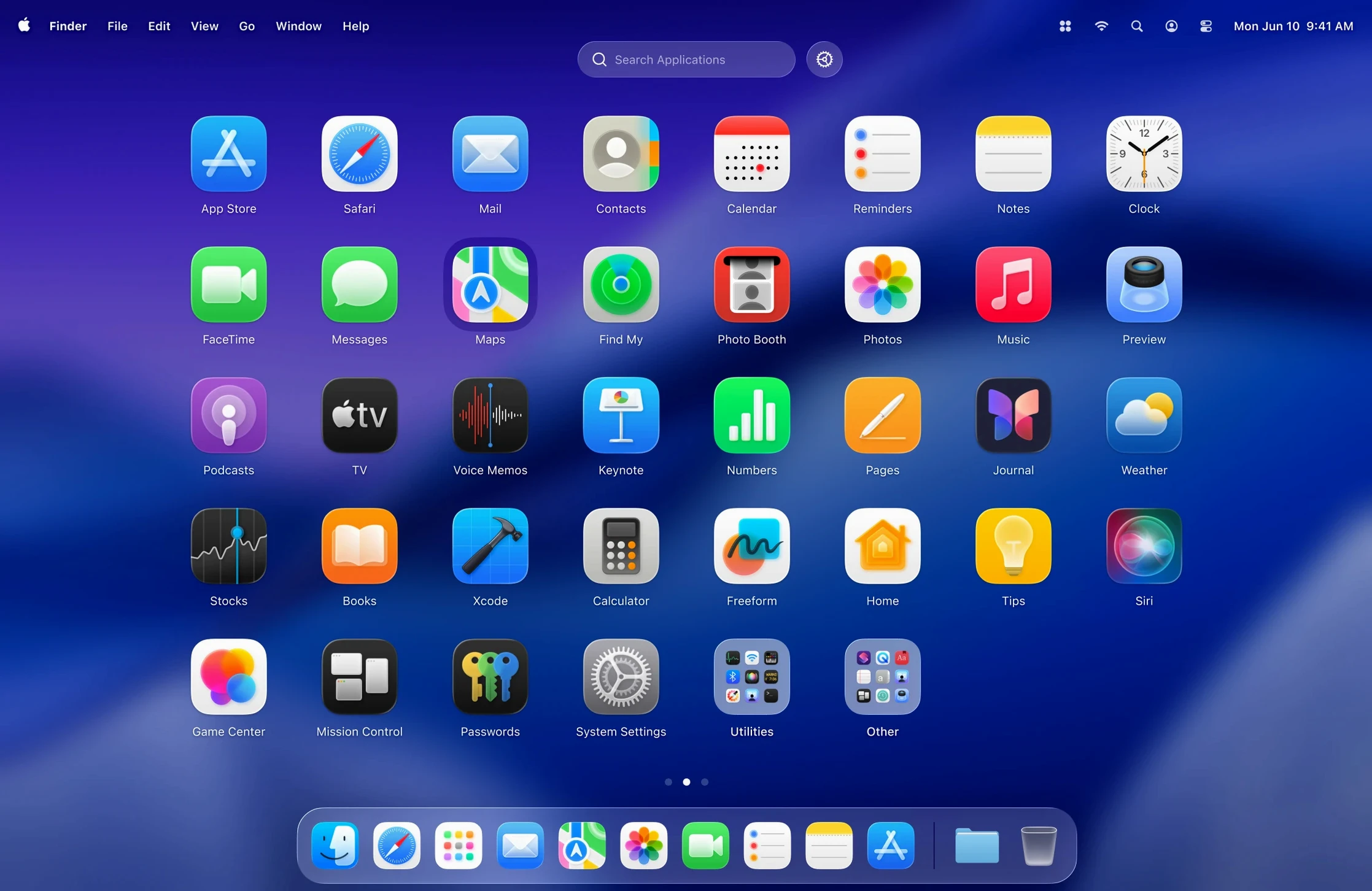
Given the system requirements — macOS 26 or later, both ARM and 64-bit Intel — you should know a few things before you start. The app runs as an independent process, not as a system patch, so it does not modify core macOS files. It sits in your Applications folder like any other app and launches from Launchpad or wherever you keep it. The interface supports Liquid Glass, macOS 26’s design effect, so the visual style matches the current OS rather than looking like a third-party overlay.
Because it replaces the Launchpad workflow, you will have two launchers on your Mac unless you disable Apple’s. That is not a bug — it is the expected state until you decide which one to use. The status bar icon gives you access to Restart and the context menu, and the grid responds to keyboard shortcuts and gestures. Nothing here changes your Dock, Finder, or system preferences. It is a self-contained utility.
Start by adjusting the grid size to match your screen
After you open the downloaded disk image and drag LaunchOS to the Applications folder, launch it from Launchpad. Spend the first few minutes adjusting the grid size to match your screen. If you use a large display, try more columns; on a smaller laptop screen, fewer rows keep icons readable.
Set up a gesture or keyboard shortcut to open LaunchOS instead of the original Launchpad. This step is where most people feel the benefit. Without it, you will keep triggering Apple’s version out of habit. Also, right-click an app icon early on to test the new uninstall and restart options in version 2.1.0 — knowing those work saves time later. Finally, check the interface language if English is not your preference; the list covers ten languages, so switching is straightforward.
Grid size is the most impactful setting
The grid size is the most impactful setting. Start there. A denser grid shows more apps per page, which reduces scrolling. A looser grid works better if you prefer large icons or have fewer apps installed. Hiding apps is the second adjustment — remove the ones you never touch to keep the view clean. There is no point having a launcher full of apps you bypass via Spotlight or the Dock anyway.
The Restart option in the status bar menu and the right-click context menu is worth knowing about, even if you do not use it daily. If the grid ever feels unresponsive or if you have added new apps that do not appear, a restart refreshes the view. The uninstall feature, triggered by long-press or right-click, is another setting you should test once to understand the prompt — after that, it becomes muscle memory.
Press your assigned gesture or shortcut to slide in the Liquid Glass grid
You sit down at your Mac in the morning. The Dock shows your usual set of apps. You press the gesture or shortcut you assigned to LaunchOS — the grid slides in, showing your applications in the Liquid Glass style. You spot a project file you need, but the app you want is on the second page. Because you adjusted the grid size on day one, the icons are large enough to read, and you flick to the next page without squinting.
You launch the app and work for an hour. Later, you install a new tool from a disk image. You drag it to Applications, then open LaunchOS to see if it appears. It does, but you also notice an old utility you forgot to remove. You right-click its icon, choose uninstall from the context menu, and confirm. Done — no trip to the Applications folder, no Finder window.
Mid-afternoon, a colleague asks about a demo app you tried last week. You open LaunchOS, find it on the grid, and launch it directly. The grid’s consistency means you never hunt for icons. At the end of the day, you right-click the status bar icon and select Restart, just to clear any cached state. The grid reloads in a second, and you close your Mac. That is the routine — simple, repeatable, and shaped by the few settings you changed on day one.
Changes in this build
- App uninstallation added: long-press or right-click an app icon to remove it.
- Restart option in the status bar menu and right-click context menu.
Before it goes on the Mac
- macOS 26 or later
- Apple Silicon or Intel (64-bit) Mac
Questions from the room
How do I uninstall apps with LaunchOS?
Long-press or right-click an app icon, then choose the uninstall option. This was added in version 2.1.0.
Installing it on the Mac
- Open the downloaded disk image.
- Drag the app into your Applications folder.
- Once the copy finishes, launch LaunchOS from Launchpad.
Notes from the control room
Sign in or open a catalogue account to leave a note.
No notes from the room yet. If you have used this build for a week, a short note helps the next person.