Updated
The catalogue note
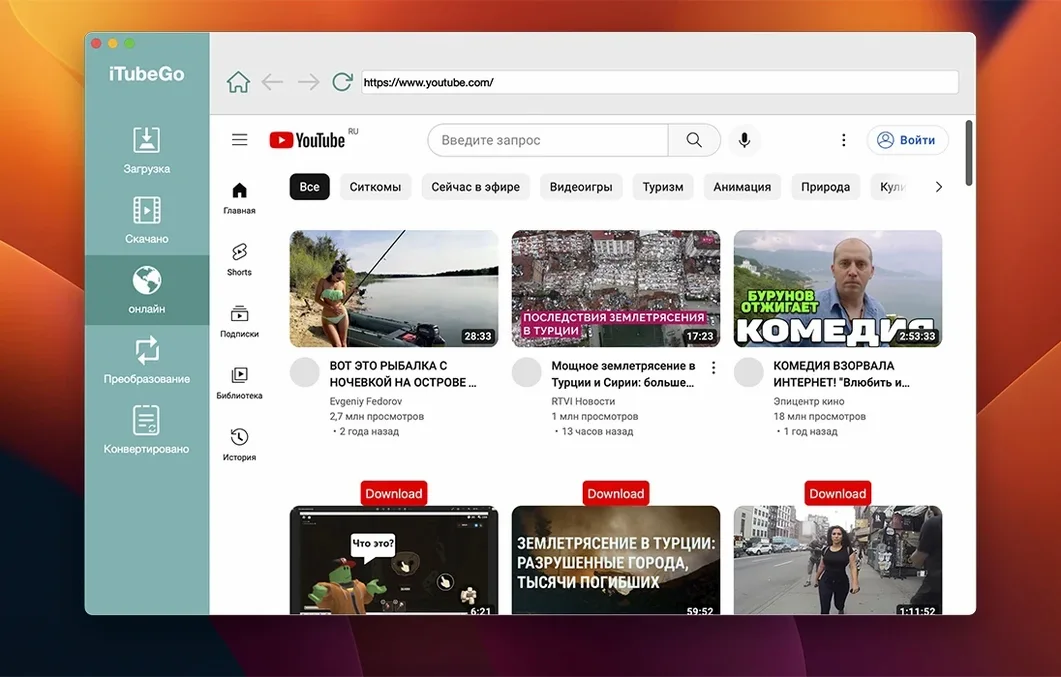
iTubeGo is a Mac application built for downloading and converting online video and audio files, with a built-in browser that lets you find content without leaving the app.
Downloading from most major sites
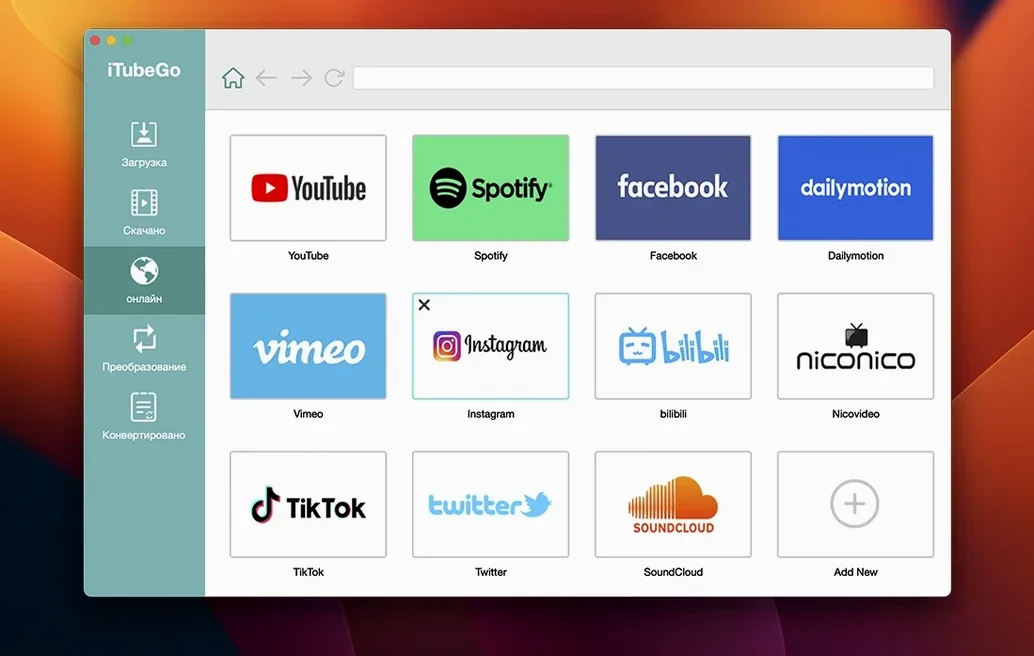
The app supports YouTube, Facebook, Instagram, Dailymotion, Vimeo, TikTok, Pornhub, Xvideos, SpankBang, and xHamster, among others. MP3 downloads from most music sites are also handled directly.
Converting and editing in one pass
Alongside downloading, iTubeGo acts as a converter and a basic editor. You can pull video from one format and save it in another, or trim clips without needing a separate tool.
Batch downloads at higher speed
The bulk downloader claims up to ten times faster processing when grabbing multiple files at once. The built-in browser keeps the workflow self-contained, so you queue items from the same window.
Can iTubeGo handle private or unlisted videos
Can iTubeGo handle private or unlisted videos? The app works with publicly accessible content from the supported sites. Private videos, age-restricted material that requires a logged-in account, or unlisted links that you cannot reach through the built-in browser may not download. The app does not circumvent login walls.
Does it leave watermarks on the downloaded files? No. iTubeGo downloads the original stream as the site serves it. No watermark, no logo, no app-branding overlay is added to the video or audio output.
Will the app update automatically? The version here is 10.15.0, and it does not phone home for updates. If a newer build appears on the developer's site, you download and install it manually. The app itself has no built-in updater.
Can I queue a whole playlist? Yes. Paste a playlist link into the download field or navigate to it inside the built-in browser. iTubeGo lists all items, and you can select which ones to grab. The bulk speed improvement applies here too.
Is there a limit on file size or length? No hard limit enforced by the app. The practical limit is the source site's maximum clip length and your available disk space. Very long live streams or multi-hour playlists will download, but the source may split them into segments.
A workflow for extracting a podcast as MP3
Say you want to save an hour-long interview from YouTube as an MP3 file for offline listening on a phone that does not handle video well. Here is the full process from start to finish.
- Open iTubeGo and use the built-in browser to navigate to the YouTube video page for the interview. You can also copy the URL from your regular browser and paste it into the download bar at the top of the iTubeGo window.
- The app analyses the page and presents a list of available formats. Look for the MP3 entry at 320 kbps — that is the highest audio bitrate iTubeGo offers. Select it.
- Click the download button. The file lands in the default output folder, which is usually ~/Downloads/iTubeGo. You can change this destination in the settings before starting the download.
- Once the download finishes, locate the MP3 file. If the original video had gaps of silence or long intro music you do not want, you can use the built-in trimmer: right-click the completed item in the download list and choose the trim option. Set the start and end points, then save the trimmed copy.
- Transfer the final MP3 to your phone over USB or a cloud service. The file is ready for any music player.
This workflow works identically for any music site that serves audio streams. The key is selecting the MP3 format at the parsing stage rather than downloading the video and converting afterwards.
Magda’s podcast workflow: from unlisted YouTube to finished episode
Magda runs a small podcast production company in Bristol. She receives raw interview files from guests who upload them to YouTube as unlisted videos. Her workflow used to involve screen recording the browser tab and then re-encoding the result in Audacity — a process that took twenty minutes per episode and degraded audio quality.
Now she pastes the unlisted YouTube URL into iTubeGo, picks MP3 at 320 kbps, and has the file on her drive in under three minutes. The audio is identical to the source stream. She then imports the MP3 into her DAW for editing. The time saved per episode lets her take on two extra clients per month without extending her working day.
Magda also uses the batch downloader when a client sends a playlist of reference tracks. She queues all of them, lets iTubeGo process them overnight, and wakes up to a folder of clean MP3 files ready for the next day's session.
Set a dedicated output folder in preferences to save time
Before you start downloading, open the preferences panel and adjust a few defaults that save time later.
- Output folder — the default Downloads/iTubeGo works, but if you process files regularly, point it to a dedicated project folder. One less drag operation per file.
- Default format — set this to MP3 320 kbps if you mostly extract audio, or to MP4 1080p if you keep video. It saves one click every time you paste a link.
- Download thread count — iTubeGo lets you choose how many files download simultaneously. If your internet connection is average, keep it at 3. On a fast line, raising it to 5 or 6 uses the bandwidth more fully without overwhelming the router.
- Trim panel visibility — if you never trim files, disable the trim preview in preferences. It shaves a small amount of processing overhead when analysing a page.
Choosing the wrong format at the parsing stage is the most common error
Selecting the wrong format at the parsing stage is the most common error. People see a list of resolutions and pick the highest video quality, then realise they only needed the audio. Check the format column before clicking download. If you want MP3, select the MP3 line, not the MP4 line that happens to show a high bitrate.
Another frequent slip is forgetting to change the output folder before a batch download. The default folder fills up fast with twenty files, and then you have to hunt through Downloads to find the one you need. Set the destination per session.
New users also assume the built-in browser replaces their regular browser entirely. It does not sync bookmarks, logins, or history from Safari or Chrome. Use it only for finding and playing content to download. For everything else, keep your main browser open alongside iTubeGo.
iTubeGo does not bypass paywalls. If the video does not play in the built-in browser without logging in, it will not download either. Save yourself the frustration and check access first.
Before it goes on the Mac
- macOS 10.10 or later
- Intel 64-bit processor
Installing it on the Mac
- Mount the disk image and run the Gatekeeper-friendly opener.
- Press Enter in Terminal to bypass Gatekeeper.
- Drag the app into the Applications folder.
- Start the app.
Notes from the control room
Sign in or open a catalogue account to leave a note.
No notes from the room yet. If you have used this build for a week, a short note helps the next person.