Home › Utilities › iStat Menus
iStat Menus 7.50 (Mac)
Updated
The catalogue note
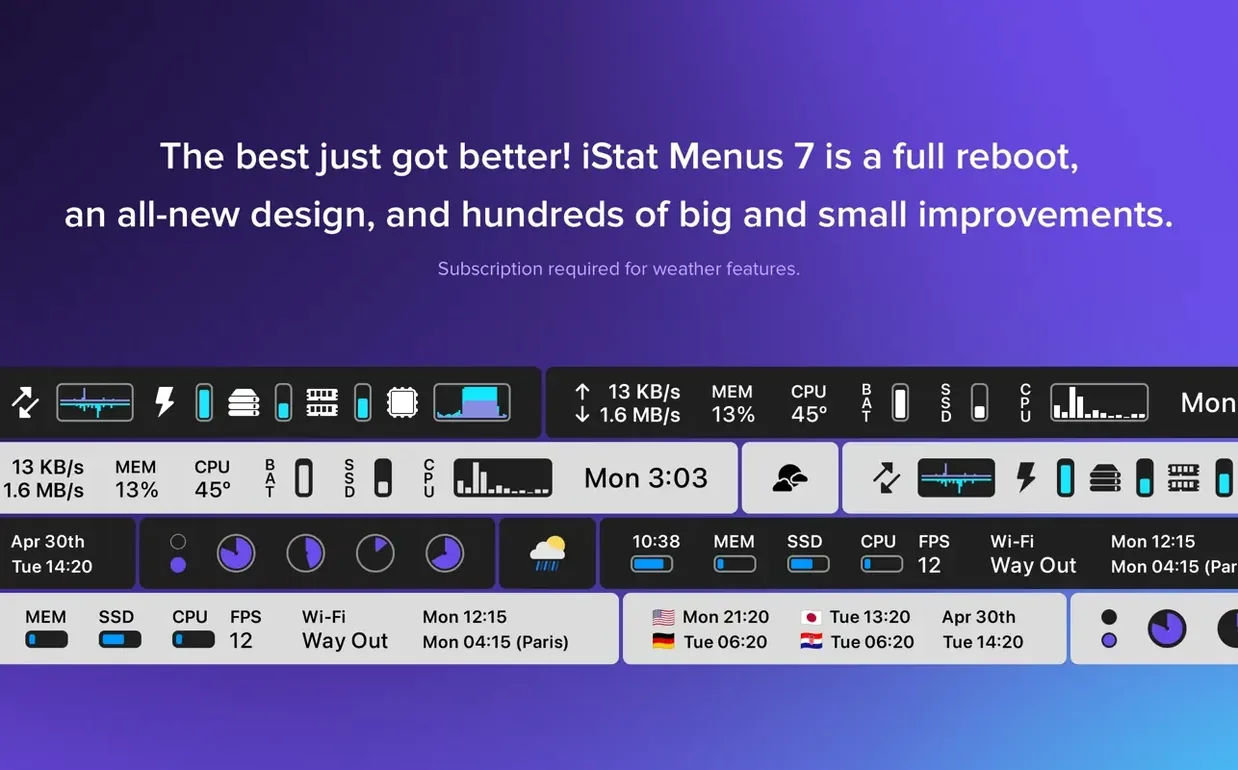
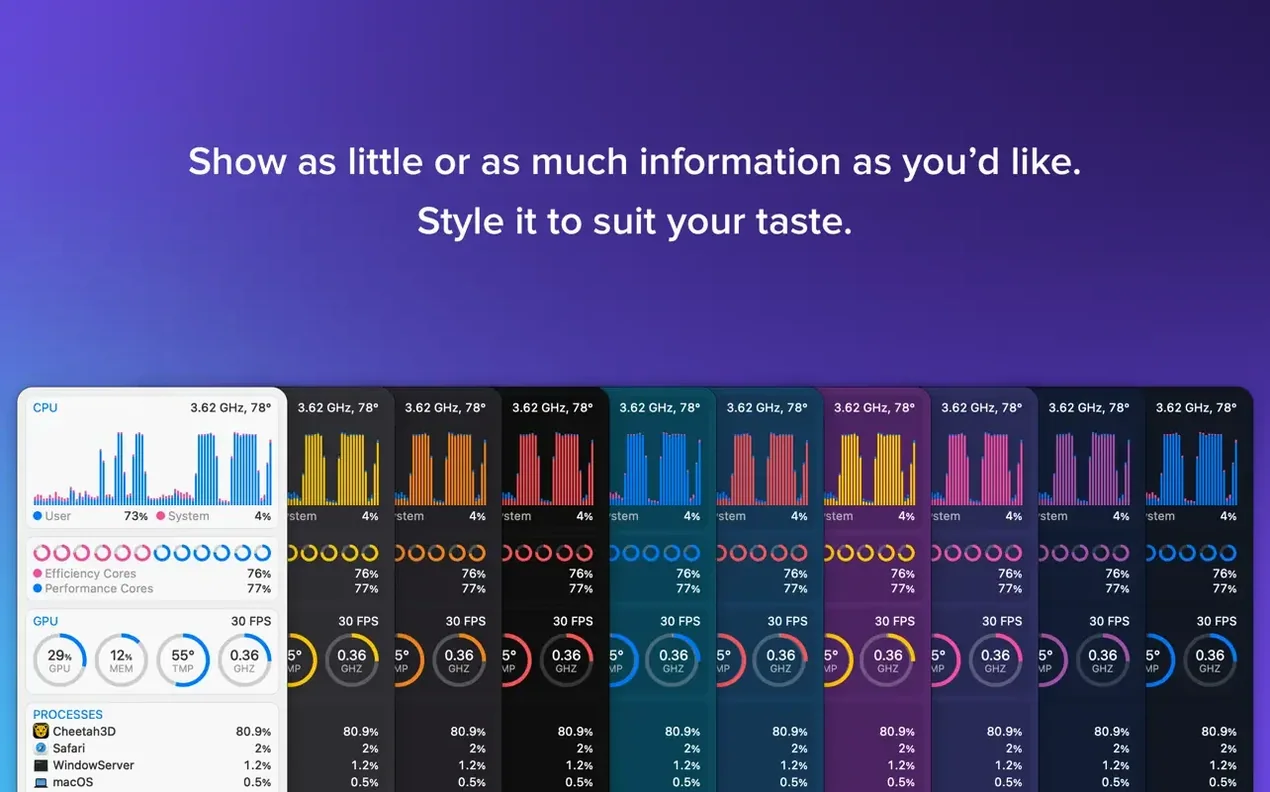
iStat Menus runs on any Mac with macOS 11 or later, covering both Apple silicon and Intel 64-bit machines. That means most Macs from the last several years are supported, and the current version 7.50 keeps the menu bar as busy or as quiet as you like.
What does the memory section show beyond a percentage?
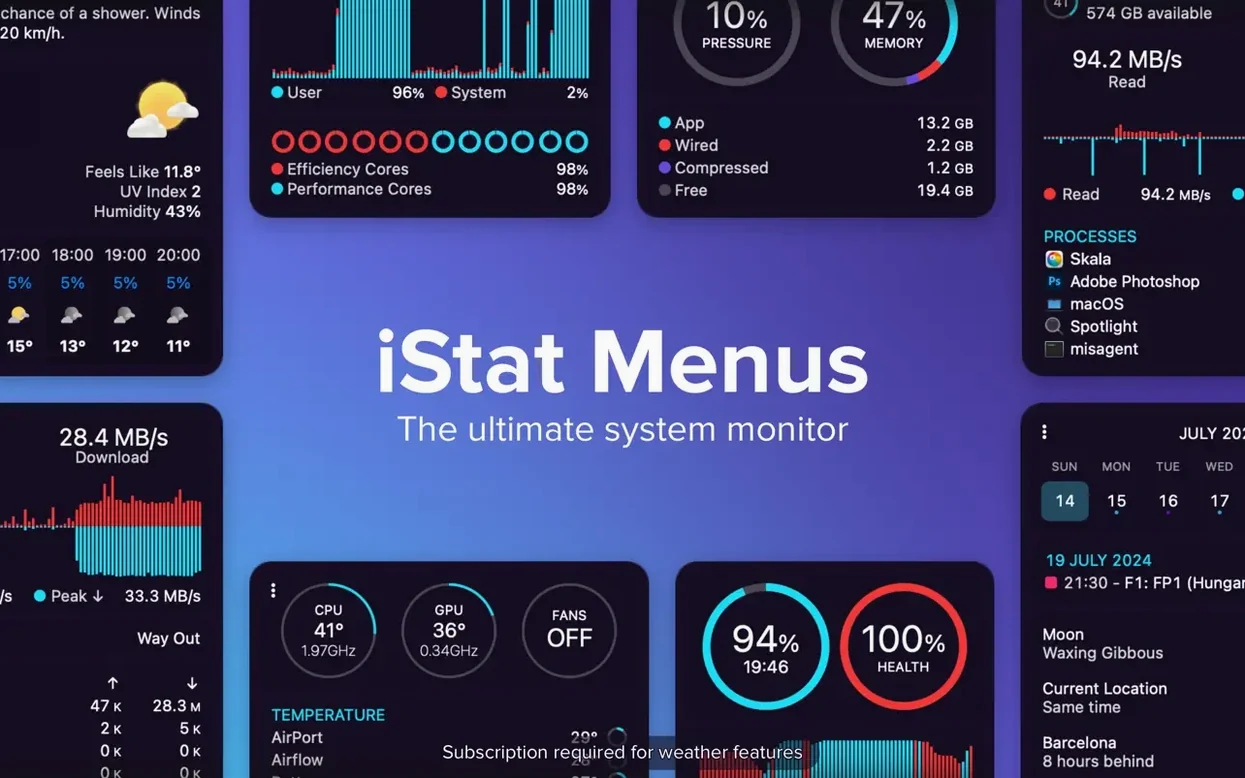
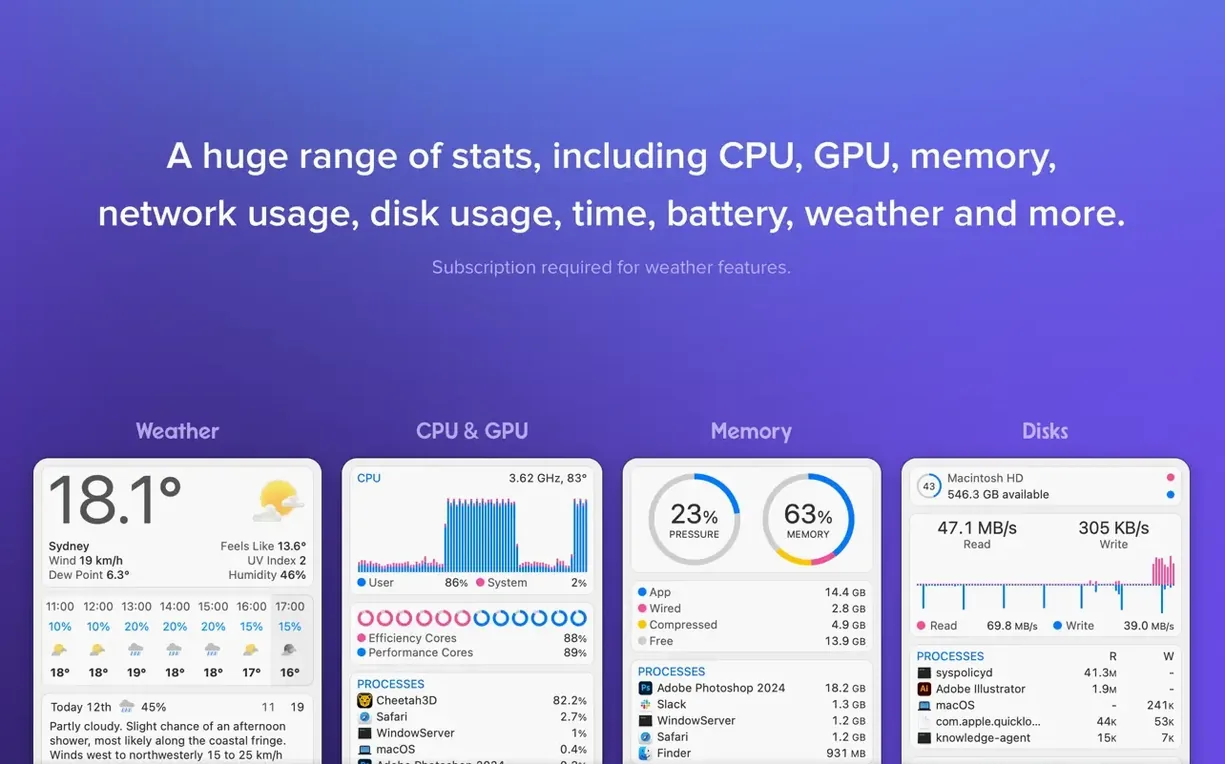
Memory can be displayed as pie or line charts, and the app lists the applications using memory most actively. That list is more useful than a raw number when you need to see which process is eating RAM before you quit it.
How does the temperature and fan speed helper work?
The optional helper component enables temperature and fan speed readings.
Moon phases, sunrise, sunset, and observing forecasts for stargazers
Version 7.5 introduced an Astronomy item that shows Moon phases, sunrise, sunset, and forecasts for seeing, transparency, and cloud cover. It is aimed at anyone who plans observing sessions, not just casual sky watchers.
Glance at CPU and memory load from Mail and Safari
You start your day by glancing at the menu bar. The CPU item shows a modest load from Mail, Safari, and a few background services. A quick click on the memory item reveals that your browser is using about 6 GB of RAM and that nothing else is competing aggressively. You decide to leave things as they are.
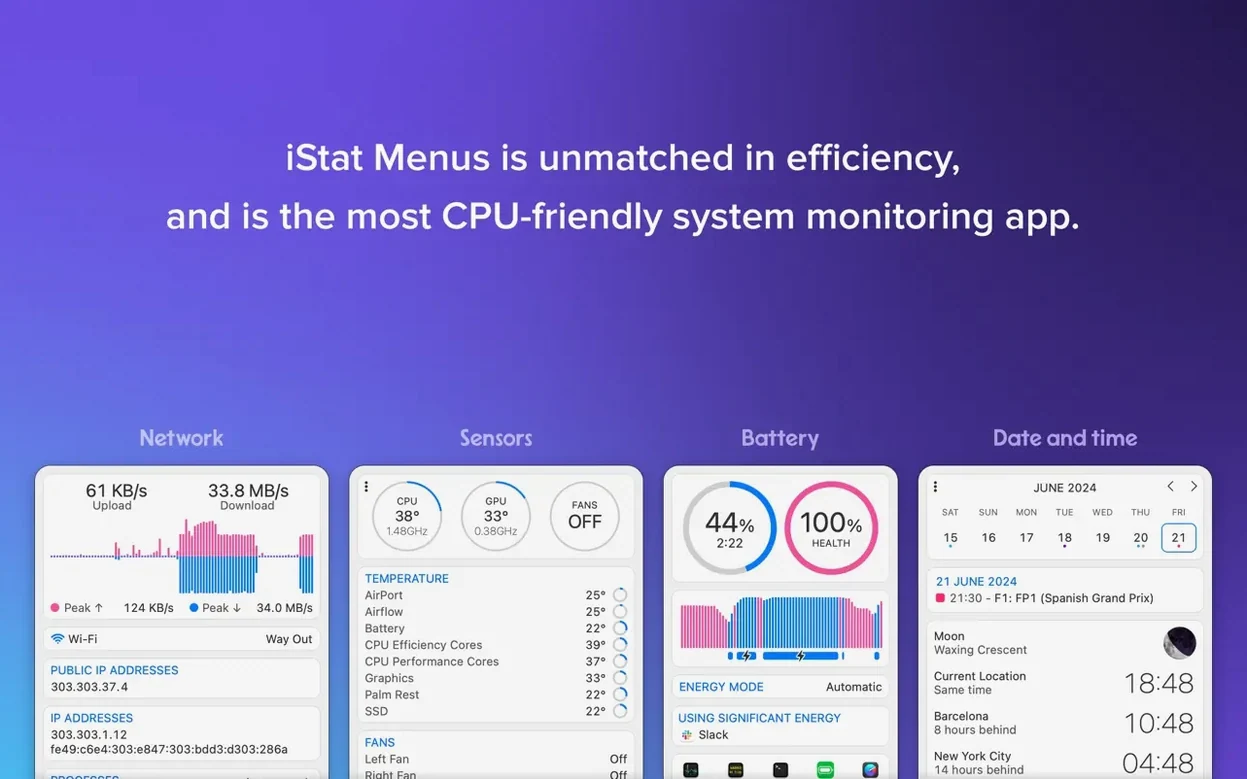
Mid-morning, you begin exporting a large audio session. You keep an eye on the disk activity indicators as the read and write bars climb. The network item shows a steady upload to your backup destination. You notice the temperature reading rising a few degrees, but the fan speed stays quiet. The system is handling the load without audible protest.
After lunch, you check the weather forecast. The Astronomy item shows tonight's cloud cover and transparency forecasts, which helps you decide whether to take the telescope out. You also glance at the world time item to see when a client in Tokyo will be available for a call later.
You click the item, see the process at the top of the list, and quit it from there. The memory pressure drops immediately. You finish the day with a quick look at the disk usage item to confirm that your project drive still has enough free space for tomorrow's session.
S.M.A.R.T. status quietly checks your drive health in the background
Several features in iStat Menus do not shout for attention but become indispensable once you notice them.
- S.M.A.R.T. status monitoring sits quietly in the disk section. It checks the health of your drives in the background. A failing drive shows a warning long before you hear a mechanical click.
- The current and voltage readings are tucked inside the sensor data. They are not something you check daily, but when diagnosing power-related odd behaviour, they provide numbers that other system monitors omit.
- The bandwidth charts per network and per application show history, not just a live number. If a process starts sending data unexpectedly, you can see when it began and how much it transferred.
Enabling every menu bar item at once clutters your entire bar
If you need those features, the direct download from Bjango is the right choice.
Another frequent mistake is leaving every menu bar item enabled at once. The result is a row of icons that stretches across the entire bar, which defeats the purpose of a quick glance. Beginners often do not realise that each item can be hidden or shown individually, and that the order can be rearranged.
Some users also overlook the helper component. They launch iStat Menus, see no temperature or fan speed data, and assume the app is broken. The helper needs to be installed once, and it requires accessibility permissions on recent macOS versions. Skipping that step leaves the sensor readings blank.
Finally, beginners sometimes treat the memory pie chart as an absolute measure of how much RAM is available. They see a large "used" portion and panic. In reality, macOS uses as much RAM as it can for caching. The application list is a better indicator of what is actually consuming memory.
Disable unneeded items to avoid a cluttered bar from the start
After installing iStat Menus, a few adjustments make the difference between a cluttered bar and a genuinely useful one.
- Disable items you do not need. If you never look at GPU load or network speeds, hide them. Fewer items mean less visual noise.
- Choose the right display mode for each item. The memory item can show a pie chart or a line chart. The network item can show a bar graph or a numeric readout. Pick the format that gives you the information you need at a glance.
- Set the update interval to something that matches your workflow. A very short interval drains more CPU time. A longer interval is fine for most monitoring needs.
- Enable the Astronomy item if you care about sky conditions. The forecasts for seeing, transparency, and cloud cover are more detailed than typical weather apps. They are worth turning on for anyone who observes.
- A more aggressive fan curve keeps the Mac cooler at the cost of noise. The default is a compromise that may not suit your usage pattern.
How iStat Menus compares with similar Mac apps
Several other apps put system stats in the menu bar. Each has a different focus.
MenuMeters is a free and open-source alternative. It shows CPU, memory, disk, and network in the menu bar. Its interface is simpler, and it lacks the helper component for sensor data. If you only need basic resource monitoring, MenuMeters is lighter. If you want the full set of sensors and forecasts, iStat Menus covers more ground.
Stats is another open-source menu bar monitor. It can display temperature and fan speeds without an additional helper, but it does not include weather, moon phases, or world time. Stats is configurable and actively maintained, but its sensor support depends on the hardware. iStat Menus handles a wider range of Mac models and provides the Astronomy item that Stats lacks.
System Activity Monitor is built into macOS. It lives in the Dock, not the menu bar. It shows a live graph of CPU usage and a list of processes, but it does not show temperature, fan speed, network bandwidth per application, or weather. It is fine for a quick look, but it does not replace a dedicated menu bar tool for ongoing monitoring.
iStat Menus sits between the free open-source tools and the built-in monitor. It offers more sensor data and the Astronomy item, while the free alternatives cover the basics. Which one suits you depends on how much detail you need in your menu bar.
Changes in this build
- New Astronomy item for sky conditions.
- Forecasts for seeing, transparency, and cloud cover.
Before it goes on the Mac
- macOS 11 or later
- Apple Silicon or Intel 64-bit
Questions from the room
Does iStat Menus support Apple silicon Macs?
Yes, iStat Menus supports both Apple silicon and Intel 64-bit Macs, and requires macOS 11 or later.
Why would I need the helper component?
The helper is optional, but it is required for temperature and fan speed readings. Without it, you only get the standard CPU, memory, network, and disk stats.
What is new in version 7.50?
Version 7.50 adds a new Astronomy item and introduces forecasts for seeing, transparency, cloud cover, and other observing conditions.
Installing it on the Mac
- Open the downloaded disk image.
- Drag the app to the Applications folder alias.
- Launch the app from Applications or Launchpad after copying it.
Notes from the control room
Sign in or open a catalogue account to leave a note.
No notes from the room yet. If you have used this build for a week, a short note helps the next person.