HarborDrop 1.4 (Mac)
Updated
The catalogue note
macOS has never had a shortage of download managers, but few do what HarborDrop sets out to do: grab files in parallel, handle HLS streams, and tie into your browser without fuss. It is a direct, no-activation alternative to Internet Download Manager for Apple machines.
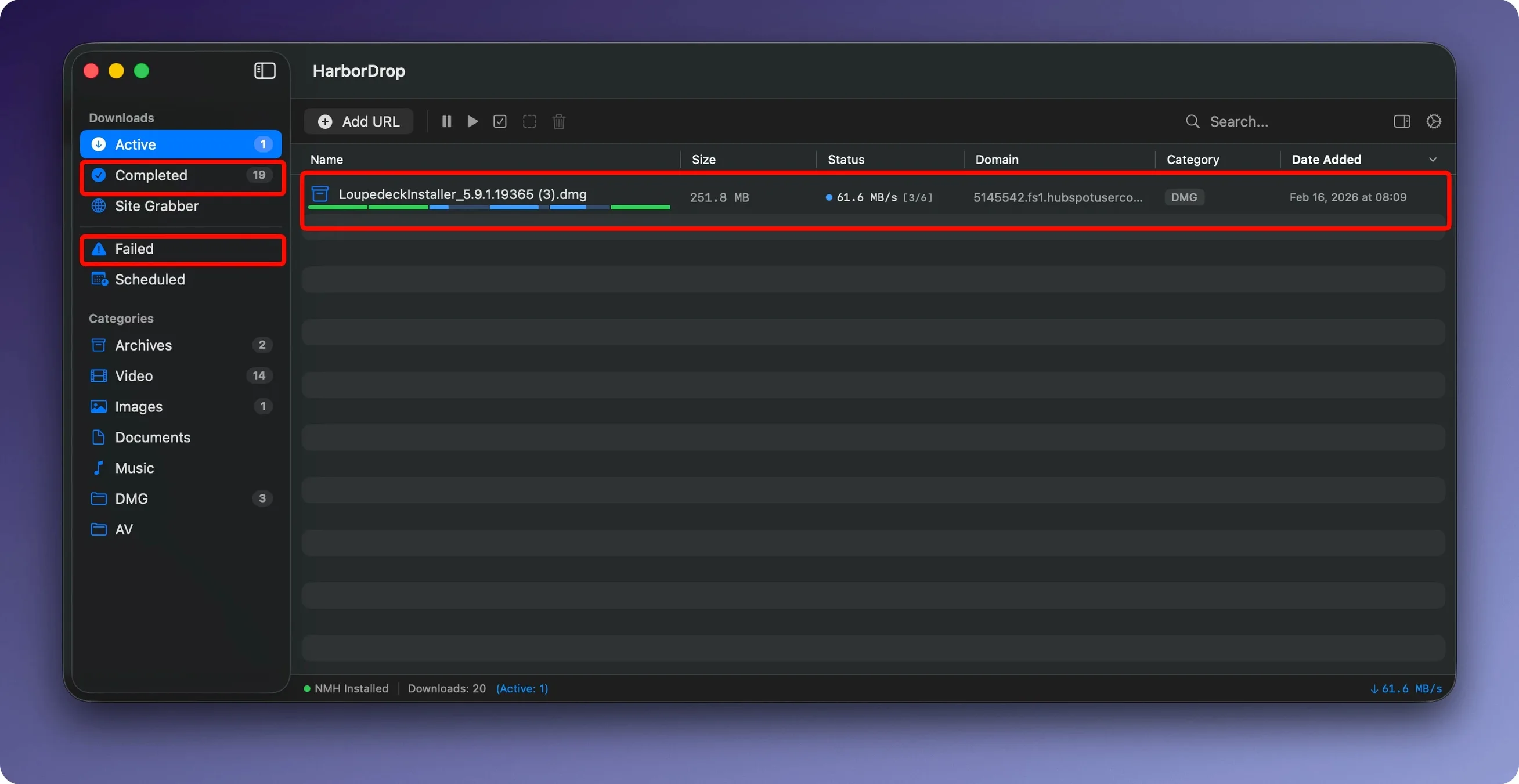
Splits files into up to 6 parts and captures HLS streams
- Segmented downloads – splits a file into up to 6 parts by default and fetches them simultaneously.
- HLS stream capture – downloads video from streaming sites that use HTTP Live Streaming.
- Browser extension – works with Brave and other Chromium-based browsers to intercept file links or send media links directly to HarborDrop.
- Site Grabber – crawls pages to a specified depth and pulls linked files.
- Post-download automation – runs a script or JavaScript command after a transfer finishes.
Who would use this
Anyone who regularly downloads larger files – video editors pulling rushes, podcasters archiving episodes, or just someone who wants to queue up a batch of files and walk away. The segmented engine helps on less reliable connections, and the stream support means you can grab a long-form video for offline playback without keeping a browser tab open. It is not aimed at the casual once-a-month downloader; it is for people who treat downloading as part of their routine.
Expecting it to act like a browser’s download manager leads to mistakes
The most common misstep is expecting HarborDrop to behave exactly like a browser’s built-in download manager. It does not, and it should not. New users often overlook the segmented download setting: the default 6 segments works well on most connections, but on a very slow or unstable line, dropping to 3 or 4 segments can actually finish faster because there is less overhead from re-requesting dropped parts. Another frequent error is forgetting to install the browser extension before trying to capture links. The standalone app can handle pasted URLs fine, but the browser integration is where HarborDrop earns its keep — without the extension, you lose the one-click interception that makes it feel native.
People also tend to ignore the post-download actions until they need them, then fumble with the AppleScript or shell script fields. Start simple: set it to open the file’s folder in Finder after a download finishes. That single toggle saves more hunting in the Downloads stack than any script. And a handful of users have tried to use the Site Grabber with a crawl depth of 10 on a large forum, wondering why the queue ballooned — the feature is powerful, but it respects your specified depth, so think before you set it high.
Install the extension and set your download folder before the first file
- Install the extension immediately. Open Safari’s preferences, or Chrome’s extensions page, and enable it before you download anything. The first file you intercept will confirm the workflow works.
- Set your download folder. Decide early whether you want everything in ~/Downloads or a project-specific folder. HarborDrop remembers the last-used destination, so one trip to the preferences saves time later.
- Configure one post-download action. Turn on “open file’s folder in Finder” as a starting point. You can add scripts later, but this keeps you oriented.
- Test HLS capture on a short video first. Find a public m3u8 stream, send it to HarborDrop, and watch the segmented download run. That builds confidence before you queue a two-hour recording.
- Use the queue for batch work. Drop a dozen links in and let it run sequentially — the segmented engine handles each file independently, so you can leave the machine unattended.
Slots between Finder and browser with AppleScript and shell hooks
HarborDrop does not try to replace the Finder or your browser entirely; it slots between them. When a download finishes, the Finder integration lets you jump straight to the file without digging through stacks. The AppleScript and shell script hooks mean you can chain it into existing workflows — think transcoding a video with HandBrake CLI after the download lands, or moving completed files to a NAS share via an rsync script. The JavaScript runner is less common but useful if you want to parse a downloaded page or rename a file based on its metadata.
On macOS itself, the app respects standard sandboxing and does not require activation or system extensions. It runs natively on both Intel and Apple Silicon, so whether you are on an older Mac Pro or an M-series MacBook Air, the same download logic applies. If you already use Alfred or Keyboard Maestro, you can trigger HarborDrop via URL schemes or AppleScript, integrating it into a launcher-based workflow rather than clicking the dock icon every time.
Requires macOS 12 or later and runs on both ARM and Intel Macs
From the specifications alone: version 1.4 requires macOS 12 or later and runs on both ARM and x86 (64-bit) architectures. The app ships as a standard disk image — you drag it to Applications, launch it from Launchpad, and it is ready. The languages available are English, German and Korean, so the interface is not localised into every regional variant, but the core labels are clear enough for non-native speakers.
The segmented download engine uses up to 6 parallel connections by default, and that number is configurable. On a typical home connection, you will see the file grow in chunks rather than a single stream — that is the parallel logic at work, not a glitch. HLS and m3u8 support mean you can grab adaptive-bitrate streams as a single video file, which is handy for offline viewing. The Site Grabber crawls to whatever depth you set, so the first run on a large site may produce a long list of links; that is expected, not a bug. No performance metrics are published, but the app is lightweight enough to run alongside a browser, a DAW like Logic Pro, or a video editor without noticeable contention — it respects the same macOS resource management as any well-behaved Cocoa application.
Before it goes on the Mac
- macOS 12 or later
- Intel or Apple Silicon processor
- Interface languages: English, German, Korean
Questions from the room
Does HarborDrop require an activation key?
No, the current version does not require activation. You install it and use it directly.
What browsers does the extension support?
The extension works with Brave and other Chromium-based browsers.
Can HarborDrop download video streams?
Yes, it supports HLS streams and can download non-DRM video from supported websites for offline viewing.
Installing it on the Mac
- Open the downloaded disk image.
- Drag the app to the Applications folder.
- Launch it from Launchpad after the copy finishes.
Notes from the control room
Sign in or open a catalogue account to leave a note.
No notes from the room yet. If you have used this build for a week, a short note helps the next person.