iMazing 3.6.5 (Mac)
Updated
The catalogue note
If you have used iTunes to move a few photos off an iPhone, you have felt its limits: slow, selective, and tied to one library. iMazing treats the device like a drive. Here is one realistic task — exporting a batch of photos and videos to a Mac — done start to finish.
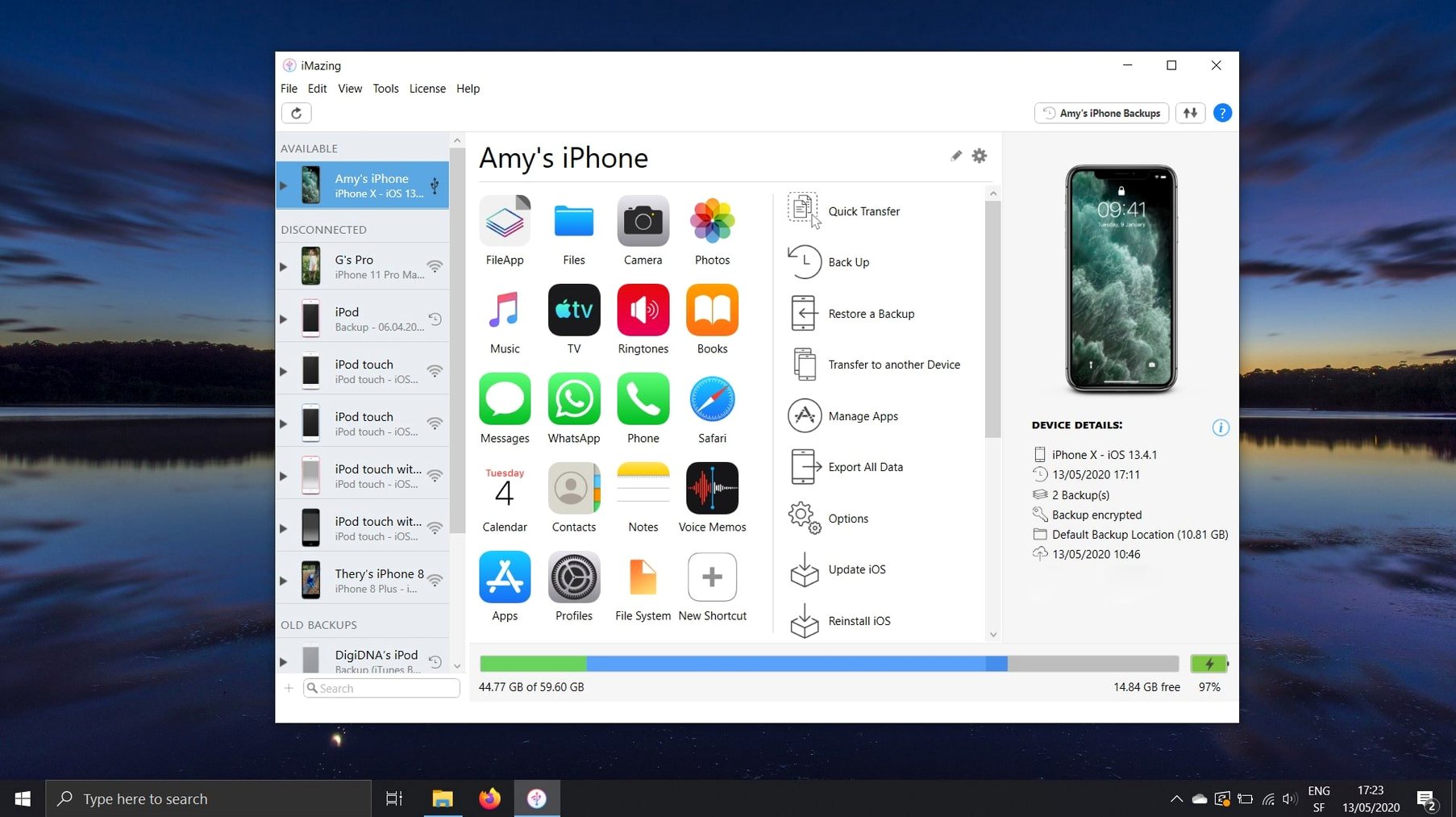
- Connect the iPhone or iPad via USB or Wi-Fi. iMazing picks it up without launching iTunes.
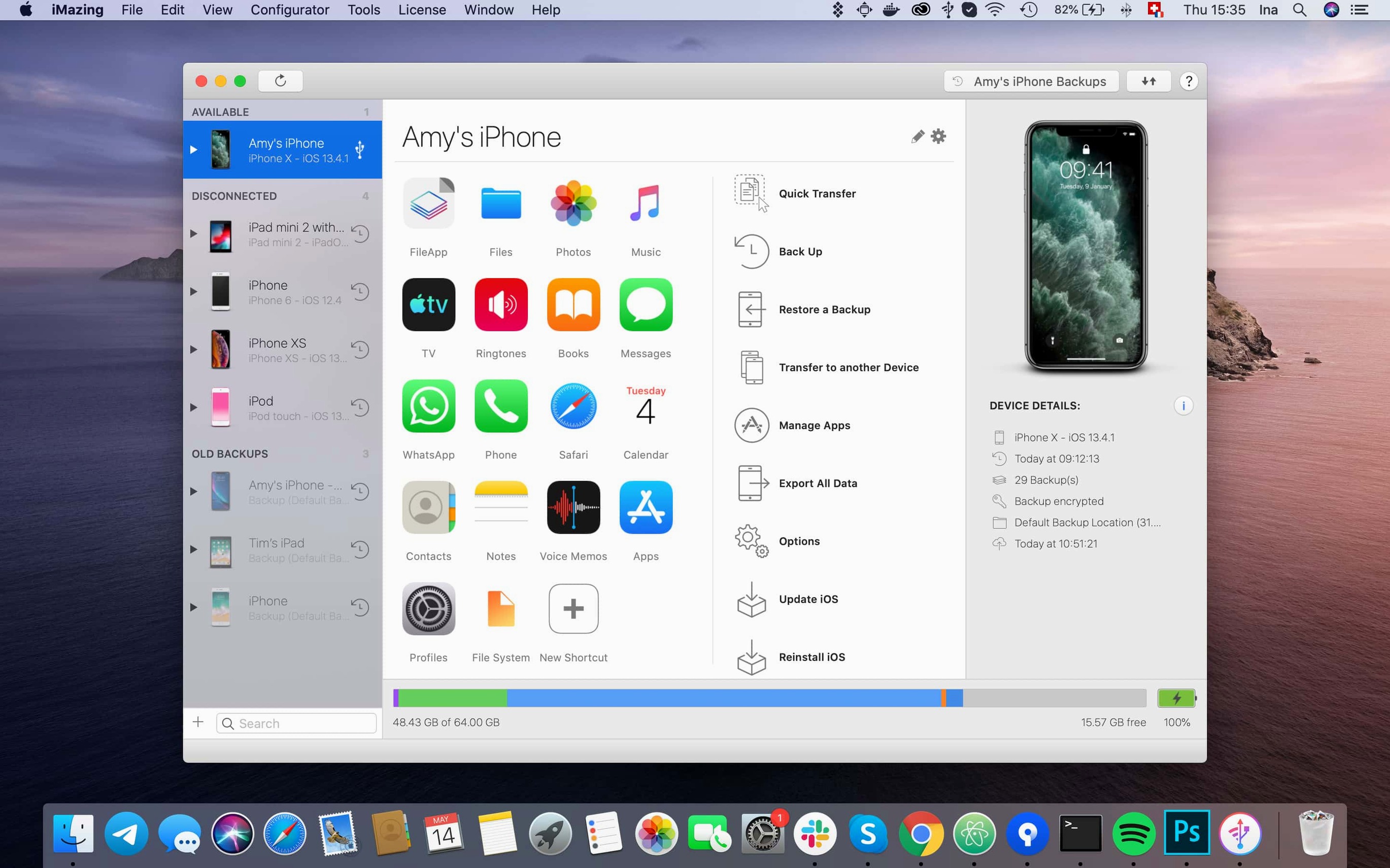
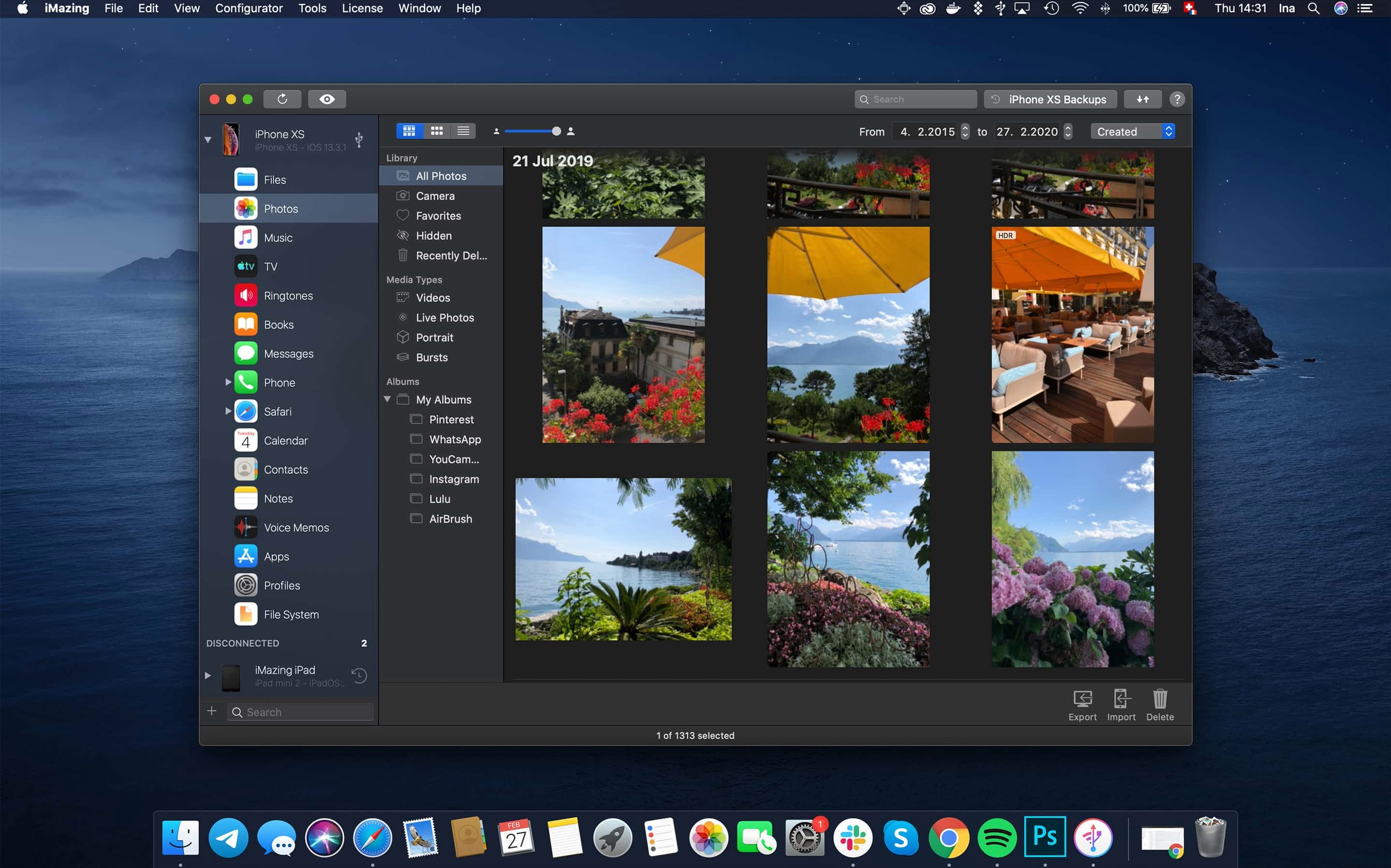
- Click Photos in the device overview. The app reads the camera roll and any albums.
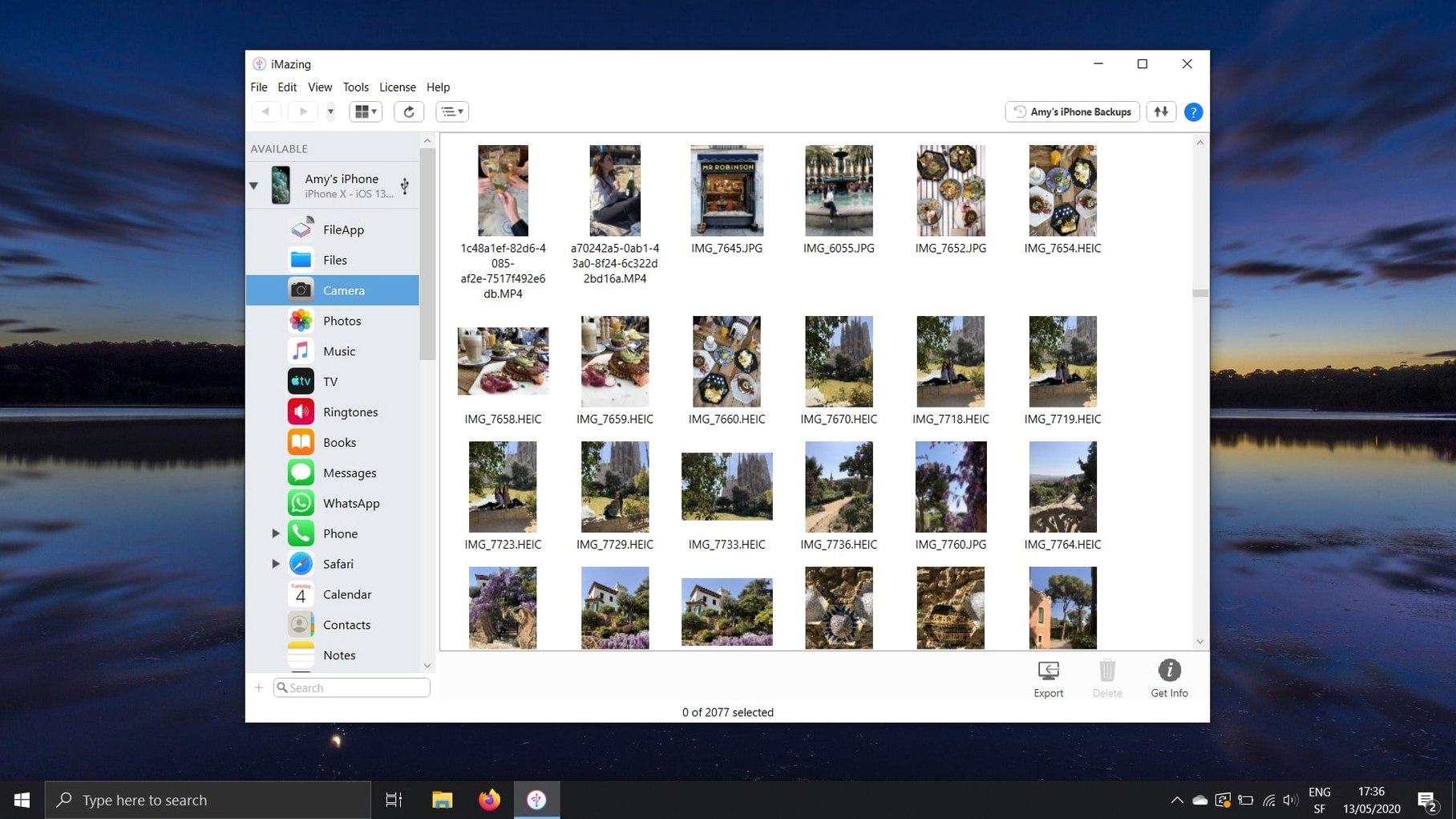
- Select the images and videos you want. You can filter by date range or album.
- Click Export to Folder. Choose a destination on your Mac. iMazing copies the files in their original resolution, preserving HEIC, JPEG, MOV, and live photo pairs.
- Done. The files land on your Mac with their original file names and creation dates. No iCloud upload, no sync conflict.
That is the core of iMazing: it gives you direct file access that iTunes never did. The same principle applies to voicemails, call logs, contacts, and Safari bookmarks. You decide what moves where, not the cloud.
Moving messages from one iPhone to another
The scenario is common enough: a new phone arrives, and you want the entire text message history — attachments included — on it. iMazing handles this without iCloud or a full iTunes restore.
- Connect the old iPhone and select Messages from the device panel. The app reads every conversation, including MMS and iMessage threads.
- Select the conversations you need, or pick individual messages. The preview pane shows text and attached photos, videos, or documents.
- Click Export to Mac and choose a folder. The export creates a plain-text or PDF copy, or you can keep the native format for later transfer.
- Connect the new iPhone. In the Messages view, click Import to Device. Browse to the exported data and confirm. The messages appear on the new phone with timestamps intact.
Attachments come along for the ride. If a message contained a photo or a voice note, it lands on the new device inside the same conversation. No separate sync step required.
Small details that save time
Some features live in the corners of the interface and do not call attention to themselves. They are worth knowing.
- Wireless backup scheduling. iMazing can run automatic backups over Wi-Fi when the iPhone is on the same network as the Mac. You set the interval — daily, weekly, or custom — and the app works in the background.
- Exporting call logs as CSV. The call history view lets you select a date range and export every entry — number, duration, date, type — into a spreadsheet file. Useful for expense reports or personal logs.
- Voicemail as audio files. iMazing reads visual voicemail messages and saves each one as an .m4a file. You can drag them into a folder or attach them to an email. No recording from the speaker required.
- Unified logs export. In version 3.6.5, you can export the complete log archive directly from the unified logs view. Developers and advanced users who diagnose app behaviour get a full dump without extra tools.
- Scanned documents from iOS 26. The same update fixed how scanned documents display beyond the first page. If you scan multi-page documents in the Notes app, iMazing now shows every page correctly when browsing the backup.
What iMazing doesn't replace completely
People ask similar things when they first consider iMazing. Here are the ones that matter most.
Does iMazing replace iTunes completely?
Not entirely. iMazing handles media transfers, backups, messages, contacts, and device management. The two coexist. You can use iMazing for daily data tasks and leave system updates to the default tool.
Will it work with encrypted backups?
Yes. iMazing reads and restores encrypted backups if you supply the backup password. The same encryption level that iTunes or the Finder applies is preserved. You can also create encrypted backups through iMazing itself.
Can I use it on an old Mac?
iMazing runs on OS X 10.11 or later, which covers machines from around 2015 onward. Both Intel and Apple Silicon Macs are supported. The same app binary works on either architecture.
What about languages?
The interface is available in English, Russian, German, Arabic, Spanish, Italian, Chinese (Simplified), Korean, Portuguese, French, and Japanese. The language setting follows your system preferences, or you can switch it inside the app.
Does it need an internet connection?
Not for most operations. Transfers over USB, local backups, and exports to a Mac all happen offline. The only functions that require a connection are wireless backup scheduling over the local network and the iMazing Chatbot link added in version 3.6.5.
New device support in the latest release
The current release is 3.6.5. The changes are specific and mostly affect new hardware or niche workflows.
- New device support. iPhone 18 Pro, iPhone 18 Pro Max, iPhone Duo, Apple Watch Series 12, and Apple Watch Ultra 4 are recognised and managed correctly. If you own any of these, the app sees them without a workaround.
- Log export from unified logs. Previously you could view logs, but exporting the full archive required third-party tools. Now the export button writes a complete log file that you can share with developers or attach to bug reports.
- iMazing Chatbot link. A button in the main window toolbar opens a chatbot interface. It answers questions about features and workflows without leaving the app. Useful when you are mid-task and do not want to search a help site.
- App group containers in .imazingapp files. When you export an app from a backup, shared data between the app and its extensions is now included. This matters for apps that store settings or documents in a shared container — game saves, utility configurations, and the like.
- Error 429 fix. App downloads that failed with error code 429 — typically a rate-limiting response from Apple's servers — no longer stall the queue. The retry logic handles it transparently.
None of these changes alter the core workflow. They fill gaps that users reported: new hardware support, better log access, and smoother app downloads.
Importing books directly into Apple Books
iMazing does not isolate itself. It reads and writes data that other applications can use.
Apple Books. ePub and PDF books can be imported directly into Apple Books from iMazing. You drag a file into the Books view, and it appears in the app on the device. Conversely, books you have already added to Apple Books on the iPhone can be exported to the Mac as files. No DRM stripping — just the same file format the store delivered.
Finder and file management. When you export photos, voicemails, or documents, iMazing writes standard file types — HEIC, JPEG, MOV, M4A, PDF, CSV — into a regular folder. The Mac's Finder, Quick Look, and Spotlight index them normally. You can open them in any compatible application without conversion.
Contacts and calendars. iMazing exports contacts as vCard files and calendars as ICS or CSV. These are standard formats that import into the macOS Contacts and Calendar apps, Google Contacts, Outlook, or any other address book. The same exports work for transferring to another iPhone.
Backup storage. iMazing stores backups in its own folder, separate from iTunes backups. This means you can keep multiple backup sets for the same device without overwriting the one iTunes maintains. If you ever need to restore, the backup is self-contained and does not depend on the state of the iTunes library.
Flash drive mode. iMazing can mount the iPhone or iPad as a storage volume in the Finder. You drag files into the device window, and they appear in a folder that other apps can access. The device does not need to be jailbroken. Useful for carrying documents between computers without a USB stick.
Changes in this build
- Adds support for iPhone 18 Pro, iPhone 18 Pro Max, iPhone Duo, Apple Watch Series 12, and Apple Watch Ultra 4.
- Adds export of complete log archives from the unified logs view.
- Adds a link to iMazing Chatbot in the main window toolbar.
Before it goes on the Mac
- macOS OS X 10.11 or later
- Intel or Apple Silicon Mac
Questions from the room
Can iMazing import books into Apple Books?
Yes. iMazing imports ePub and PDF files directly into Apple Books on the device, and can also export books from Apple Books to a computer.
Installing it on the Mac
- Open the downloaded disk image.
- Drag the app into the Applications folder shortcut.
- After copying finishes, launch the app from Launchpad.
Notes from the control room
Sign in or open a catalogue account to leave a note.
No notes from the room yet. If you have used this build for a week, a short note helps the next person.