Updated
The catalogue note
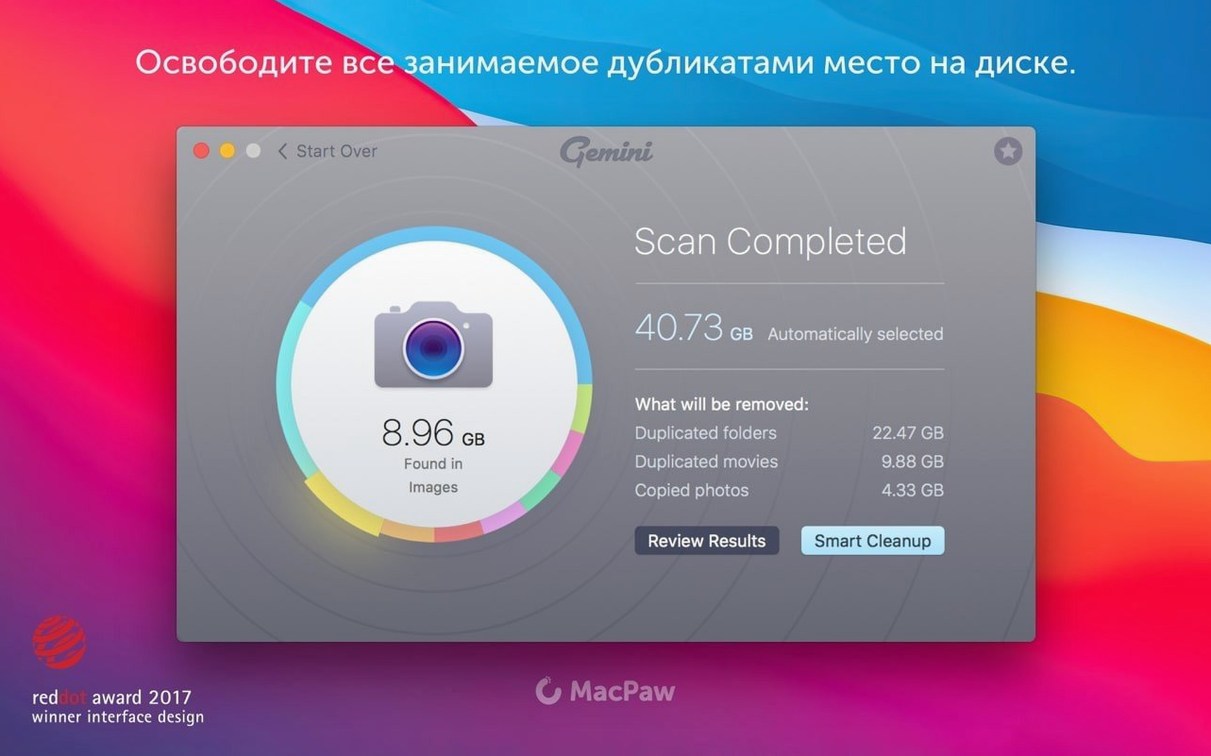
You have a Mac that has accumulated years of files — downloads, project copies, photo libraries — and you suspect half of them are duplicates. Gemini 2, from MacPaw, is a duplicate file finder that can scan the whole drive, specific folders, or media libraries like iTunes and Photos. Here is one realistic task from start to finish.
Scan an old project folder
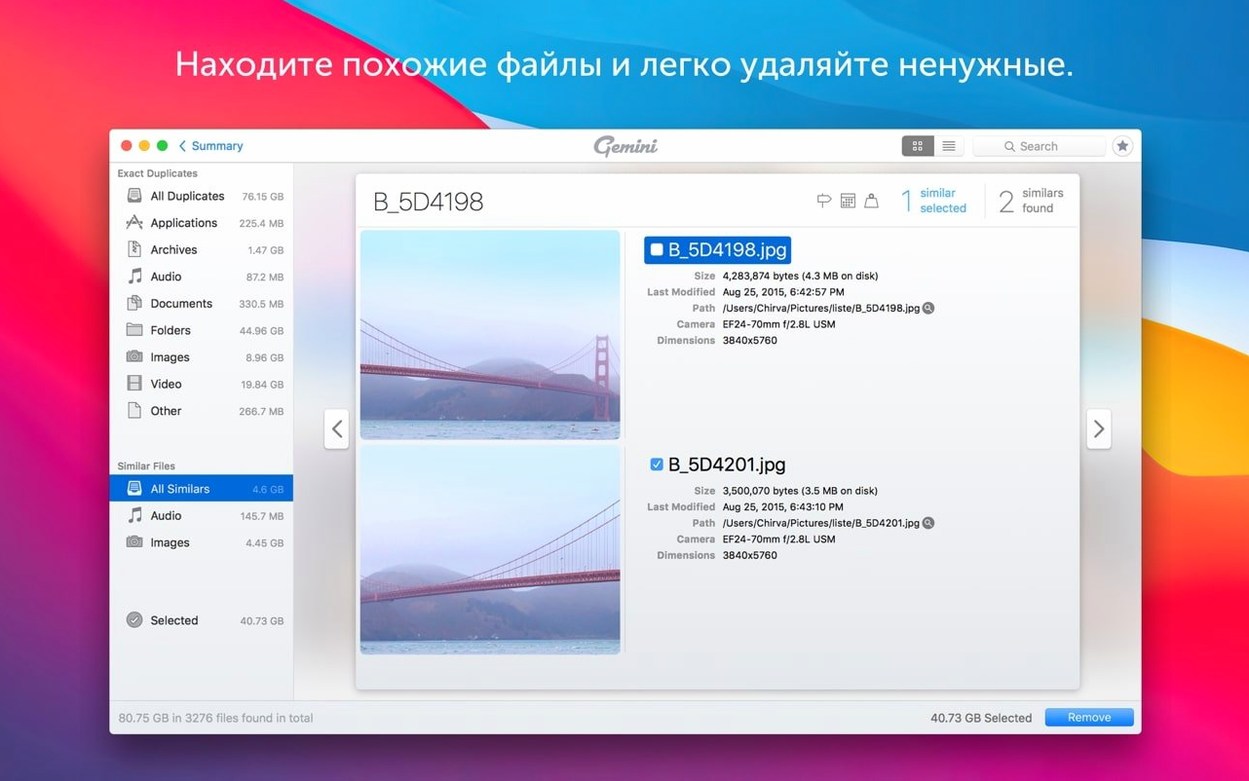
You drag a folder of archived audio sessions onto Gemini 2. The app scans quickly, grouping identical files and near-identical variants. It preselects the ones it considers safe to remove, so you do not have to guess.
Review the results
The interface shows groups of duplicates with thumbnails and file sizes. You scroll through, uncheck anything you want to keep (a final mix, for instance), and leave the rest selected for removal.
Move to Recently Deleted
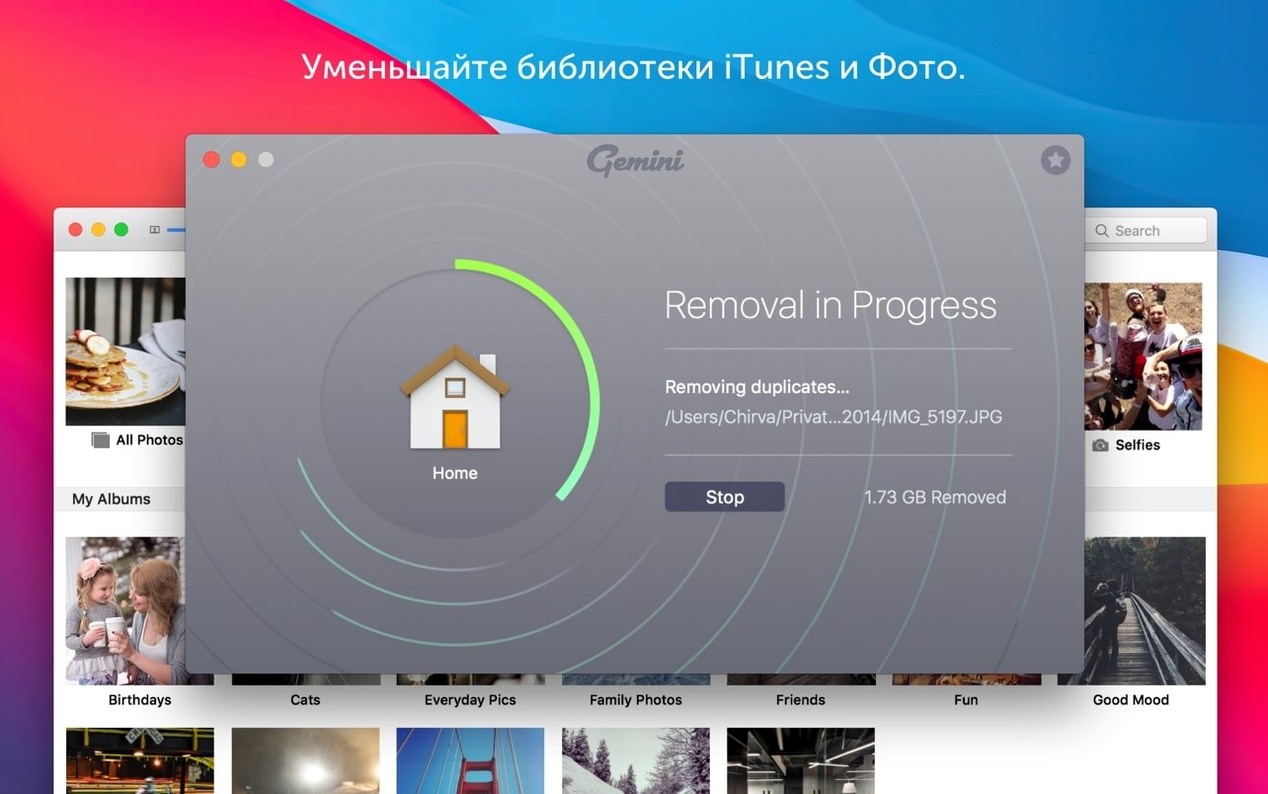
Instead of deleting permanently, Gemini 2 moves the chosen files to a Recently Deleted area. If you change your mind later, you can restore them from there. The freed space shows up immediately in the app.
Start with a single folder, not your whole drive
When you first launch the app, resist the urge to scan your entire startup drive immediately. Start with a single folder you know contains duplicates — your Downloads folder or a Documents subfolder. This gives you a feel for how the app presents results without overwhelming you with thousands of groups.
Open the Preferences window early. The interface language defaults to English, but if you work better in Polish, German, or one of the other eleven languages available, switch it before you start scanning. Language changes apply immediately, so you can confirm the menus make sense to you.
Run your first real scan on a folder you are willing to lose files from. The Recently Deleted area is your safety net, but it is still worth verifying that the app found what you expected. After you remove the preselected duplicates, check the freed space reading in the app window. This confirms the scan actually found real duplicates, not false positives.
Gemini 2 can scan external drives and USB sticks
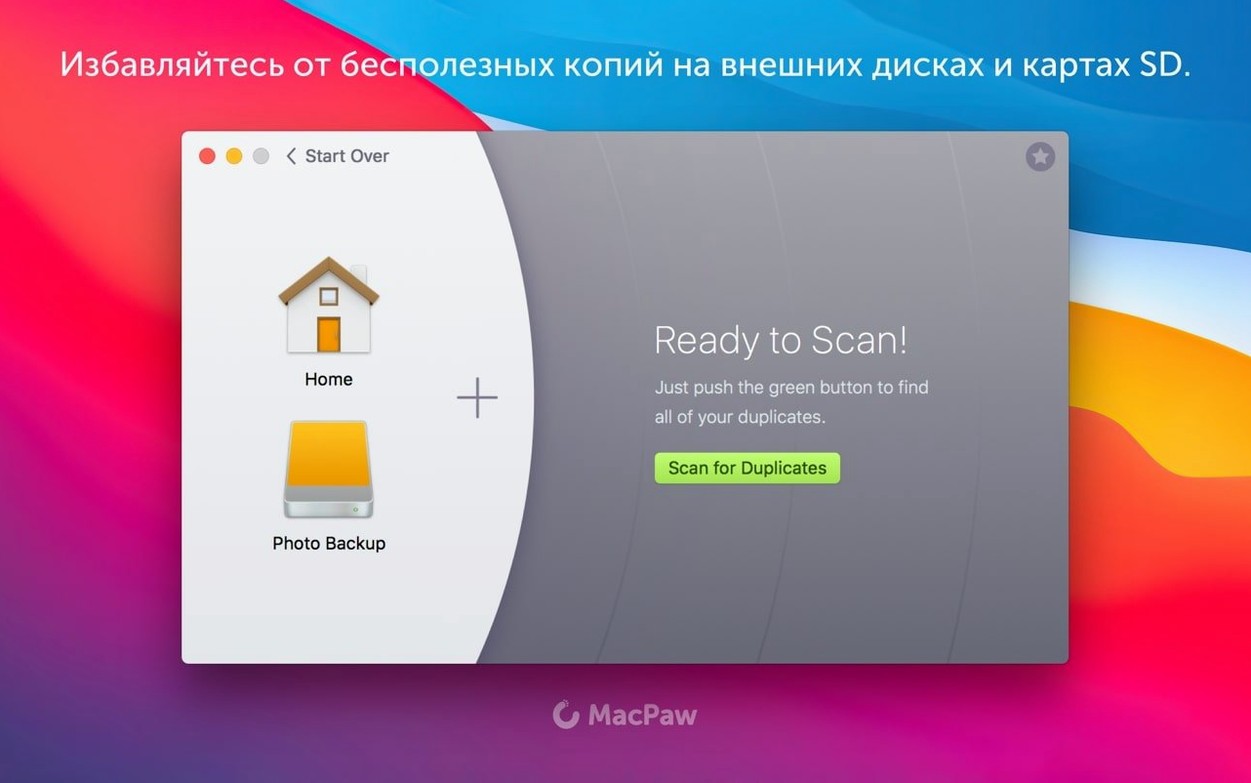
Can Gemini 2 scan external drives? Yes. You can drag any mounted volume or folder into the scan window. The app does not restrict itself to internal storage, so an external backup drive or a USB stick full of old work files can be scanned the same way.
Does the app scan cloud folders like Dropbox or iCloud Drive? It scans whatever folder you point it at. If your Dropbox folder is in the default location, you can drag it in. The same applies to iCloud Drive — but remember that deleting duplicates from a synced folder will remove them from the cloud too, so check twice before confirming removal.
What happens if I delete a file the app flagged incorrectly? The Recently Deleted area holds removed files until you empty it. You can open it from the app menu, browse the list, and restore individual files or entire groups. This is not a trash can replacement — Gemini 2 keeps its own separate list of removed items.
Does Gemini 2 scan Time Machine backups? No. The app works with mounted volumes and folders, not with Apple's backup format. If you need to find duplicates inside a Time Machine backup, you would need to browse the backup separately.
Fix a Gatekeeper block with a Terminal command
The app does not launch after installation. This usually happens because Gatekeeper blocks the unsigned application. The installation instructions include a Terminal command to bypass this check. If you skipped that step, mount the disk image again and run the command as described before dragging the app to Applications. If the app still does not open, check that you are running macOS 10.13 High Sierra or later — older versions require a different build of Gemini 2.
Scanning seems very slow on a large drive. The first scan of a full hard drive takes longer because the app builds its index of file hashes. Subsequent scans of the same folders run faster because the index persists. If you are in a hurry, limit the scan to specific folders rather than the entire Mac.
The app says it cannot access certain folders. macOS permissions control which apps can read System, Library, and other protected directories. Gemini 2 will ask for permission when it encounters these folders for the first time. Granting full disk access in System Preferences > Security & Privacy > Privacy > Full Disk Access resolves this. The app works without this access, but it will skip protected areas.
Removed files do not show up in Recently Deleted. This happens if you emptied the Recently Deleted area since the last removal, or if you removed files using the permanent delete option instead of the default move-to-Recently-Deleted. The app defaults to safe removal, but you can change this behaviour in Preferences. Stick with the default until you are confident in the selections.
Don't scan your system drive on the first run
Scanning the entire system drive on the first run. This produces a long list of cache files, system caches, and app support duplicates that are not safe to remove. Beginners often see a large number of preselected items and assume they are all safe. Many system-level duplicates are intentionally present for app stability. Stick to user folders — Documents, Downloads, Music, Pictures — until you understand what the app flags.
Ignoring the Smart Select presets. The app preselects files it considers safe to delete based on its built-in logic. Beginners sometimes uncheck everything manually, thinking the app might delete something important. The Smart Select algorithm has been tuned over several versions. Trust it for the first few scans, then adjust selections as you learn what the app considers duplicate.
Not reviewing file names before removal. Gemini 2 groups duplicates by content, not by file name. Two files with different names but identical content will appear in the same group. If you delete without checking the file names, you might remove the version you actually wanted. Always glance at the file names and paths in each group before confirming.
Emptying the Recently Deleted area immediately after a scan. This removes your safety net. Keep items in Recently Deleted until you have verified that no application or workflow depends on the removed files. A week is a reasonable holding period for most users.
Running scans on the same folders repeatedly without learning from previous results. Gemini 2 remembers your choices from earlier scans and reuses them in later ones. If you always keep certain files, the app learns that pattern. Beginners who ignore this feature end up reviewing the same groups every time. Let the app learn your preferences — it saves time on subsequent scans.
Before it goes on the Mac
- macOS 10.13 High Sierra or later
- Intel-based Mac
Questions from the room
Does Gemini 2 scan iTunes and Photos libraries?
Yes, it can search iTunes, Photos, the hard drive, and old folders for duplicates, including files that look alike or are nearly identical.
What languages does Gemini 2 support?
The interface is available in Russian, English, German, Spanish, Italian, Simplified Chinese, Dutch, Polish, Portuguese, Ukrainian, French, and Japanese.
Installing it on the Mac
- Mount the disk image and open Gatekeeper-friendly.
- Press Enter in the Terminal window to bypass Gatekeeper.
- Drag the app into the Applications folder.
- Open the app after installation.
Notes from the control room
Sign in or open a catalogue account to leave a note.
No notes from the room yet. If you have used this build for a week, a short note helps the next person.