Home › Utilities › Folder Tidy

Folder Tidy 2.9.7 (Mac)
Updated
The catalogue note
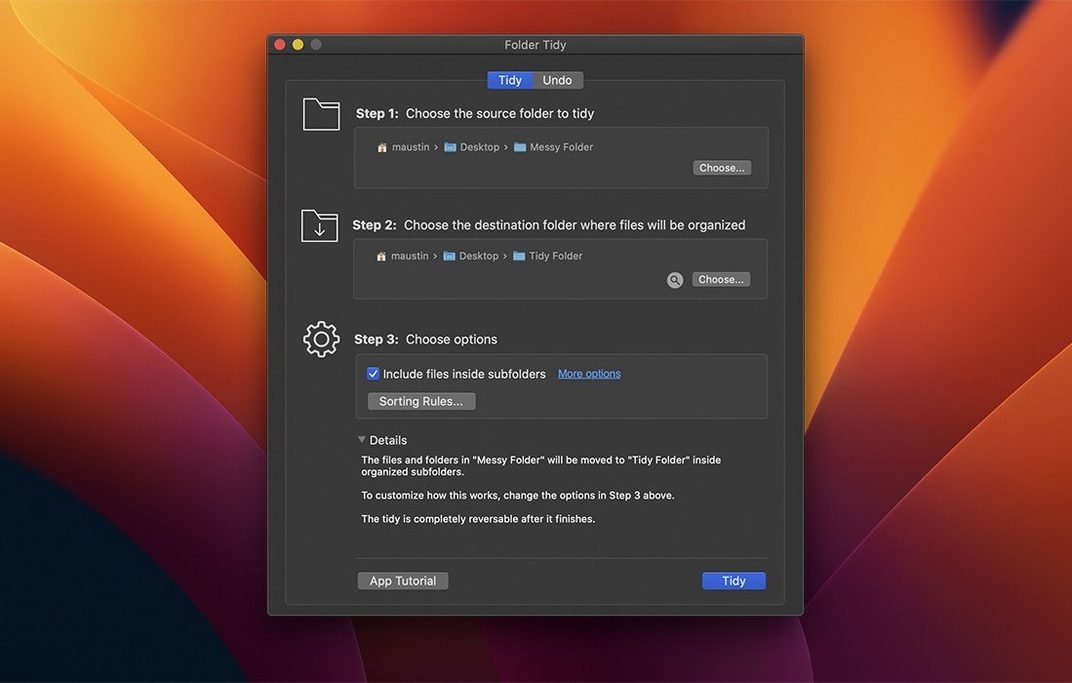
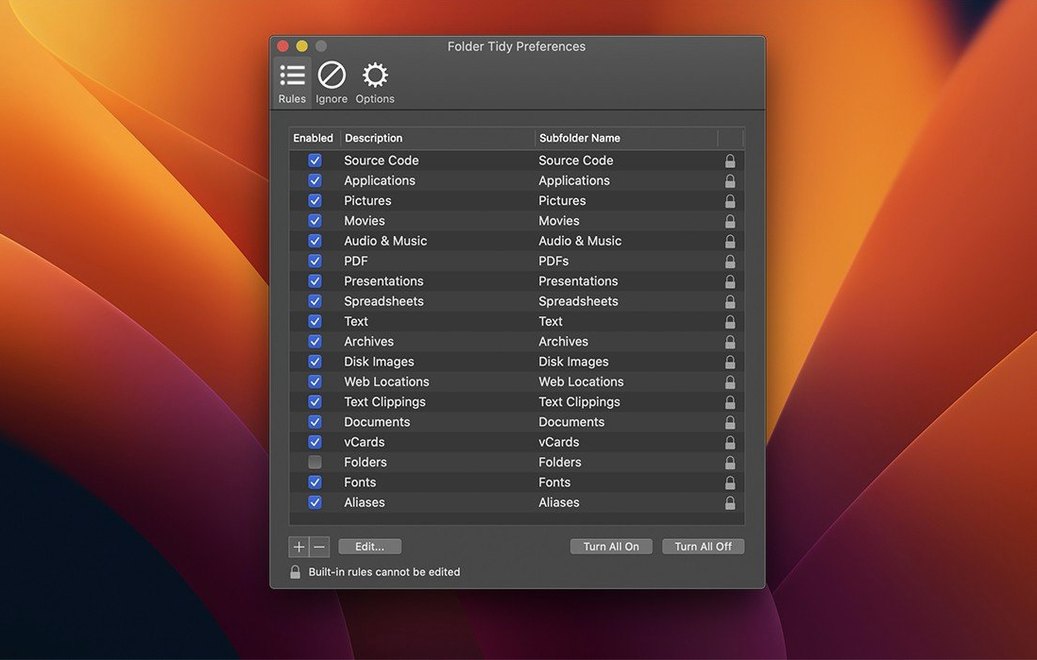
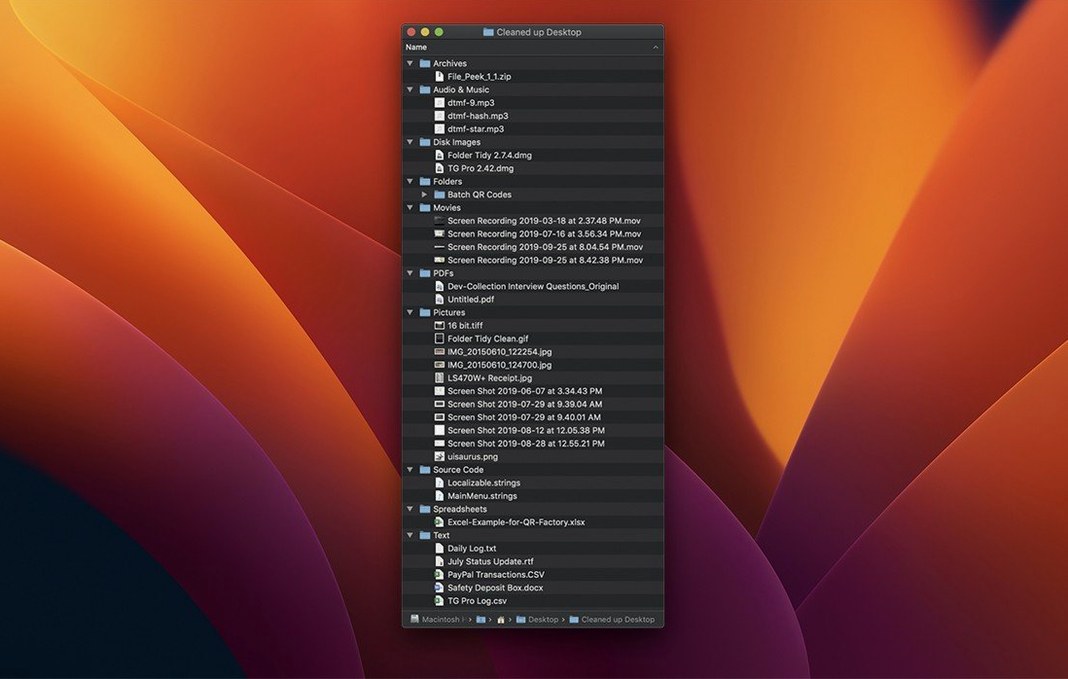
Every studio Mac ends up with a Downloads folder that looks like a cable drawer after a tour. Folder Tidy for Mac free download sorts that mess into subfolders using 15+ built-in rules, from photos and PDFs to presentation files. The deeper tools are what make it worth keeping around.
Can I sort with my own rules?
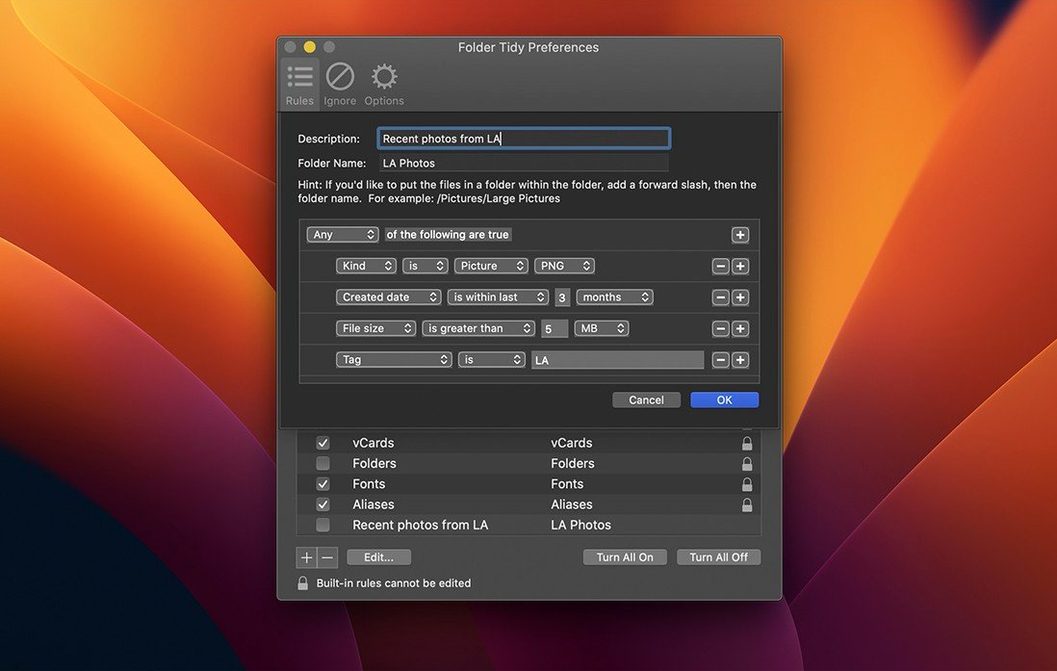
Yes. Predefined rules cover the obvious types, but you can build custom rules that match your own file naming or extension patterns. That is where Folder Tidy earns its place next to the usual cleanup utilities.
Undo restores files even after a restart
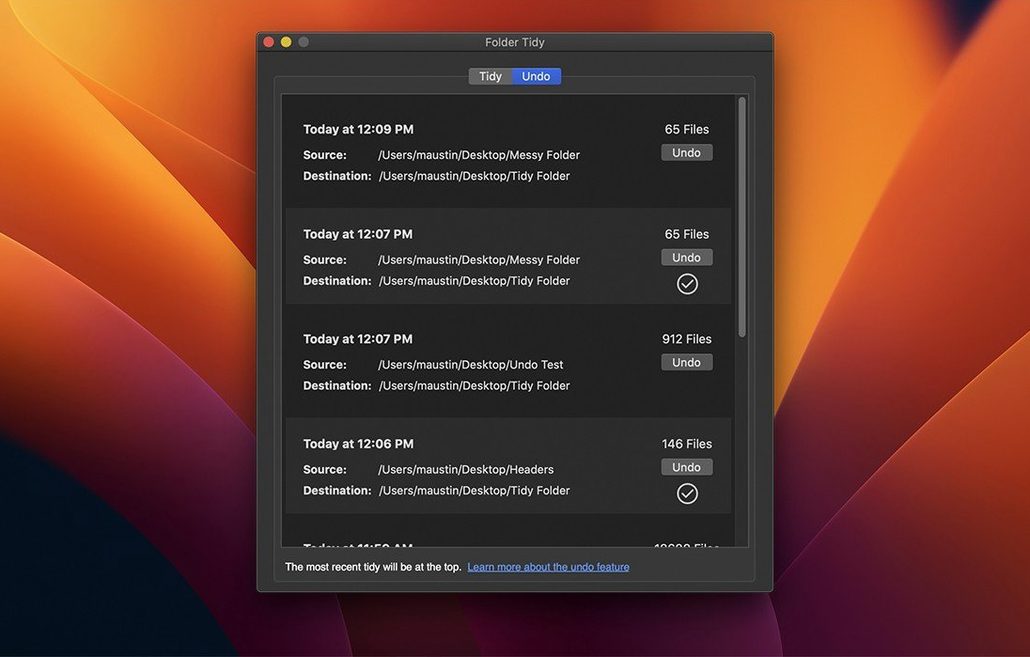
There is an Undo button that restores files to their original locations. In version 2.9.7, undoing also brings back hidden files and folders, and removes the subfolders the tidy created — even after a restart.
Check the folder first to avoid wasted time
The most common error is running Folder Tidy on a folder you have not looked at first. A quick glance before sorting saves time: check for files with similar names that belong together, or subfolders you want to keep. The app does what you tell it, not what you meant.
Another misstep is relying on the predefined rules without checking whether they catch everything. The built-in rules are broad — "Photos" covers common image extensions, but not raw camera formats or HEIC files unless you add them. Beginners often assume a tidy is complete, then wonder where the stragglers went.
Using Folder Tidy on a folder that syncs to cloud storage, like a Dropbox or iCloud Drive folder, can create extra work. The app moves files, the sync service re-uploads them, and the subfolder structure may confuse the cloud client. Better to tidy a local copy first, then move the organised folder into the sync location.
New users also forget the Undo button exists until it is too late. Folder Tidy keeps a full history of previous moves, but if you run several tidies without checking, the list gets long. Undo works per session, so if you quit and reopen, the history from earlier is still there — but the earlier the operation, the more files may have changed since.
Automates workflows with Automator or Shortcuts
Folder Tidy slots into a workflow that uses Automator or Shortcuts for repetitive tasks. You can run Folder Tidy, then trigger a second action — like compressing the sorted subfolders or moving them to an archive drive — without opening the app again each time. The sorting runs and finishes, and the Finder handles the rest.
On macOS 26 Tahoe, which version 2.9.7 supports, Folder Tidy works with the system's improved file provider extensions. That means sorting a folder inside a cloud storage volume behaves more predictably than on older systems, though the same caveat about syncing still applies.
For studio use, Folder Tidy pairs well with Hazel or other folder-watching tools. Hazel watches a folder and runs a rule when new files appear. Folder Tidy can then run on a schedule to sort the output into subfolders by type — a two-stage process that keeps session audio separate from bounced mixes.
Using Finder tags alongside Folder Tidy is straightforward: the app moves files, and tags stay attached. If you tag project files with a colour before sorting, those tags remain after the move. That is useful for locating recent work inside a now-organised folder.
Taming a podcast editor's cluttered downloads folder
A podcast editor records three episodes a week. Each episode brings in a WAV file from the guest, a PDF of show notes, an MP3 of the sponsor read, and a handful of screenshots for social media. By Friday, the Downloads folder holds thirty files from the week's sessions, mixed with system updates and random PDFs.
Running Folder Tidy with a custom rule set sorts the WAV files into an "Audio" subfolder, the MP3s into "Mixes", the PDFs into "Notes", and the screenshots into "Graphics". The editor then archives the "Audio" folder to a network drive and deletes the rest. What used to take five minutes of manual dragging now finishes in a few seconds while the editor makes coffee.
The undo history means if a sponsor sends a corrected PDF after the tidy, the editor can find the original file location without digging through the sorted structure. The subfolders are removed on undo, so the folder returns to its original state.
Add the file extensions you actually use first
Open Folder Tidy before you need it. The first settings to adjust are the custom rules. Add the file extensions you actually see in your work — for a studio Mac, that might be .aif, .wav, .aiff, .caf, and .logicx alongside the default image and document types.
Set a default target folder if you always sort into the same location. The app remembers this across sessions, so you do not browse for the same folder every time.
Check the undo history limit. By default, Folder Tidy keeps all previous moves, but if you sort large folders frequently, the list grows. Trimming it to the last few operations keeps the undo menu manageable without losing the ability to revert a recent sort.
Finally, decide whether you want the app to create subfolders inside the source folder or move sorted files to a separate location. The default places subfolders where the files are, which works for a Downloads folder. For project folders, you may prefer moving sorted files to a dedicated "Archive" folder instead. That is set before the first run.
Sorting continues after logout, which is useful for overnight cleanups on a machine that reboots between sessions.
Changes in this build
- Added support for macOS 26 Tahoe.
- Undoing a tidy restores hidden files and folders to their original locations.
- Folders created during a tidy are removed after undo completes, even after restart.
- Resolved a crash when upgrading from an older version.
- Fixed a launch problem affecting some users.
Before it goes on the Mac
- macOS 10.13 High Sierra or later
- Intel or Apple Silicon
- Interface language: English
Questions from the room
Which macOS versions does Folder Tidy support?
Folder Tidy runs on macOS 10.13 High Sierra and later, on both Intel and Apple Silicon Macs. The latest version, 2.9.7, adds support for macOS 26 Tahoe.
Installing it on the Mac
- Mount the disk image and run Open Gatekeeper friendly.
- Press Enter in Terminal to bypass Gatekeeper.
- Drag the app into the Applications folder.
- Open the app when installation is complete.
Notes from the control room
Sign in or open a catalogue account to leave a note.
No notes from the room yet. If you have used this build for a week, a short note helps the next person.