Home › Utilities › DynamicLake Pro
DynamicLake Pro 1.8 (Mac)
Updated
The catalogue note
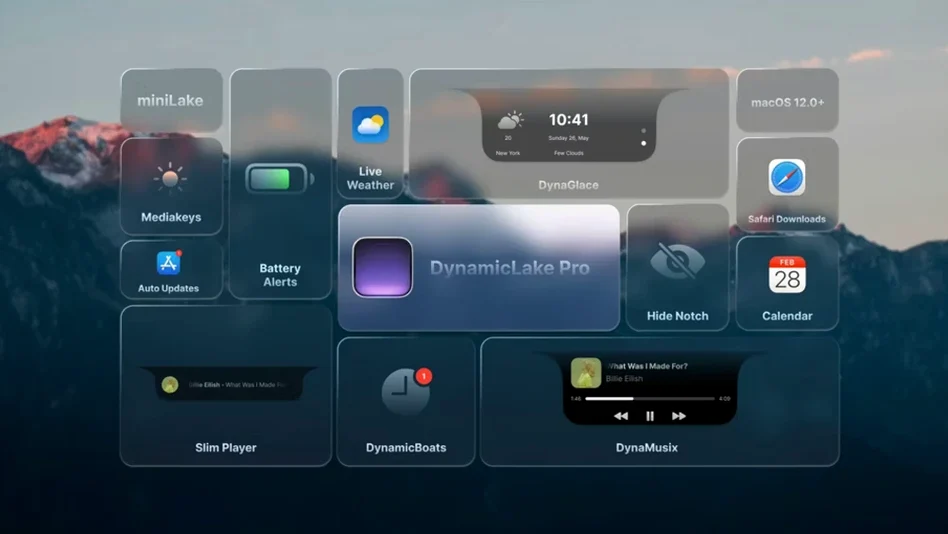
You're sitting at your Mac, headphones on, working on a mix in Logic Pro. A calendar alert pops up in the notch area, a Bluetooth device disconnects with a brief pulse, and the current track title scrolls past the camera cutout — all without interrupting your session. DynamicLake Pro turns that unused menu-bar and notch space into an active notification centre.
Check if your Mac can run it
DynamicLake Pro requires macOS 11 or later and runs natively on both Intel and Apple Silicon Macs. The current version is 1.8, and a later changelog entry already mentions support for macOS 27, so development is clearly ongoing.
See what you get
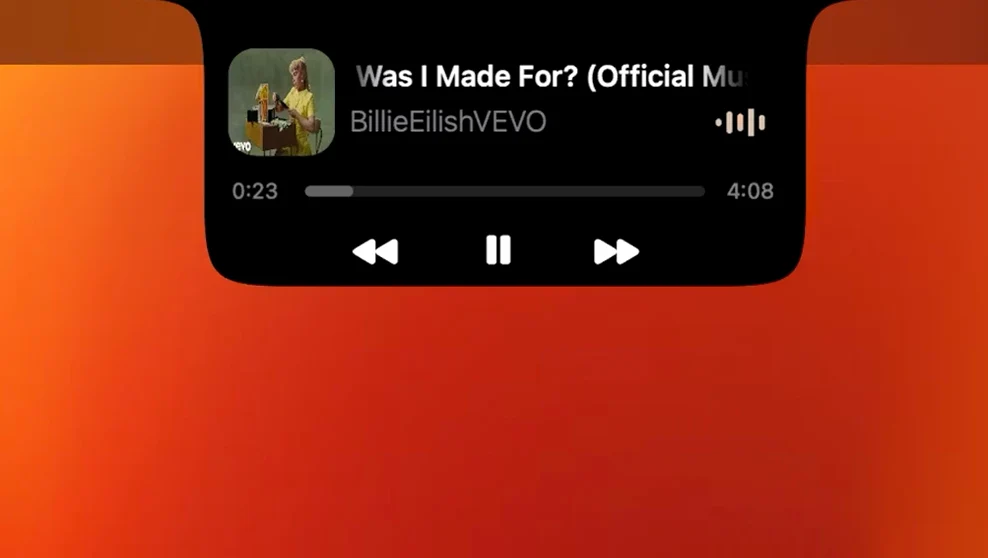
The app includes DynaMusic for animated music control, DynaGlance for live weather and calendar info, and DynaKeys for volume, brightness and keyboard backlight sliders. Timers from the Clock app appear automatically.
Set it up in two moves
Once you have it running, the default configuration works, but a few changes make it far more useful for everyday studio and desk work. The most common beginner mistake is leaving everything enabled and wondering why the notch area feels busy. Start by opening the app's preferences and turning off any DynaModules you do not need daily. If you mainly want music control and calendar alerts, disable DynaSwitcher and DynaConnect until you find a use for them. You can always re-enable them later.
Clock timers appear in the DynamicLake area
Version 1.8 brought a handful of refinements that affect how the app behaves during a normal workday. The most noticeable is that timers you create in the macOS Clock app now appear automatically in the DynamicLake area. Before this change, you had to set timers inside the app itself or rely on third-party tools. Now you can start a timer with Siri or the Clock app and see the countdown in the notch without opening anything else. This is useful when you are timing a recording take or a tea break.
The later changelog that mentions macOS 27 support suggests the developer is keeping up with Apple's beta cycles, which means DynamicLake Pro should continue working as macOS evolves. For current users on macOS 11 through the latest stable releases, nothing about the interface or setup changed — the improvements are under the hood and in the timer integration.
Treating it as a menu bar replacement causes trouble
The most common misstep is treating DynamicLake Pro like a replacement for the macOS menu bar. It is not. It adds widgets and notifications in the notch area, but the standard menu bar items stay in place. Beginners sometimes try to drag menu bar icons into the DynamicLake area, which does not work. The app's modules appear in the notch when triggered, not as permanent icons.
Another frequent error is enabling every language and module at once. The app supports thirteen languages, but switching between them in preferences does not translate the macOS system — only the DynamicLake interface. If you accidentally select a language you cannot read, simply go back to preferences and pick English again. The interface is straightforward enough that you can navigate by icon position.
Some users expect the app to work with all notification types out of the box. DynamicLake Pro shows push notifications with quick replies for several apps, but not every third-party notification passes through. If you rely on a niche chat app, test it early rather than assuming it will appear in the DynamicLake area. The quick reply feature works with Messages, Mail and a few others, but not with every service.
Beginners also tend to leave miniLake and the full DynamicLake running simultaneously. miniLake is a smaller format for core functions, intended for users who want a less intrusive display. Running both at the same time duplicates information and wastes the potential of each mode. Pick one and stick with it for a week before switching.
Switch to minimal DynaMusic animation for recordings
Open preferences immediately after the first launch and adjust these items before you settle into a workflow.
DynaMusic animation style. The default animation is smooth but can be distracting during screen recordings or video calls. Switch to the minimal variant if you keep it visible while working.
DynaGlance update interval. Weather and calendar widgets refresh automatically, but you can set a longer interval to reduce network calls on metered connections. Every fifteen minutes is sensible for most people.
DynaKeys behaviour. Volume and brightness sliders appear when you press the physical keys. If you prefer the standard macOS bezel, disable this module. The sliders are more useful for fine adjustments during audio work, where the standard jumps are too coarse.
DynaSwitcher shortcut. The app uses Option+Tab by default for switching open applications. This overrides the macOS Option+Tab behaviour in some apps. If you rely on Option+Tab for a specific program, remap the shortcut in preferences or disable the module entirely.
Notification filtering. You can choose which apps show notifications in the DynamicLake area. Start with only the apps you genuinely need alerts from during focused work — calendar, music, timer. Add messaging apps later if you find yourself missing chats.
DynaGlance shows weather and calendar at startup
Monday morning, 9 AM. I sit down at the desk, open the Mac, and DynamicLake Pro starts automatically from the login items. The first thing I see in the notch is DynaGlance showing today's weather and my next calendar event — a session booking at 10:30. I do not need to open Calendar to confirm.
I start working on a mix in Logic Pro. At 9:45, a timer I set in the Clock app for a break appears in the notch. It counts down quietly in the corner of the display, visible but not intrusive. I finish the section I am working on and take the break.
At 10:15, I connect a Bluetooth headset for a client call. DynaConnect flashes a brief alert in the notch confirming the connection. I do not need to check System Settings to see if the device paired.
During the call, I adjust the volume using the keyboard. DynaKeys appears briefly in the notch with a slider, showing the exact level. I prefer this over the standard bezel because the slider gives finer control — useful when the client complains about background noise.
After the call, I switch to writing session notes. I press Option+Tab to cycle between apps. DynaSwitcher shows the active application names in the notch, which helps when I have several windows open in the same app. I disable it after lunch because I do not need it for the afternoon tasks.
At 3 PM, a calendar alert for a meeting pops up in the notch with a quick reply option. I type "Running five minutes late" directly from the notification and close it. I never opened Calendar.
At 5 PM, I start playback of a reference track in Music. DynaMusic shows the track title and album art in the notch with play/pause controls. I can skip tracks without switching away from my text editor.
At 6 PM, I disconnect the Bluetooth headset. DynaConnect shows a brief disconnect alert. I quit DynamicLake Pro for the day, knowing it will resume automatically tomorrow.
The entire session involved opening the DynamicLake preferences exactly once, to disable DynaSwitcher after lunch. Everything else worked as set up on day one.
It works on Intel and ARM Macs without polling
Will this work on an Intel Mac? Yes. DynamicLake Pro supports both ARM and 64-bit Intel architectures. The same download works on a 2019 Intel MacBook Pro and an M2 Mac mini.
It does not poll continuously.
Can I use it alongside other menu bar utilities? Yes. DynamicLake Pro lives in the notch area, not the menu bar. It coexists with apps like iStat Menus, Bartender or Hidden Bar without conflict. The only overlap is if another app also tries to draw in the notch area — in that case, one will overlay the other. Test your combination early.
Does it work with multiple displays? DynamicLake Pro appears on the display that has the notch or the camera cutout. On Macs without a notch, it appears in the menu bar area of the primary display. External monitors without a notch show the modules in the top centre of the screen, which can look odd. You can disable the app on specific displays in preferences if available, or simply close it when using an external monitor setup.
Is it safe to install on a work Mac? The app does not require activation, does not phone home for licensing, and does not install kernel extensions. It runs as a standard macOS application with user-level permissions. IT departments that restrict third-party software may still flag it, but from a security standpoint it behaves like any other notification utility.
Can I uninstall it completely? Drag DynamicLake Pro from the Applications folder to Trash. Preferences are stored in the user Library folder under the developer name Aviorrok — delete that folder if you want a clean removal. The app leaves no background processes after quitting.
Open the downloaded disk image, drag DynamicLake Pro into the Applications folder alias, then launch it from Launchpad. That is all.
Before it goes on the Mac
- macOS 11 or later
- Intel or Apple Silicon
Questions from the room
Does DynamicLake Pro work on Apple Silicon Macs?
Yes, the app runs natively on both Intel and Apple Silicon Macs.
Can I control music playback with DynamicLake Pro?
Yes, DynaMusic provides music control with animation directly from the Dynamic Island area.
What version of macOS does DynamicLake Pro require?
It requires macOS 11 or later.
Installing it on the Mac
- Open the downloaded disk image.
- Drag the app into the Applications folder alias.
- After copying finishes, launch the app from Launchpad.
Notes from the control room
Sign in or open a catalogue account to leave a note.
No notes from the room yet. If you have used this build for a week, a short note helps the next person.