DriveDx 1.12.1 (Mac)
Updated
The catalogue note
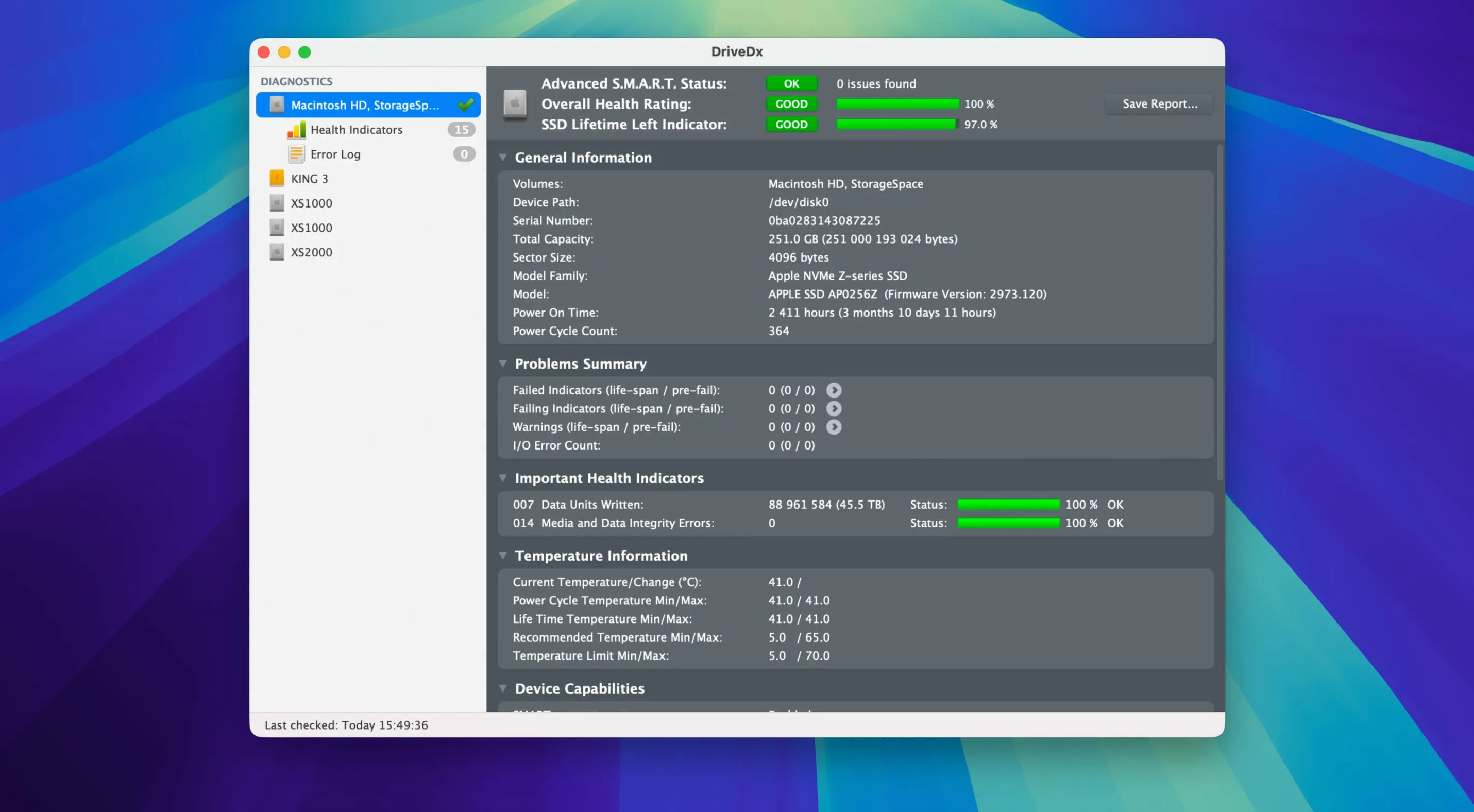
DriveDx is the sort of utility that sits quietly in the background until something goes wrong with your storage. It is aimed at people who keep important data on a Mac and want an early heads-up before a drive fails.
Tracks SSD wear and reallocated sectors to predict end of life
- Keeping an eye on SSD wear and reallocated sectors, so you know when a drive is nearing the end of its life.
- Catching pending bad sectors and I/O errors that could point to a failing disk.
- Running short or full self-tests when you suspect a drive is acting up.
- Getting notifications when DriveDx detects a problem, without having to check manually.
Adds its own diagnostic layer using heuristic failure prediction
- It is a third-party tool, not built into macOS, so it adds its own diagnostic layer on top of what the system reports.
- DriveDx uses heuristic algorithms to predict failures, which means it looks for patterns rather than just reporting raw values.
- It recognises warning and failing states in addition to OK and failed, which gives you more time to back up.
- The current version, 1.12.1, adds better support for Patriot P200 SSDs and works on macOS Sonoma.
New users often ignore the warning state when time is limited
DriveDx is straightforward, but a few habits trip up new users. The most frequent one is ignoring the warning state. Beginners see "OK" or "warning" and assume warning means the drive still has time. It does, but the time can be short. DriveDx's heuristic algorithms flag patterns that often precede failure, so a warning is not a suggestion — it is a prompt to back up and plan a replacement.
Another mistake is skipping the self-test until something feels wrong. The short self-test takes a couple of minutes and gives a snapshot of the drive's current status. Running it monthly catches gradual changes that background monitoring might miss. Full self-tests take longer but are worth doing when you first install the tool and again every few months.
Some users also overlook the notification settings. DriveDx can send alerts when it detects problems, but the default thresholds may not suit everyone. Beginners sometimes leave them as-is and then wonder why they got no warning before a drive started throwing I/O errors. Checking the notification preferences and adjusting them to your comfort level is part of the initial setup.
Finally, people occasionally assume DriveDx replaces Time Machine or other backup tools. It does not. It monitors health, but no amount of warning helps if the drive fails before you can act. A backup strategy and DriveDx work together, not as alternatives.
System administrators managing multiple Macs get the most from it
DriveDx is broadly useful, but three groups benefit most. System administrators managing multiple Macs find it indispensable. They can run it on each machine, set up notifications, and get alerts when any drive enters a warning state. This saves the time of checking each machine manually and reduces the chance of data loss across a fleet.
Creative professionals — video editors, photographers, sound engineers — who work with large media files also gain a lot. Their drives handle heavy read and write loads daily, which accelerates wear on SSDs and stresses HDDs. DriveDx's SSD wear monitoring and reallocated sector tracking give them concrete data on when a drive is starting to degrade, so they can swap it before it disrupts a deadline.
Home users with a single Mac and important documents or photos get value too. They may not think about drive health until the computer slows down or files start disappearing. DriveDx runs in the background and sends a notification when something changes, so they do not need to learn SMART attributes or interpret raw numbers.
A freelance photographer uses it to automatically check external SSDs
A freelance photographer edits and stores raw images on an external SSD connected to her MacBook. She works on location and does not always have time to run disk checks. After installing DriveDx, she sets it to check the drive every hour and sends a notification if it detects any reallocated sectors or pending bad sectors.
Three months later, the app sends an alert: the SSD shows a small number of reallocated sectors, still within the OK range but trending upward. She has time to copy her current project to a backup drive and order a new SSD. By the time the old drive enters a warning state two weeks later, she has already migrated her data. She never lost a file and did not have to interrupt a shoot to deal with a failing drive.
Works alongside Disk Utility for monitoring while it handles repairs
DriveDx works alongside macOS's built-in Disk Utility rather than replacing it. Disk Utility handles repairs and formatting; DriveDx handles ongoing health monitoring and predictive analysis. The two tools complement each other — you use Disk Utility when you need to fix a drive, and DriveDx to know when that need is coming.
Notifications from DriveDx integrate with the macOS Notification Center, so you see alerts in the same place as calendar reminders and messages. This keeps drive health visible without adding a separate app to check every day.
For users who rely on Time Machine, DriveDx provides an extra layer of safety. Time Machine backs up files, but it does not warn you that the backup drive itself is failing. Running DriveDx on both internal and backup drives means you get a heads-up before either one goes silent.
System administrators can combine DriveDx with remote monitoring tools. The app's alerts can be forwarded or logged alongside other system health data, making it part of a broader maintenance workflow rather than an isolated checker.
Do I need to install a driver
Installs a driver to access hidden SMART data without Rosetta 2
Yes, DriveDx installs a driver to access the SMART data that macOS does not expose by default. The driver installer in version 1.12.1 no longer requires Rosetta 2, so it works cleanly on Apple Silicon Macs. The process is straightforward — the installer handles it during the first launch.
Background checks are lightweight and won't slow your Mac
DriveDx runs periodic checks in the background. The checks are lightweight and do not noticeably affect performance during normal use. The full self-test puts more load on the drive, but you schedule that manually and can run it when the drive is not needed for other work.
Works with external drives that support SMART over USB or Thunderbolt
Yes. DriveDx works with internal drives and external drives connected via USB, Thunderbolt, or FireWire, as long as the drive supports SMART reporting. Most modern SSDs and HDDs do, but some USB bridges may not pass through the SMART data. You can check by launching DriveDx while the drive is connected — if it appears in the list, it is supported.
What if I use a Mac with Apple Silicon
DriveDx runs natively on Apple Silicon Macs. Version 1.12.1 is fully compatible with macOS Sonoma, and the driver installs without needing Rosetta 2. The interface and functionality are identical to the Intel version.
How often should I check the drives
The background monitoring checks at intervals you can set. For most users, checking every hour or two is sufficient. Running a short self-test once a month adds a deeper look without much overhead. The key is to let the notifications work — you do not need to open the app daily if you trust the alerts.
Safe to run on a drive with existing errors because it only reads data
Yes. DriveDx reads data from the drive's SMART log; it does not write to the drive or modify it in any way. Running it on a drive with existing issues gives you a clearer picture of how far along the degradation is, which helps you decide whether to back up and replace it immediately or plan for a swap in the near future.
Changes in this build
- Maintenance release.
- Ready for macOS Sonoma.
- Driver installer no longer needs Rosetta 2.
- Improved diagnostic algorithms and heuristics.
- Better support for Patriot P200 SSDs.
Before it goes on the Mac
- macOS 10.9 Mavericks or later
- Intel or Apple Silicon
- English interface
Questions from the room
What does DriveDx monitor on a Mac?
DriveDx tracks SSD wear, reallocated sectors, pending bad sectors, I/O errors, and drive performance, and it can run short or full self-tests.
Does DriveDx work on Apple Silicon Macs?
Yes, DriveDx supports both Intel and Apple Silicon architectures, and the driver installer no longer requires Rosetta 2.
Installing it on the Mac
- Open the downloaded disk image.
- Drag the app to the Applications folder alias.
- After copying finishes, launch it from Launchpad.
Notes from the control room
Sign in or open a catalogue account to leave a note.
No notes from the room yet. If you have used this build for a week, a short note helps the next person.