
Cursor Pro 2.4 (Mac)
Updated
The catalogue note
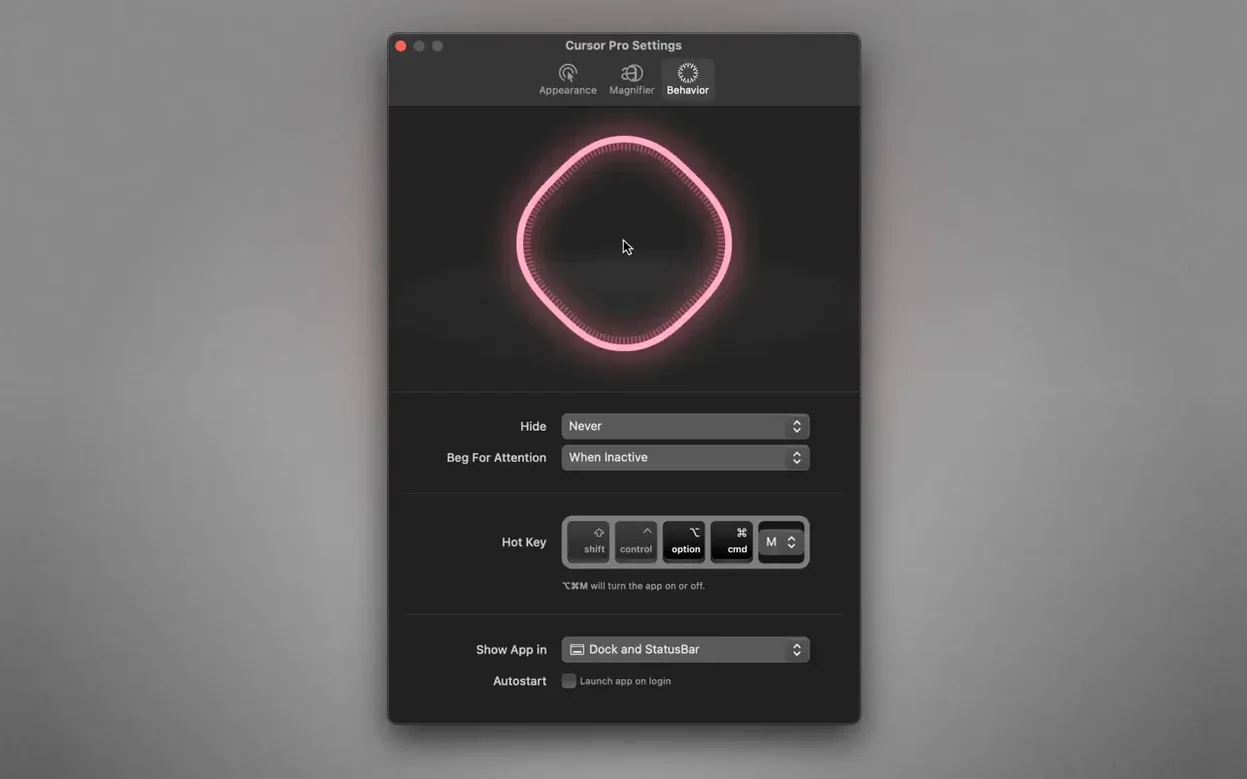
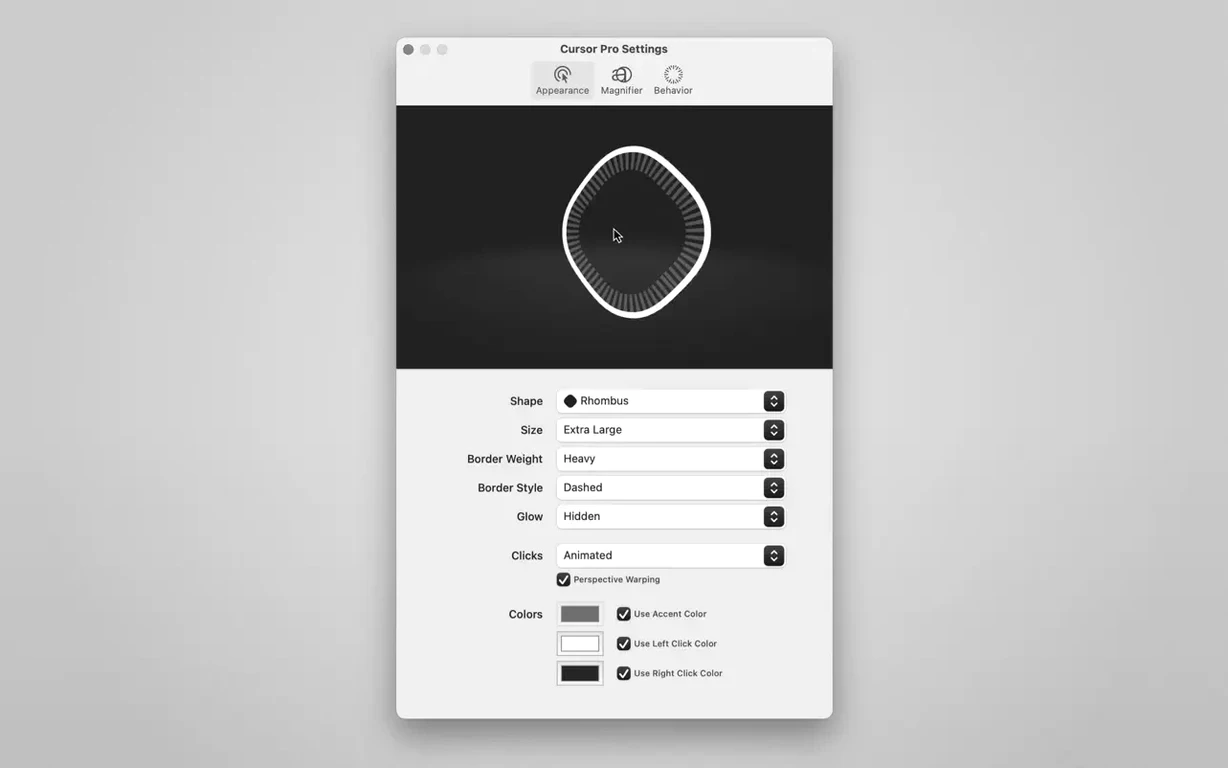
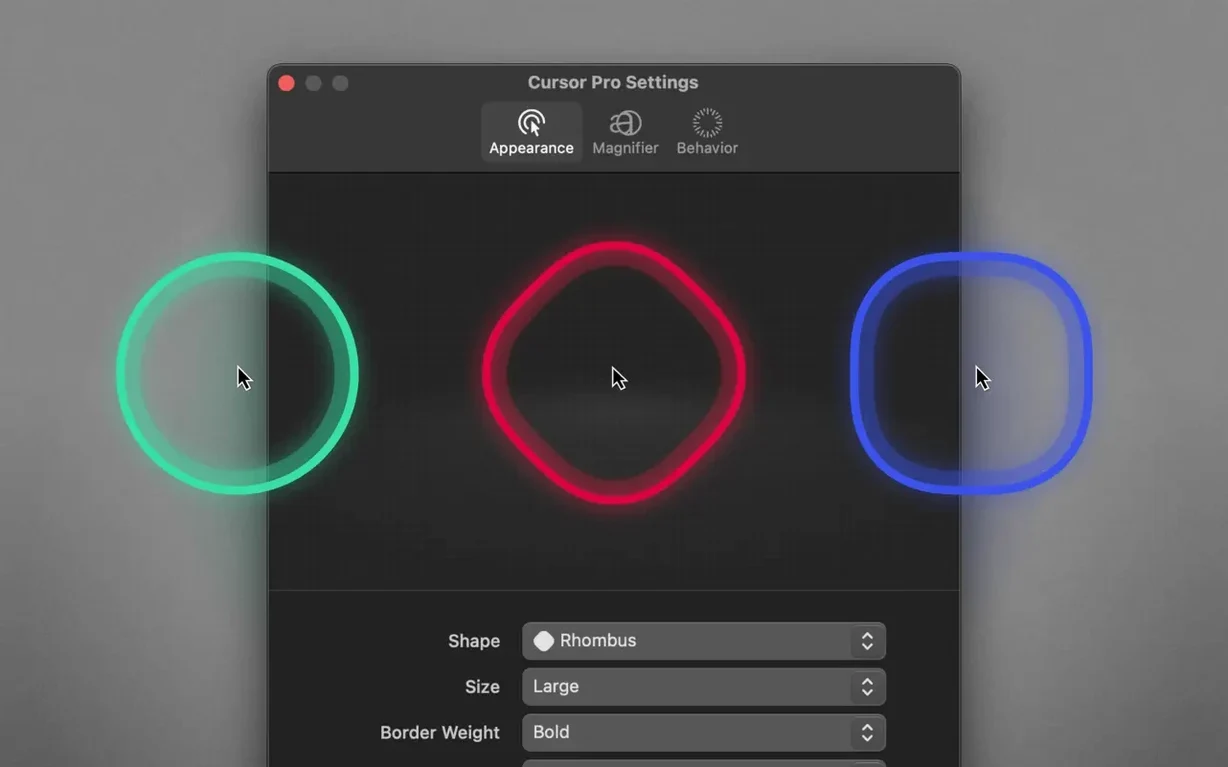
The pointer pulse is the feature that sells it. Cursor Pro puts a circle or diamond around your cursor and makes it pulse, so the pointer stops disappearing on a projector or a screen-share feed. It sits in the macOS menu bar, and a global hotkey toggles it on and off without breaking your flow.
Cursor Pro keeps the highlight visible during screen sharing
- Presentations and screen sharing — the highlight stays visible when the entire screen is shared, even inside apps like Zoom or Meet.
- Teaching or walkthroughs where the audience needs to follow one point on a dense UI.
- Working on a large display where a 14-pixel arrow is easy to lose.
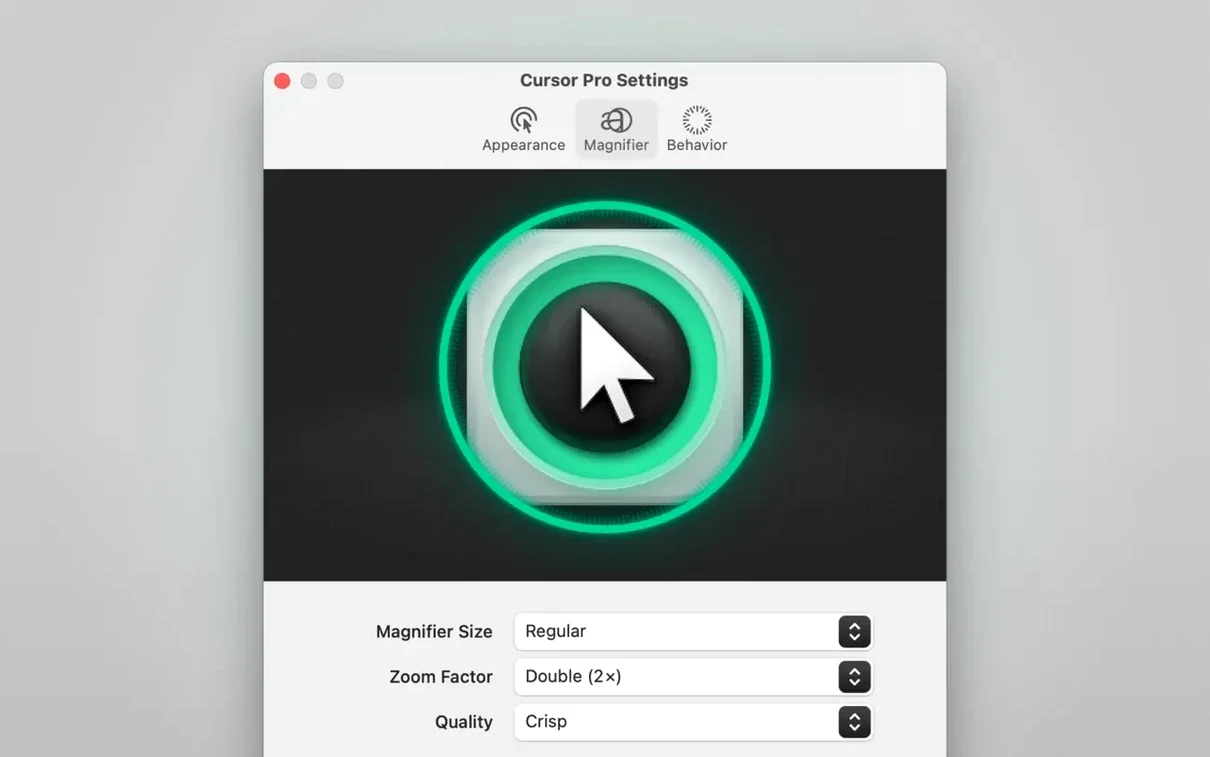
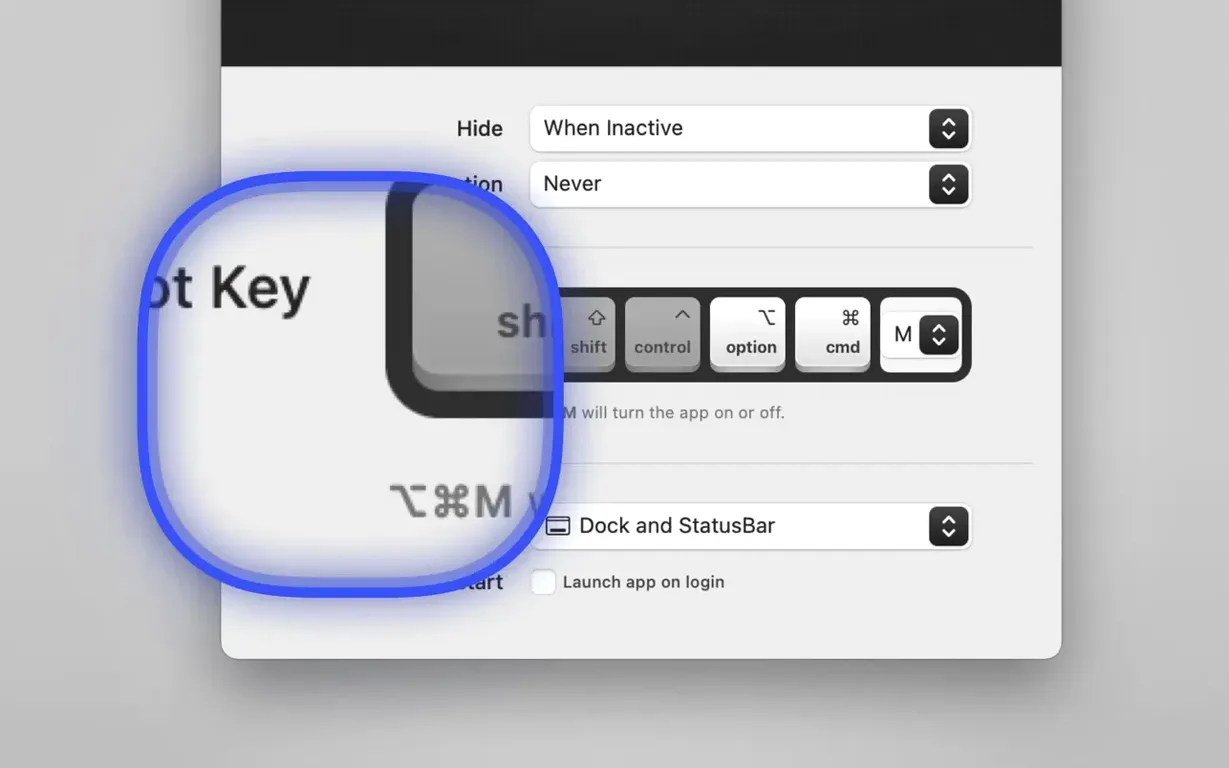
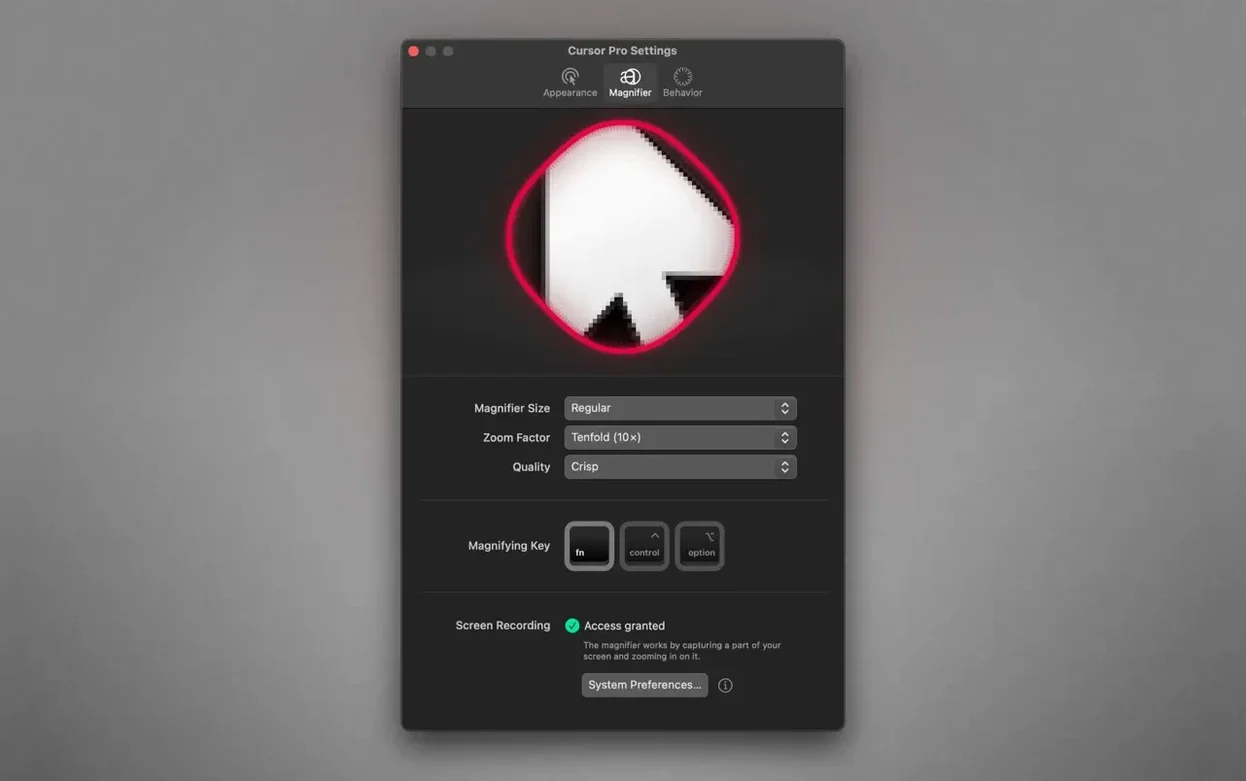
- Magnifying a region of the screen when someone asks 'what does that icon say?' — the built-in magnifier enlarges content on demand.
The app lives in the menu bar and can launch at login
- The app lives in the menu bar; you can show it in the Dock, the status bar, or both.
- It can launch automatically at login, so the highlight is ready before you start presenting.
- Interface languages include English, German, Spanish, Italian, Simplified Chinese, Korean, French, and Japanese.
- Requires macOS 11 or later, runs on both Intel and Apple Silicon.
Regular presenters of software walkthroughs or code reviews benefit most
If you present software walkthroughs or code reviews on a regular basis, Cursor Pro is one of those small tools that saves you from repeating yourself. The audience can finally see exactly where you are clicking. Teachers recording tutorial videos also benefit: the magnifier means you don't have to zoom the entire screen just to show a single button or menu item.
Remote workers sharing a screen in meetings will find the highlight reduces the back-and-forth of 'which field? the one on the left?' The auto-hide behaviour keeps the highlight invisible during normal use, then the global hotkey brings it back the moment you start a screen-share session.
It also works well for anyone using a large external display — a 32-inch monitor or a 4K panel where the cursor can feel like a lost pixel. The highlight gives you a visual anchor without changing your display resolution.
Don't leave the pulsing highlight on permanently during normal desktop work
The most frequent error is leaving the highlight on permanently. It pulses, which is fine for a presentation, but during normal desktop work the pulsing becomes distracting after a few minutes. Set the hotkey early and toggle it on only when you need it.
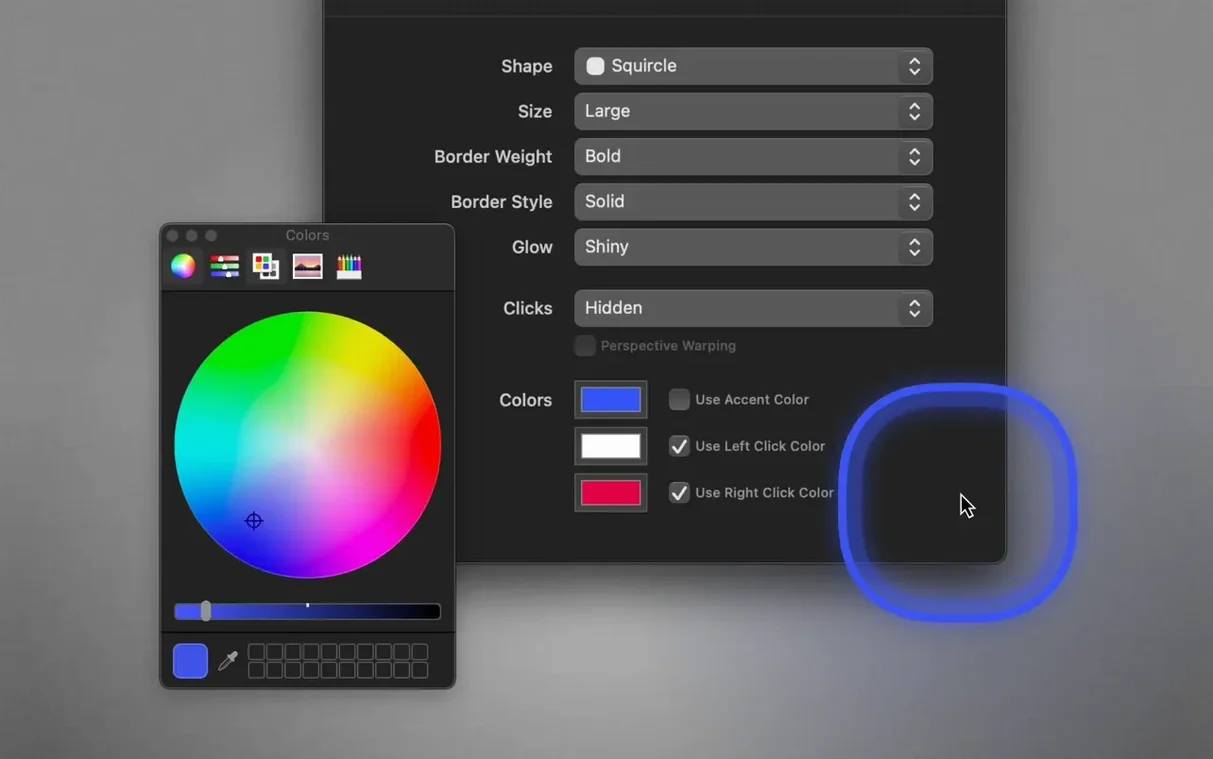
Another mistake is not adjusting the colour for the content on screen. A bright yellow circle on a white web page is hard to see — pick a contrasting colour from the customisation options. The glow setting can also be turned up if the cursor still disappears against a busy background.
Some users forget to enable the magnifier before a presentation. It is not on by default, so check the settings first if you plan to zoom into a detail during a walkthrough. The zoom factor can be set once and left there; the global hotkey then triggers both the highlight and the magnifier together.
Works alongside Zoom, Meet, and QuickTime across the entire screen
Cursor Pro works alongside screen-sharing apps because it operates on the entire screen, not inside a specific window. Zoom, Google Meet, and QuickTime screen recordings all see the highlight as part of the shared display. The magnifier also appears in the captured feed, so viewers see exactly the same region you are enlarging.
On the macOS side, the app respects the system's accessibility permissions without conflict. It can coexist with other menu-bar utilities — nothing clashes, and the global hotkey does not interfere with standard macOS shortcuts if you choose a combination that macOS does not reserve.
The auto-launch at login ties in well with workflow tools like Bunch or Keyboard Maestro: you can set Cursor Pro to start automatically and then toggle it via a script or a keyboard shortcut from another app. No need to open the menu bar manually before a meeting.
Pick a highlight shape and colour that contrast with your screen background
After the initial drag into Applications, open the app and go through these adjustments:
- Pick a highlight shape and colour that contrast with your most common screen background. A dark circle with a thin glow works well on light interfaces; a light colour suits dark mode.
- Set the global hotkey to something easy to reach — Control+Option+C is a common choice that macOS does not use for anything else.
- Enable auto-hide so the highlight disappears when you are not actively using it. This prevents the pulsing from becoming a visual distraction during normal work.
- Configure the zoom factor for the magnifier. A value between 1.5x and 2x is usually enough to read small text without losing context.
- Decide whether you want the app in the Dock, the menu bar, or both. For most people, menu bar only keeps it out of the way while still accessible.
Before it goes on the Mac
- macOS 11 or later
- Intel or Apple Silicon
Questions from the room
Does Cursor Pro work with screen-sharing apps?
Yes, it works with screen-sharing apps when the entire screen is shared, so the highlight appears on the remote viewer's display.
Can I customise the pointer highlight shape?
Yes, the pointer highlight can use either a circle or a diamond shape.
Installing it on the Mac
- Open the downloaded disk image.
- Drag the app into the Applications folder alias.
- After copying finishes, open the app from Launchpad.
Notes from the control room
Sign in or open a catalogue account to leave a note.
No notes from the room yet. If you have used this build for a week, a short note helps the next person.