
Home › Utilities › coconutBattery Plus

coconutBattery Plus 4.4.0 (Mac)
Updated
The catalogue note
Mac batteries wear out, but the operating system gives you little detail on how much life remains.
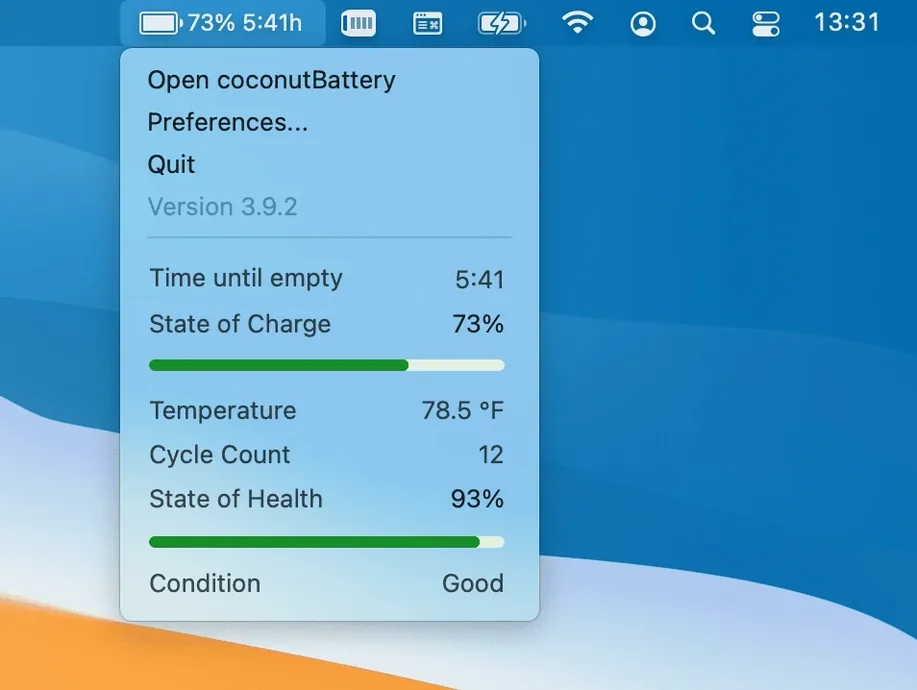
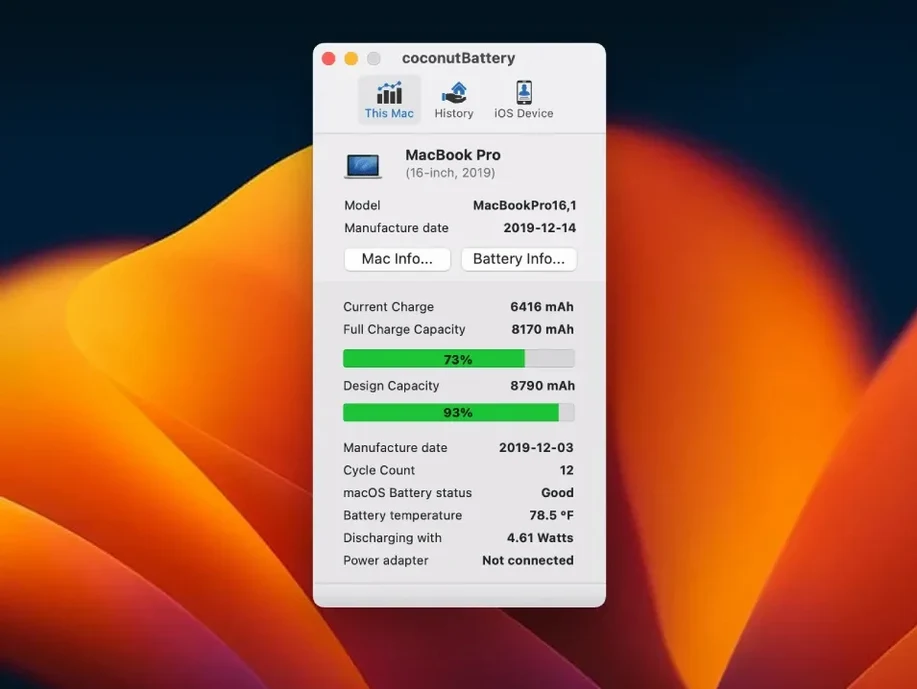
The main number most people want is the wear percentage — how much of the original design capacity is still available.
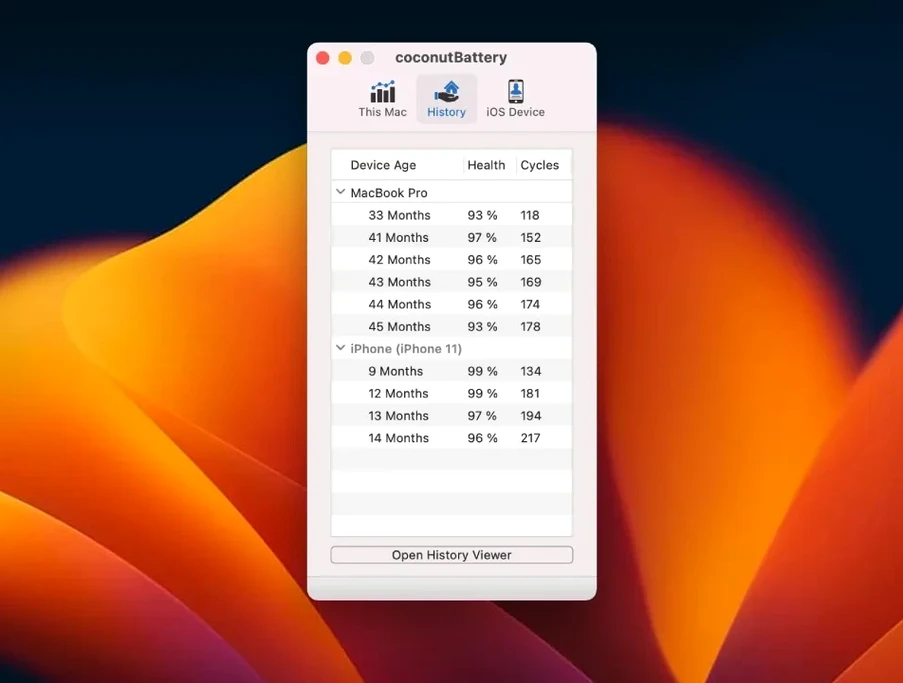
Tracking how battery health changes over time
Compare that snapshot a few months later and you see the rate of degradation. Useful for verifying whether a new charger or a firmware update has altered charging behaviour.
Two settings that turn snapshots into history
Before you go further, there are two settings that make the utility more useful over weeks and months.
Without this, the app only shows a single point in time.
The app records each device's data alongside the Mac's, so you can compare degradation rates across your hardware without manually noting numbers.
The interface language is English only, so there are no locale switches to hunt for. What you see is what you get.
No conflict with iStat Menus or Activity Monitor
This means it plays well with other system monitoring tools such as iStat Menus or the built-in Activity Monitor, because none of them conflict over the same sensor data.
For users who manage multiple Macs — a work laptop and a personal one, for example — the snapshot logs can be exported or simply left in the app's data folder. There is no cloud sync, which some may prefer for privacy. You copy the app onto each Mac and the logs stay local.
Version 4.4 adds USB device connection details in the Advanced Details section.
Best for used Mac buyers and IT teams managing multiple laptops
The obvious group is anyone buying or selling a used Mac laptop.
IT administrators and small business owners who issue MacBooks to employees benefit from the logging feature. No server setup required — just open the app, let it save the snapshot, and move on.
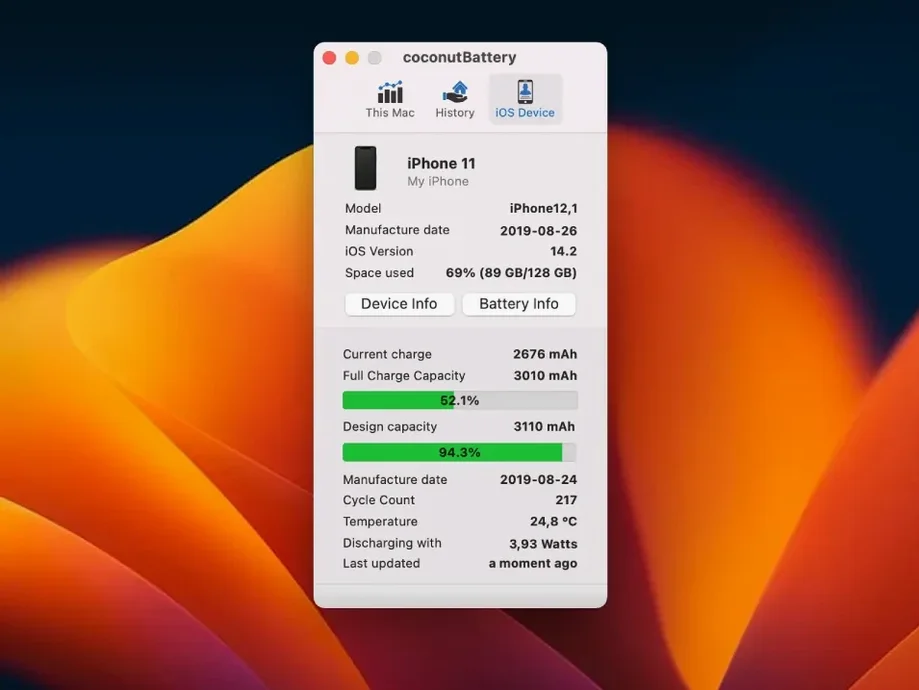
iPhone and iPad users who want to track their device batteries without installing a separate iOS app also gain something here. Connect the device via USB, and the Mac window shows its charge level and wear.
The app now reads the correct manufacturer name and estimates age
Earlier versions sometimes showed a blank field or a generic identifier; now the app reads and presents the manufacturer correctly.
The app can estimate a laptop's age using the production date encoded in the serial number.
Combined with the maximum capacity percentage, this gives a fuller picture than either figure alone.
The application supports macOS 12 Monterey and later, including the upcoming macOS Tahoe, and runs on both Apple Silicon and Intel 64-bit Macs. It also supports iOS and iPadOS 26 for connected device data.
Installation remains a three-step process: open the downloaded disk image, drag the app into the Applications folder, and launch it from Launchpad or the Finder. No installer, no background services, no permission prompts beyond the standard macOS gatekeeper check.
Settings worth changing first
Two items here make a real difference over time.
The first is the automatic snapshot interval. By default the app saves a log each time you open it, but you can set it to record at regular intervals — daily or weekly, depending on how closely you want to track changes. This turns isolated data points into a trend line you can review later.
The second is the display unit for temperature. Celsius is the default, but if you work in Fahrenheit, switching it early saves you converting numbers in your head every time you glance at the window. It is a small thing, but it stops being a distraction after the first few uses.
How it fits with other apps and macOS features
It runs as a standard application window, which means it coexists quietly with tools like iStat Menus, Sensei, or even the bare-bones system information panel. There is no overlap in sensor polling, no duplicated graphs, no conflict over the same SMC data.
Because the app stores its logs locally in the user's Library folder, Time Machine backs them up automatically if you have it enabled.
The snapshot files are plain property lists, so you can open them with a text editor or import them into a spreadsheet if you want to build your own charts. No proprietary format, no export fuss.
Which Mac users benefit most
Anyone who runs a home lab or keeps older MacBooks as spares will find the logging useful.
Users who maintain a mix of Intel and Apple Silicon laptops also gain clarity. The app reports the same metrics on both architectures, so comparing wear between an older Intel model and a newer M-series machine is straightforward — the interface does not change, the numbers are directly comparable.
That is more credible than a screenshot taken today, and it requires no special preparation beyond having run the app regularly.
The rest is just useful detail that happens to come along with it.
The same window shows charge level, temperature, and wear for every connected device that reports it.
Changes in this build
Before it goes on the Mac
- macOS 12 Monterey or later
- Intel 64-bit or Apple Silicon processor
Questions from the room
Do I need to install an installer or just copy the app?
You drag the application from the disk image into the Applications folder. No installer runs — just copy and launch.
Which Macs does coconutBattery Plus support?
It runs on Intel 64-bit and Apple Silicon Macs, with macOS 12 Monterey as the minimum requirement.
Installing it on the Mac
- Open the downloaded disk image.
- Drag the application into the Applications folder.
- Launch it from Launchpad or the Applications folder once copying finishes.
Notes from the control room
Sign in or open a catalogue account to leave a note.
No notes from the room yet. If you have used this build for a week, a short note helps the next person.
Also filed under Utilities
The whole Utilities rack Cocktail Sequoia Edition18.7.1 Utilities 3 MB
 Coherence X6.1 Utilities 26 MB
 Commander One PRO3.18.0 Utilities 53 MB
 CleanShot X5.0.2 Utilities 46 MB Updated
 CleanMyMac5.7.0 Utilities 180 MB
 Compressor5.3 Utilities 122 MB
 CrossOver20261015 Utilities 752 MB Updated
 Carbon Copy Cloner7.1.6 Utilities 38 MB