Home › Utilities › Cocktail Sequoia Edition
Updated
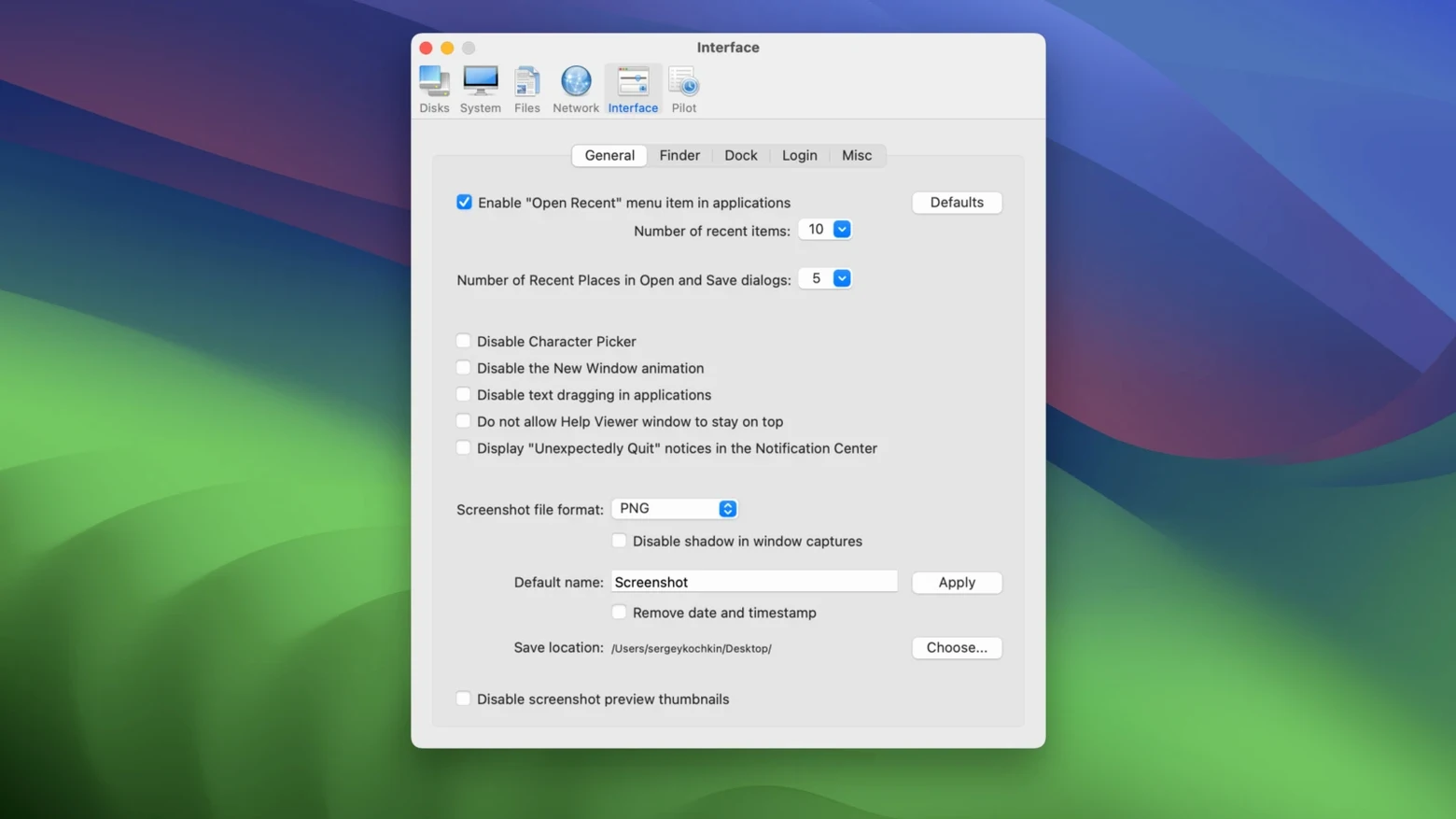
The catalogue note
People who keep a Mac for years tend to end up with the same set of chores: clearing caches, fixing permissions, trimming startup items. Cocktail Sequoia Edition is built for that routine. It is a macOS utility for cleaning, repairing, and optimising the Mac, and it targets macOS 15 specifically.
Clears caches, repairs permissions, and runs maintenance scripts in one tool
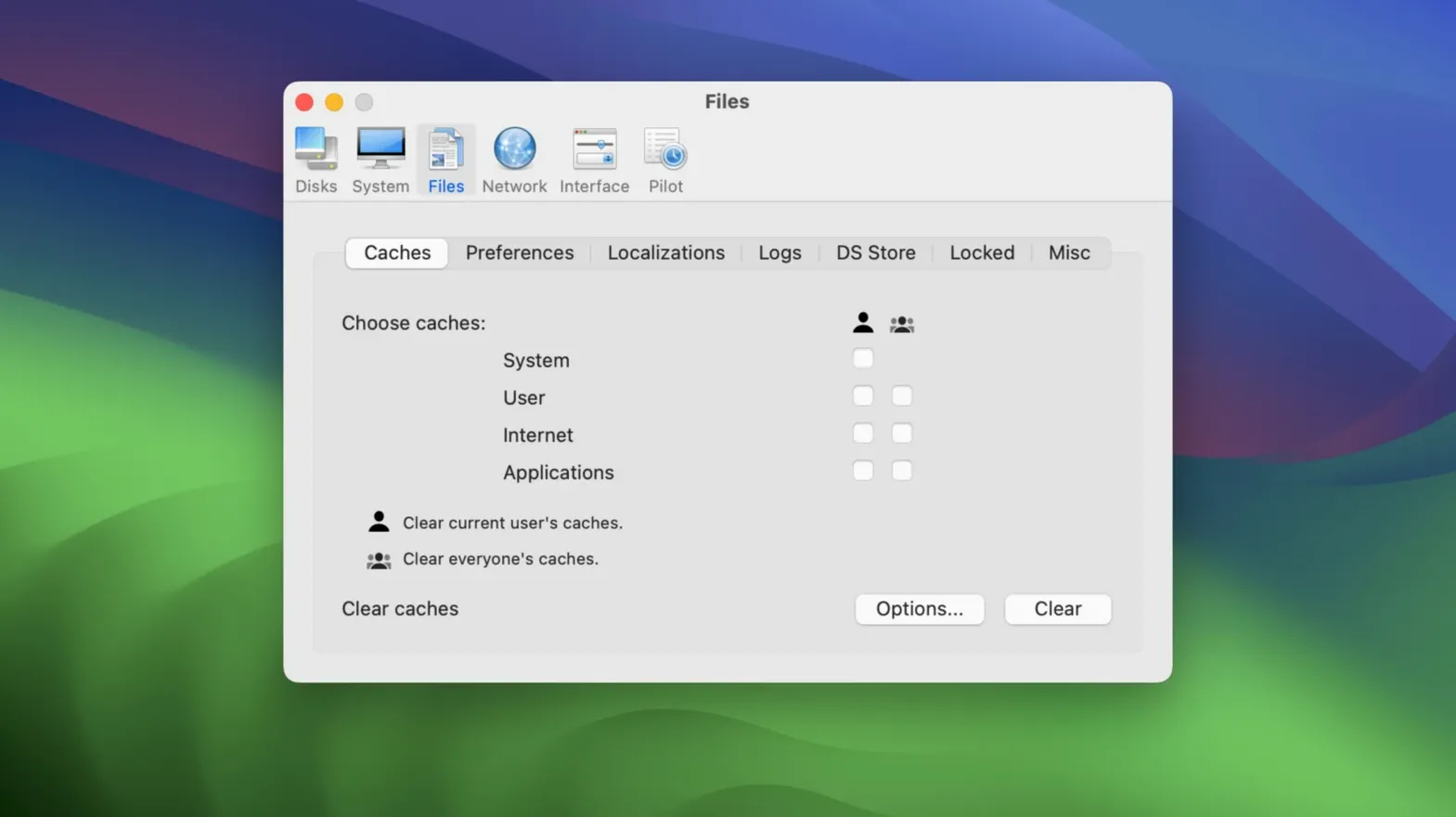
- Clearing system and user caches without hunting through Finder.
- Repairing disk permissions and verifying startup volumes.
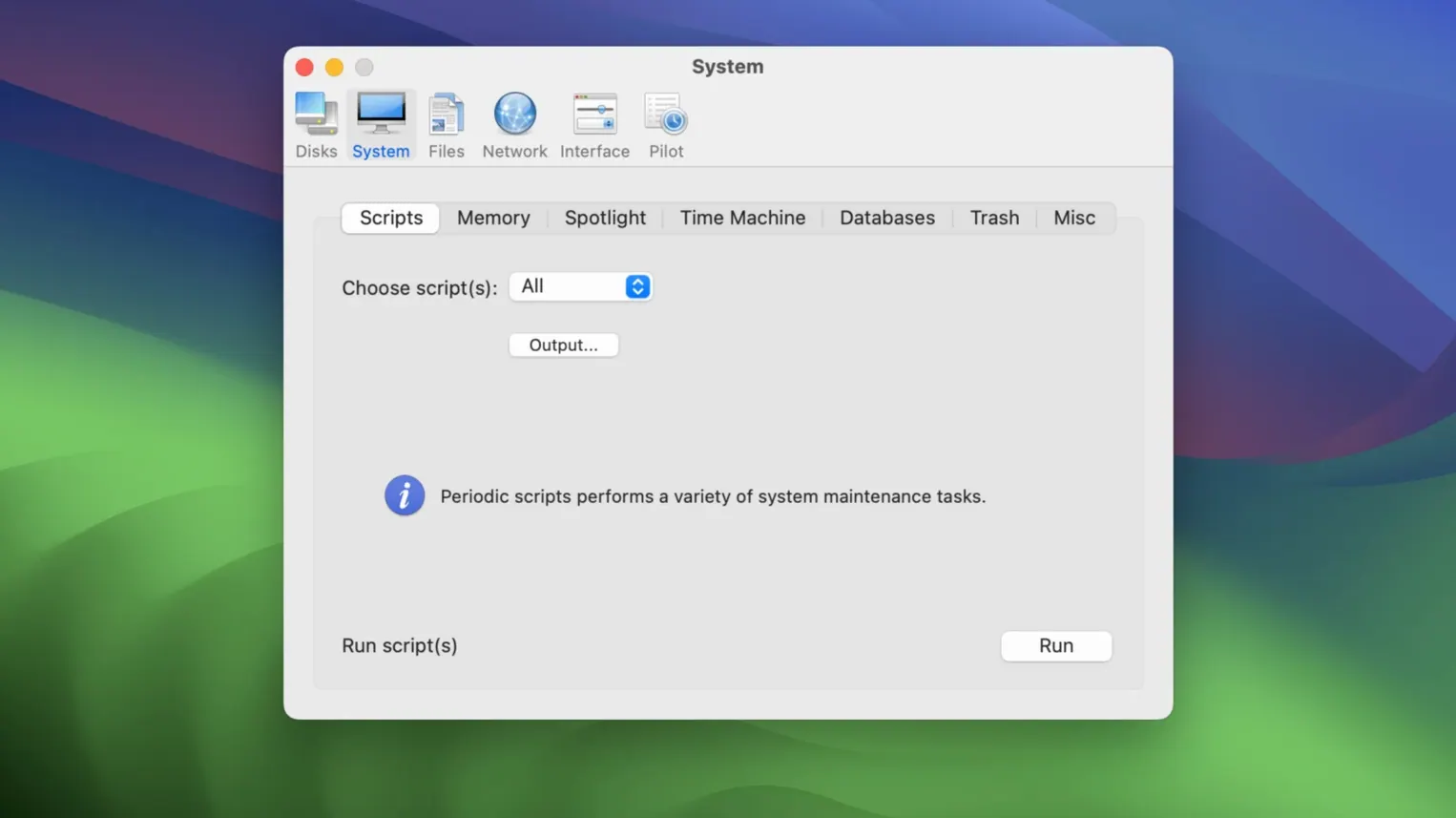
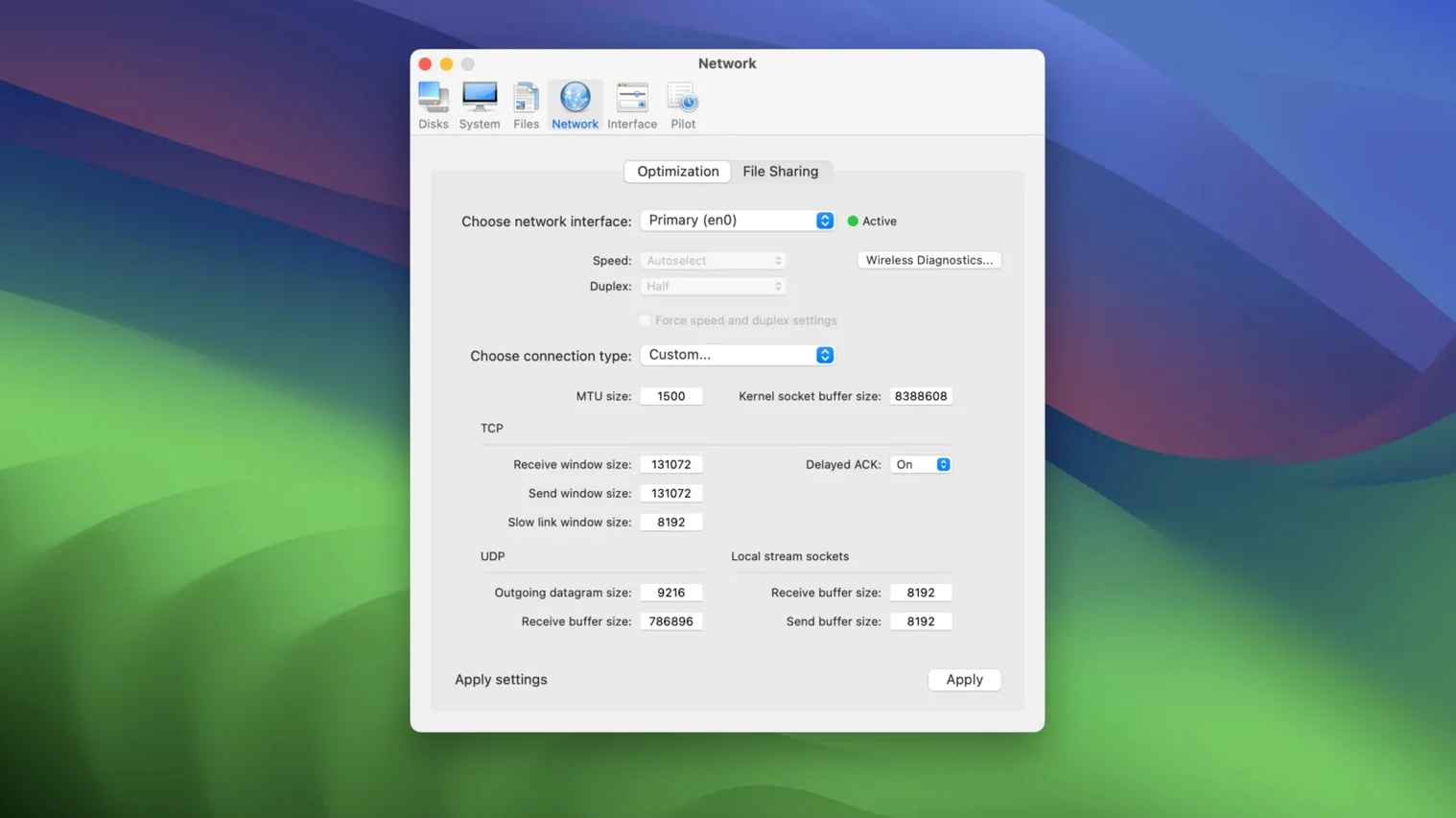
- Running maintenance scripts and optimising network and system settings.
- Users who prefer a single tool with functions grouped into five clear categories.
Requires macOS 15 or later and works on Intel Macs
- It requires macOS 15 or later; earlier Cocktail editions are offered separately for older macOS releases.
- It runs on Intel Macs and is available in English.
A first-run workflow for clearing accumulated caches
After you have followed the included installation and activation instructions, open Cocktail and take a look at the five category tabs. A sensible first task is clearing the caches that build up over weeks of regular use. Click the Cleaning category, then tick the boxes for system cache, user cache, and font cache. Leave the logs and trash options unchecked on the first pass — you can add those later once you see how the tool behaves. Click the Execute button and wait for the progress bar to finish. Cocktail will report what it removed; you can close the window and restart the Mac if you want the freed space to register immediately.
Start with one category per day—cleaning, repair, then scripts
Do not run every cleaning and repair option at once. Cock organises its functions into five categories for a reason. Start with one category per day: cleaning on day one, repair on day two, maintenance scripts on day three. This way you can tell which action caused any change in behaviour.
- Check the automatic pilot mode. It sits under its own tab and lets you schedule a set of tasks to run at login, daily, weekly, or monthly. If you work with audio files and leave the Mac on overnight, a weekly automatic pilot run keeps temp files in check without you remembering to click anything.
- Use the Repair category sparingly. Disk permissions repairs are less critical on recent macOS versions than they were a decade ago, but Cocktail still offers them. Only run them if you see a specific symptom — an app refusing to launch, or a system preference not saving.
- Read the description under each checkbox. The interface is simple, but each item has a short tooltip that explains what gets deleted or repaired. It saves guessing.
Check permissions in System Settings if nothing happens after clicking Execute
Most trouble with Cocktail comes from expecting it to behave like a system cleaner from another era. Here are the usual hiccups.
Nothing happens after clicking Execute. Check that you have granted Cocktail the necessary permissions in System Settings under Privacy & Security. macOS 15 is stricter about allowing utilities to access files and system locations. Go to Privacy & Security, scroll to Full Disk Access, and ensure Cocktail is listed and enabled.
Some checkboxes are greyed out. A few cleaning and repair items require administrative rights. Cocktail should prompt you for a password when it needs elevation. If it does not, close the app, open it again, and click the lock icon at the bottom of the window if one appears. Enter an admin account password.
The automatic pilot does not run at the scheduled time. Cocktail relies on macOS launch agents. If you have moved the app after setting up the schedule, the path changes and the agent cannot find it. Delete the existing schedule in the Automatic Pilot tab, then create a new one.
Disk space does not increase noticeably after cleaning. Caches are small on a well-maintained system. If you expected gigabytes of free space, you may be thinking of removing application support files or large downloads — Cocktail targets system and user caches, not user documents. Run a more targeted cleaning of the mail downloads or browser caches if you need a bigger release of space.
Opens Cocktail after a long Pro Tools session to speed up a sluggish Mac
Friday afternoon, a recording session wraps up early. The studio Mac has been running Pro Tools for eight hours straight, and the system feels sluggish — clicking the Finder takes a second longer than it should. I open Cocktail from the Dock.
The first thing I do is click the Maintenance tab. I select Run Maintenance Scripts and Verify Startup Volume. These two tasks do not delete anything; they just run the daily, weekly, and monthly Unix scripts that macOS sometimes skips if the machine is rarely left on overnight, and they check the disk for directory errors. I click Execute and let it finish while I make coffee.
Next, the Cleaning tab. I tick system cache and user cache, but I skip logs because I want to keep the console history for a plugin issue I am tracking. I also tick Temporary Files. Execute again. The whole thing takes under a minute.
Last, I open the Network category. This is not something I touch daily, but after a heavy download of sample libraries earlier in the week, I check the Optimise Network Settings checkbox. It tweaks a few kernel parameters that can help with large file transfers. I click Execute, close Cocktail, and restart the Mac. By the time I get back, the machine feels noticeably more responsive. The session files open without that half-second pause.
It is not dramatic. It is just the system doing what it should have been doing anyway, but with someone making sure it happens.
Before it goes on the Mac
- macOS 15 or later
- Intel processor
- English interface
Questions from the room
Does Cocktail Sequoia Edition work on older macOS versions?
No. It requires macOS 15 or later. Earlier Cocktail editions are provided separately for older macOS releases.
Installing it on the Mac
- Follow the installation instructions included with the download.
- Complete the activation steps as described in the included instructions.
Notes from the control room
Sign in or open a catalogue account to leave a note.
No notes from the room yet. If you have used this build for a week, a short note helps the next person.