Updated
The catalogue note
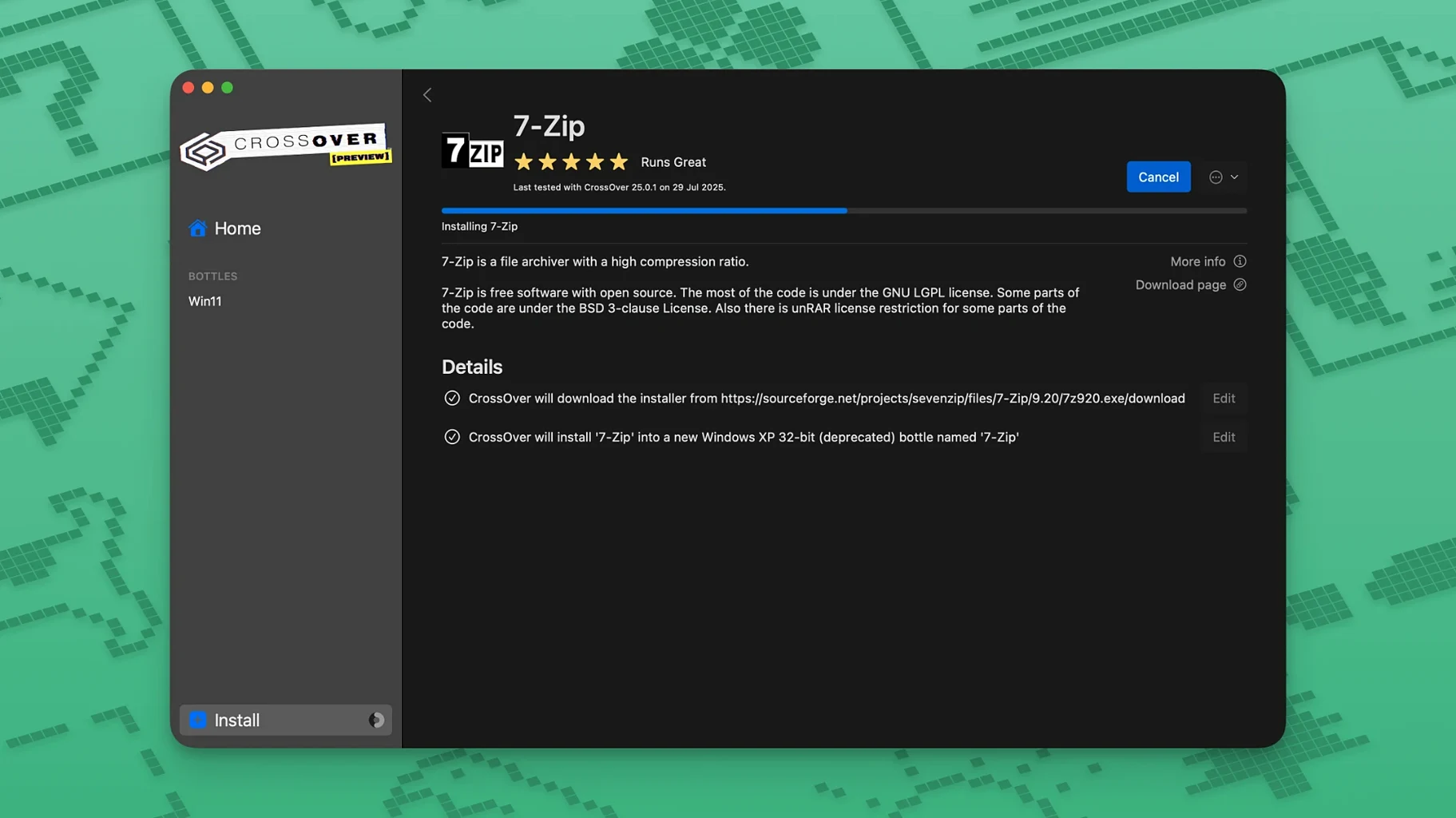
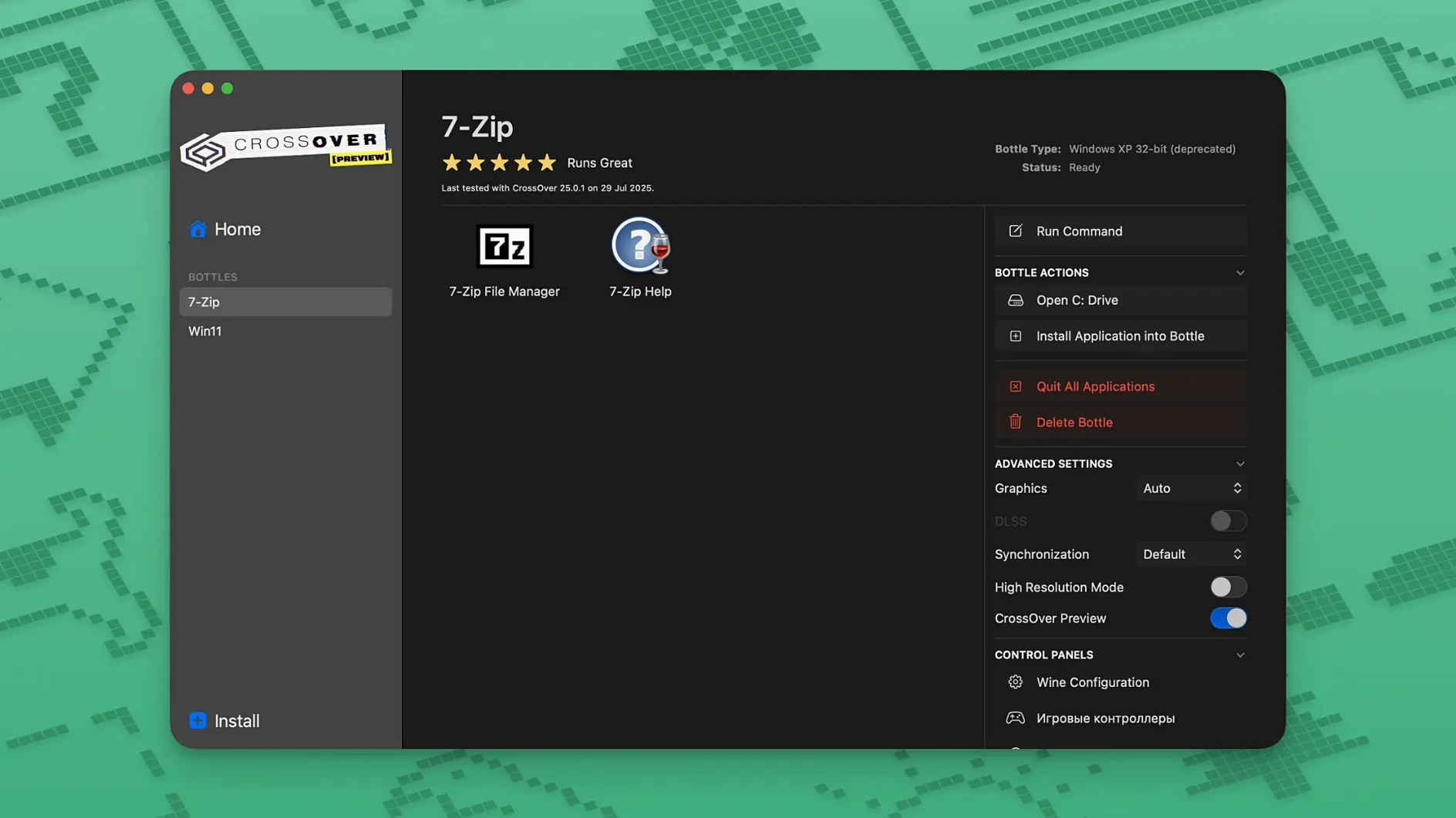
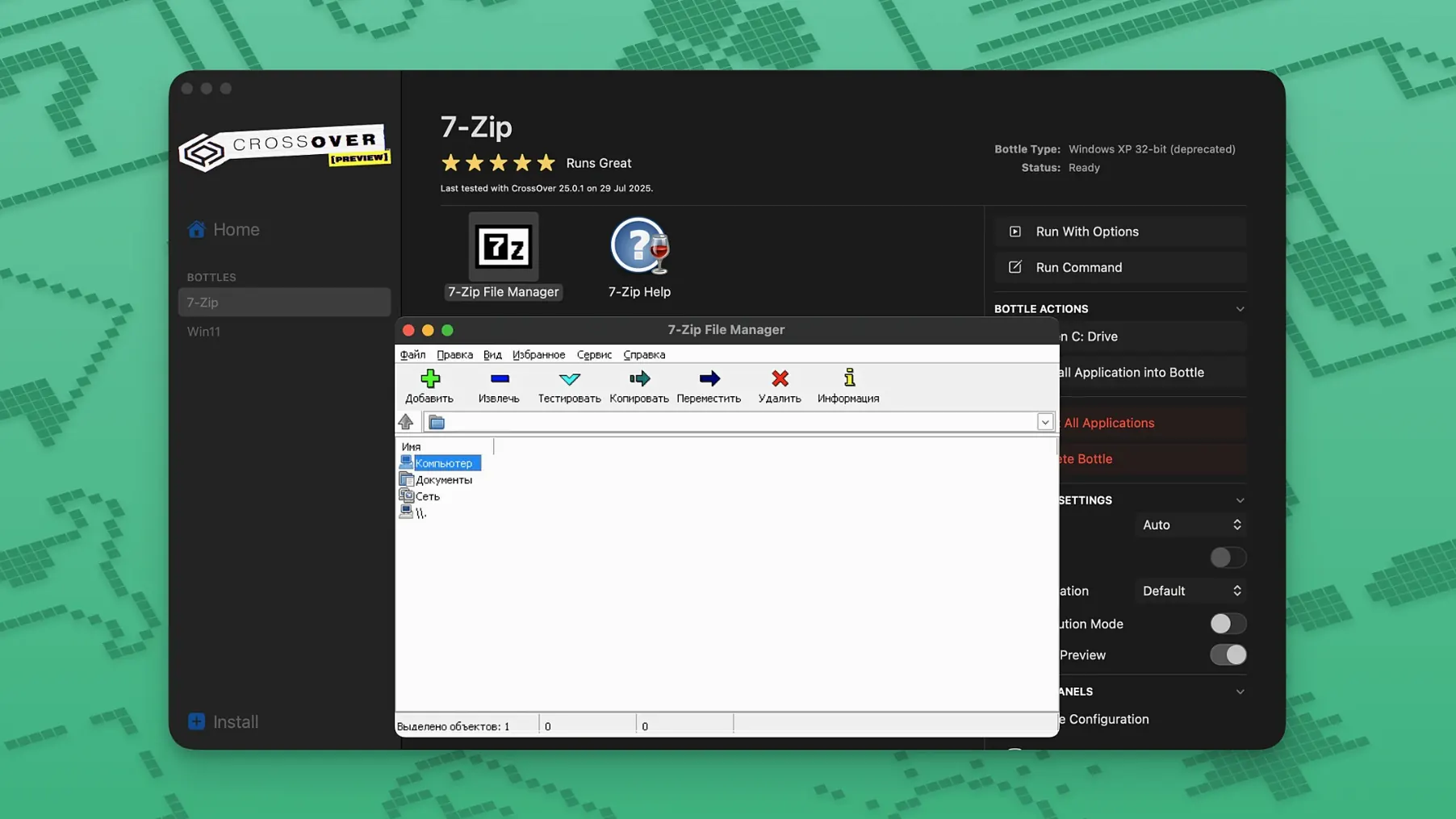
If you already use Wine-based tools or virtual machines for the occasional Windows-only utility, CrossOver takes a more focused approach. It wraps each application in its own bottle — a self-contained environment with its own C drive, folders and registry — so you can launch supported software without installing Windows itself.
What to try first
Start with something straightforward: an installer that CrossOver recognises. Pick a program from the supported list, create a new bottle from the CrossOver menu, and let the built-in helper run the installer. If the app launches without complaint, you are set. Some titles need their own installer even inside the bottle — drag that .exe into the bottle window and follow the prompts.
When it does not behave
Not everything works out of the box. Support for unsupported applications may be unstable or simply fail. For those cases, try switching the bottle’s Windows version between Windows 10 and Windows 7, or check CodeWeavers’ compatibility database for community workarounds. If activation tools are involved, granting Terminal full disk access often resolves the friction.
Fixes three regressions, including Diablo IV launch failure
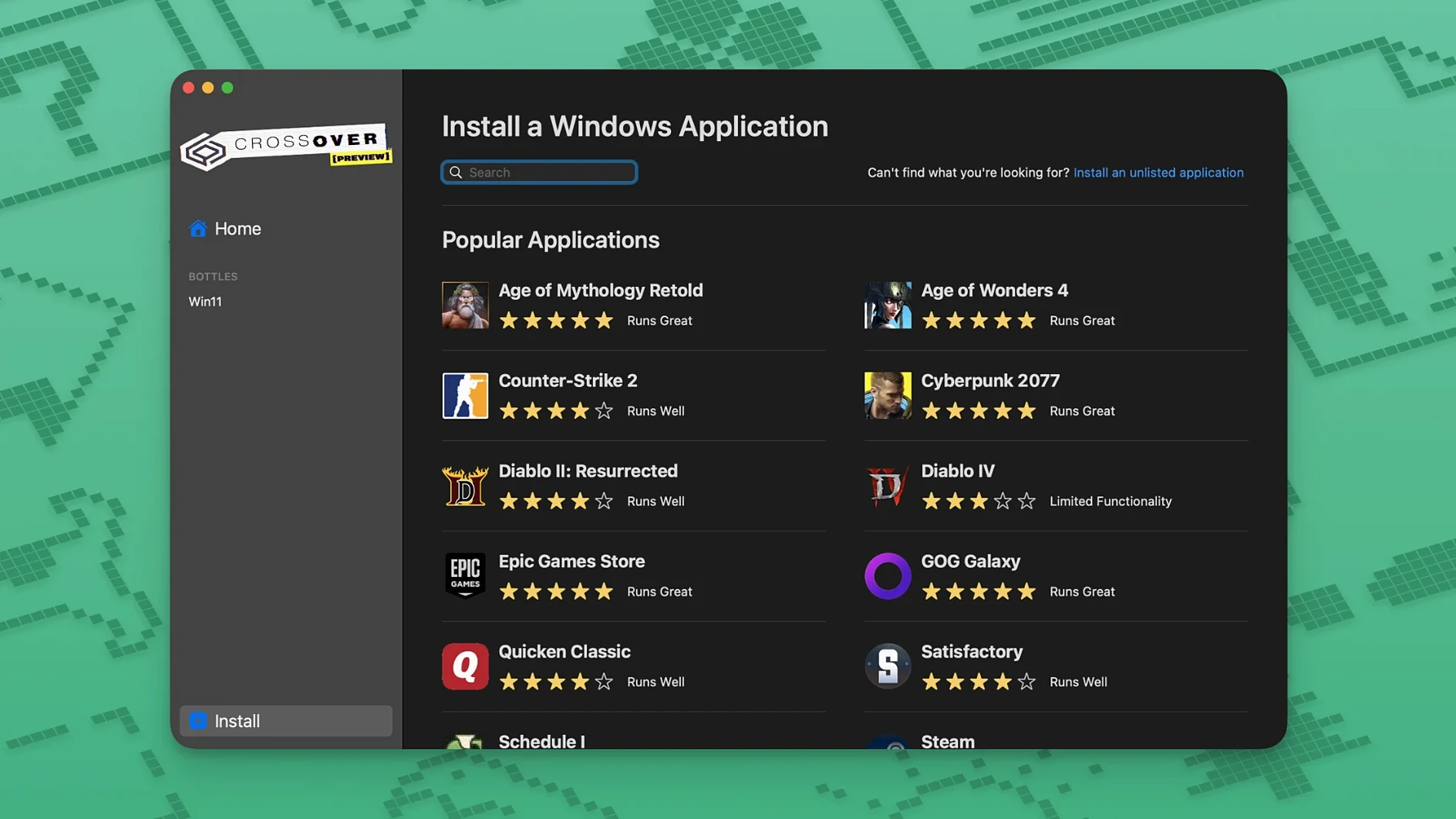
The jump to 26.3.0 is not about new features you will notice immediately. It is a maintenance release that fixes three specific regressions. If you play Diablo IV, you likely hit the launch failure after a recent game update — that is resolved here. Epic Games Launcher downloads stopped working on Mac after an update of its own; that is also fixed. GOG Galaxy users who saw the client stall after loading will find it responsive again. None of these changes alter the interface or the bottle workflow. They matter if you use those services daily.
Rename and duplicate bottles to test configurations safely
CrossOver’s bottle manager lets you rename bottles after creation, which is helpful when you test different Windows versions or configurations for the same application. You can duplicate a bottle too — useful before trying a risky setting change. The built-in search in the supported applications list filters as you type, so you do not scroll through hundreds of titles. Right-clicking a bottle gives you direct access to its C drive in the Finder, which speeds up manual file placement for programs that need DLLs or config files dropped into system32. These are not advertised but they save time once you know they are there.
Set bottle storage to an external drive before installing
Before installing anything, open CrossOver’s preferences and check the default bottle location. If you work off an external drive or a second internal volume, point the bottle storage there — it keeps your system drive from filling up with Windows file structures. Inside a bottle’s settings, the Windows version dropdown defaults to Windows 10. Switch to Windows 7 for older productivity tools that expect it; many business applications from the 2010s run more reliably that way. The graphics options panel lets you enable or disable DXVK for DirectX 10 and 11 games. Leave it on for gaming, turn it off for office software that does not use DirectX — it saves a small amount of background translation overhead.
Skips the Windows licence and bulky disk image that Parallels requires
Parallels Desktop runs Windows in a full virtual machine. You get near-native performance for almost everything, but you need a Windows licence, a disk image that takes tens of gigabytes, and you boot an entire OS every time. CrossOver skips the licence and the OS overhead — the trade-off is that compatibility is narrower and less predictable.
WineBottler is free and uses the same Wine translation layer, but it has not seen active development in years. Its interface is rougher, and its Wine version is older, so newer applications often fail where CrossOver’s patched Wine handles them. CodeWeavers employs developers who contribute fixes back to Wine, which means CrossOver’s underlying engine is more current than anything you get from an unmaintained wrapper.
VMware Fusion is another virtualisation option. Like Parallels, it requires a Windows licence and allocates RAM and CPU permanently to the guest. CrossOver consumes no fixed resources until you launch an application. For someone who needs one or two Windows-only utilities, virtualisation feels heavy. CrossOver stays light until you need it.
IT administrator runs a 2015 legacy .msi tool in a Windows 7 bottle
An IT administrator at a small design firm runs macOS on every workstation. One legacy time-tracking tool from 2015 only ships as a Windows .msi. The administrator creates a new bottle in CrossOver, sets it to Windows 7, drags the .msi into the bottle window, and the installer runs without complaint. The tool launches and connects to the firm’s SQL Server instance over the network. No dual-boot, no virtual machine running in the background, no extra licence. When the tool needs a registry tweak later, the administrator opens the bottle’s registry editor from the CrossOver menu and makes the change directly. It is not a setup that would work for every legacy application, but for this specific one it removes a significant administrative headache.
What the 26.3.0 update changed in everyday use
For most users, the jump to 26.3.0 is invisible until you hit one of the three regressions it fixes. If you launch Diablo IV and it now starts instead of failing after a game update, that is the change. If Epic Games Launcher downloads complete again on your Mac, that is the change. If GOG Galaxy loads past its initial stall, that is the change. Nothing about the bottle workflow, the interface or the supported application list shifted. The release exists solely to undo three regressions that broke things that worked before. If none of those three affect you, you will notice no difference.
Small conveniences that are easy to miss
CrossOver’s bottle manager has a few details the interface does not advertise. You can rename a bottle after creating it, which helps when you test multiple configurations for the same application. Duplicating a bottle is useful before making a risky settings change — it saves rebuilding from scratch if something breaks. The supported applications list includes a filter that searches as you type, so you do not scroll through hundreds of entries. Right-clicking a bottle in the sidebar opens its C drive directly in the Finder, which speeds up manual file placement for programs that need DLLs or config files dropped into system32. These are not features you would find in a press release, but they save time once you know they are there.
Settings worth changing first
If you ever need to download crossover for mac free or search for crossover 26.1 download, keep in mind that the 26.3.0 version is the current release and includes the fixes described above.
Changes in this build
Build 20261015-x86_64-FEX has landed. Release notes are published on the CodeWeavers site.
Before it goes on the Mac
- macOS 10.15 or later
- Intel 64-bit architecture
Questions from the room
Can CrossOver run every Windows application on macOS?
No. CrossOver is built on Wine compatibility technology and supports many applications, but unsupported titles may be unstable or may not work at all.
Do I need a Windows licence to use CrossOver?
No. CrossOver lets you run Windows software on Mac without installing Windows, so no separate Windows licence is required.
Installing it on the Mac
A 752 MB download lands as an Intel-only disk image on macOS 10.15 and later. The six steps below get you to the first bottle.
- Mount the disk image and launch Open Gatekeeper friendly. Press Enter in the Terminal window that appears to handle the Gatekeeper bypass.
- Drag the CrossOver application into your Applications folder.
- Open the Extra folder from the disk image, copy the croslic folder to your Desktop, then open it.
- Right-click the license.tool file, select Open With, and choose Terminal.
- In the Terminal window, type your Mac admin password (the cursor won't move as you type) and press Enter. Wait for the process to finish.
- If activation fails, check the Terminal log for errors. You may need to grant Terminal full disk access—look up the standard procedure for that in macOS Privacy settings.
Notes from the control room
Sign in or open a catalogue account to leave a note.
No notes from the room yet. If you have used this build for a week, a short note helps the next person.