DaisyDisk 4.34.2 (Mac)
Updated
The catalogue note
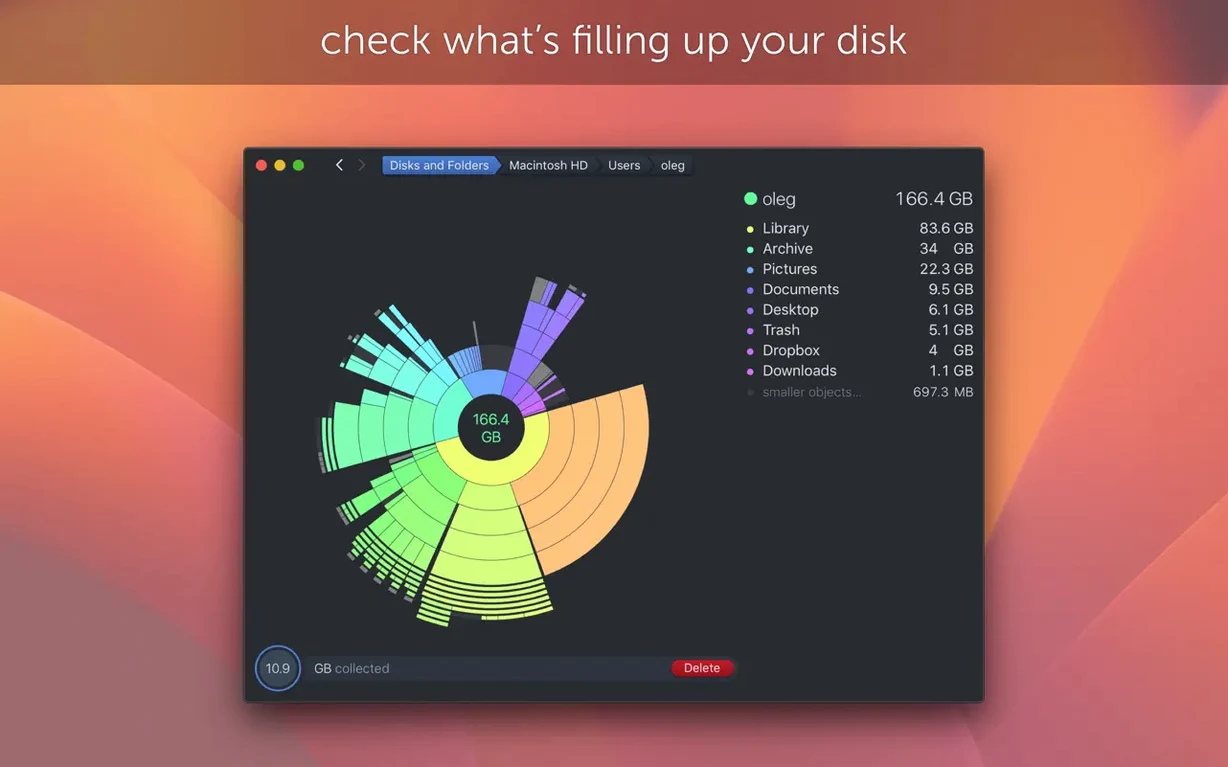
System administrators and anyone who regularly runs out of space on a Mac drive use DaisyDisk to find what is taking up room. It presents a treemap of the disk, colour-coded by file type, so the largest directories and files are immediately visible.
Spot disk hogs with the visual treemap and drag-to-delete
Visual map — every file is drawn as a rectangle; the bigger the rectangle, the more space it occupies. You spot the culprits at a glance.
Drag-and-drop deletion — drag a file or folder from the map straight to the Trash. No need to locate it in Finder.
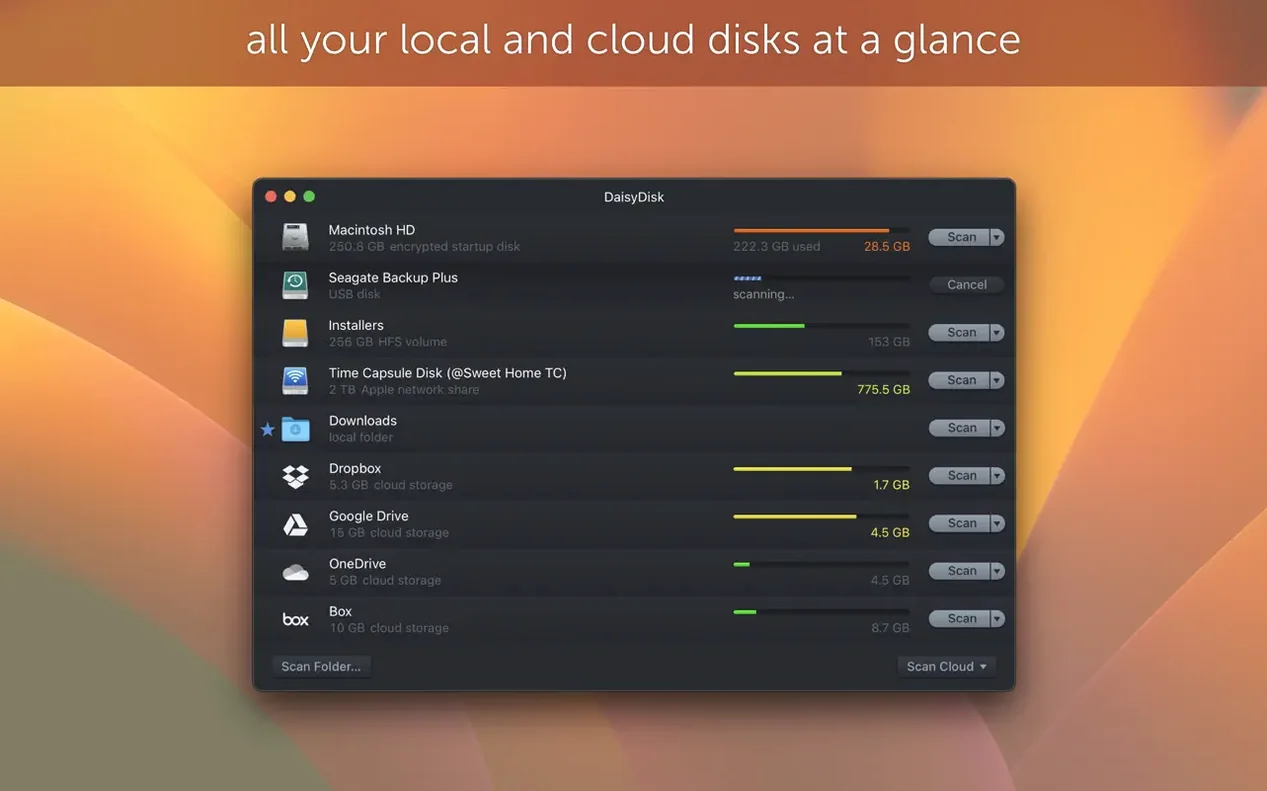
Parallel scanning — scan several mounted disks at the same time, compare their usage side by side.
APFS clone support (new in 4.34) — the analyser now recognises APFS clones and counts only the first clone in used space. This gives a realistic picture on drives that use copy-on-write snapshots.
Hidden space accuracy (improved in 4.33.2) — better estimation of space that does not belong to any file, such as reserved blocks or file-system overhead.
Retina display support — the interface stays sharp on high-DPI screens.
macOS Tahoe support (improved in 4.33.2) — works correctly on the Tahoe release of macOS.
Interface languages — English, Russian, German, Spanish, Italian, French, Polish, Swedish, Japanese, Traditional Chinese and Simplified Chinese.
How DaisyDisk fits with other apps and macOS features
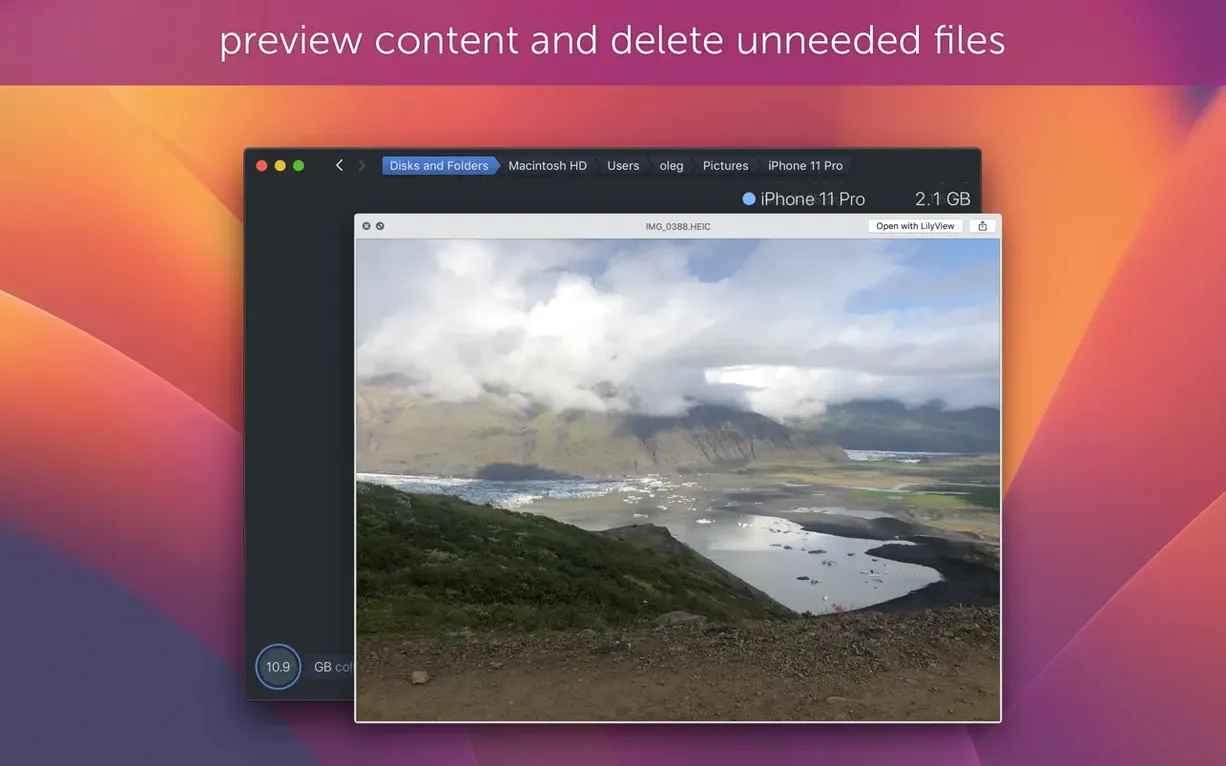
DaisyDisk does not replace Finder, but it complements it well. The Quick Look integration is the most practical link: you can preview a file from inside the visual map without opening it. A music file plays, a PDF shows its pages, a folder displays its contents — all through the same Quick Look engine you already know from Finder.
The app reads mounted volumes, not internal databases, so it works with external drives, network shares and disk images you have connected. If you use Time Machine, DaisyDisk can scan a Time Machine backup volume to show what your backup contains, though it does not delete from inside the backup itself. For everyday cleanup, you drag a file to the Trash in DaisyDisk and later empty the Trash in Finder. Some users prefer to keep a Terminal window open and run sudo rm for stubborn items, but the drag-and-drop approach covers most cases.
DaisyDisk also respects macOS sandboxing and security. When you first launch it, macOS may ask for permission to access certain folders — this is standard behaviour on recent system versions. The app requests full disk access if you want to scan the entire system volume; otherwise it works within the permissions you grant. It is not a background daemon and does not modify your system files.
If you use a tool like CleanMyMac or Onyx for maintenance tasks, DaisyDisk sits alongside them without conflict. It focuses purely on visualising space usage, not on cleaning caches or removing language packs. You decide what to delete based on what you see.
Scan your main system volume first, then hover over the largest rectangles
Start by scanning your main system volume. Let the scan complete — it takes a few seconds to a minute depending on disk size and speed. Once the map appears, hover over the largest rectangles. The file path shows at the bottom of the window. Use Quick Look (press Space) to confirm you no longer need the file before you drag it to the Trash.
A common first move is to look at the Other category. DaisyDisk breaks down what other Mac analysers often lump together: it shows temporary files, caches, logs and system data. You can drill into each subcategory without guessing.
Scan an external drive or a USB stick next. The parallel scanning feature works well here: you can start a scan on your internal drive and another on an external disk at the same time, then switch between their maps. This is useful when you are deciding which drive to archive or reformat.
Set a habit: once a month, open DaisyDisk and scan the main volume. If you run a studio or a media-heavy workflow, once a week is better. The visual map changes slowly over time, and catching a rogue render cache or an old project folder early saves you from the “startup disk full” warning.
DaisyDisk beats Disk Inventory X with a modern interface and faster scans
Several Mac apps do disk space analysis, but they approach it differently. Here is how DaisyDisk compares with three of them.
Disk Inventory X — an older open-source tool that also uses a treemap. Its interface feels dated and it has not been updated for recent macOS versions in the same way. Disk Inventory X does not support Retina displays well and can misread APFS volumes. DaisyDisk is actively maintained, supports APFS clones and runs on both Intel and Apple Silicon natively.
GrandPerspective — another open-source analyser that uses a treemap. It is reliable and free, but its interface is utilitarian. GrandPerspective does not offer Quick Look integration or drag-and-drop deletion. If you prefer a minimal tool and do not mind extra steps to find and delete files, GrandPerspective works. DaisyDisk is more convenient for daily use because you can preview and delete directly from the map.
OmniDiskSweeper — a simpler tool that lists files by size in a folder hierarchy, not a visual map. It is fast and shows exact file sizes, but the list view can be harder to scan for patterns. DaisyDisk’s treemap makes large directories jump out immediately, which is faster when you are looking for space hogs rather than specific file sizes.
None of these tools is wrong. The choice depends on whether you want a visual overview (DaisyDisk) or a sorted list (OmniDiskSweeper). DaisyDisk sits between the free tools and the more expensive suite-based cleaners.
Quick Look before you drag files to Trash—a two-second preview saves regrets
New users often drag files to the Trash without checking what they are. A file named “cache” may look safe to delete, but it might belong to an app you use daily. Quick Look before deleting. A two-second preview saves you from reinstalling software later.
Another mistake is deleting system files that the map shows as large. The /Library and /System directories contain essential data. DaisyDisk does not hide them, but that does not mean you should remove them. If a system directory looks suspiciously large, search for the specific folder name online before acting.
Beginners also forget to empty the Trash after deleting. DaisyDisk moves files to the Trash, but the space is not freed until you empty it in Finder. You can do this from DaisyDisk’s own menu or from the Dock. Either way, remember the final step.
Some users scan the same volume repeatedly, expecting different results. The map does not update live — you need to rescan after deleting files. A quick rescan takes the same few seconds as the initial one.
Finally, a few people try to use DaisyDisk to analyse network volumes that are not mounted. It only works with mounted disks. If you need to check a remote server, mount it via Finder or the command line first, then scan it like any other volume.
Changes in this build
- Fixes a bug.
- Adds support for APFS clones. Only the first occurrence of each clone is counted in used space calculations.
Before it goes on the Mac
- macOS 10.13 or later
- Intel or Apple Silicon processor
Questions from the room
Does DaisyDisk work on Apple Silicon Macs?
Yes, it runs on both Intel and Apple Silicon Macs. The minimum system requirement is macOS 10.13.
Can I delete files directly from the visual map?
Yes. Drag a file or folder from the map to the Trash icon, or use the delete command after selecting it.
What changed in version 4.34?
Version 4.34 added support for APFS clones, counting only the first occurrence of each clone in used space. Version 4.34.2 fixed a bug.
Installing it on the Mac
- Mount the disk image and run Open Gatekeeper friendly.
- Press Enter in Terminal to bypass Gatekeeper.
- Drag the app to the Applications folder.
- Open the app when installation is complete.
Notes from the control room
Sign in or open a catalogue account to leave a note.
No notes from the room yet. If you have used this build for a week, a short note helps the next person.