

Compressor 5.3 (Mac)
Updated
The catalogue note
Version 5.3 of Compressor is out, and the headline changes are aimed at immersive and stereoscopic work. An immersive metadata viewer now sits before encoding, and there's output support for 180° Apple Projected Media Profile. Stereoscopic video gets an anaglyph preview option, and immersive sources without WAV files can be transcoded to Apple Immersive outputs directly. Apple silicon users gain HEVC data rate limits, and Apple Device exports pick up a 5.1 AAC option.
Batch transcoding
The core workflow remains the same: drop clips into a batch, apply a preset, and let the cluster work. Distributed encoding is still there, spreading jobs across Macs on the network when one machine isn't enough.
Final Cut integration
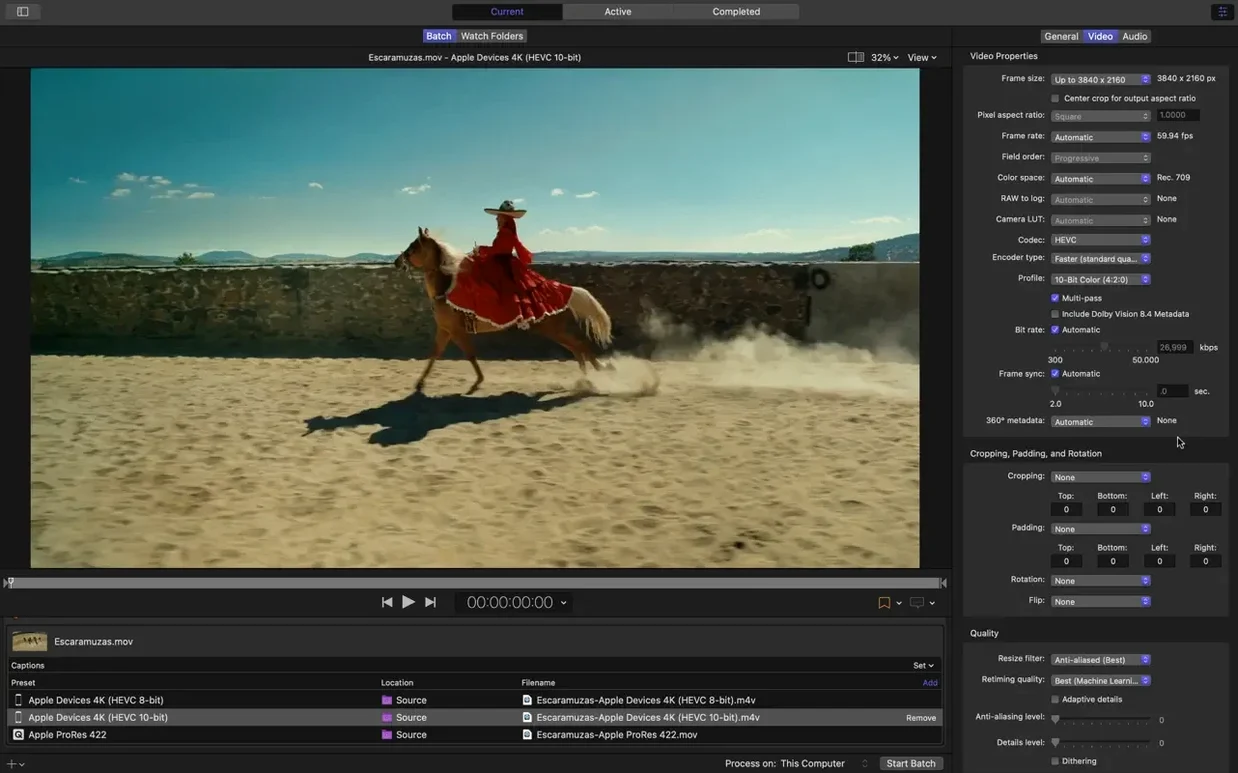
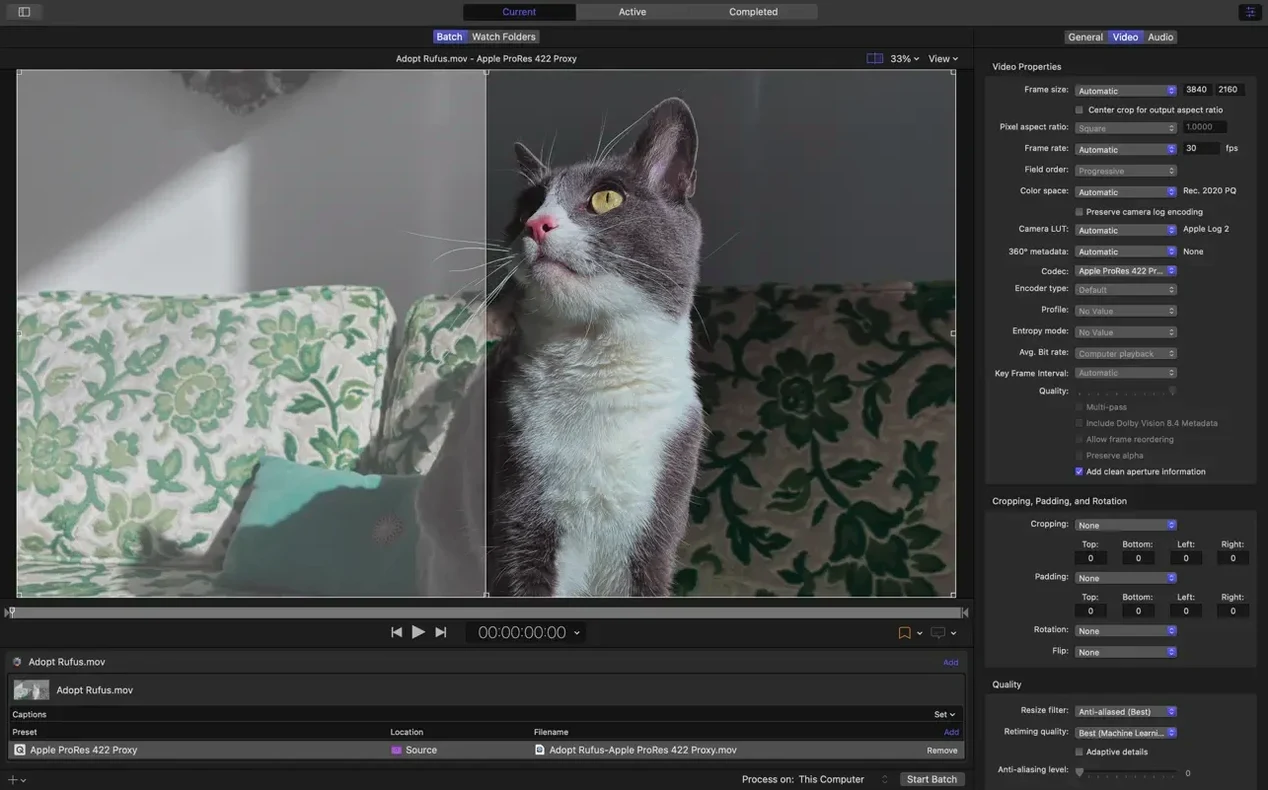
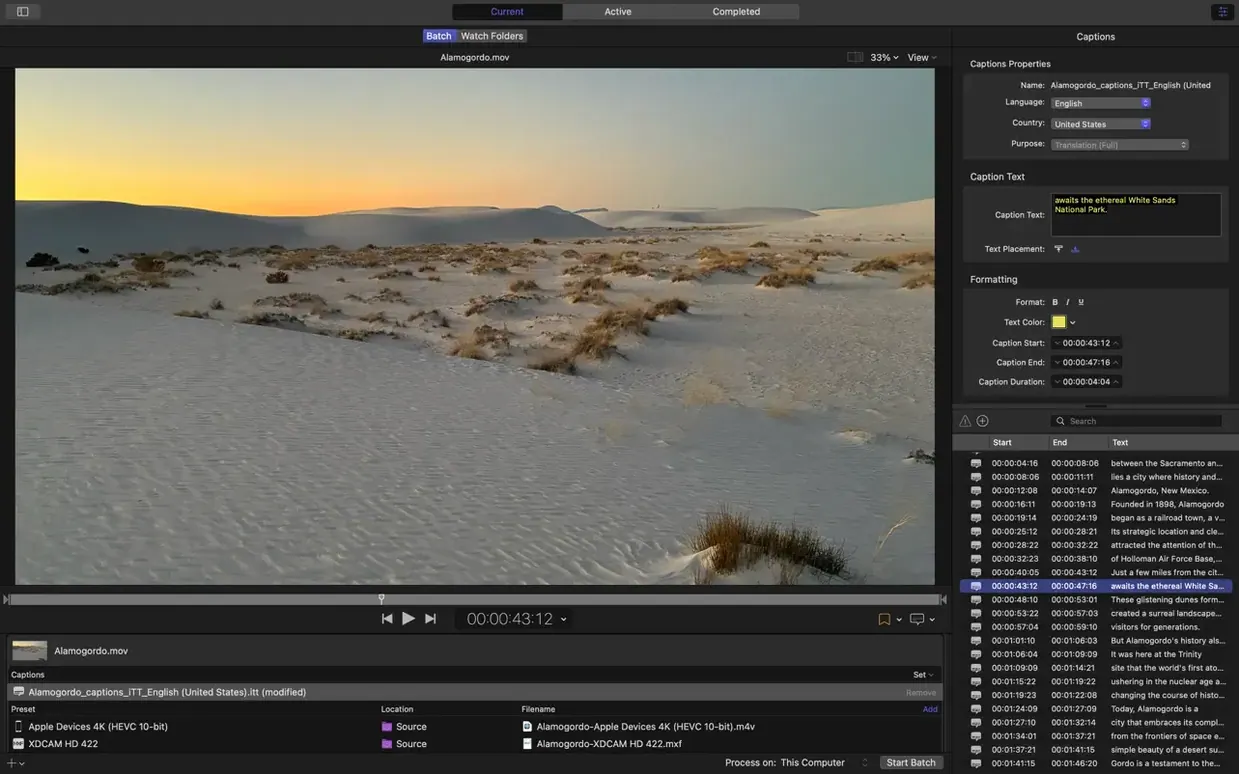
Compressor still sits alongside Final Cut Pro and Motion, sharing the same rendering engine. Export settings from Final Cut hand off cleanly, and the side panel for encoding settings plus the inspector for advanced audio and video properties are unchanged.
Custom outputs
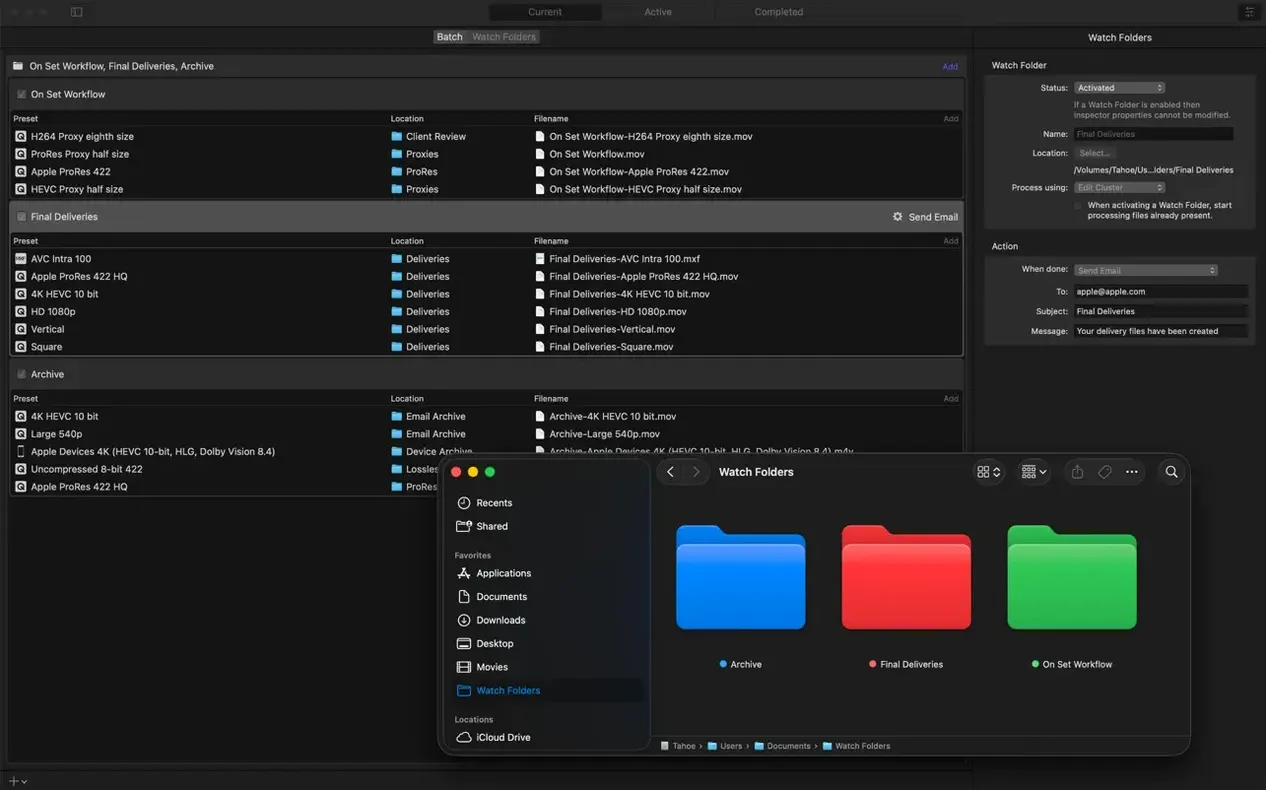
For those who need specific deliverables, custom output settings for HDR, HEVC, 360° video, and MXF remain in place. Post-encode actions—email, file copy or move, or a custom script—still work as before, so the finishing steps stay automated.
A post‑production workflow scenario
A freelance colourist working on a short‑form commercial for a streaming platform gets a Final Cut Pro timeline with three camera angles, two of them in HDR and one in SDR. The deliverable specs call for an HEVC master at 50 Mbps with a 5.1 AAC audio track, plus an H.264 proxy for the client review site. Instead of exporting each version from Final Cut one at a time, the colourist sends the timeline to Compressor, sets up two different output presets, and queues them. The HDR metadata is read correctly by the immersive metadata viewer, so the colourist can confirm the luminance levels before encoding starts. While the batch runs, they move on to the next project.
For the stereoscopic element in the commercial—a brief anaglyph insert—the new preview option lets them check the composite before committing to an encode. Without that preview, they would have had to render a test file and check it in a separate viewer. The 180° Apple Projected Media Profile output is not used here, but the same workflow would apply for a VR project: set the preset, check the metadata, and queue it.
Change the default output location first
When you open Compressor for the first time after installing 5.3, a few adjustments make the day‑to‑day faster:
- Default location for outputs. The app saves transcoded files next to the source by default. If you prefer a dedicated render folder, set it in the preferences under the General tab.
- Distributed encoding. If you have more than one Mac on the same network, turn on distributed encoding in the preferences and add the other machines. Even a slower Mac can help with the background passes.
- Post‑encode actions. For repeated deliveries, set a default action in the preset editor. Copying to a watched folder or running a script after each encode saves a manual step every time.
- HEVC data rate limits on Apple silicon. If you export HEVC for devices, check that the data rate limit is set to a value your target hardware supports. The new limit option appears in the video properties inspector when HEVC is selected.
- Anaglyph preview. For stereoscopic work, enable the anaglyph preview in the viewer menu before encoding. It is off by default and costs no render time to turn on.
Fix the most frequent Compressor crashes and errors
A few issues crop up regularly, and most have a straightforward fix.
The batch doesn't start
Compressor waits for all settings to be valid before it begins. If the submit button stays grey, check that every clip in the batch has an output format assigned and that the destination folder exists. A missing drive or a network path that went offline will also block the queue.
Distributed encoding nodes disappear
Other Macs in the cluster drop out when their firewall blocks the required ports. On each node, open System Settings > Network > Firewall and allow incoming connections for Compressor. If the nodes are on different subnets, Bonjour may not find them; use the manual IP address option in the distributed encoding settings instead.
HEVC export fails on older Intel Macs
Hardware encoding for HEVC is only available on Macs with an Intel 6th generation processor or later, or any Apple silicon chip. If a job fails on an older Intel Mac, switch the video encoder setting to "Software" in the preset's video properties. The encode will take longer but it will complete.
Immersive metadata viewer shows no data
The viewer only populates when the source file contains the required metadata. If the clip is an immersive video without embedded WAV‑based metadata, the viewer stays empty. For those sources, use the new direct transcode option to Apple Immersive outputs instead of trying to edit metadata first.
Anaglyph preview looks wrong
The preview uses the left and right eye streams from a stereoscopic clip. If the clip is not properly paired—for example, if it is a monoscopic file or the left and right streams are swapped—the preview will be unreadable. Confirm the clip's stereoscopic format in the inspector before relying on the preview.
Compressor versus HandBrake, Shutter Encoder, and FFmpeg
Compressor is not the only transcoding tool on macOS. Here is how it stacks up against three alternatives that serve a similar purpose.
Compressor vs. HandBrake
HandBrake is a free, open‑source encoder that supports a wide range of input and output formats. It lacks the distributed encoding and cluster management that Compressor offers, so it is best suited for single‑machine, one‑off jobs. Compressor integrates directly with Final Cut Pro and Motion, meaning you can send timelines without re‑exporting. HandBrake has a larger library of third‑party presets, but for professional post‑production pipelines that need HDR metadata, immersive profiles, and batch automation, Compressor is the more complete tool.
Compressor vs. Adobe Media Encoder
Adobe Media Encoder (AME) serves the same role for Premiere Pro users. It supports a broader set of codecs and wrappers out of the box, including ProRes, DNxHD, and a wider range of MXF flavours. AME also has a watch folder system that is more flexible than Compressor's post‑encode actions. However, AME does not offer distributed encoding across a network without third‑party plugins, and it does not handle 180° Apple Projected Media Profile or anaglyph previews at all. For a shop that works entirely in Final Cut, Compressor is the natural choice; for a mixed‑editing environment, AME may cover more ground.
Compressor vs. FFmpeg
FFmpeg is a command‑line tool with no graphical interface. It can transcode almost any format, but setting up complex presets requires scripting knowledge. For a one‑person operation who is comfortable with the terminal, FFmpeg can replace Compressor entirely and at no cost. The trade‑off is time: building a preset for HEVC with HDR metadata and a 5.1 AAC track takes minutes in Compressor, but can take an hour of research and testing in FFmpeg. For team workflows or time‑sensitive deliveries, the graphical interface and batch management of Compressor are worth the space it occupies on the drive.
Changes in this build
- Immersive metadata viewer before encoding
- Support for 180° Apple Projected Media Profile output
- Anaglyph preview option for stereoscopic video
- 5.1 AAC option in Apple Device export settings
- HEVC data rate limits on Apple silicon devices
- Transcoding immersive sources without WAV files to Apple Immersive outputs
Before it goes on the Mac
- macOS 15.6
- Apple silicon or Intel Mac
- 8 GB memory
- 1.2 GB available disk space
Questions from the room
Does Compressor work with Final Cut Pro?
Yes, Compressor integrates with Final Cut Pro and Motion, and uses the same rendering engine for consistent output.
Installing it on the Mac
- Mount the downloaded disk image.
- Drag the app to the Applications folder alias.
- Open the app after copying finishes, or launch it from Launchpad.
Notes from the control room
Sign in or open a catalogue account to leave a note.
No notes from the room yet. If you have used this build for a week, a short note helps the next person.
Also filed under Utilities
The whole Utilities rack Commander One PRO3.18.0 Utilities 53 MB
 Coherence X6.1 Utilities 26 MB
 CrossOver20261015 Utilities 752 MB Updated
 coconutBattery Plus4.4.0 Utilities 5 MB
 Cocktail Sequoia Edition18.7.1 Utilities 3 MB
 Cursor Pro2.4 Utilities 30 MB
 CleanShot X5.0.2 Utilities 46 MB Updated
 DaisyDisk4.34.2 Utilities 9 MB