
CleanMyMac 5.7.0 (Mac)
Updated
The catalogue note
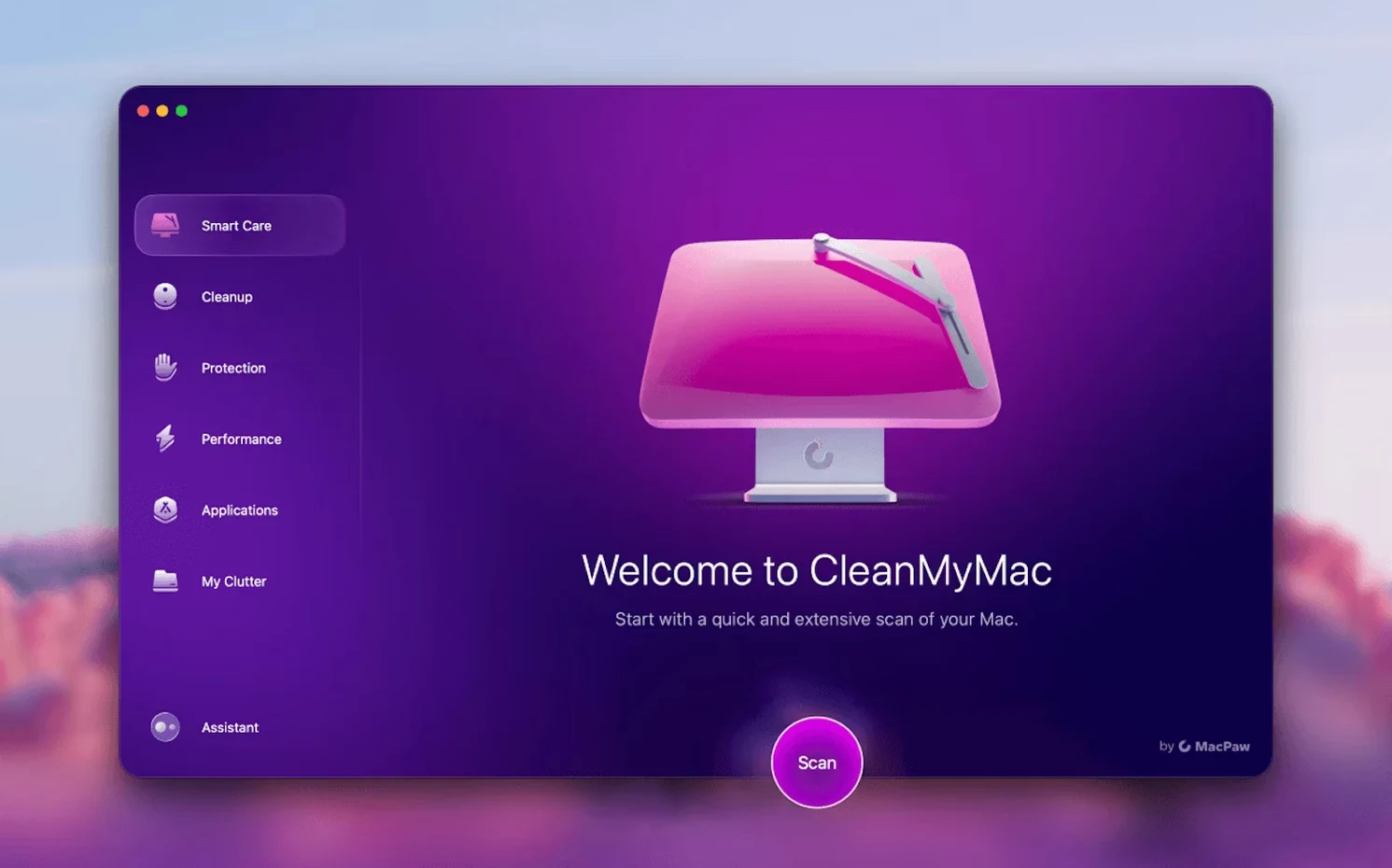
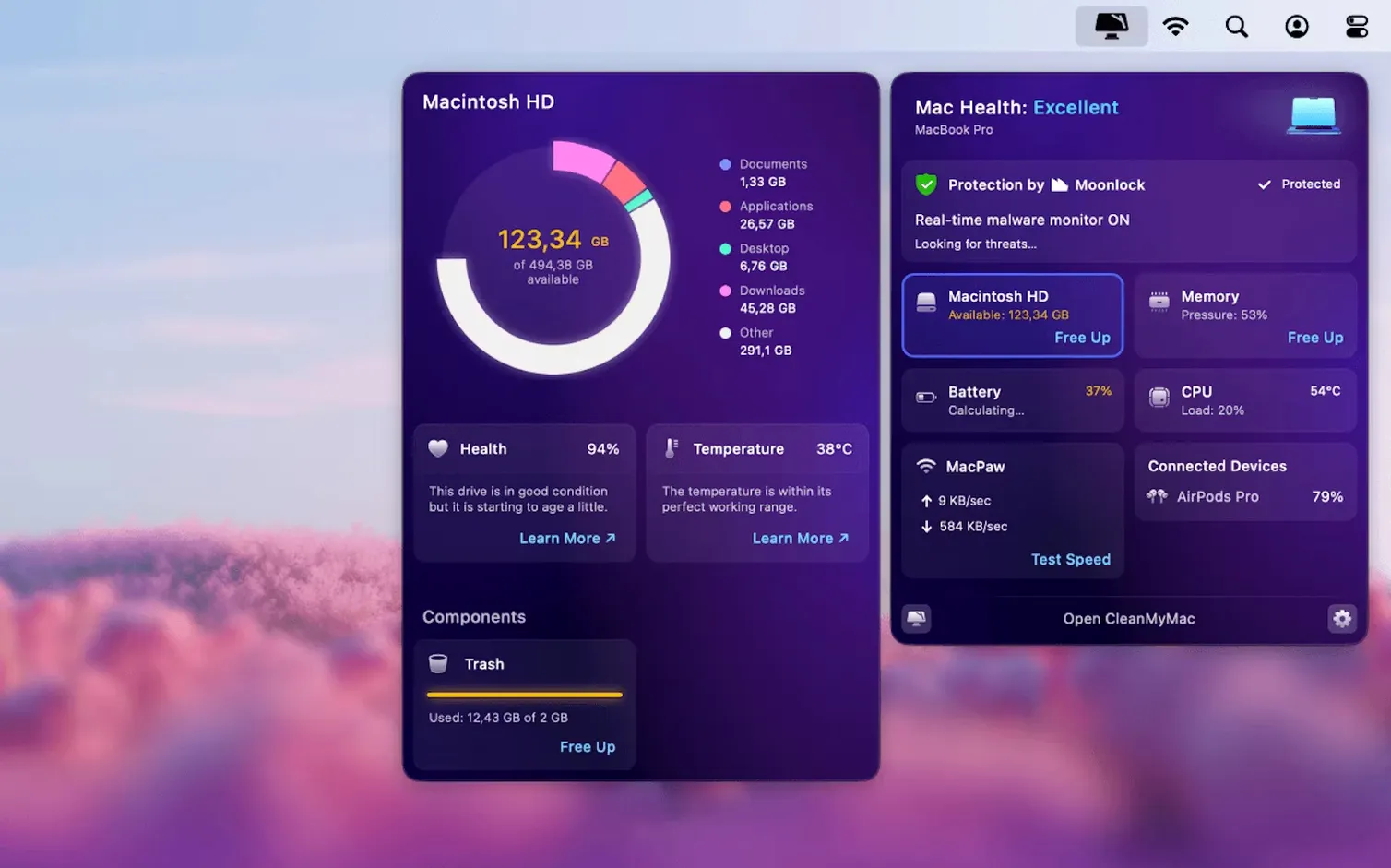
You have just installed CleanMyMac on a Mac that has been accumulating junk for months. The first thing you want is space back, not a guided tour. CleanMyMac 5.7.0 gives you that directly: the main screen offers an instant system cleanup that scans user caches, logs and leftover files without asking you to configure anything first.
| Detail | Value |
|---|---|
| Developer | MacPaw |
| Category | Utilities |
| Version | 5.7.0 |
| macOS | 11 and later |
| Architecture | Apple Silicon, 64-bit Intel |
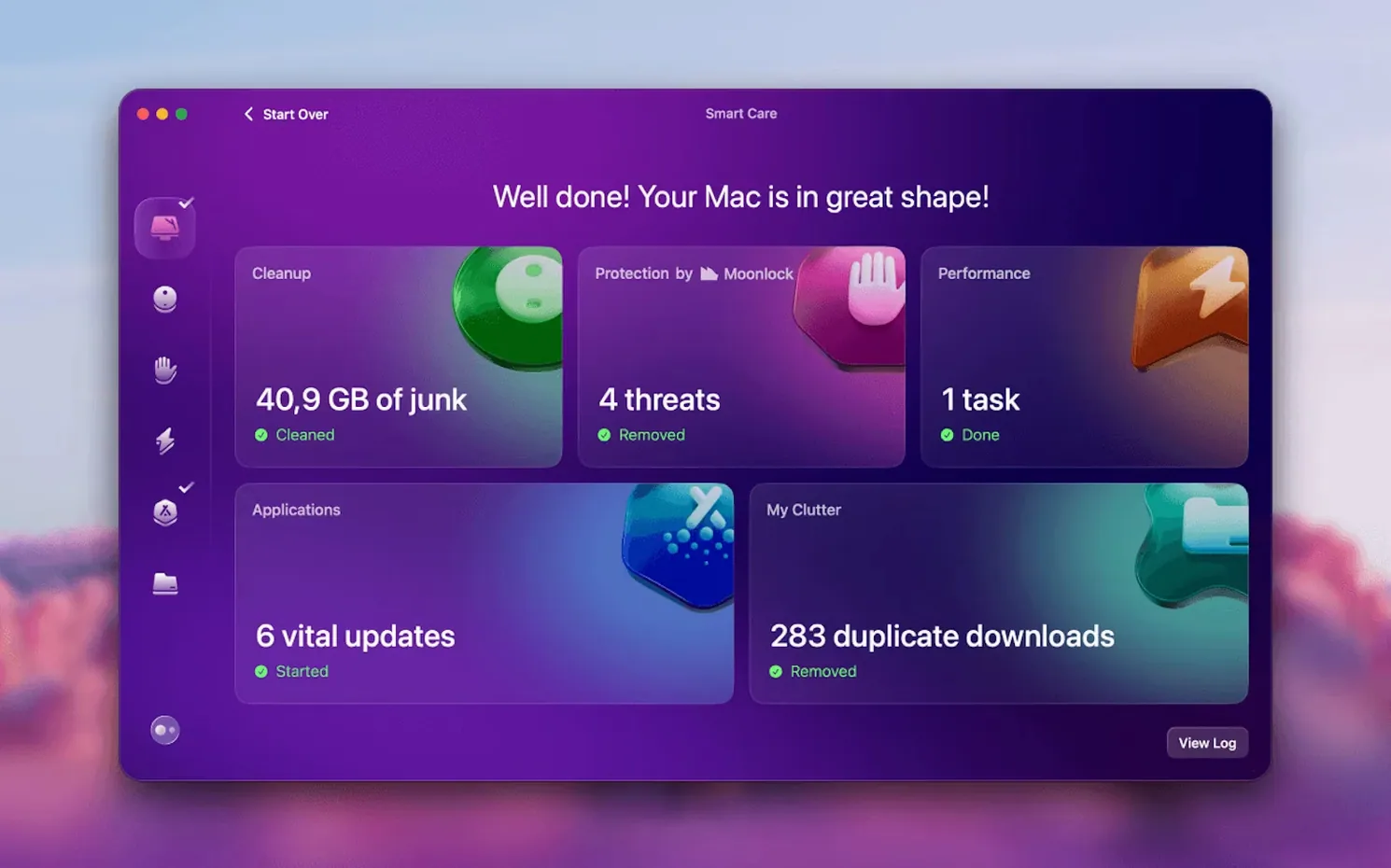
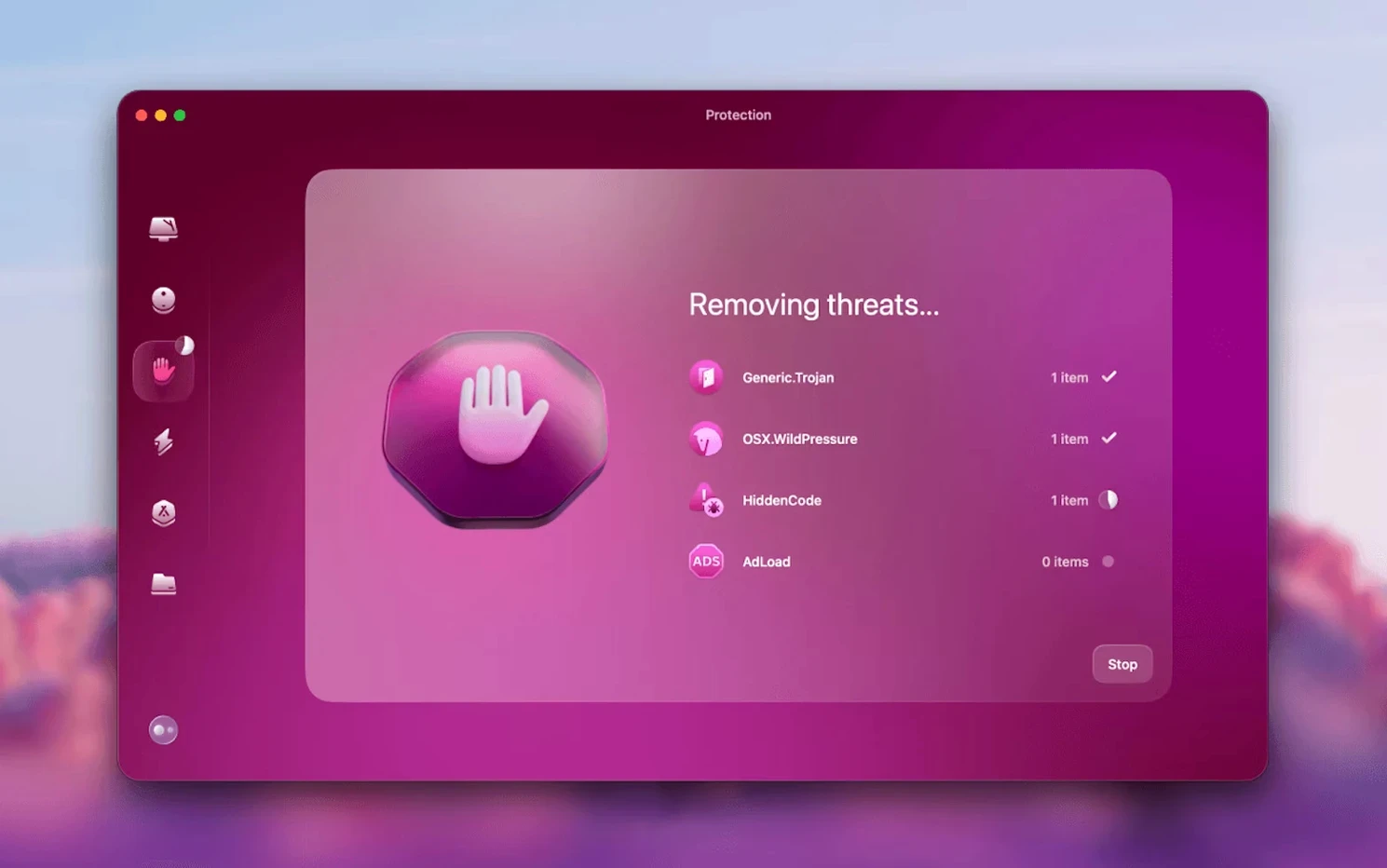
After the first cleanup, work through the sidebar. The Protection module scans for malware, and the app removal tool digs out the support files that the Finder drag-to-trash method misses. The new Gmail tools in this version cover mail attachments and storage, which is worth a look if your inbox is the real disk hog. For a cleanmymac x download, the app itself is the practical starting point; the tools are arranged so a newcomer can go from zero to a lighter system in about ten minutes.
Runs on macOS 11 and later with a drag-and-drop install
CleanMyMac 5.7.0 runs on macOS 11 and later, covering both Apple Silicon and 64-bit Intel Macs. The installer is a standard disk image: you drag the app into your Applications folder and launch it from Launchpad. No activation step interrupts the process, which is welcome if you are setting it up on a machine that is not yours. On macOS 27, the system asks for full disk access before the first scan can see your files — that is a one-time grant in System Settings, not a recurring prompt.
The interface appears in Russian, English, German, Spanish, Italian, Simplified Chinese, Korean, Dutch, Polish, Ukrainian, French, or Japanese, so the language your Mac is set to is likely covered. The app occupies a reasonable footprint on disk, and the scans themselves are self-contained: they do not install background helpers or launch agents unless you explicitly enable a module that needs one.
Version 5.7.0 adds direct Gmail inbox cleaning
Version 5.7.0 adds tools for cleaning and managing mail in Gmail. That means you can now target the attachments and storage tied to your Gmail inbox directly from CleanMyMac, rather than hunting through the web interface or a local mail client. For anyone whose Mac is a daily Gmail machine, this changes the routine: you can include mail cleanup in the same session where you clear caches and remove old apps, instead of treating it as a separate chore.
The email cleanup functionality is the headline addition, but the rest of the toolset remains as it was — the instant system cleanup, the app updater, the large file finder, and the secure deletion tool all behave the same way. The update is incremental, not a redesign, so if you are coming from a previous 5.x version, the layout and workflow will feel familiar. The new Gmail tools sit alongside the existing modules, not in front of them.
Tuesday morning cleanup before the first client arrives
I open CleanMyMac on a Tuesday morning, before the first client arrives. The Mac has been used for recording sessions all week, and I have not run any maintenance since Sunday. The main screen shows the instant system cleanup scan result from the last run; I click Scan again to get a fresh count of caches, logs, and user cache files. The scan finishes in under a minute. I review the list — mostly browser caches and temporary render files from Logic Pro — and click Clean.
Next, I switch to the Protection module. It runs a quick check for malware threats. Nothing shows up, but I appreciate the reassurance before I plug in a client's external drive. Then I open the App Removal tool. There is an old demo version of a plugin installer that I dragged to the Trash last week, but its support files are still scattered across ~/Library. I find it in the list, select it, and let the tool remove the leftovers. That takes a few seconds.
I move to the Large & Old Files section. The scan finds a few unneeded disk images from a project I finished last month. I select them and delete. Finally, I open the new Gmail tools. The scan shows a few large attachments from a thread I had forgotten about. I mark them for removal and confirm. The whole session takes about fifteen minutes, and the Mac feels noticeably less cluttered for the rest of the day.
Clearing temp files and Gmail attachments after a podcast project
Say you have just finished a podcast editing project. The Mac has accumulated temporary files, rendered regions, a plugin installer you tried once, and a handful of large attachments from the producer's Gmail. Here is a start-to-finish workflow using CleanMyMac 5.7.0.
- Run the instant system cleanup. This catches the caches and logs that the DAW and the browser left behind. Click Scan, review the list, and Clean.
- Remove the unused plugin installer. Open the App Removal tool. Find the installer in the list — it is not an app, but the tool often recognises installer packages. Select it and remove the support files that a manual drag would miss.
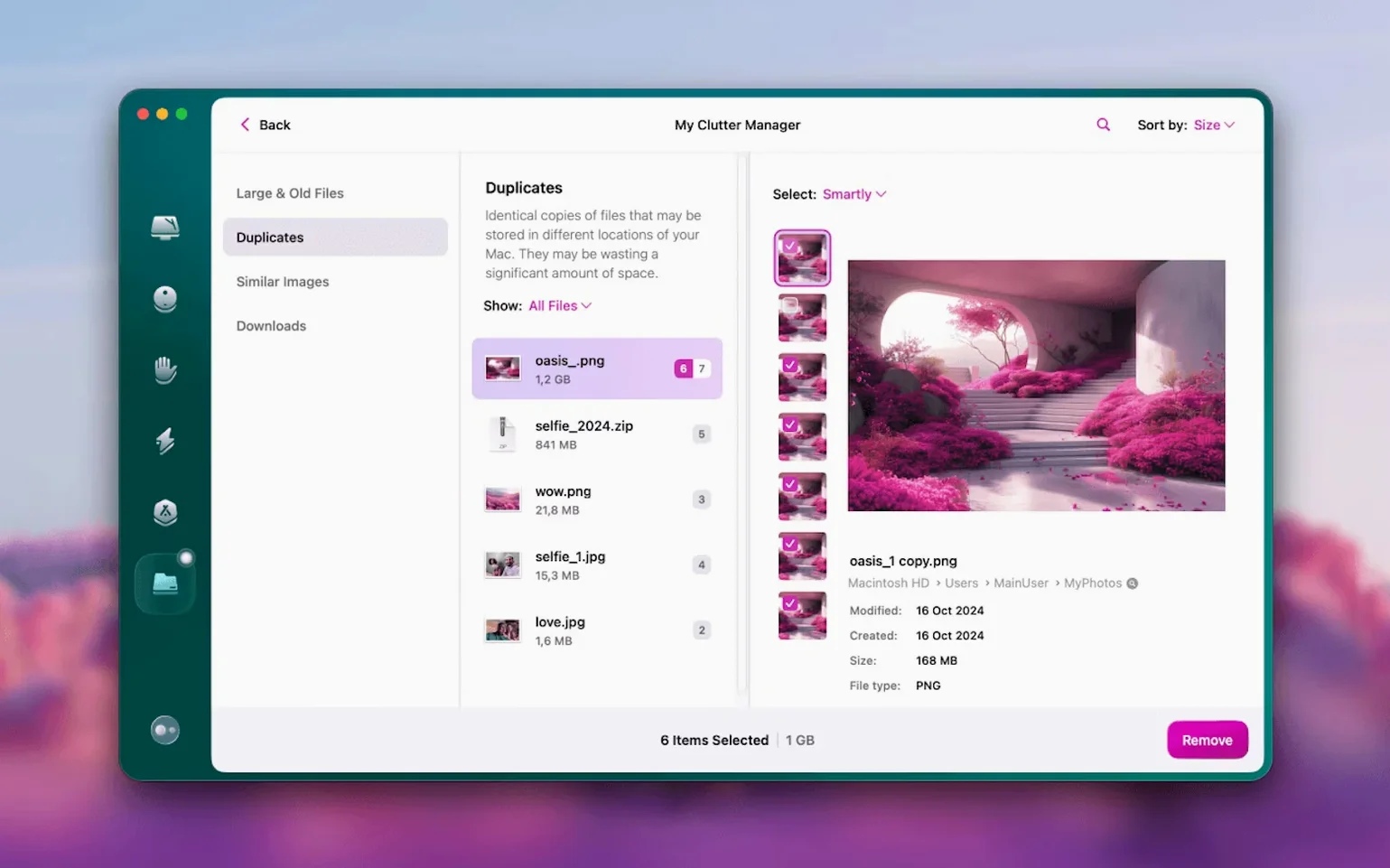
- Delete large project files. Switch to the Large & Old Files section. The scan shows files over a certain size. Look for the project's disk images, rendered stems, and any archived session files you no longer need. Select them and delete.
- Clean Gmail attachments. Open the Gmail tools. The scan shows attachments from the project's email thread. Mark the large ones for removal. This frees up space in your inbox without deleting the messages themselves.
- Permanently delete sensitive files. If the project contained client data you want to erase securely, use the tool for permanently deleting files. Select the items and confirm. The tool overwrites the data before marking the space as free.
That sequence covers the most common waste categories after a project wraps. The same steps work for video editing, photo retouching, or any task that leaves temporary files behind. You can run it as a closing ritual before archiving the project folder to an external drive.
Changes in this build
- Adds tools for cleaning and managing mail in Gmail
- Includes new email cleanup functionality
Before it goes on the Mac
- macOS 11 or later
- Apple Silicon or 64-bit Intel Mac
Questions from the room
What does the protection module in CleanMyMac do?
It scans your Mac for malware threats and handles removal, so you get a basic security check without a separate app.
Which macOS versions does CleanMyMac 5.7.0 support?
It runs on macOS 11 and later, on both Apple Silicon and 64-bit Intel Macs.
Does CleanMyMac remove applications completely?
Yes, the app removal tool deletes an application together with its leftover support files, which a standard drag to the Trash often leaves behind.
Installing it on the Mac
- Remove any older version of CleanMyMac before installing or updating.
- Open the downloaded disk image.
- Drag the app to the Applications folder alias.
- When copying finishes, open the app from Launchpad.
- On macOS 27, grant full disk access before launching.
Notes from the control room
Sign in or open a catalogue account to leave a note.
No notes from the room yet. If you have used this build for a week, a short note helps the next person.
Also filed under Utilities
The whole Utilities rack CleanShot X5.0.2 Utilities 46 MB Updated
 Cocktail Sequoia Edition18.7.1 Utilities 3 MB
 coconutBattery Plus4.4.0 Utilities 5 MB
 Carbon Copy Cloner7.1.6 Utilities 38 MB
 Coherence X6.1 Utilities 26 MB
 Canopy2 Utilities 11 MB
 Commander One PRO3.18.0 Utilities 53 MB
 Camtasia2027.0.0 Utilities 421 MB Updated