Camtasia 2027.0.0 (Mac)
Updated
The catalogue note
Camtasia 2026.2.3 records your screen and edits the result in one timeline, no round-tripping through another NLE. For anyone who builds software demos or training clips, the depth hides under the simple drag-and-drop surface.
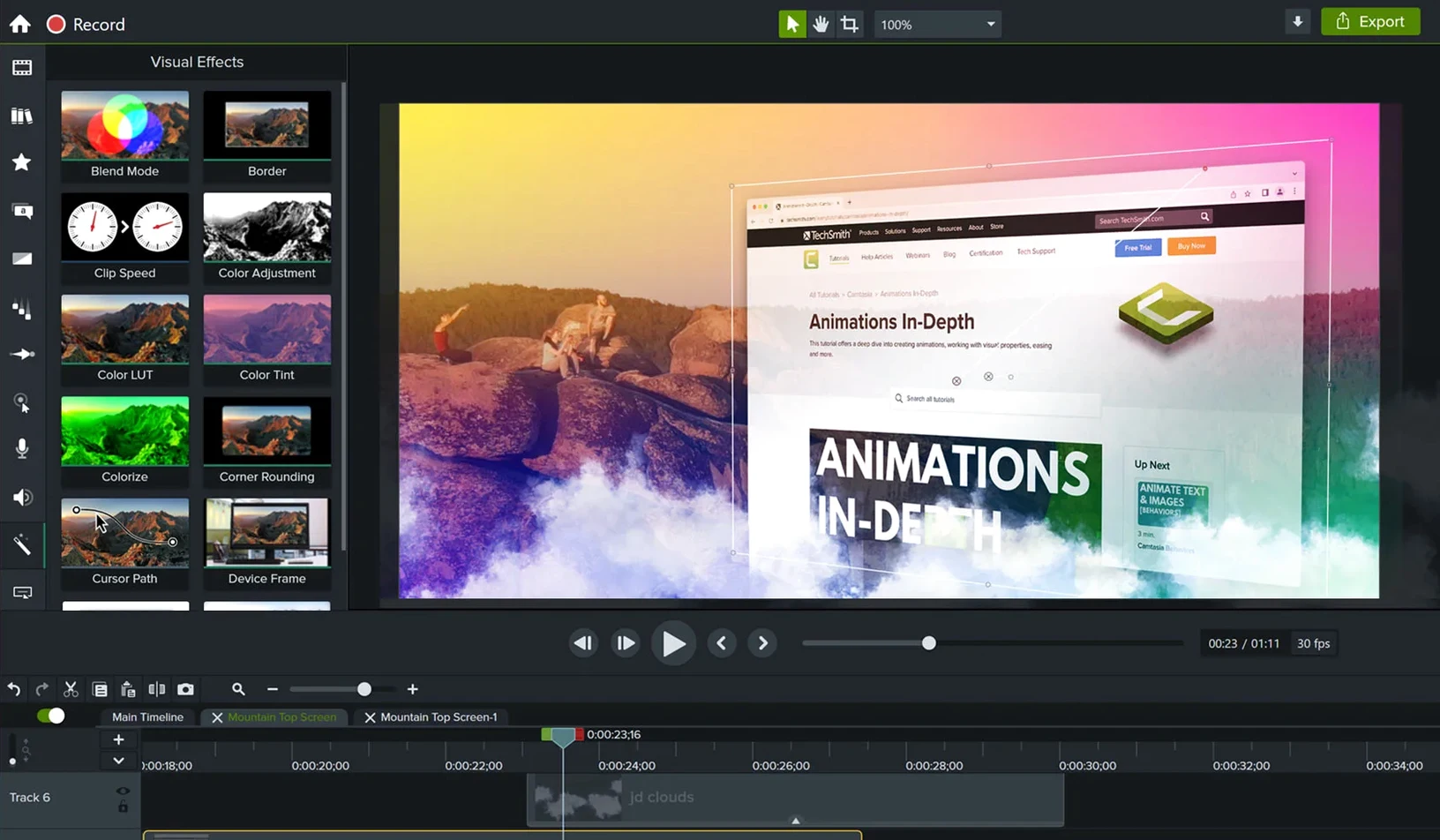
- Multi-track timeline with per-clip properties: speed, opacity, and audio levels are all editable inline.
- Cursor effects and callouts that follow mouse actions – essential for tutorials where the viewer needs to see where to click.
- Interactive hotspots and quizzes for online lessons, exportable to SCORM or MP4.
- Video templates for recurring formats, so your intro, lower thirds, and outro stay consistent without rebuilding them each time.
- System audio and microphone capture separately, with noise reduction and volume levelling applied before you hit the timeline.
- Drag-and-drop transitions and animations, plus the ability to import existing video files and cut them down to size.
Start by choosing what to record
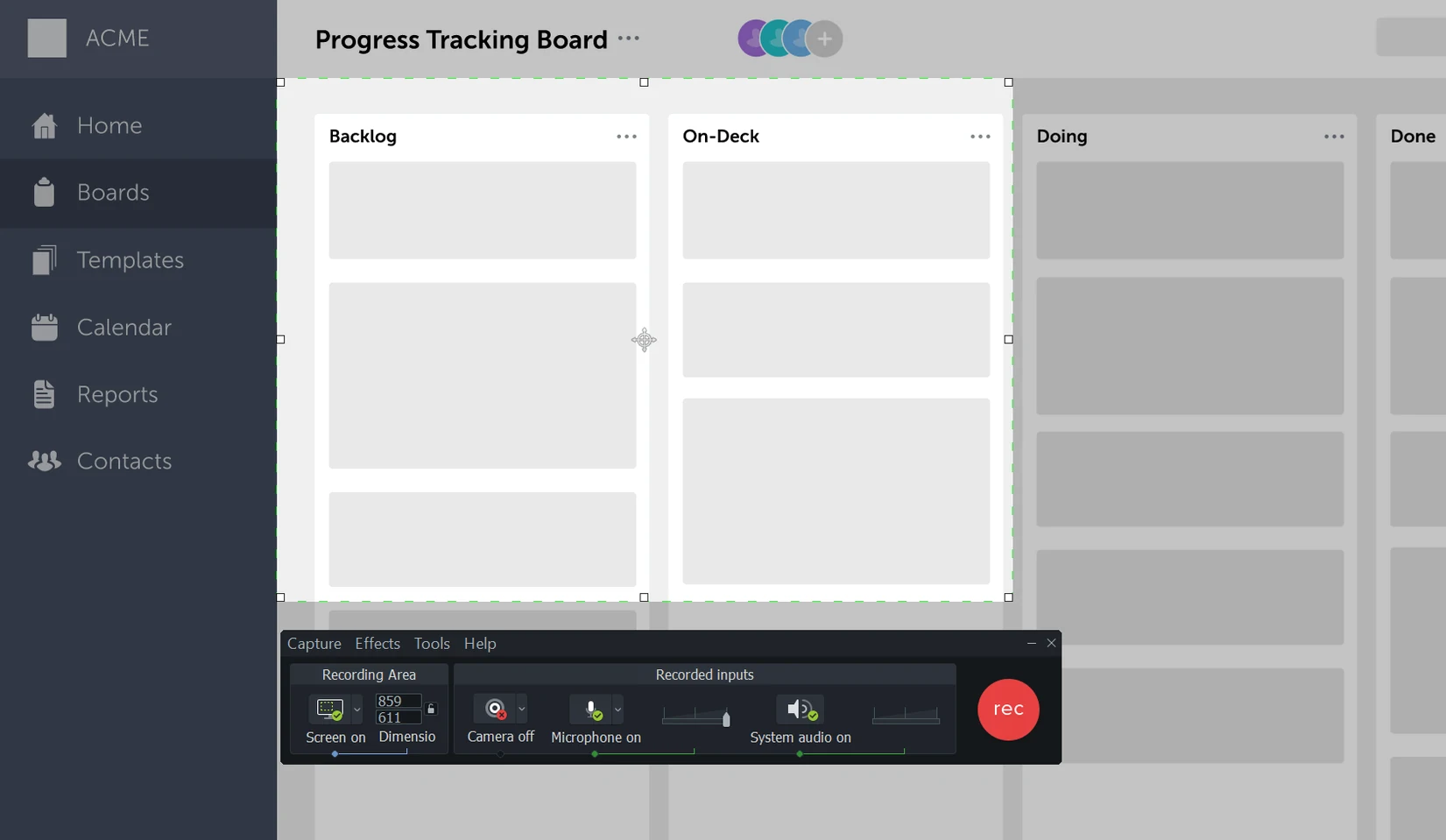
You start by choosing what to record. The recording panel lets you pick the full screen, a specific window, or a custom region. For a software tutorial, I usually set a fixed 1920×1080 region so the output matches the canvas size without later rescaling. You can also decide whether to capture system audio, microphone input, or both. If you are demonstrating a workflow that includes system sounds — like confirmation chimes or error alerts — you enable both tracks. If it is a voice-over walkthrough, microphone only.
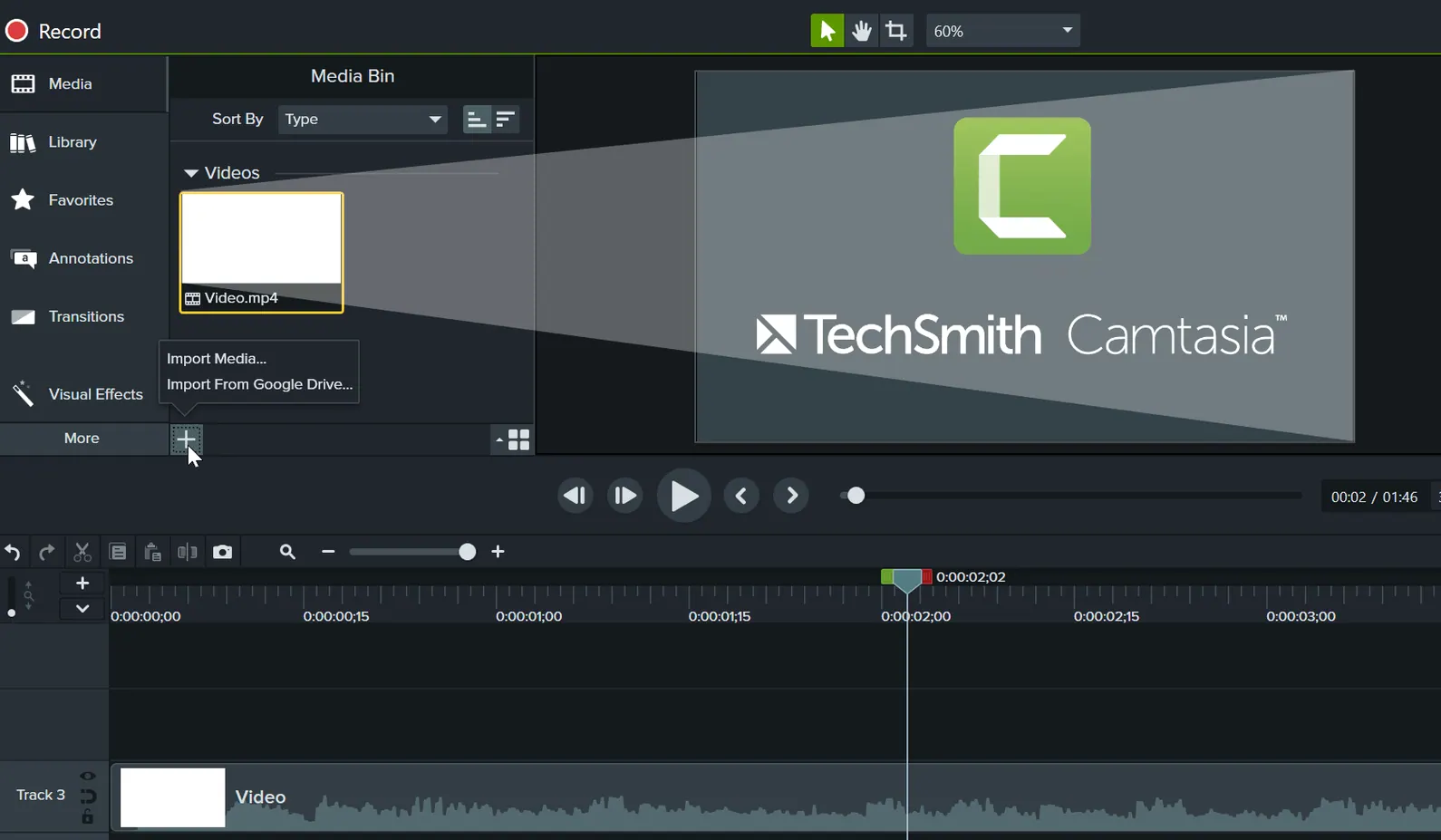
Once recording stops, the footage lands on the timeline automatically. The media bin holds it as a clip, and you can trim the start and end right there. The next step is to add callouts. For a button click, I drop a cursor highlight that follows the mouse path, then add a text callout with the shortcut key. The callout stays pinned to the frame, so if you later adjust the clip length, the annotation stays in sync.
Audio gets a pass next. The timeline shows waveforms for both system and microphone tracks. If the room had background hum, the built-in noise reduction cleans it up without making the voice sound hollow. Volume levelling evens out loud and quiet passages, which saves reaching for a separate audio editor.
When the narration and visuals are in place, you add transitions between clips. A simple cross-fade or a wipe works for scene changes. If the project is a series of short demonstrations, you can apply the same transition to all cuts at once by selecting them and choosing a preset.
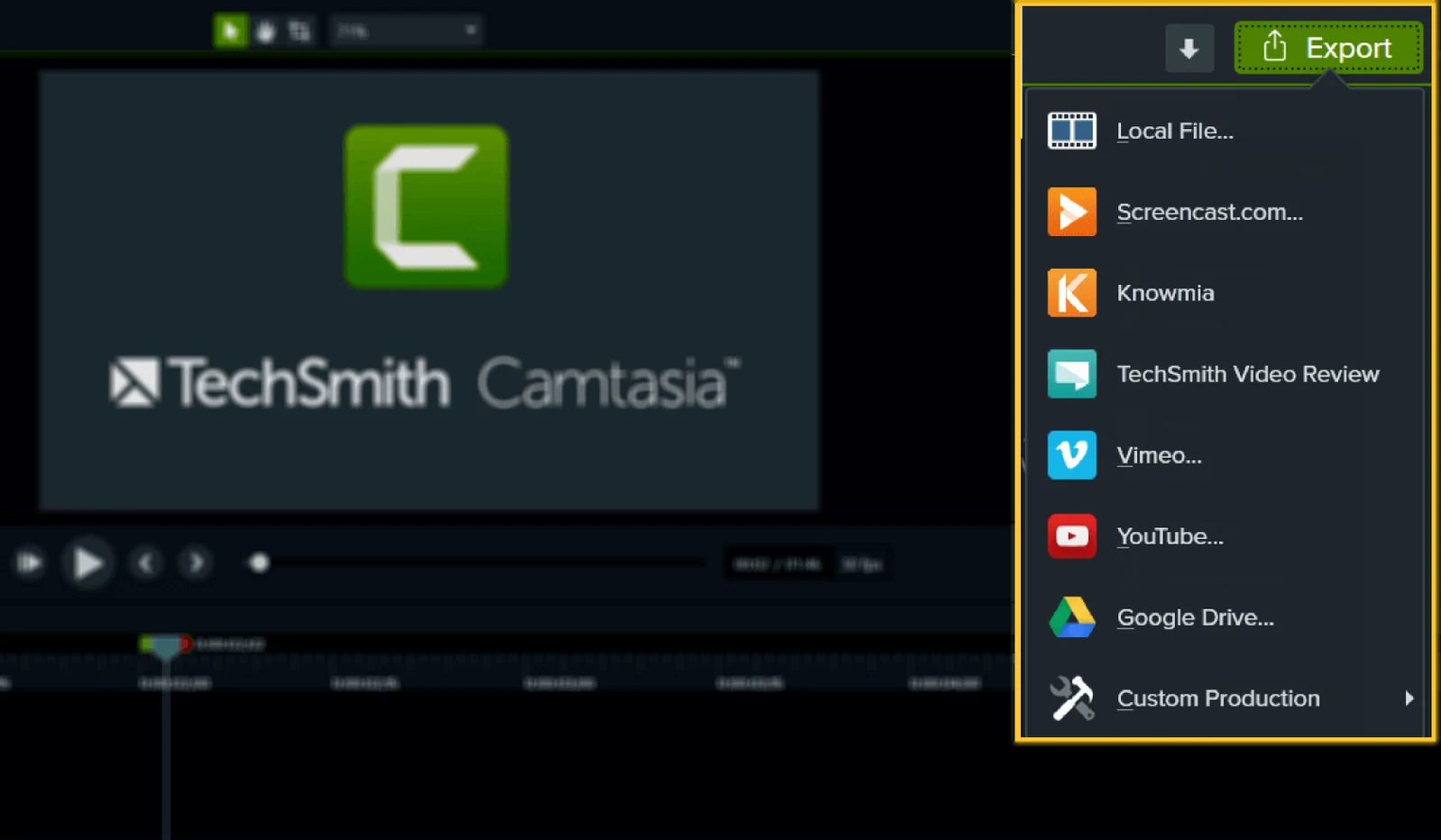
Finally, you export. The share menu gives MP4, SCORM packages for learning management systems, and direct upload to platforms like YouTube or Vimeo. For internal training, I often export to MP4 at 1080p with the H.264 codec, which balances quality and file size. The export dialog shows an estimated file size before you commit, so you can adjust bitrate or resolution if the file needs to stay under a certain limit.
Import PowerPoint slides with transitions intact
Camtasia integrates directly with PowerPoint. You can import slides and they appear as individual clips on the timeline, each preserving the original transitions and animations. This is useful when you have a slide deck that needs a recorded voice-over and on-screen demonstrations between slides.
On macOS, the app respects the system's screen recording permissions. You grant access once via System Settings, and subsequent recordings start without further prompts. The recording panel can also capture audio from specific applications if you route it through an aggregate device in Audio MIDI Setup, though that requires a bit of configuration outside Camtasia itself.
For video assets, you can drag files from Finder directly into the media bin — MOV, MP4, AVI, and common image formats all work. If you use iCloud Drive, projects stored there sync across your Macs, though for video-heavy work I recommend keeping source files on a local drive or external SSD to avoid download delays during editing.
The export to SCORM means the output integrates with Moodle, Canvas, or other LMS platforms without extra conversion tools. Quiz results and viewing completion data are handled by the LMS, so Camtasia handles only the content creation side.
Cursor highlight scales when you zoom in
- Cursor highlight follows zoom level. If you zoom in on the timeline, the cursor effect scales accordingly, so the highlight ring stays proportional to the on-screen cursor size.
- Grouping clips. Select multiple clips and group them. Moving, trimming, or applying an effect to the group affects all members, which keeps the timeline tidy when you have a sequence of related shots.
- Library search. The built-in library of assets — music, motion graphics, icons — has a search field that filters by name. You do not have to browse through categories to find the intro animation you used last week.
- Snap guides. When you drag a clip or a callout on the canvas, snap lines appear when the element aligns with the edges or centre of the frame. This helps with consistent positioning without manual pixel pushing.
- Undo history. The undo stack goes back many steps, and you can step through them one by one with Cmd+Z. If you accidentally delete a clip and then do ten more edits, you can still undo back to before the deletion.
Record a reference management tutorial with system audio
A university lecturer needs to produce a short module on using reference management software. They record their screen while showing how to import a PDF, extract a citation, and insert it into a Word document. The recording captures system audio for the click sounds and the lecturer's microphone for the explanation.
Back on the timeline, they trim the pauses between steps. They add a callout that reads "Select the PDF file from your Downloads folder" at the moment the file dialog opens. A cursor highlight circles the file name as it is clicked. Between the import and the citation extraction, they insert a brief text slide — created within Camtasia — that summarises what the next step achieves.
At the end, they add a quiz with three multiple-choice questions about the workflow. They export the whole project as a SCORM package and upload it to the university's Moodle instance. The package retains the quiz data, so the lecturer can later see which students struggled with which step.
It runs on Apple Silicon and Intel Macs, and the interface can be switched to German, Chinese, or any of the six included languages.
Changes in this build
Version 2027.0.0 has landed. The developer has detailed the new features and refinements on the official site.
Before it goes on the Mac
- macOS 15 or later
- Apple Silicon or Intel 64‑bit
Questions from the room
What macOS versions does Camtasia support?
Camtasia 2026.2.3 runs on macOS 13 or later, on both Apple Silicon and Intel Macs.
Installing it on the Mac
- Mount the disk image and run Open Gatekeeper friendly.
- Press Enter in the Terminal window to bypass Gatekeeper.
- Drag the app into the Applications folder.
- The app is ready to use.
Notes from the control room
Sign in or open a catalogue account to leave a note.
No notes from the room yet. If you have used this build for a week, a short note helps the next person.