
Canopy 2 (Mac)
Updated
The catalogue note
Version 2.1.0 sits at roughly 8 MB on disk — a small app for a fairly visible addition to the macOS interface.
What Canopy does
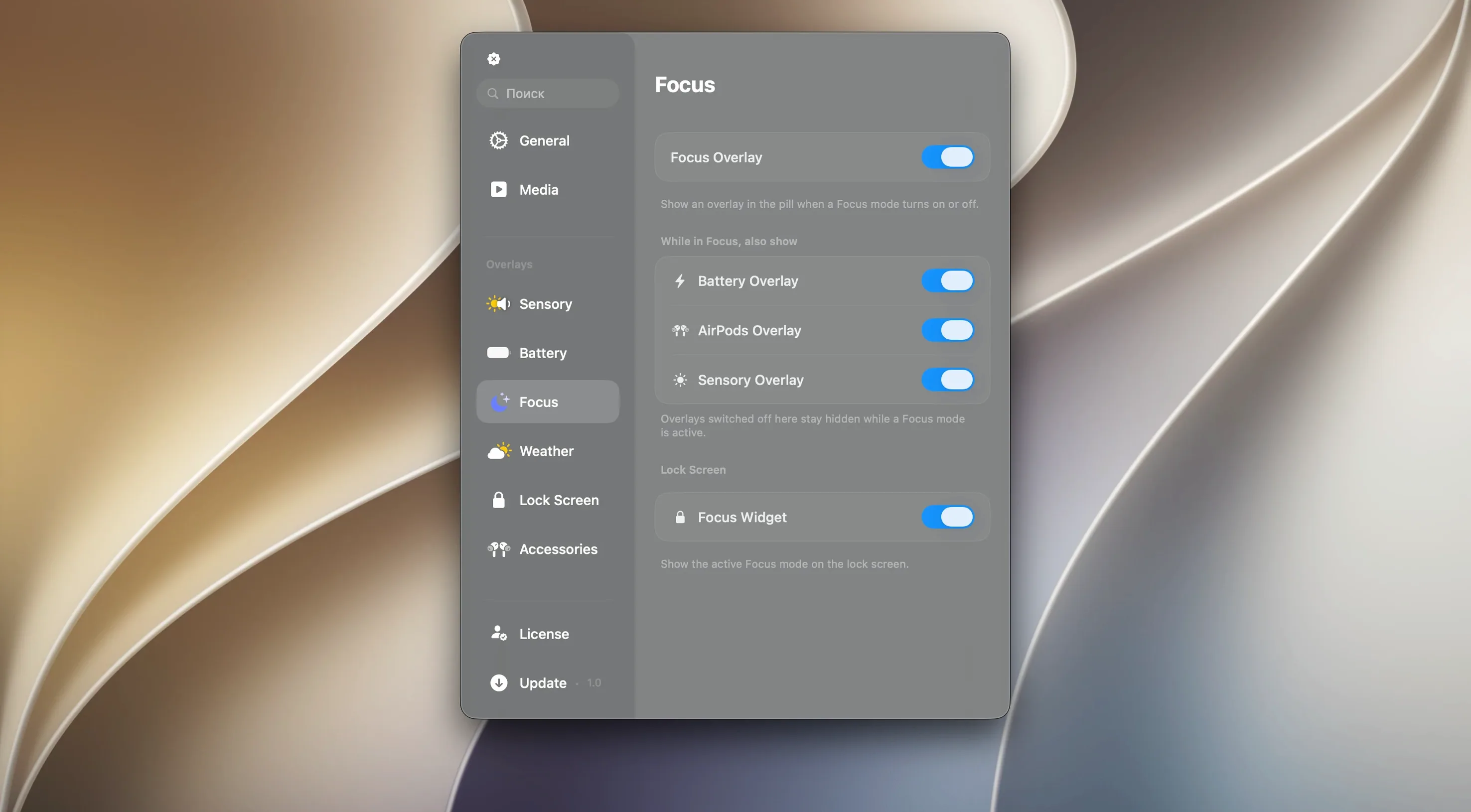
Dynamic Island behaviour on any Mac — Canopy adds an interactive panel that lives inside the notch on MacBooks that have one, or as a floating widget at the top of the screen on Macs without a notch. It works the same either way.
Click or hover to reveal Dynamic Island-like controls
Menu bar or notch panel — The app places an interactive area in the menu bar region. Clicking or hovering reveals controls and notifications styled like the Dynamic Island on recent iPhones. You can interact with it without opening separate windows.
Compatibility
macOS 26 or later — the only requirement. Both Apple Silicon and Intel 64-bit machines are supported. The interface is in English.
Beats NotchDrop for more than just file transfers
There are a handful of apps that try to bring Dynamic Island-like behaviour to macOS. Canopy stands apart in a few practical ways.
Versus NotchDrop — NotchDrop focuses on file transfers: you drag a file to the notch area and it temporarily stores it there. It does not handle notifications, music controls or live activities. Canopy is broader in scope — it is a panel for ongoing interaction rather than a temporary file dock. If your main need is quick file staging, NotchDrop is lighter, but Canopy covers more ground day-to-day.
Versus MediaMate — MediaMate adds a now-playing widget and volume/HUD replacement to the notch area. It handles music and system volume well but does not extend to timers, notifications or general live activities. Canopy includes media controls alongside those other functions, so you get the now-playing behaviour plus timers and alerts in one panel. MediaMate is more polished for audio-only use; Canopy is more of a multi-purpose panel.
Versus BoringOldBar — BoringOldBar replaces the menu bar with a more customisable bar but does not emulate Dynamic Island interactions. It is a menu bar overhaul, not a notification panel. Canopy keeps the standard menu bar and adds the interactive panel alongside it, so you are not replacing anything — just adding a new layer.
Live activities now update reliably across spaces
Version 2.1.0 refined how the panel behaves day-to-day. The most noticeable change is the improved handling of live activities — they now update more consistently when switching between apps or spaces. Earlier versions sometimes left stale notifications visible; 2.1.0 clears them promptly.
Media controls gained better integration with the system’s Now Playing metadata. Track art and progress bars update faster when skipping songs or podcasts. For users with a notch, the panel’s expand and collapse animation now feels more deliberate — it no longer triggers accidentally when moving the cursor across the top edge.
Timer functionality was also tightened. Starting a timer from the panel now shows remaining time in the notch or floating widget without opening the full panel, which saves a click. These are small changes, but they make the panel feel less like a novelty and more like a regular tool you glance at throughout the day.
Pick a floating widget if your Mac has no notch
After installing Canopy, a few adjustments make the biggest difference to how it fits into your workflow.
- Choose your display mode — If you have a Mac without a notch, the app creates a floating widget at the top of the screen. You can decide whether it stays visible or only appears on hover. Hover-only keeps the screen cleaner.
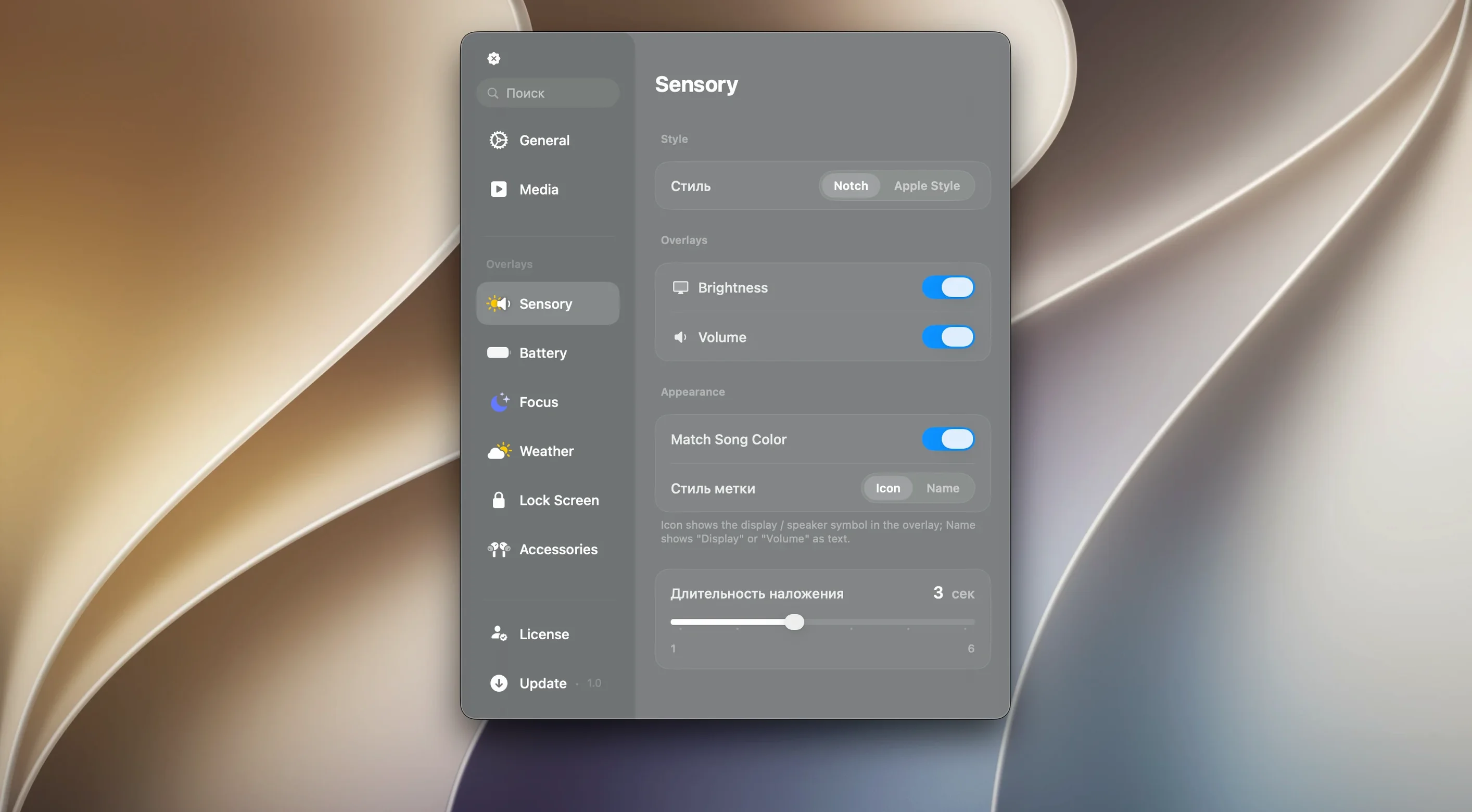
- Set notification preferences — Canopy can show alerts from any app, but you might want to limit it to specific ones (messages, calendar reminders, music). Tuning this early avoids a flood of less useful notifications.
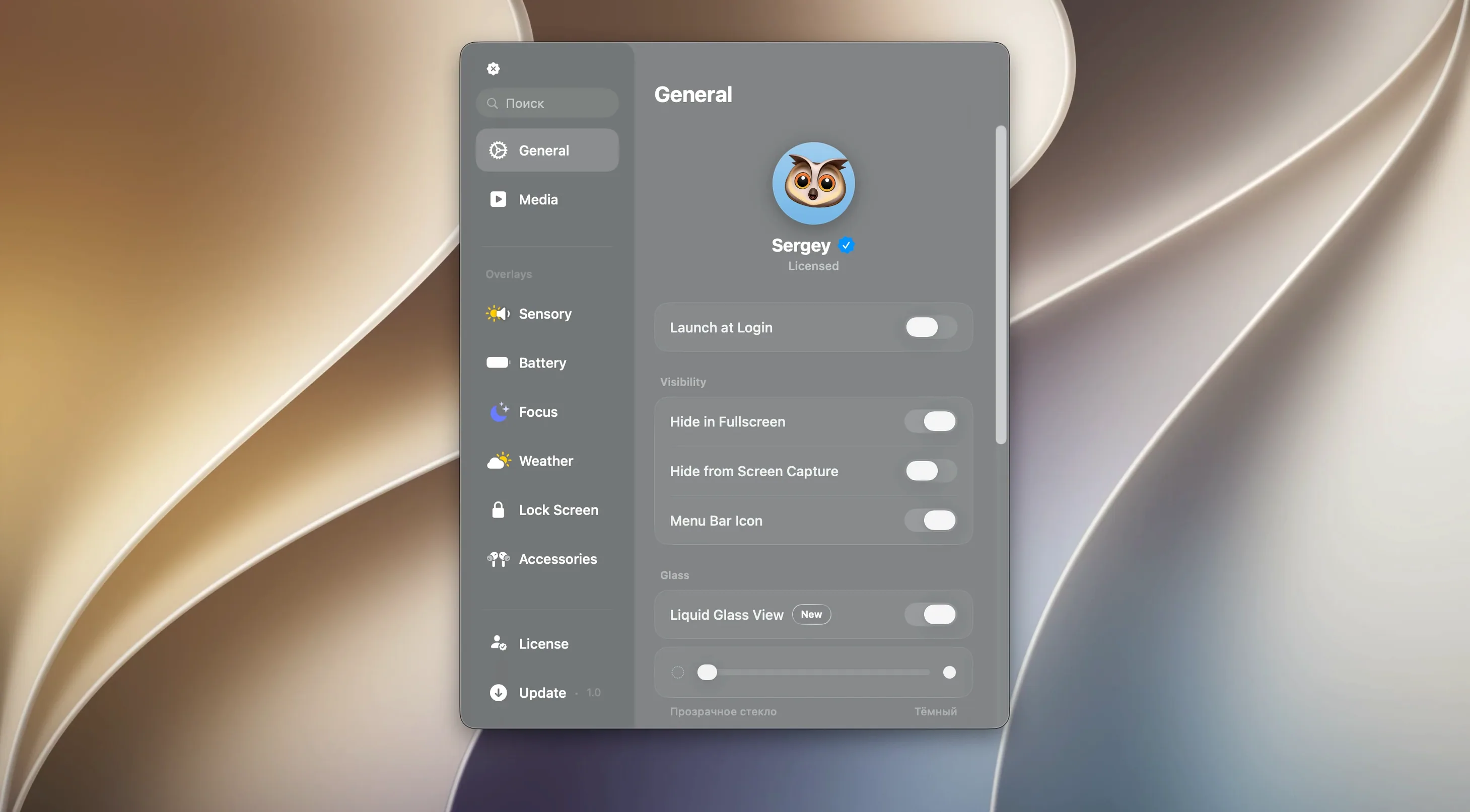
- Adjust the Liquid Glass effect — The transparency and blur of the panel are adjustable. If you find the default too prominent, dial it back so it blends with your wallpaper.
- Enable or disable live activities per app — Not every app’s live activity is worth seeing. Turning off the ones you do not need keeps the panel focused on what matters.
These settings are all accessible from the app’s preferences window, which appears when you click the panel and choose the gear icon.
Runs on Apple Silicon and Intel, just 8 MB on disk
Canopy requires macOS 26 or later and runs on both Apple Silicon and Intel 64-bit Macs. The app itself is about 8 MB on disk, so it does not compete for storage space. It runs as a background process that adds a small interactive region to the menu bar area.
Because it relies on system APIs for notifications and media metadata, it works best when you grant it the necessary permissions on first launch — notifications access and accessibility access for media control. Without these, some features are limited.
On MacBooks with a notch, the panel sits inside the notch area and does not take up additional screen space. On Macs without a notch, the floating widget appears at the top centre of the screen. You can reposition it within a small range, but it always stays near the top edge. The Liquid Glass effects use hardware-accelerated rendering, which means they do not noticeably affect general system responsiveness on modern Macs.
If you use multiple displays, the panel appears only on the primary display by default. That is worth noting if you keep your menu bar on a secondary screen.
Creates a floating widget on Macs without a notch
Does it work on a Mac without a notch?
Yes. On Macs without a notch, Canopy creates a floating widget at the top of the screen that behaves the same way as the notch-based panel. The experience is nearly identical — you get the same interactive area, notifications, media controls and live activities.
Will it conflict with other menu bar apps?
It lives in the menu bar region but does not replace or modify existing menu bar items. It adds a separate interactive area. If you have another app that also tries to use the notch area for notifications, you may see overlap, but typical menu bar apps (iStat Menus, Bartender, etc.) work alongside it without issue.
Do I need to grant special permissions?
Yes — notifications access and accessibility access are required for full functionality. macOS will prompt you for these on first launch. Without notifications access, Canopy cannot show alerts in the panel. Without accessibility access, it cannot control media playback (play, pause, skip). Both permissions are standard for this kind of utility app.
Can I use it solely as a media controller?
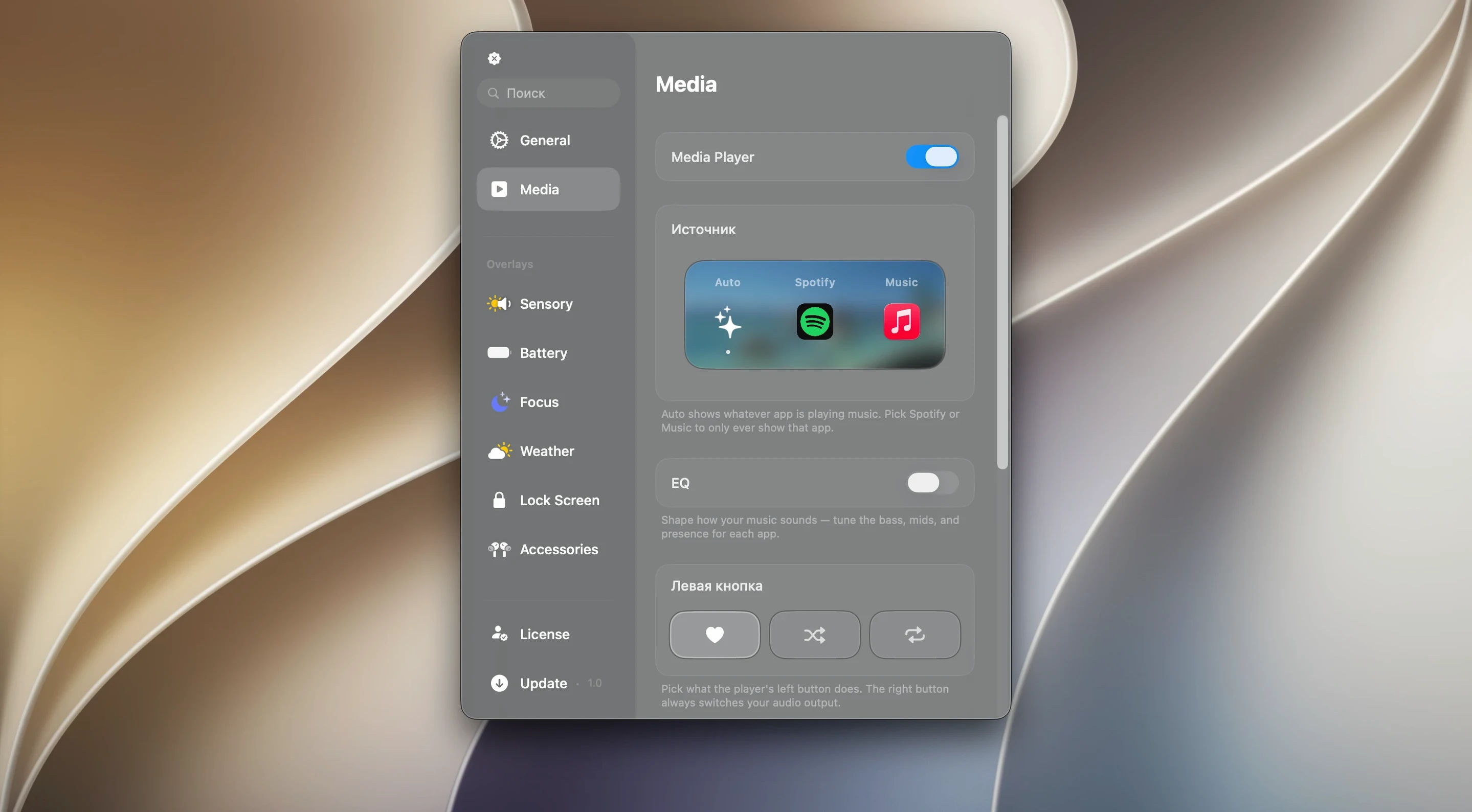
You can. If you disable notifications and live activities in preferences, the panel still shows now-playing information and lets you control playback. It functions as a compact media remote that stays in the menu bar area.
Does it work with Spotify, Apple Music and other players?
It reads from the system’s Now Playing metadata, so it works with any app that publishes that information: Apple Music, Spotify, VLC, browser-based players and others. The level of detail (track art, progress, shuffle/repeat state) depends on what the source app provides.
Is it always running?
It runs as a background app. You can quit it from the menu bar icon if you want to temporarily disable it. It does not add a login item by default, so you can choose whether it launches at startup.
Before it goes on the Mac
- macOS 26 or later
- Apple Silicon or Intel 64-bit processor
- Interface: English
Questions from the room
Does the app work on a Mac without a notch?
Yes. Canopy creates a floating widget at the top of the screen on machines without a notch, so the same functionality is available on any Mac.
Is Canopy free?
The brief does not include pricing information. The page only describes the software; no purchase or licence details are available here.
Does Canopy require macOS 26?
Yes, macOS 26 or later is required. It runs on both Apple Silicon and Intel 64-bit Macs.
Installing it on the Mac
- Open the downloaded disk image.
- Drag the app to the Applications folder.
- Once copying finishes, open the app from Launchpad.
Notes from the control room
Sign in or open a catalogue account to leave a note.
No notes from the room yet. If you have used this build for a week, a short note helps the next person.
Also filed under Utilities
The whole Utilities rack Camtasia2027.0.0 Utilities 421 MB Updated
 Camo Studio2.9.0 Utilities 100 MB
 BuhoCleaner1.17.0 Utilities 28 MB
 Carbon Copy Cloner7.1.6 Utilities 38 MB
 CleanMyMac5.7.0 Utilities 180 MB
 CleanShot X5.0.2 Utilities 46 MB Updated
 Bloom1.5.48 Utilities 19 MB Updated
 Cocktail Sequoia Edition18.7.1 Utilities 3 MB