
Bloom 1.5.48 (Mac)
Updated
The catalogue note
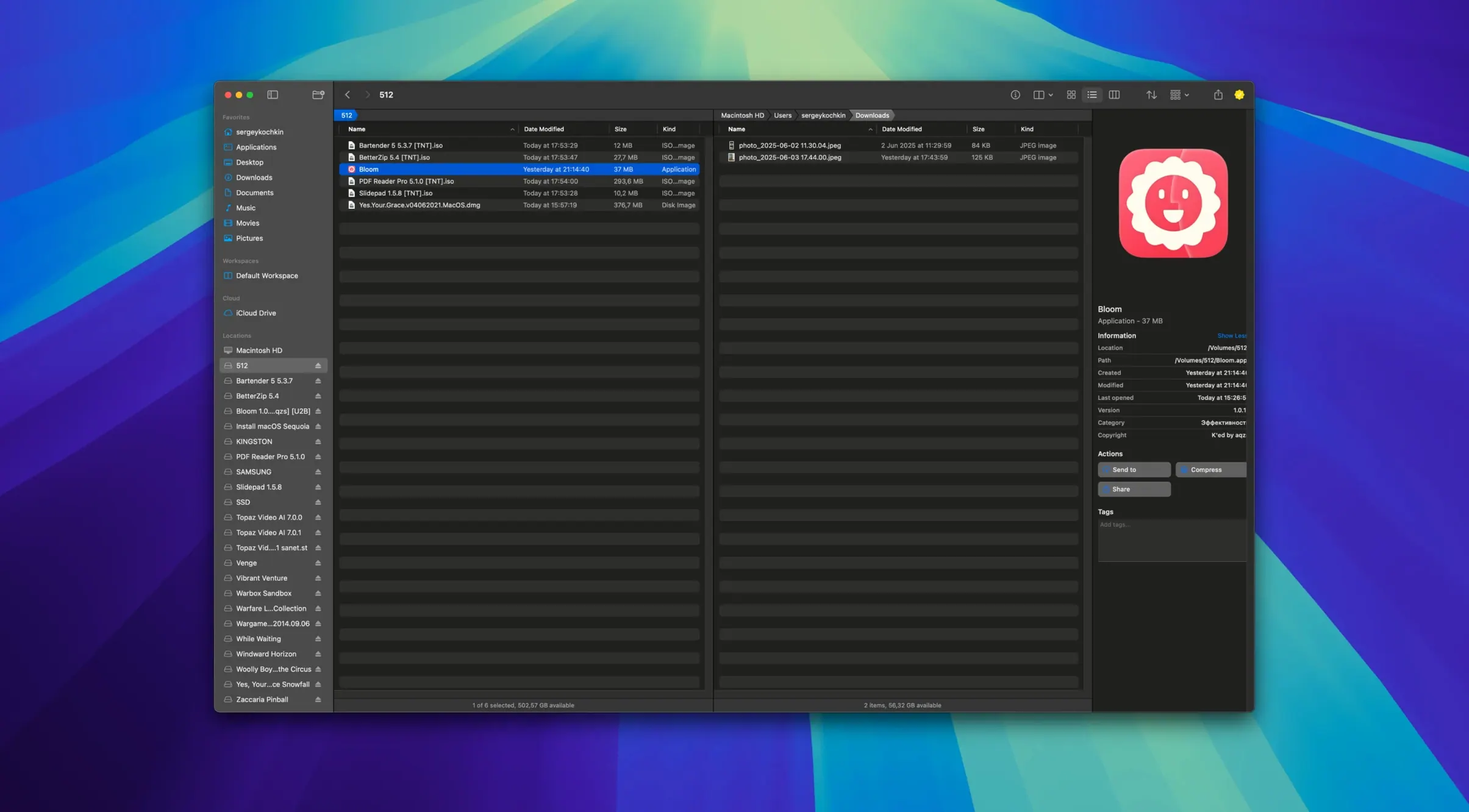
Bloom runs on any Mac with macOS 14 or later, on both Apple Silicon and Intel machines. It is a file manager built as a straight alternative to Finder, aimed at people who spend their day moving files and want more control over the process.
What Bloom does differently
The core idea is that every operation gets recorded, so you can undo mistakes instead of hunting for a backup. Column widths adjust themselves automatically, which saves time when you work with folders that contain long file names. Searching works from inside a folder with ⌘F, and ⌘R refreshes the results when new files land in the directory. There is also a Portal mode that gives you a compact window without the sidebar or preview pane, useful when you just need a quick file picker.
Folder scanning and file creation
Bloom can scan a folder and show disk usage as a treemap, which makes it easy to spot the directories eating your storage. It can insert images from the internet directly into documents, create different file types from templates, and it stays connected to iCloud Drive so your cloud files behave like local ones. For navigation, the folder-based tools cover the usual jump-to and reveal actions you would expect from a replacement file manager.
Portal window remembers its pinned position
Bloom 1.5.42 refines the workflow rather than adding new panels. The Portal window now remembers its pinned position across restarts, so you do not have to re-dock it after every reboot. The treemap view gained a small but useful detail: folder names render inside the coloured blocks now, not just on hover. The task scheduler received a stability pass — operations queued for later execution no longer drop off the list if the Mac goes to sleep before they run.
The search filter in folder-wide searches (⌘F) now respects the file extension more strictly: a query for .psd will not return folders named psd_assets any more. Advanced renaming with regular expressions also handles multi-line file names correctly in this build.
Bloom opens to the last-used folder each morning
I open Bloom the same way every morning. The window shows the last-used folder, which in my case is the project root of the current mix session. The columns auto-resize, so I can see the full track names without dragging dividers.
First task: find the raw vocal takes that arrived overnight. I press ⌘F, type vox_take and hit return. The results appear within a moment — no waiting for Spotlight to re-index the folder. I select the three relevant files and copy them into the _edits subdirectory. Because Bloom logs every operation, I know I can undo that copy if I later realise I grabbed the wrong files.
Next, I need to check the size of the session folder. I right-click the parent directory and choose the treemap scan. The visual shows that the stems subfolder takes up almost half the space. I open it, delete the unused export versions, and the treemap updates immediately — no manual refresh required.
Later, a collaborator sends a link to a reference image hosted online. I use Bloom’s image-from-internet insertion to pull it into a text note I keep in the project folder. The file lands directly in the right directory, no saving-to-desktop detour.
Before closing, I set up a scheduled task: move all files older than two weeks from _temp to _archive. The task scheduler handles it overnight. I close Bloom, and the next morning the archive folder is populated.
Enable automatic column resizing to avoid manual stretching
After the first launch, I recommend opening the workspace customisation panel and enabling automatic column resizing if it is not already active. This alone removes the most common Finder annoyance — manually stretching columns to see file names.
The tag management section lets you create and assign tags that sync with Finder’s own colour labels. If you use tags extensively, setting up your colour scheme here saves time later. The undo log depth is adjustable; I keep it at the maximum because disk space is cheap and mistakes are not.
If you work with multiple monitors, enable Portal mode and set it to stay pinned above other windows. The compact window, stripped of sidebar and preview, becomes a floating file picker that never hides behind your main application. Docking it at the screen edge keeps it out of the way but instantly reachable.
How Bloom compares with similar Mac apps
Bloom sits in a space occupied by a few other Finder replacements, each with a different emphasis.
Versus ForkLift
ForkLift leans heavily into two-pane file transfers and network mounts. Bloom does not offer a dual-pane view, so if you frequently copy files between remote servers and local folders, ForkLift’s workflow is more direct. Bloom compensates with its Portal mode and the task scheduler, which are features ForkLift lacks. For local file management on a single machine, Bloom feels lighter and faster to navigate.
Versus Commander One
Commander One is closer to a classic Norton Commander layout — dual panels, keyboard-driven, with a heavy focus on archives and cloud connections. Bloom is more of a single-window utility with search and preview at its core. Commander One supports more archive formats out of the box, but Bloom’s archive preview without extraction is cleaner for quick inspections. Bloom also offers the treemap disk scanner, which Commander One does not include natively.
Versus QSpace
QSpace provides a multi-tab, multi-pane interface with extensive customisation of the toolbar and sidebars. Bloom is less customisable in its window layout but offers features QSpace does not: the Portal window, the undo history for all file operations, and the built-in task scheduler. For a user who wants a Finder replacement with undo and scheduled operations, Bloom is the more focused choice.
Each of these alternatives has its own strengths. Bloom’s identity is in the details — the recorded undo, the compact Portal, the treemap — that make daily file management a little more deliberate and a little less error-prone.
Changes in this build
Build 1.5.48 is available. The release notes haven't been detailed, so expect under-the-hood refinements rather than a feature drop.
Before it goes on the Mac
- macOS 14 (Sonoma) or later
- Apple Silicon or Intel 64-bit processor
Installing it on the Mac
- Mount the downloaded disk image.
- Drag the app onto the Applications folder shortcut.
- Once the copy finishes, open Bloom from Launchpad.
Notes from the control room
Sign in or open a catalogue account to leave a note.
No notes from the room yet. If you have used this build for a week, a short note helps the next person.