Home › Utilities › BetterDisplay Pro
BetterDisplay Pro 4.0.4 (Mac)
Updated
The catalogue note
Sound engineers, video editors, and anyone who spends hours staring at a Mac display will find BetterDisplay Pro a practical companion. It is a macOS display management app that takes over the fiddly bits of display control, from scaling to brightness to colour, and puts them in the menu bar.
Create an offscreen canvas for full-screen apps
Virtual displays let you create an offscreen canvas that macOS treats as a real monitor. That is useful when you want to run a full-screen app on a display that does not physically exist, or when you need a dedicated space for a software controller.
How does the brightness upscaling work?
On compatible Apple Silicon Macs, BetterDisplay Pro provides XDR/HDR brightness upscaling. In plain terms, it can push the panel beyond its default brightness range for HDR content, which matters when you are grading video or checking a mix against a bright reference.
Flexible HiDPI scaling, custom 3D LUTs, and DDC control
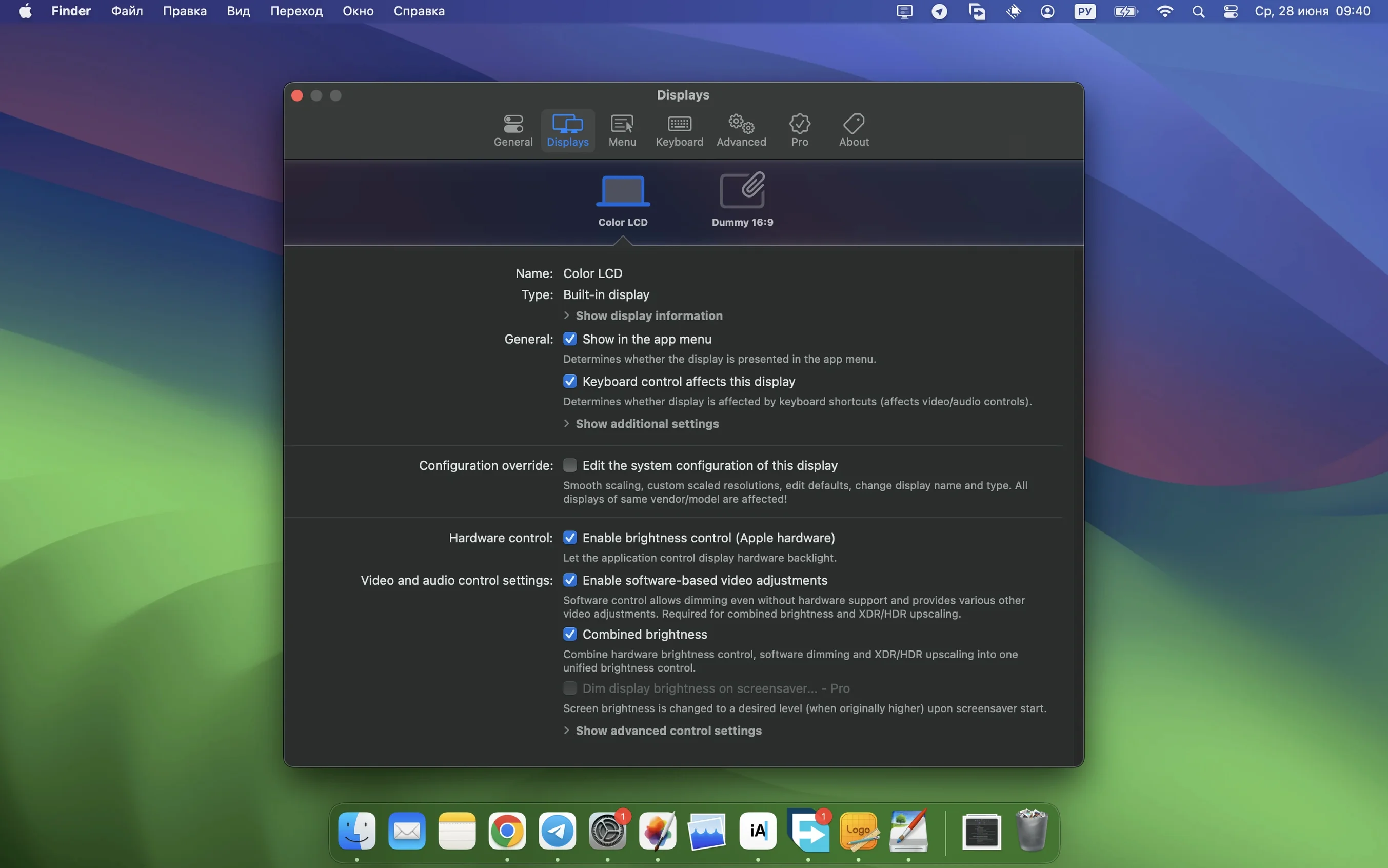
The app covers flexible HiDPI scaling, advanced image adjustments, custom 3D LUTs, full black dimming, picture-in-picture, display arrangement, DDC, and HDMI-CEC control. It also manages display configuration overrides, so you can keep specific settings tied to particular monitors or setups.
Menu-bar controls for instant display tweaks
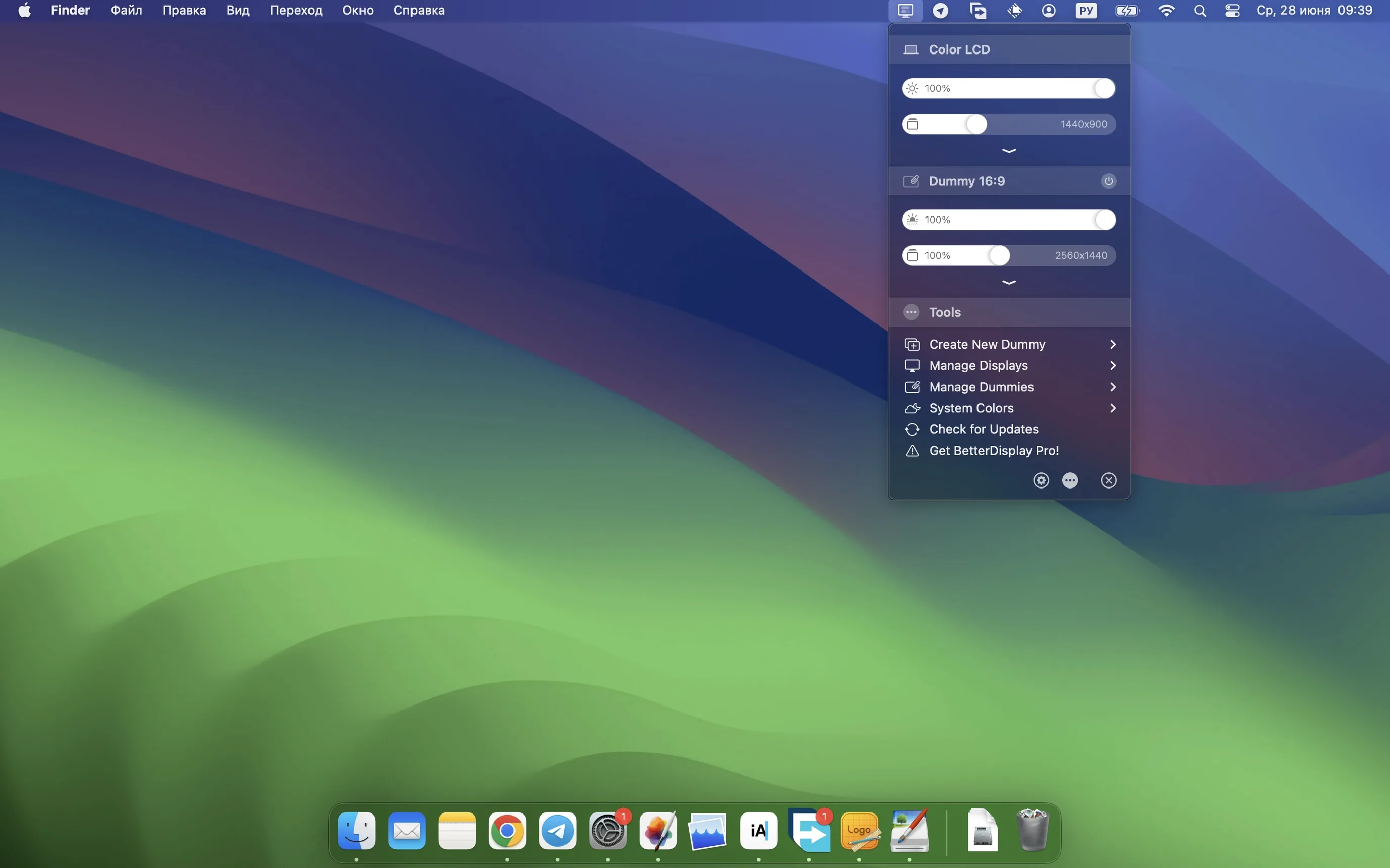
Most controls live in the menu bar, which means you do not need to dig through System Settings for every tweak. The app supports both ARM and 64-bit Intel Macs, and comes with a range of interface languages, including English, Polish, German, Japanese, and Simplified Chinese.
Enable menu bar icons before tweaking individual displays
Once you have BetterDisplay Pro running, a handful of settings will save you time before you start tweaking individual displays. Head to the app's preferences and look for these adjustments:
- Enable menu bar display icons – each connected display gets its own icon in the menu bar, so you can adjust brightness, contrast, or volume without opening the main window.
- Set your preferred brightness control method – the app can use DDC for external monitors or software-based control for built-in screens. Choosing the right method avoids conflicts with macOS's own brightness keys.
- Configure virtual display presets – if you plan to use virtual screens, define the resolution and refresh rate in advance. That way you can switch them on with a single click later.
- Enable automatic launch at login – the app starts in the background and restores your last display arrangement without manual intervention.
These take about two minutes to set and make the rest of the experience feel less like configuration and more like use.
Simplified DDC and HDMI-CEC setup in the latest release
The latest release, version 5.0.6, brought a few refinements that affect how you work day to day:
- Simplified device control configuration – the process of setting up DDC and HDMI-CEC controls for each monitor is less cluttered. The dialog now groups related options more clearly, so you spend less time hunting for the right slider.
- Faster multi-display DDC control – when you adjust brightness or volume on several monitors at once, the response is quicker. This matters in a studio where you change levels across multiple screens simultaneously.
- Stronger sharpening effects – the sharpening filter now has more range at the upper end. Useful if you are using a display that benefits from extra edge definition for text or fine details.
- Stream video filter automation – the app can apply video filters (such as sharpening or contrast) automatically based on the content source. This saves you from manually toggling settings when you switch between video playback and editing.
Saved overrides apply a calibrated profile as soon as I plug in
I start my day by plugging the Mac into the studio's reference monitor. BetterDisplay Pro detects it immediately and applies the saved override: a calibrated colour profile and fixed brightness level that matches the room's ambient light.
For the first task of the morning, I need to check a video mix on a separate canvas without occupying the main display. I open the app's menu bar dropdown, select a virtual display preset I set up earlier, and within a few seconds a new 1920-by-1080 screen appears in the display arrangement. I drag the video player onto it, full-screen, and the main monitor stays free for the DAW.
Later, during a colour grading session, I want to see how the footage looks with a slight lift in the shadows. I open the image adjustments panel from the menu bar and apply a custom 3D LUT that I loaded last week. The change is instant, no reboot, no restarting the app.
At the end of the session, I dim the reference monitor to its lowest level using the brightness slider in the menu bar. The full black dimming option kicks in, and the panel goes dark enough that it does not disturb the room when I am just listening back on headphones. The whole session involves maybe three clicks and two slider moves.
Brightness controls not responding? Check DDC is enabled
No app is free of quirks. Here are a few things that trip up new users, along with straightforward fixes:
- Brightness controls do not respond on an external display – check that DDC is enabled in the display's settings within BetterDisplay Pro. Some monitors require DDC/CI to be turned on in the monitor's own OSD menu first. Also confirm that the cable (USB-C, DisplayPort, or HDMI) supports DDC.
- Virtual display does not appear in the display arrangement – ensure you have created the virtual display preset before trying to activate it. The preset must include a valid resolution and refresh rate. If it still does not show, try restarting the app with the preset active.
- XDR/HDR brightness upscaling seems unavailable – this feature requires an Apple Silicon Mac. If you are on an Intel machine, the option will not appear. On supported hardware, check that the display is recognised as an HDR-capable panel in the app's display info section.
- Menu bar icons disappear after sleep – the app should recover them automatically, but if they stay missing, a quick toggle of the menu bar icon setting in preferences restores them without a full restart.
- Custom 3D LUTs do not apply correctly – verify the LUT file format is one that BetterDisplay Pro supports (typically .cube or .3dl). Also confirm the LUT's colour space matches the display's current profile.
Most of these are one-time fixes. After the initial setup, the app tends to stay out of your way.
Changes in this build
- Simplified device control configuration.
- Faster multi-display DDC control.
- Stronger sharpening effects.
- Stream video filter automation.
Before it goes on the Mac
- macOS 26
- Architecture: both (ARM and 64-bit Intel)
- Activation not required
Questions from the room
Does BetterDisplay Pro support Intel Macs?
Yes, BetterDisplay Pro supports both ARM and 64-bit Intel Macs, so it works on a wide range of hardware.
What does the XDR/HDR brightness upscaling do?
It raises the display brightness beyond the default range on compatible Apple Silicon Macs, which is useful for HDR content and colour-critical work.
Can I control multiple monitors with BetterDisplay Pro?
Yes, the app supports DDC control for multi-display setups, and version 5.0.6 made that control faster.
Installing it on the Mac
- Open the downloaded disk image.
- Drag the app into the Applications folder alias.
- Once copying finishes, open the app from Launchpad.
Notes from the control room
Sign in or open a catalogue account to leave a note.
No notes from the room yet. If you have used this build for a week, a short note helps the next person.