Home › Utilities › BetterTouchTool
BetterTouchTool 6.726 (Mac)
Updated
The catalogue note
BetterTouchTool 6.726 builds on trackpad, mouse, keyboard, Siri Remote, Apple Remote, and Touch Bar input, and it runs on both Apple Silicon and Intel Macs. For a newcomer, the first session is about picking one input device and seeing how far a single gesture can go.
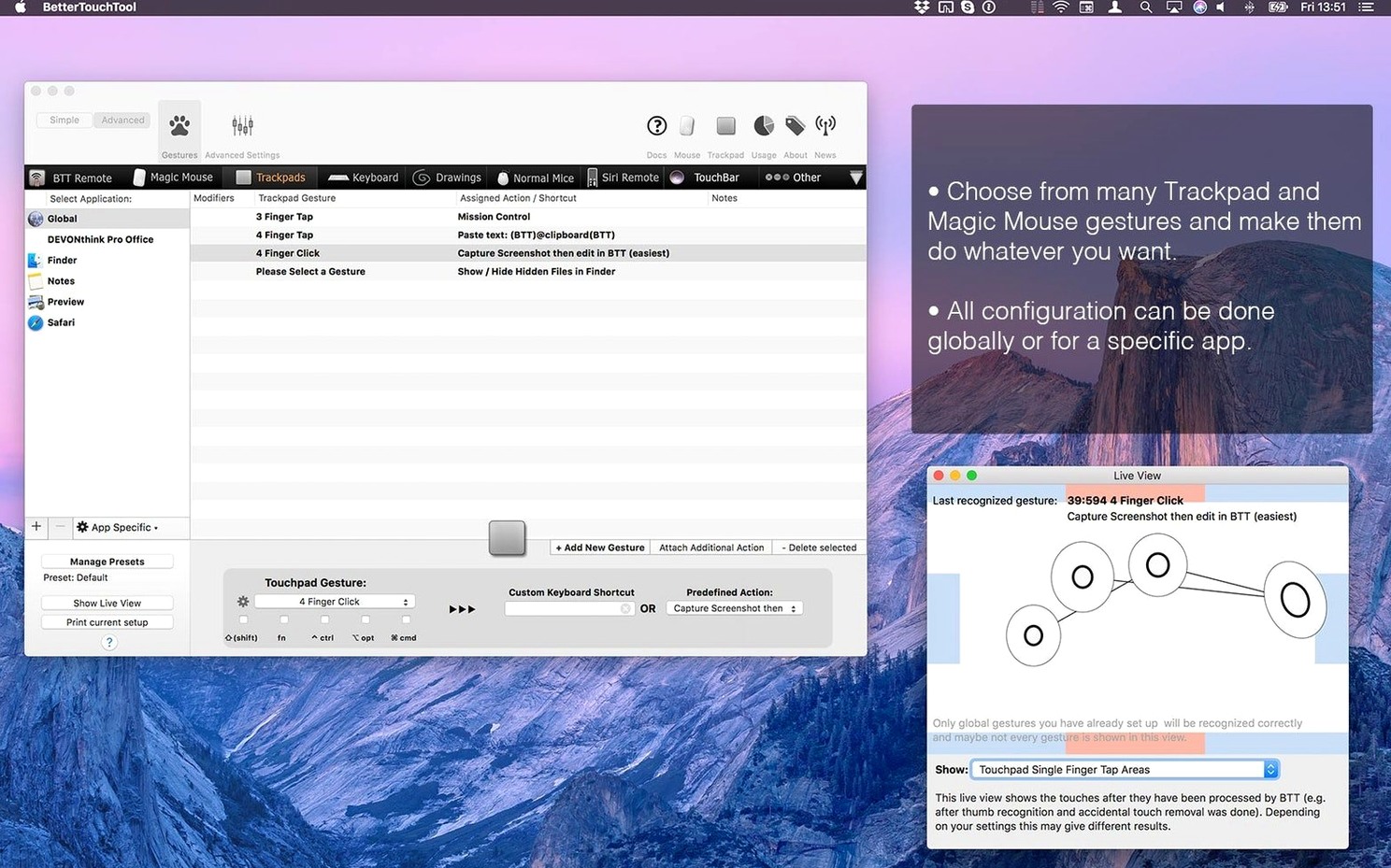
Assign app-specific shortcuts per application
- Assigning app-specific shortcuts so the same gesture means something different in Logic Pro than in Safari.
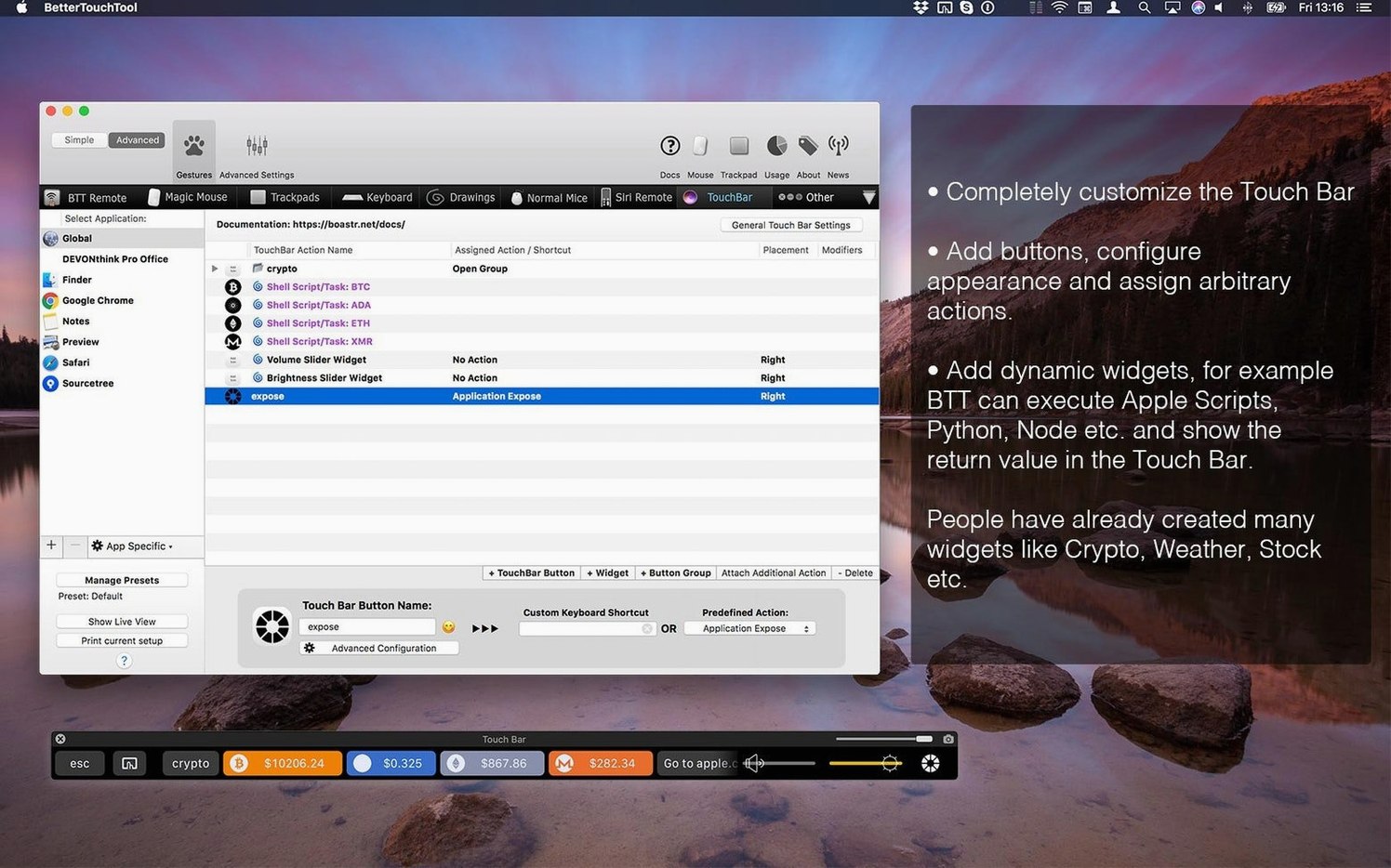
- Creating custom Touch Bar widgets, including ones driven by AppleScript, custom URL schemes, or HTTP requests.
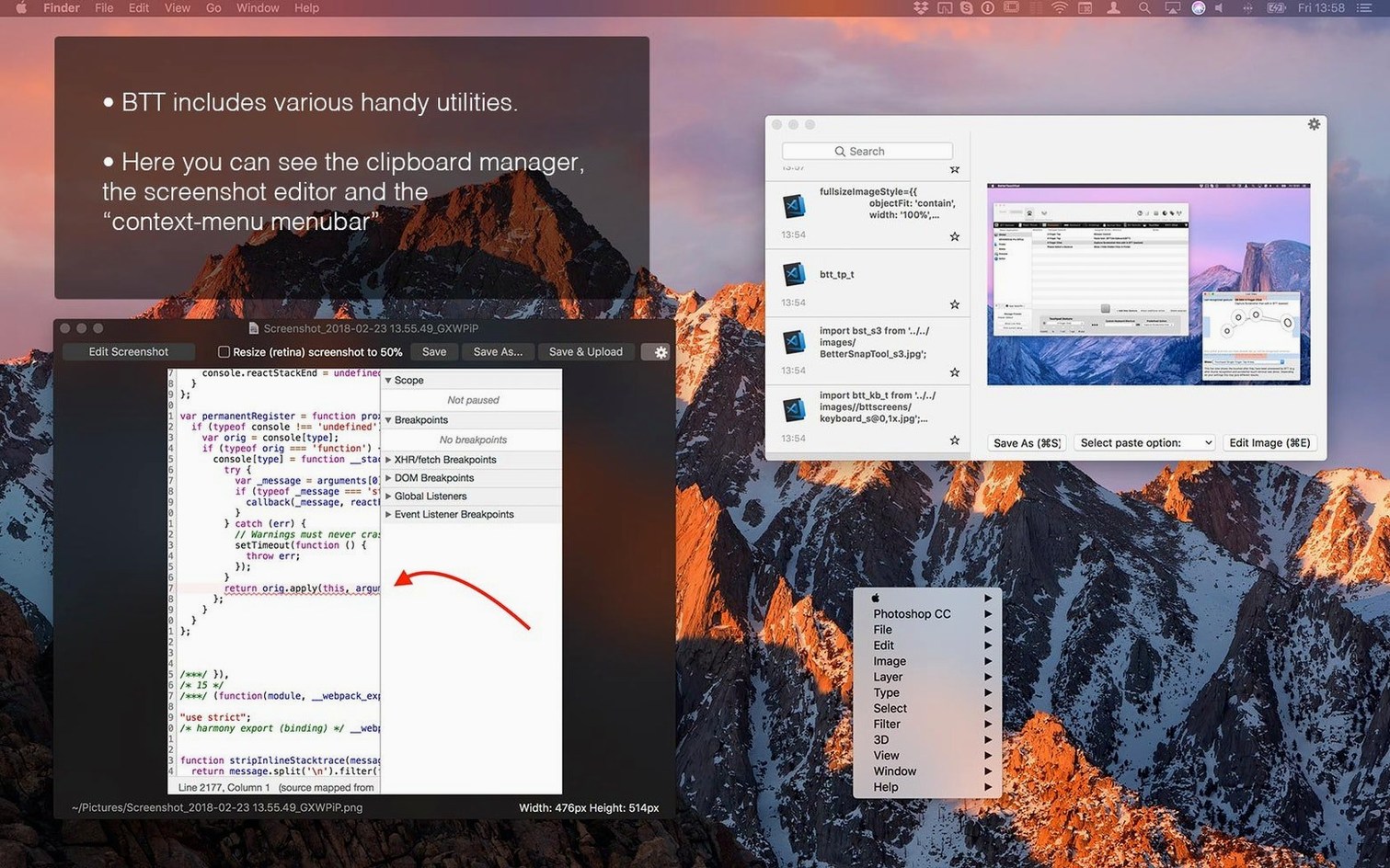
- Using the built-in clipboard manager to keep multiple copied items a key-press away.
Scope rules to avoid system-wide side effects
- It is a system-wide utility, so rules fire everywhere unless you scope them to a specific application.
- The developer describes it as his main automation and input customisation tool, which means the settings list is long; start small.
- Interface language is English only.
Clipboard manager saves multiple copied items
BetterTouchTool has a few features tucked away that don't get much attention but save time once you know they exist. The built-in clipboard manager is one: it stores multiple copied items and lets you recall them with a gesture or shortcut, which is useful when moving text between a few apps without losing the earlier snippet. The screenshot tool with on-the-fly image editing is another — it captures the screen and lets you annotate, crop, or draw before saving, all without opening a separate app. For anyone who regularly sends annotated screenshots to colleagues or clients, this cuts out a step.
Another detail: you can target specific applications with individual shortcut rules. That means the same three-finger swipe can trigger one action in Logic Pro and a different action in Firefox. The app also supports creating custom gestures, movements, and drawings for actions — so you can assign a mouse gesture that draws a 'C' shape to open Calendar, for example. These aren't the headline features, but they make daily use feel less generic.
Start a session by selecting an input device
I start a session by opening BetterTouchTool from the menu bar icon. The main window shows a list of input devices on the left — trackpad, keyboard, mouse, Touch Bar. I pick the trackpad first because that is what I use most on a MacBook. I add a new gesture: three-finger swipe up. I assign it to show Mission Control, which macOS already does, but I also add a second action that runs an AppleScript to switch to my main audio project folder in Finder. That combination is not possible with system defaults alone.
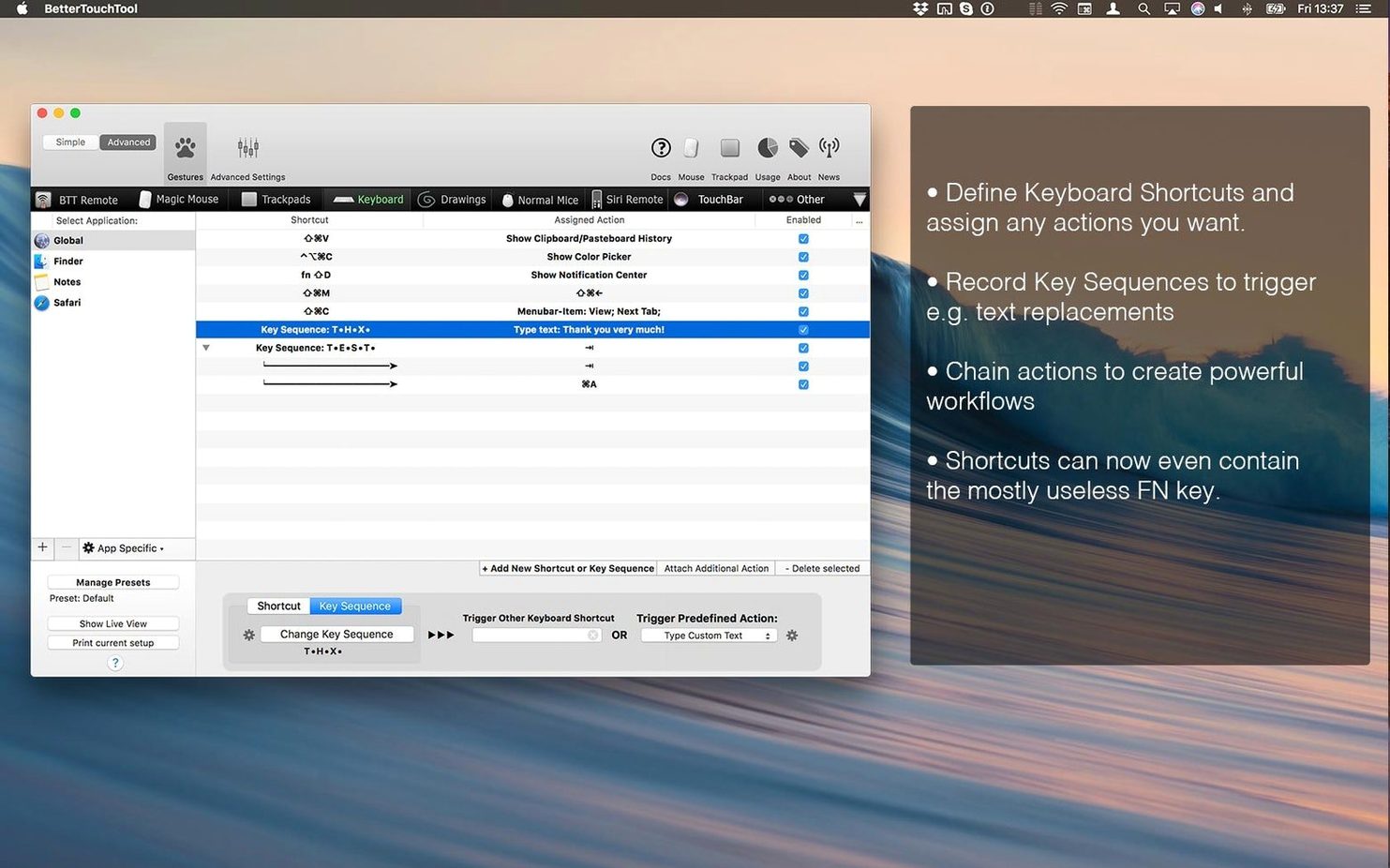
Next, I switch to the keyboard section. I add a shortcut for a common task in my DAW: I map Command+Shift+N to create a new track. Because BetterTouchTool lets me scope this to the DAW only, the same shortcut does nothing in other apps. I test it immediately — it works.
Later in the session, I open the Touch Bar section. The default Touch Bar is not very useful for my work, so I replace the Siri button with a custom widget that shows the current time and a button to toggle the clipboard manager. I set the widget to refresh every second via a simple script. The clipboard manager pops up when I tap it, showing the last ten copied items. I paste an old email address from it without opening anything else.
Towards the end of the session, I check the Magic Mouse section. I rarely use a mouse, but when I do, I want the same gestures I have on the trackpad. I replicate a few: single-finger tap left, two-finger tap right, two-finger swipe to switch spaces. The setup takes about five minutes, and after that the mouse behaves the same way as the trackpad for the gestures I care about.
Stable input handling with ongoing macOS support
Version 6.726 is the current release. From the developer's notes, this version continues to extend macOS input handling for shortcuts, gestures, and Touch Bar actions. In practice, that means the existing features remain stable and the app keeps working on newer macOS versions without breaking existing rules. There is no dramatic redesign — the app looks and behaves the same as in recent releases — but the underlying compatibility with macOS 10.15 and later, including the latest Apple Silicon builds, is maintained. For someone who already has a set of rules, upgrading means those rules continue to work without needing to redo them. For a new user, the version number matters less than the fact that the app is actively maintained and tested on both ARM and Intel architectures.
Create a mouse gesture for 'toggle mute on selected track'
This workflow assumes you have a DAW that does not support custom gestures natively — for example, assigning a mouse gesture to a command like 'toggle mute on selected track'.
- Open BetterTouchTool from the menu bar. In the left panel, select 'Mouse'. If you use a Magic Mouse, select 'Magic Mouse' instead.
- Click 'Add New Gesture'. From the list, choose 'Draw Custom Gesture'. You can now draw a shape on the trackpad or mouse surface. I draw a simple downward arrow.
- Name the gesture 'Mute Toggle'. In the 'Assigned Action' section, choose 'Send Keyboard Shortcut'. Enter the key combination that your DAW uses for mute toggle — typically 'M' or 'Command+M'.
- At the top of the window, set the scope to 'Only in Application'. Browse to your DAW's application file. This prevents the gesture from firing in other apps.
- Test the gesture in the DAW: draw the downward arrow on the mouse or trackpad. The track should mute or unmute. If not, check the shortcut assignment in your DAW and make sure the key combination is available.
- Optionally, add a second action: choose 'Run AppleScript' and paste a script that also changes the track colour to red when muted. The app supports multiple actions per gesture, so you can chain them.
The same workflow works for any input device: trackpad, Magic Mouse, normal mouse, Siri Remote, or Apple Remote. The key is to scope the rule to the specific application so your other software is not affected.
Requires macOS 10.15 or later on Apple Silicon or Intel
BetterTouchTool 6.726 requires macOS 10.15 or later and runs on both Apple Silicon (ARM) and Intel (x86 64-bit) Macs. The app is provided in English only. The installation process is straightforward: the package includes activation instructions, and after that the app appears as a menu bar icon. It does not replace any system services — it extends them, so your existing keyboard shortcuts and gestures remain functional unless you choose to override them.
Because the app is system-wide, it runs in the background and responds to input from trackpad, mouse, keyboard, Siri Remote, Apple Remote, and Touch Bar. There is no noticeable delay in gesture recognition on modern Macs, but the exact performance depends on your hardware and how many rules you have defined.
Changes in this build
- Version 6.726 is the current release in the supplied source.
Before it goes on the Mac
- macOS 10.15 or later
- Apple Silicon or Intel
- Interface language: English
Questions from the room
Which input devices does BetterTouchTool support?
It builds on trackpad, mouse, keyboard, Siri Remote, Apple Remote, and Touch Bar input, so most of your hardware is covered out of the box.
Can I make the same gesture do different things in different apps?
Yes. The app can target specific applications with individual shortcut rules, so a gesture can act differently per app.
Does BetterTouchTool work on Apple Silicon Macs?
Yes, the app supports both ARM and x86 64-bit Macs, and requires macOS 10.15 or later.
Installing it on the Mac
- Install the app and follow the activation instructions included inside the package.
Notes from the control room
Sign in or open a catalogue account to leave a note.
No notes from the room yet. If you have used this build for a week, a short note helps the next person.