Home › Utilities › BuhoCleaner

BuhoCleaner 1.17.0 (Mac)
Updated
The catalogue note
BuhoCleaner 1.17.0 is a utility that goes past the usual one-click junk sweep. For a studio Mac that runs sessions for hours, the parts that matter are the ones you can point at specific problems.
- Live statistics in the menu bar — CPU load, temperature and fan speed without opening the main window.
- Leftover removal for uninstalled apps — catches the preference panes and support files that stay behind after you drag an app to the bin.
- System cache clearing — targets the system-level caches that accumulate with daily use.
- Browser cache removal — clears the junk that builds up in Safari, Chrome and the rest without nuking your saved logins.
The developer states it runs on M1 through M5 Macs and Intel machines, so it fits the current Apple Silicon transition and older Intel rigs alike. The deeper tools are where this earns its place in a maintenance routine.
Avoid cleaning tools while your DAW is open
One of the first things a studio colleague asked me was whether BuhoCleaner interferes with running audio software. The short answer is that it doesn't, provided you don't run the cleaning tools while your DAW is open. The app works on the file system — deleting caches, removing leftovers, trimming browser data — so it's best used when your session is closed and you're between projects. The live monitoring in the menu bar, on the other hand, can stay on during a session without issue; it's read-only.
Another common question is about safety: can it remove something important by mistake? The cache and junk removal targets files that macOS itself considers safe to delete. Application uninstalling works by scanning for known app bundles and their associated support files, so it won't touch system components. That said, I still recommend scanning the list before hitting the clean button — a habit from years of not trusting automatic cleaners.
People also ask whether the app needs to run constantly. It doesn't. You open it, run a scan, clean what you want, and close it. The menu bar monitor is optional and can be disabled if you prefer a clean menu bar. There's no background agent eating CPU cycles when you're not using it.
Reclaim 20 GB before a project without touching plugins
Say you have a project coming up and your boot drive is showing less than 20 GB free. You want to reclaim space without touching anything that might affect your plugins or audio files. Here's the workflow I'd follow.
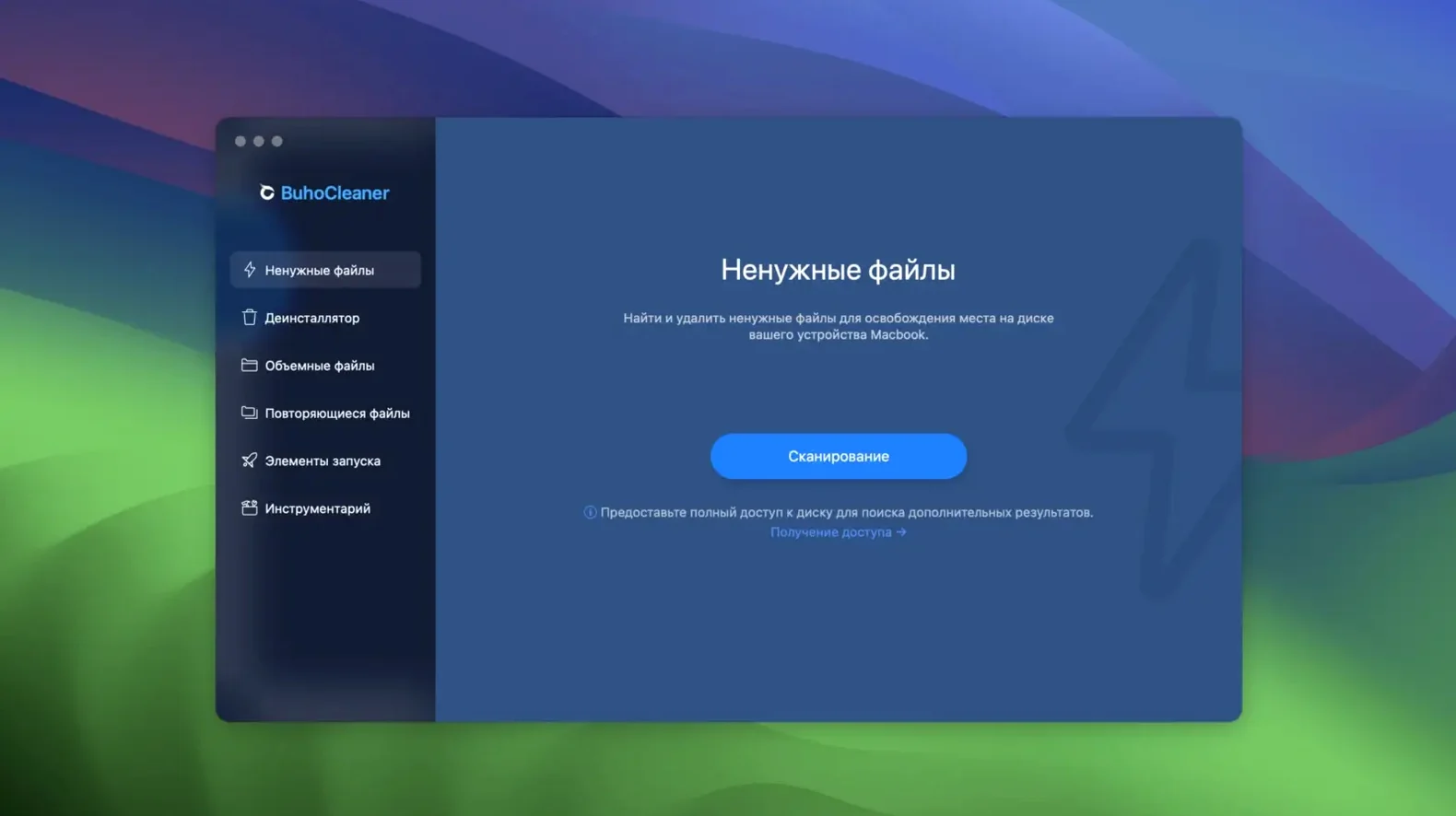
First, open BuhoCleaner and go to the System Junk section. Let it scan. The results will show system caches, user caches, and temporary files. Deselect any categories you're unsure about — I usually leave user caches selected but skip the system cache if I'm in a hurry and can't verify what's in it. Then run the clean.
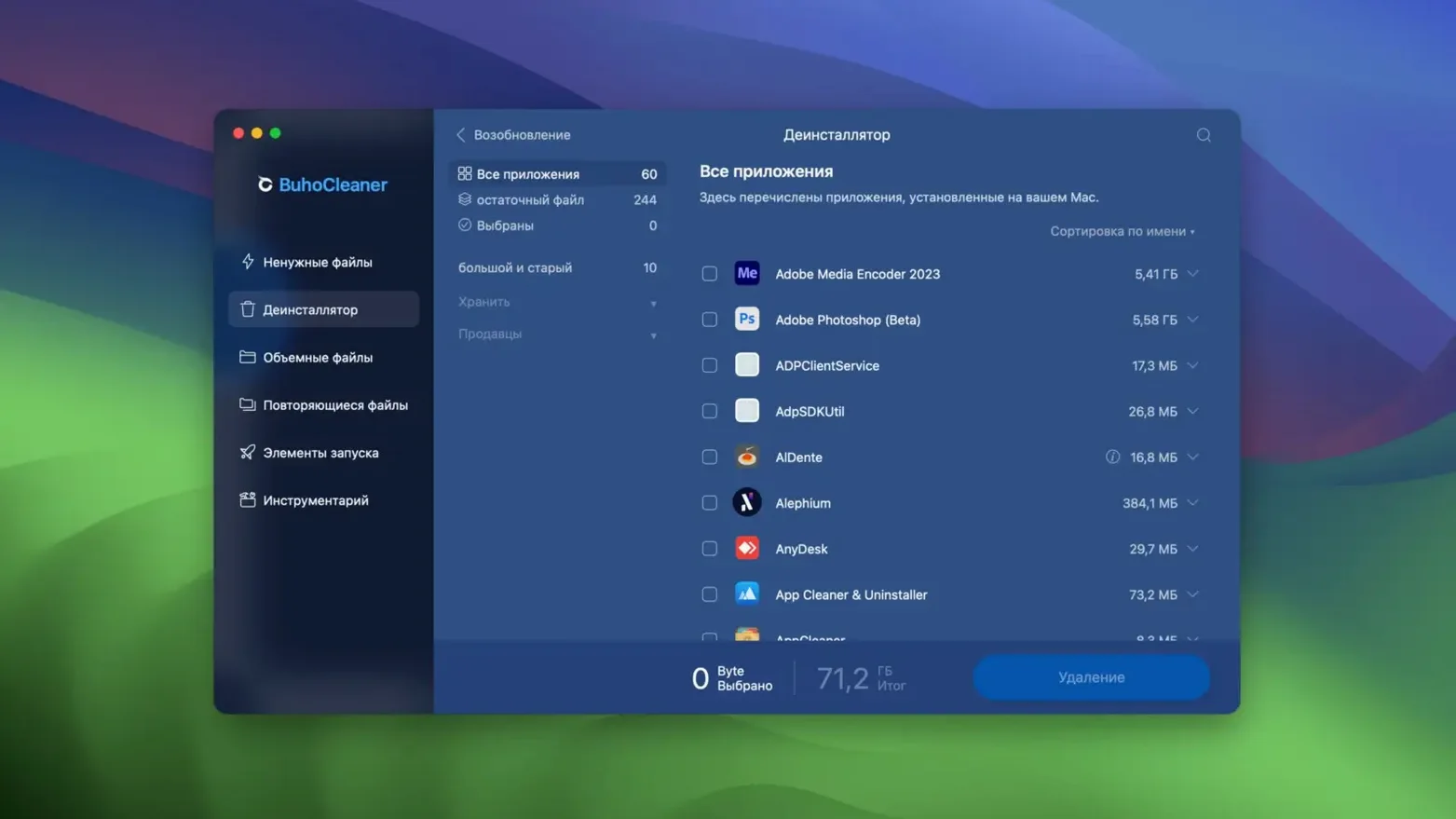
Next, switch to Uninstaller. Look through the list of installed applications. The app will also find leftover files from apps you already deleted — that's the Leftover Removal section. I've recovered several gigabytes this way from abandoned plugin support folders.
Finally, check Browser Cache if you use Safari or Chrome for research during sessions. Clearing this can free a few hundred megabytes without affecting bookmarks or saved passwords. That's it — you're done in under ten minutes.
Launch fast and check system status before Monday's mix
I know there's a mix session coming on Monday, so I need to tidy up. I launch BuhoCleaner from the Applications folder — it opens fast, no splash screen or login prompt.
The main window shows a system status panel with disk usage, memory pressure, and a quick scan button. I click the scan button and let it run. I uncheck the system cache category — I'd rather review that manually later — and run the clean on the rest.
While that finishes, I switch to the Uninstaller tab. I spot a couple of old audio plugin demos and a screen recorder I haven't touched in a year. I select them and click uninstall. BuhoCleaner shows what else will be removed: preferences, support folders, component files. I confirm, and they're gone in a few seconds. A quick check of the Large Files tool reveals a 6 GB download folder I'd forgotten about — I move that to an external drive instead of deleting it.
Before closing, I enable the menu bar monitor. Now I can glance at CPU temperature and fan speed during Monday's mix without opening the app again. The whole session took maybe fifteen minutes, and I freed up over 8 GB. That's enough headroom to keep the system responsive through a long day of plug‑ins and automation.
Changes in this build
- Current build labelled 1.17.0
- Latest version built on 2026-09-18
Before it goes on the Mac
- macOS OS X 10.10 or later
- Intel and Apple Silicon (M1–M5)
- Activation not required
- Interface in 12 languages including English, German, French, Japanese and Chinese
Questions from the room
Does BuhoCleaner work on Apple Silicon Macs?
Yes, the official site states it runs on M1 through M5 Macs as well as Intel Macs.
What does BuhoCleaner Menu show?
It shows live Mac statistics, including CPU load, temperature and fan speed, straight from the menu bar.
Can BuhoCleaner remove files from apps I already deleted?
Yes, it removes leftover files from uninstalled applications.
Installing it on the Mac
- Mount the downloaded disk image.
- Drag the app to the Applications folder alias.
- Once copying finishes, open the app from Launchpad.
- If errors appear, follow the included instructions.
Notes from the control room
Sign in or open a catalogue account to leave a note.
No notes from the room yet. If you have used this build for a week, a short note helps the next person.