BetterZip 6.1 (Mac)
Updated
The catalogue note
Anyone who regularly handles compressed archives on macOS — whether extracting downloads, packaging files for clients, or maintaining a personal backup collection — is the person BetterZip aims to serve. It is not a command-line tool disguised as a GUI. It is a native Mac application that treats archives less like sealed containers and more like folders you can open, inspect, and modify.
Save time by editing archives without recompressing
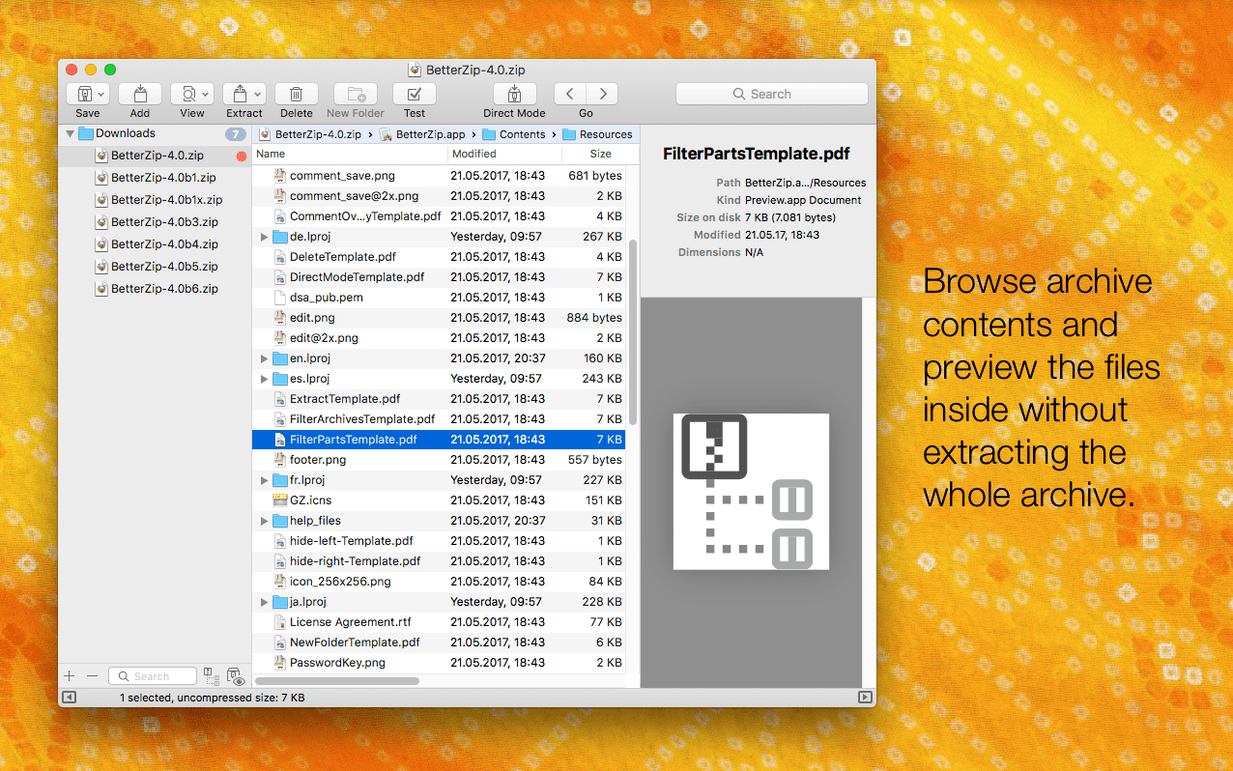
BetterZip supports the common formats — ZIP, RAR, 7z, TAR, GZip, and even ISO disk images. The practical difference is that you can remove or add files directly inside an archive without recompressing the whole thing. That saves time when you need to delete a stray file from a large ZIP you just received. AES-256 encryption is available for protected archives, and you can attach comments to both ZIP and RAR files. Quick Look previews work from within the archive browser, so you can check a document’s content before extracting it.
Power users get language options and metadata stripping
Power users who prefer a visual approach will appreciate the ability to set a non-system language (new in 6.0.6) and the option to strip macOS metadata during extraction — useful if you are preparing files for Windows or Linux recipients. The current release also updates the 7z helper with Apple Silicon assembler optimisations and fixes a rare crash involving external helpers. It runs on macOS 13.5 and later on both Intel and Apple Silicon machines.
Workaround for the first-launch gatekeeper block
A few things catch people out during the first weeks. Here are the ones I hear about most often.
The workaround is straightforward: right-click (or Control-click) the application in Finder and select Open from the contextual menu, then confirm the dialog that appears. You only need to do this once.
Extracted files include hidden macOS metadata. By default, macOS writes .DS_Store files and resource forks into archives. If you are sending files to someone on Windows or Linux, these extra items cause confusion. Open BetterZip's preferences and enable the new 6.0.6 option to avoid restoring macOS metadata during extraction. The archive remains intact, but the extracted copies stay clean.
Quick Look previews are not working for certain archive formats. BetterZip provides its own Quick Look generator, but it only activates for formats it registers. If you double-click a 7z file in Finder and see a generic icon, check that the BetterZip Finder extension is enabled in System Settings > Privacy & Security > Extensions > Finder Extensions. Restart Finder afterwards.
Archive contents appear empty or incomplete. This usually happens with multi-part RAR archives or damaged downloads. BetterZip shows an error message when it cannot read a segment. Re-download the missing part, place all segments in the same folder, and open the first .rar file. The tool reassembles them automatically.
Partially replaces macOS Archive Utility after format association
Can I replace the built-in Archive Utility with BetterZip? Partially. BetterZip does not intercept every archive double-click by default — macOS still routes basic ZIP and GZip files to its own utility. You can associate archive formats with BetterZip in the Get Info panel for a single file, or use a third-party tool to change default handlers system-wide. For day-to-day work, I keep both installed and use BetterZip when I need more control.
Does it handle encrypted RAR files created on Windows? Yes, as long as the archive uses a password-based encryption method that the unrar library supports. Version 6.0.6 updates that library, so compatibility with recent RAR5 archives is good. If you receive an archive that fails to open, check that the password contains no trailing spaces — a common copy-paste mistake.
Can I automate BetterZip with other apps? Yes, through AppleScript. You can write scripts to batch-extract archives dropped into a folder, or to create encrypted backups on a schedule. The dictionary is well-documented inside Script Editor.
Is there a way to preview files without extracting the whole archive? That is exactly what the internal browser does. Double-click an archive in BetterZip, browse the tree, and press Space to Quick Look any file. No extraction needed.
Unarchiver is free but can't modify or encrypt archives
The Unarchiver is free and handles a wide range of formats, but it is strictly an extractor. You cannot modify archives, add files, or encrypt them. It works well as a default opener for casual use, but anyone who needs to repack or edit archives will outgrow it quickly.
Keka offers compression and extraction with a clean interface, and it supports split archives and encryption. Its main limitation is that it does not let you browse or edit an archive's contents in place — you must extract everything, make changes, and recompress. BetterZip's in-place editing saves that round trip.
Terminal tools (zip, unzip, 7z, tar) give you full control and are free, but they lack Quick Look previews, a visual archive tree, and drag-and-drop convenience. If you already live in the command line, you probably do not need BetterZip. If you prefer a graphical workflow for occasional or repetitive tasks, the GUI saves time and reduces errors.
Set a non-system language and enable the Finder extension
- Set a different language early. If you work in a multilingual environment, go to BetterZip's preferences and pick a non-system language. The option is new in 6.0.6 and works immediately — no restart required.
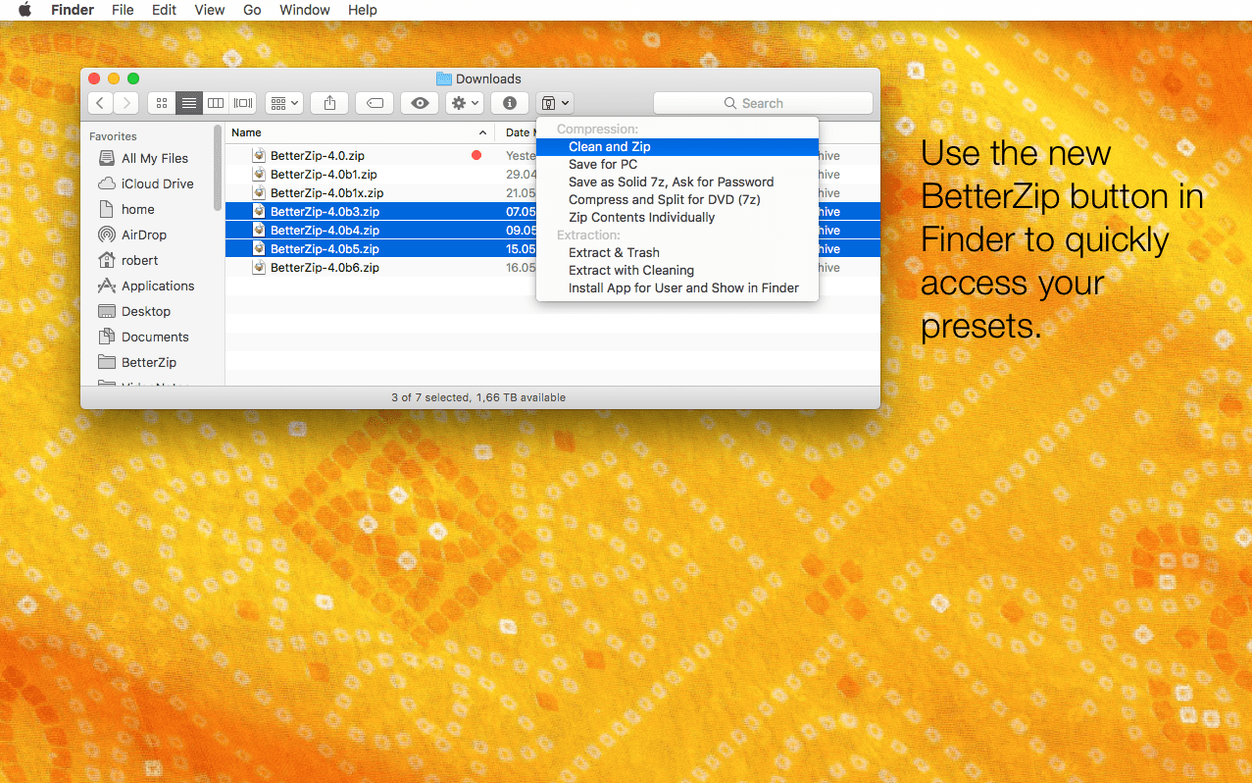
- Use the Finder extension for quick extraction. Right-click any archive in Finder, choose BetterZip from the Services or contextual menu, and select Extract Here. The archive unpacks into the same folder without opening the main window.
- Test in-place editing with a small ZIP. Create a test archive with a few text files, then delete one and rename another directly inside BetterZip. Confirm the result by extracting everything — no corruption, no repack delay.
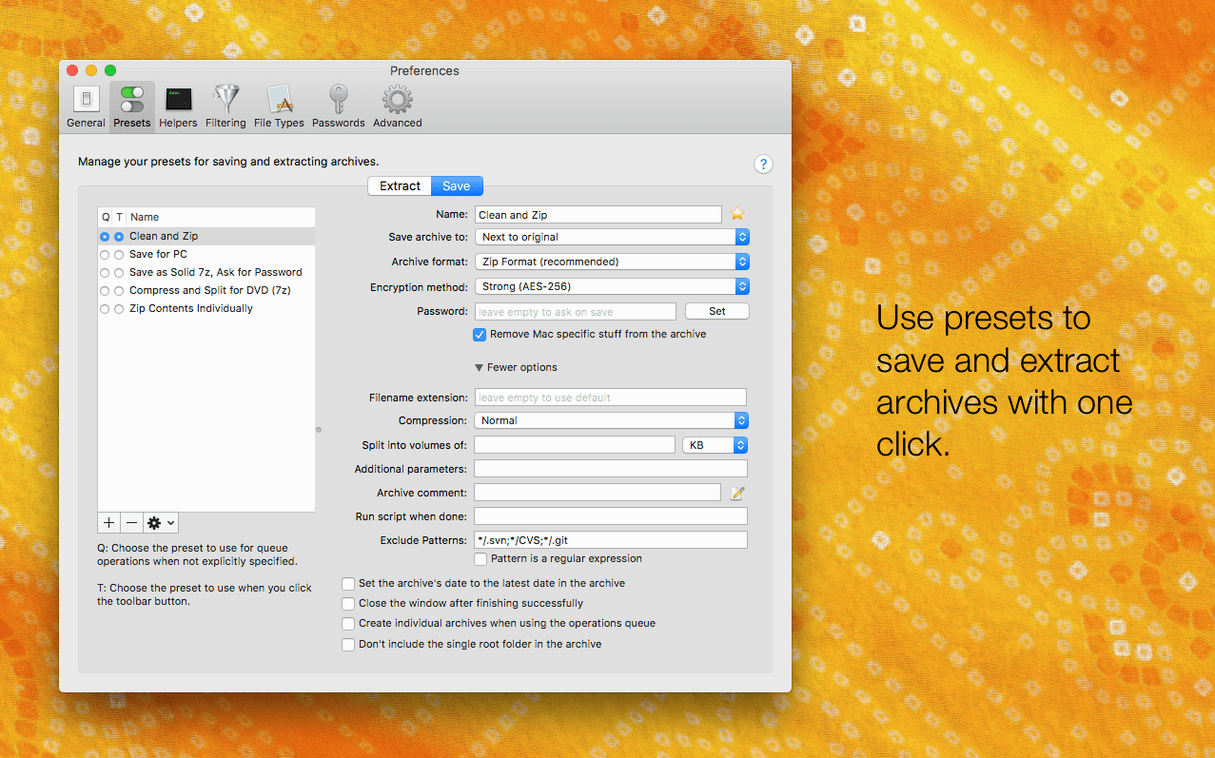
- Enable AES-256 encryption for sensitive archives. When creating a new archive, set the encryption method to AES-256 in the compression options. The password generator creates strong random strings, which you can copy and store in your password manager.
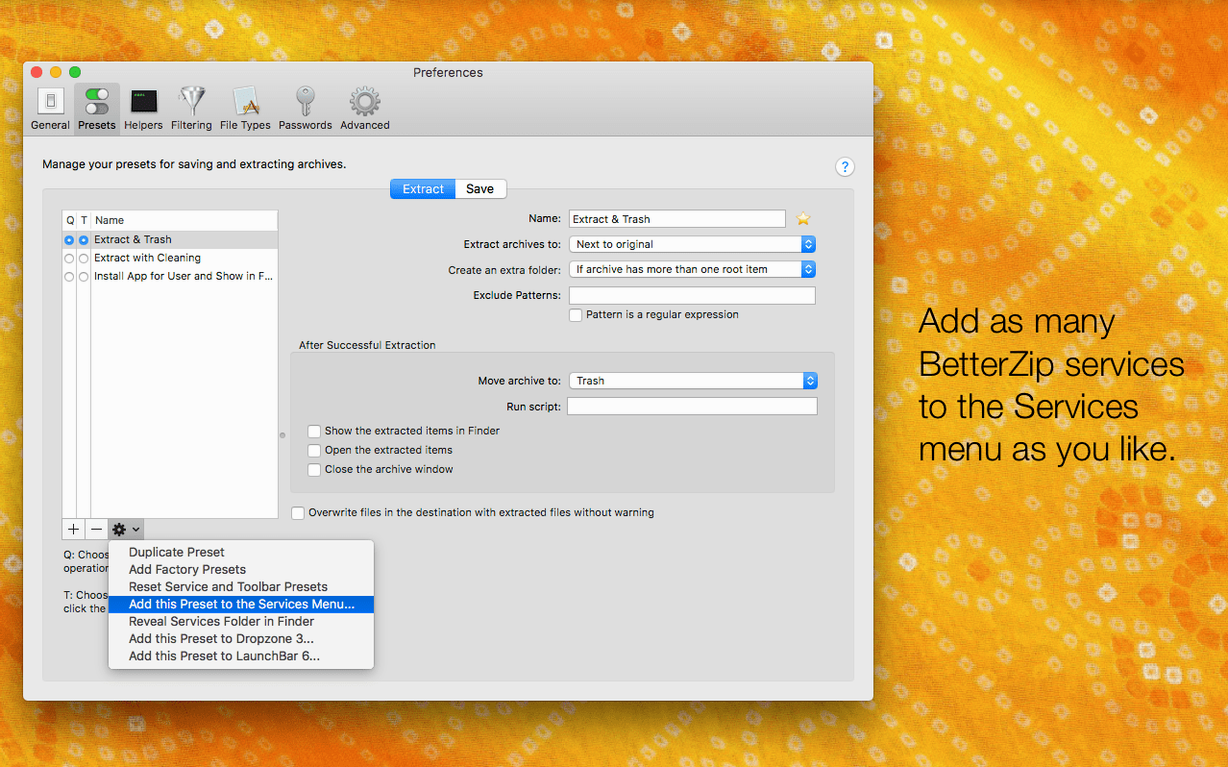
- Check the operations queue for batch work. If you need to compress or extract several archives in sequence, add them to the queue and let it run unattended. The queue respects your default compression settings, so set those up first.
Changes in this build
Release notes for version 6.1 are available on the developer's site. The update lands shortly after the 6.0 cycle and brings a fresh round of adjustments across the archiver.
Before it goes on the Mac
- macOS 13.5 or later
- Apple Silicon or Intel 64‑bit Mac
Questions from the room
Can BetterZip extract ISO disk images?
Yes, BetterZip can extract ISO disk images directly.
What encryption does BetterZip support?
BetterZip supports AES-256 encryption for archives.
Does BetterZip let you add comments to archives?
Yes, you can add comments to both ZIP and RAR archives in BetterZip.
Installing it on the Mac
A single 25 MB disk image covers both Apple Silicon and Intel 64‑bit Macs; macOS 13.5 is the floor. Four moves put it in Applications.
- Mount the disk image and launch the Open Gatekeeper friendly file.
- Press Enter in the Terminal window that appears to bypass Gatekeeper.
- Drag the BetterZip application into your Applications folder.
- Launch it from Applications — no further steps needed.
Notes from the control room
Sign in or open a catalogue account to leave a note.
No notes from the room yet. If you have used this build for a week, a short note helps the next person.