Downie 4.13.1 (Mac)
Updated
The catalogue note
Downie runs on any Mac with macOS 11 or later, and it is fully native on both Apple Silicon and Intel machines. For an experienced user, the surface-level convenience is obvious — paste a URL, get a file — but the deeper tools are what keep it in my dock.
- Audio-only extraction: skip the video track entirely and save just the soundtrack, useful for podcasts or samples.
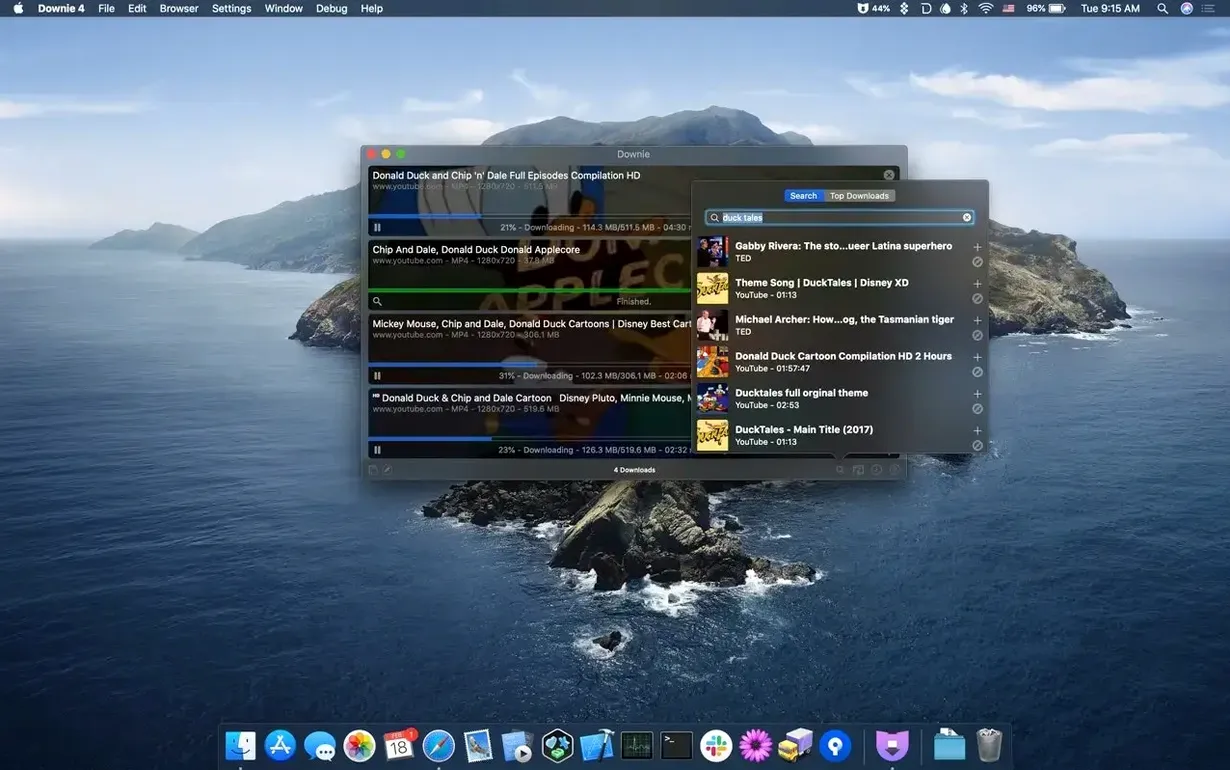
- In-app search: find video content without leaving Downie, then queue it straight away.
- Start-on-paste workflow: drag or paste a link and the download begins automatically, no extra clicks.
- Permute pairing: hand the finished files off to Permute for conversion or post-processing, which suits batch jobs.
- Broad site coverage: YouTube, Vimeo, Facebook, Instagram, plus more than 1,200 other websites.
- 32 interface languages: the app speaks your language, whatever that is.
It does one job and does it without fuss. The deeper features are the kind you discover after a week of use and then wonder how you worked without them.
How Downie compares with similar Mac apps
There are a handful of video downloaders on macOS, and they tend to fall into two camps: browser extensions that handle one or two sites, and standalone apps that cover a broader range. Downie sits firmly in the second group, and its closest competitors are probably 4K Video Downloader and Folx.
4K Video Downloader has a similar feature set — YouTube in 4K, audio extraction, playlist support — but its interface feels heavier. Where Downie lets you paste a URL and walk away, 4K Video Downloader opens a dialogue box asking for format and quality before it starts. That extra step matters when you queue a dozen clips. Folx, on the other hand, is primarily a download manager for general files, with video support added later. It can grab YouTube content, but its site list is narrower, and it lacks Downie's in-app search or its CSV/XML import for batch jobs.
What sets Downie apart is the pairing with Permute. No other downloader I know hands the finished file off to a separate converter with a single click. If you regularly re-encode or join video segments, that integration saves real time. The browser extension support is also more thorough than most competitors offer — not just a bookmarklet, but a proper extension that intercepts links on the page.
Import CSV or XML files for bulk downloads
The facts sheet lists a few features that sound minor until you actually use them. One is the ability to import CSV or XML files containing download URLs and custom titles. If you maintain a spreadsheet of videos to archive — maybe for a research project or a media library — you can dump that list into Downie and let it process overnight. The app reads the file, applies your titles, and downloads each item without further input.
Another detail: the in-app search. Most downloaders expect you to find the video elsewhere and bring the URL back. Downie lets you search within the app itself, which is useful when you remember the topic but not the exact link. The search results can be added to the queue directly.
The start-on-paste workflow, listed in the features, is more configurable than it first appears. You can set Downie to begin downloading as soon as a URL hits the clipboard, or you can have it wait in a queue. That choice lives in the preferences and affects how the app behaves during heavy copying sessions — paste ten links in quick succession and it handles them sequentially, not all at once.
Finally, the 32-language support is not just a checkbox. The interface adapts fully, including right-to-left languages like Arabic and Hebrew. For a team with multilingual members, or for users who prefer their tools in their own language, that level of localisation is rare in a niche utility.
A workflow for archiving a YouTube playlist
Here is a concrete task: you have a YouTube playlist of 40 tutorial videos, and you want them on your Mac as MP4 files, with sensible filenames, and you also need the audio from three of them.
Open Downie and paste the playlist URL. The app detects the playlist structure and lists each video. You can select all 40 and add them to the queue. In the preferences, set the output format to MP4 — Downie handles the conversion automatically, so you get a standard file without a separate step.
For the three videos where you only need the audio, right-click each entry in the queue and choose audio-only extraction. The app downloads the video track and discards it, saving only the soundtrack. You can set the audio format to MP3 or another codec in the same preferences panel.
If you want custom filenames — say, "Tutorial_01.mp4" instead of the default YouTube title — you can edit them before the download starts. For larger batches, prepare a CSV file with the URLs and your chosen titles, then import it via the file menu. Downie processes the list and applies your naming.
Once the downloads finish, you can drag the completed files to the Permute window if you need further conversion, or simply leave them in your Downloads folder. The whole process runs without intervention after the initial setup.
Requires macOS 11 and runs on Apple Silicon or Intel
Downie requires macOS 11 or later, and it runs natively on both Apple Silicon and Intel 64-bit machines. The current version is 4.13.1. The installer comes as a disk image — you mount it, drag the app to your Applications folder, and open it from Launchpad. There is no separate installer wizard or dependency package to manage.
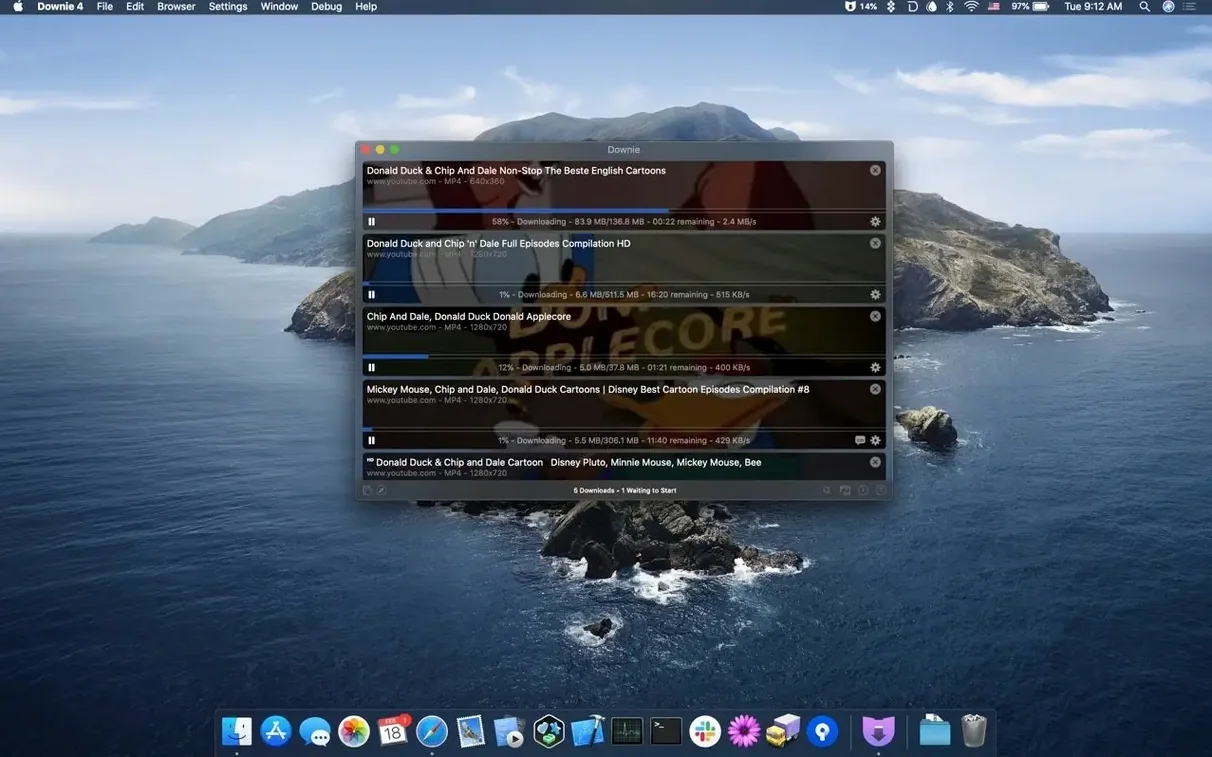
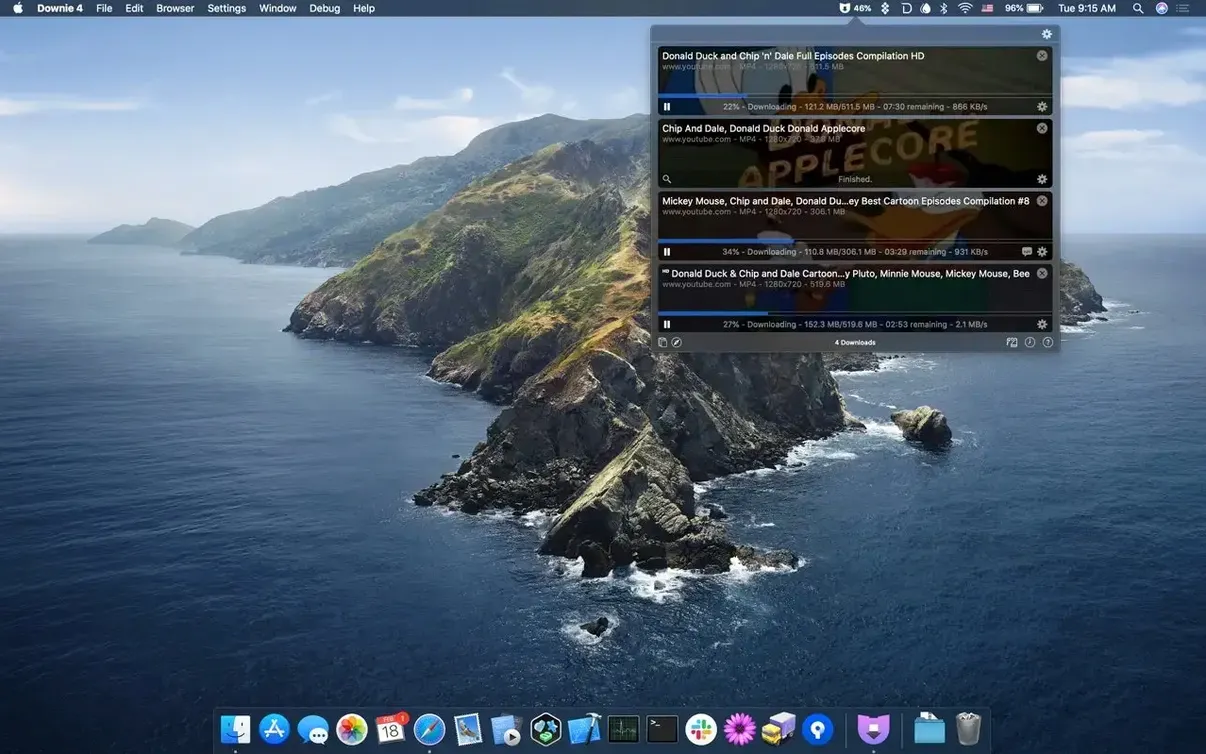
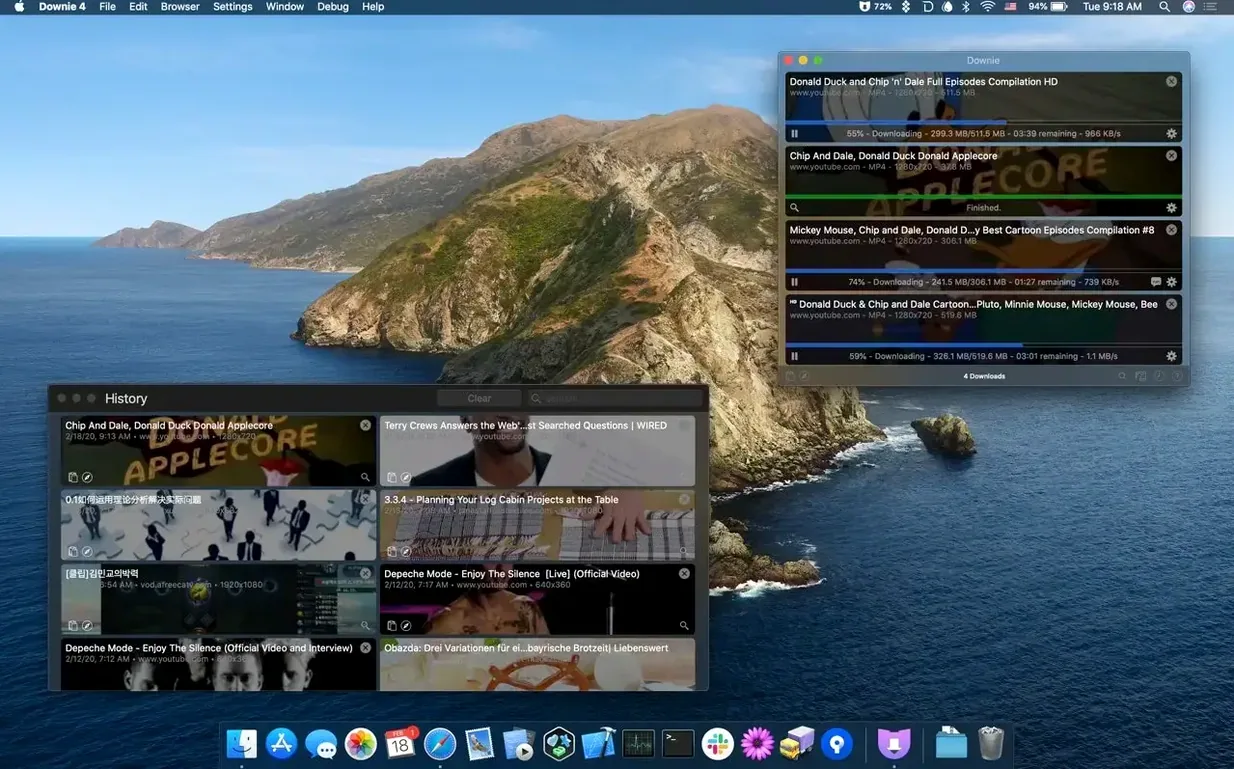
The app's interface is compact and stays out of the way. A single window shows the download queue, and a small menu bar icon provides quick access. Because the app is Universal, it launches instantly on an Apple Silicon Mac without Rosetta translation, and it behaves identically on Intel hardware.
Browser extensions are available and integrate with Safari, Chrome, and Firefox. They add a button to the toolbar that sends the current page's video to Downie with one click. The extension does not replace the app — it is a convenience layer that reduces copy-pasting.
Storage requirements are modest: the app itself is a few megabytes, and downloaded videos take space proportional to their length and quality. 4K files will be larger, obviously, but the app does not cache or store temporary files beyond what is necessary for the download process.
Before it goes on the Mac
- macOS 11 or later
- Apple Silicon or Intel
Questions from the room
Can Downie download just the audio from a video?
Yes, Downie can save only the audio track from a video, which is handy for music or spoken-word content.
Does Downie work on Apple Silicon Macs?
Yes, Downie runs natively on both Apple Silicon and Intel Macs, and it requires macOS 11 or later.
Installing it on the Mac
- Mount the downloaded disk image.
- Drag the app to the Applications folder alias.
- After copying finishes, open the app from Launchpad.
Notes from the control room
Sign in or open a catalogue account to leave a note.
No notes from the room yet. If you have used this build for a week, a short note helps the next person.