Home › Utilities › Duplicate File Finder Pro

Duplicate File Finder Pro 9.2.1 (Mac)
Updated
The catalogue note
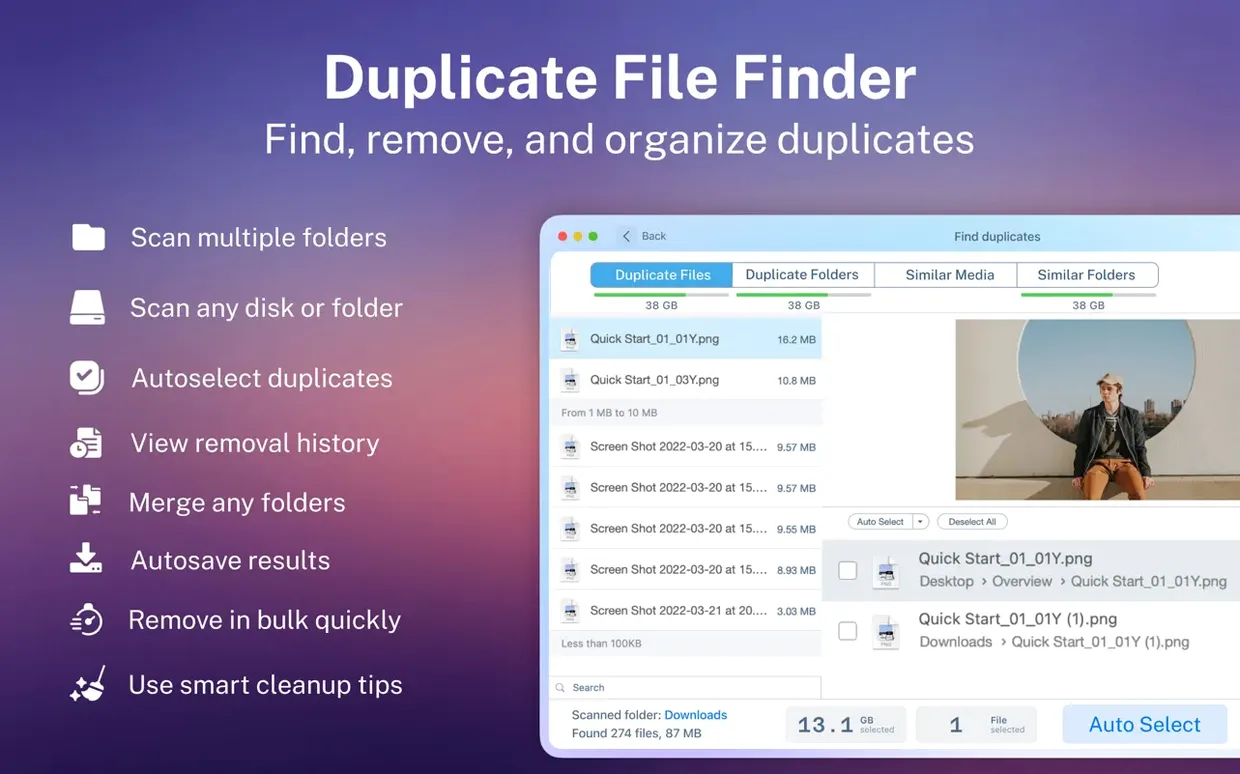
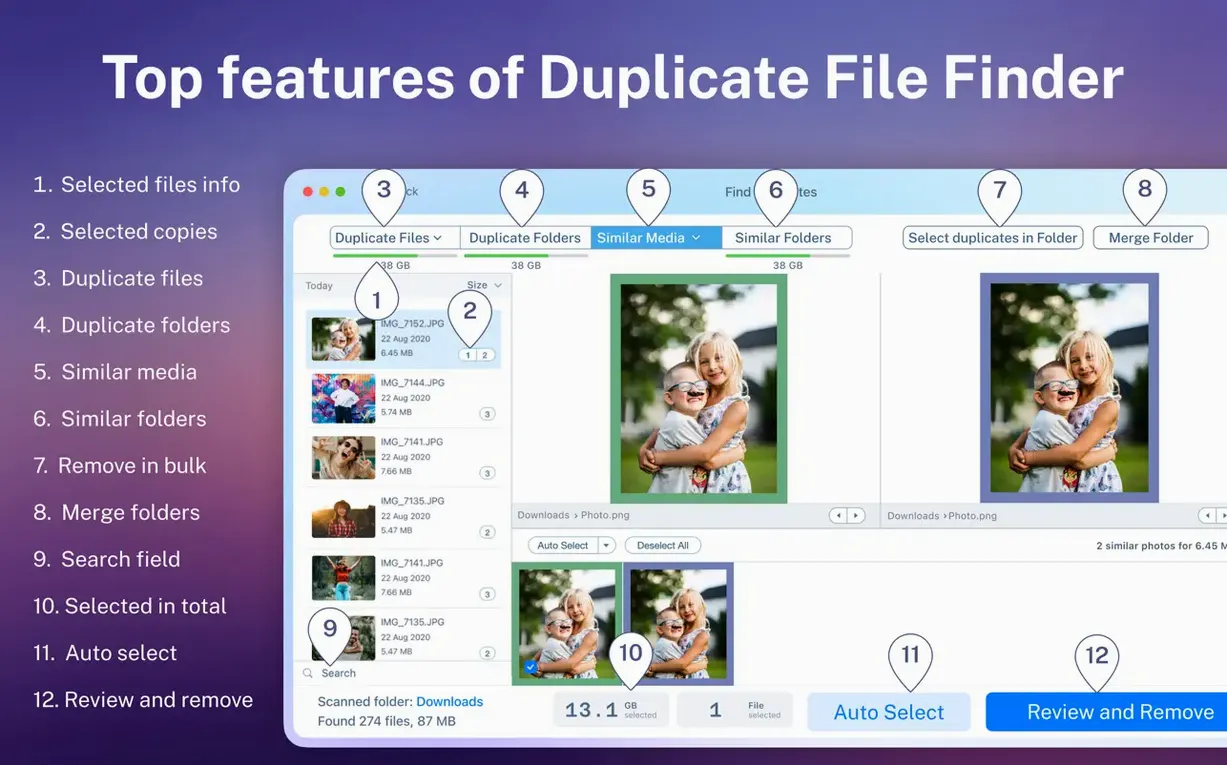
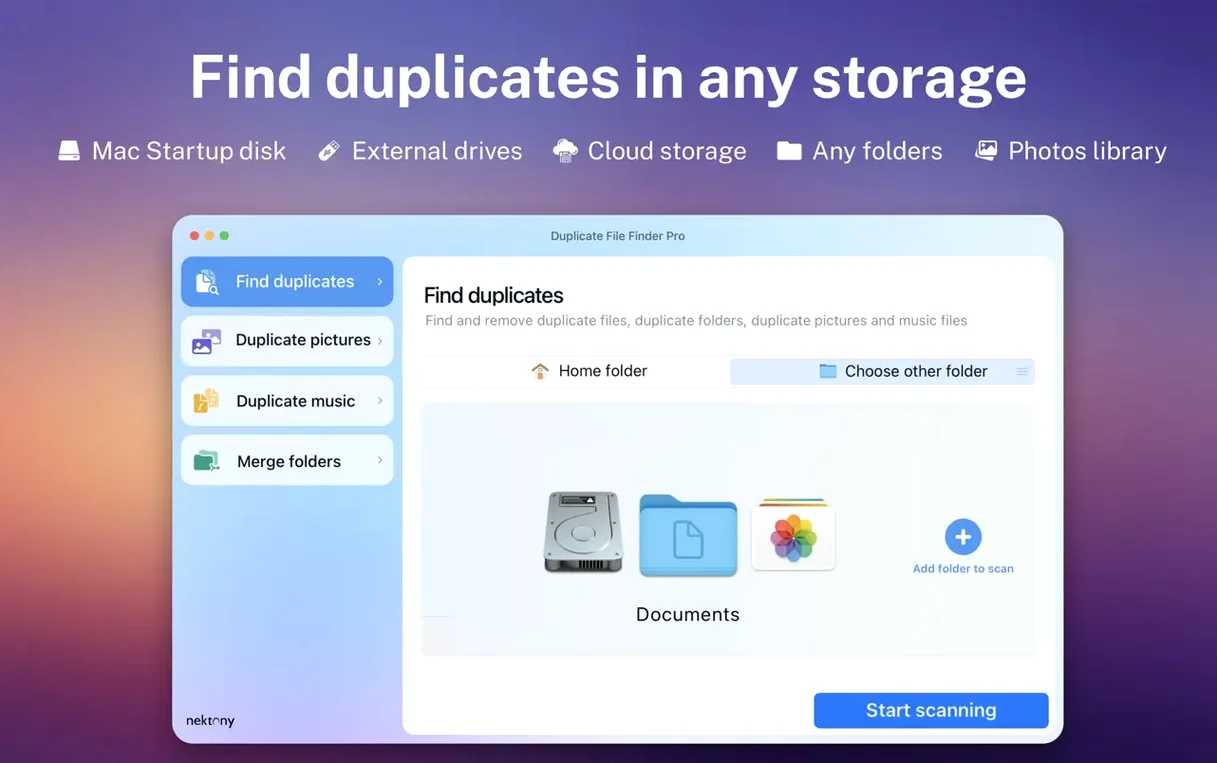
Version 8.5.2 of Duplicate File Finder Pro scans multiple folders or disks in one pass, which is useful when your Dropbox folder and local drives hold overlapping copies. The app lists duplicates, highlights similar folders, and lets you act on the results without leaving the window.
Finds duplicates across multiple locations including hidden folders
- Finding duplicate files across several locations, including hidden folders.
- Spotting similar folders that may contain near-identical content.
- Merging folders when you want one clean copy instead of scattered files.
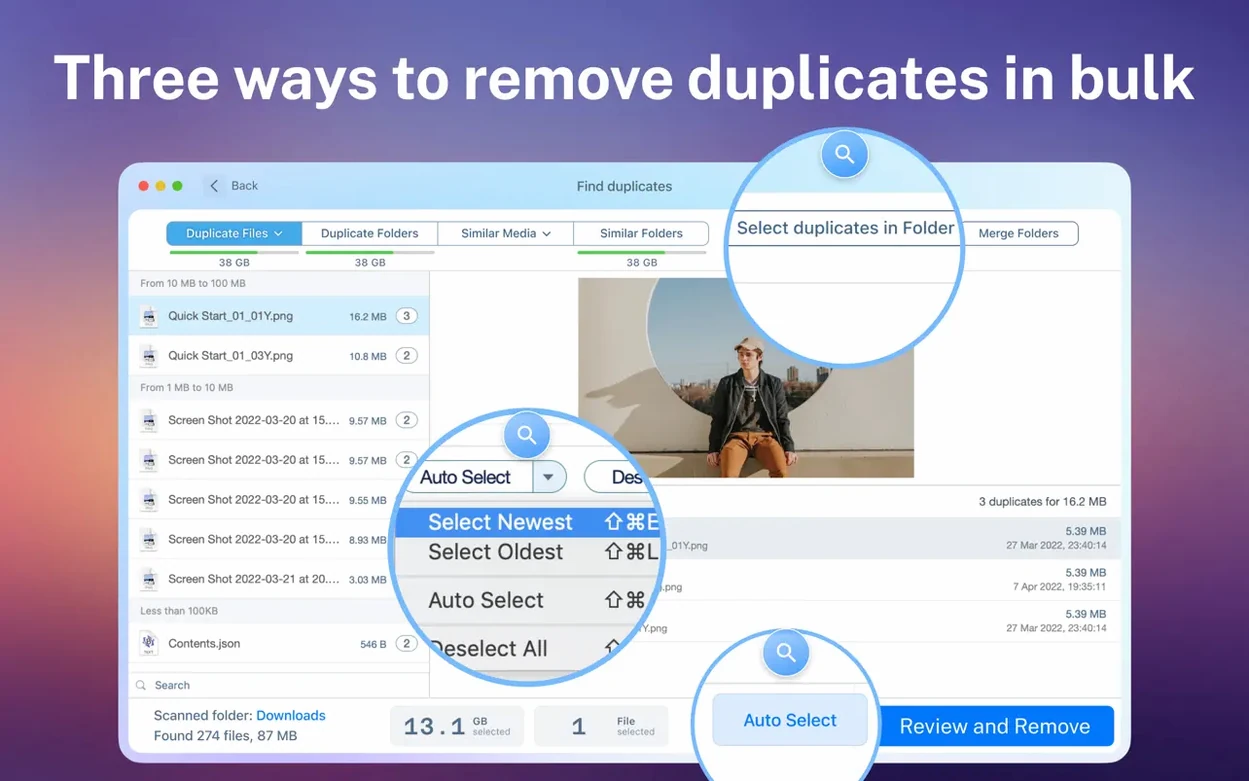
- Selecting duplicates in one click with smart selection, then moving them to Trash or deleting permanently.
- Restoring removed duplicates if you change your mind.
Runs natively on Apple Silicon and Intel Macs
- Runs natively on both Apple Silicon and Intel Macs.
- Requires macOS 10.13 or later.
- Interface is in English only.
Scan report shows a visual breakdown by category before you browse files
The scan report is visual — you get a breakdown by category (images, video, music, archives, documents) before you even look at individual files. That helps decide where to start cleaning. The duplicate list itself sorts by name, size, total size, type or duplicate count, so if you want to clear the biggest offenders first, one click reorders everything.
Previewing a file before deletion is a straightforward right-click or selection. No need to open a separate app to check whether that “IMG_0042 copy” is actually the one you want gone. The smart selection tool picks groups of duplicates intelligently — typically keeping the newest or the one in the original location — rather than making you tick boxes manually.
If you do delete something and regret it, the restore function is there. It works as long as the files are still in Trash, so you have a safety net before the final empty.
Hidden folders are included by default in scans, which catches duplicates inside ~/Library or system caches that a Finder search might skip. And the app can find duplicate folders and similar folders — two related but distinct features. The former looks for folders with identical content; the latter finds folders that are close but not exact matches, useful when you have “Project Final” and “Project Final v2” sitting on different drives.
Best for users with Dropbox, external drives, and network shares
Anyone who uses multiple storage locations will see the benefit quickly. If you have a Dropbox folder synced to your Mac, an external hard drive for backups, and a network share for team files, duplicates accumulate without you noticing. The app scans across all of them in one go, so you don't have to run separate passes on each volume.
Photographers and video editors who generate large numbers of near-identical project files or renders will find the similar-folder detection useful. Music producers with duplicated sample libraries across drives can use the category view to focus on audio files first.
For users who manage multiple Macs or archive old projects, the folder merge feature consolidates scattered data without manual drag-and-drop. And anyone who has ever accidentally deleted the wrong duplicate will appreciate the preview and restore steps — it makes the process feel less final.
Supports macOS 10.13 or later on both architectures
The app runs on macOS 10.13 or later, which covers High Sierra through to the current release. Both Apple Silicon and Intel architectures are supported natively, so no Rosetta translation is needed on M-series machines. The interface is in English.
Scans involve reading file metadata and comparing content where needed, so larger volumes naturally take longer — but the category-based visual report appears quickly enough to give you a sense of the scale. The app does not require a constant network connection; scanning network folders is available as an option when you choose your sources.
No separate account or sign-up is required to start scanning.
Common pre-install questions answered
Can it find duplicates inside Time Machine backups or system folders?
The app can scan hidden folders, which includes many system-level locations. Time Machine backup volumes are treated like any other external drive — you can select them as a scan source, though the read-only nature of some backup snapshots may limit deletion options.
How does smart selection decide which file to keep?
It looks at factors such as file location and modification date to keep the copy most likely to be the original. You can override the selection manually before deleting, or use the one-button selection to mark all duplicates at once.
Does it compare files by name only or by content?
By content. Two files with different names but identical data will still be flagged as duplicates. That is why scans of large folders take time — the app reads actual file data rather than trusting filenames alone.
Can I add Dropbox to Mac Finder and then scan it?
Dropbox appears as a regular folder in Finder. You select it the same way you select any local folder or drive — the app sees the synced content and scans it alongside other locations. That is one of the main reasons people run the tool: to catch the duplicates that accumulate when the same file ends up in a local folder and a synced cloud folder.
Move files to Trash and restore them if you haven't emptied it
As long as you have not emptied Trash, the restore function brings them back to their original locations. If you delete permanently from within the app, there is no recovery through Duplicate File Finder Pro itself — you would need a separate backup or file recovery tool at that point.
Is the app portable or does it leave files behind after uninstalling?
Standard Mac application — drag to the Applications folder to install. Uninstalling is the reverse, though any scan history or settings may remain in ~/Library unless removed manually.
Changes in this build
- Version 8.5.2.
Before it goes on the Mac
- macOS 10.13 or later
- Apple Silicon or Intel
- Built-in purchases included
- Activation included
Installing it on the Mac
- Install the app.
- Follow the activation instructions included in the package.
Notes from the control room
Sign in or open a catalogue account to leave a note.
No notes from the room yet. If you have used this build for a week, a short note helps the next person.