Dropover 5.4.0 (Mac)
Updated
The catalogue note
Anyone who regularly moves files between Finder windows, uploads to web interfaces, or assembles email attachments knows the friction of juggling multiple sources. Dropover solves that by providing a temporary shelf where you can collect items before committing them to their destination.
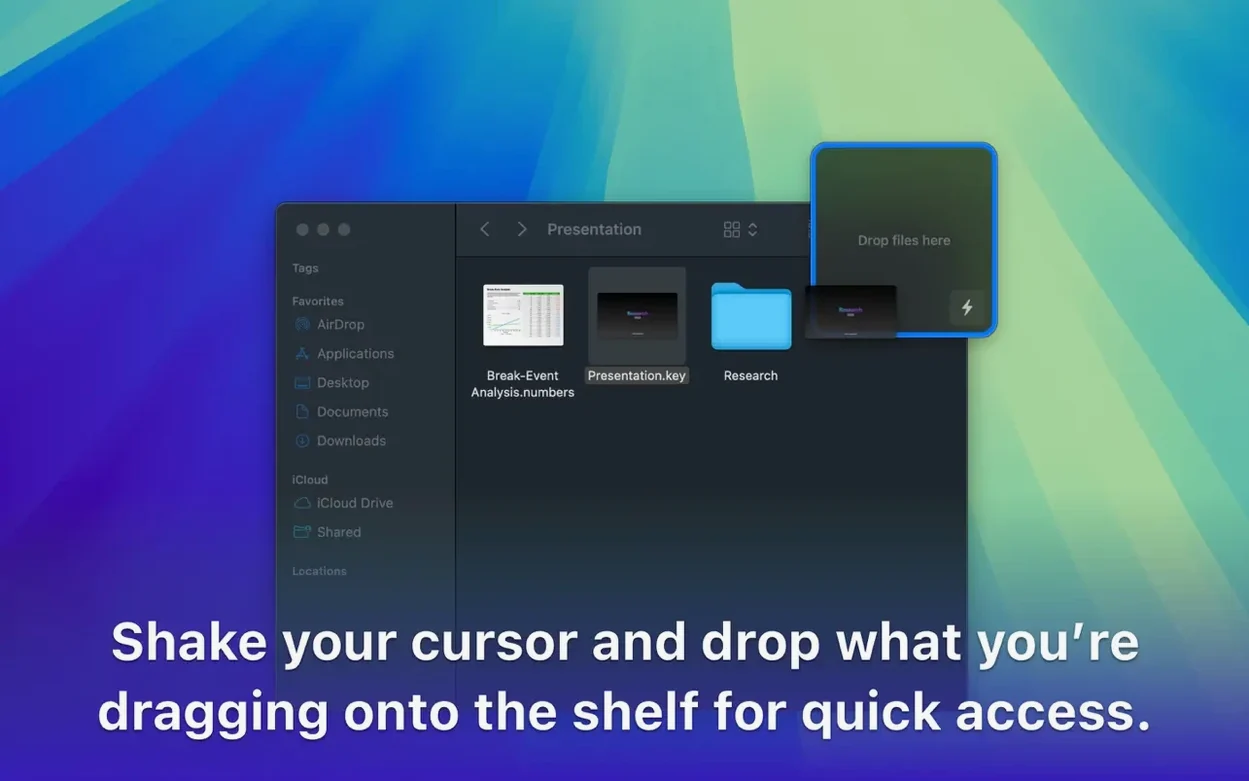
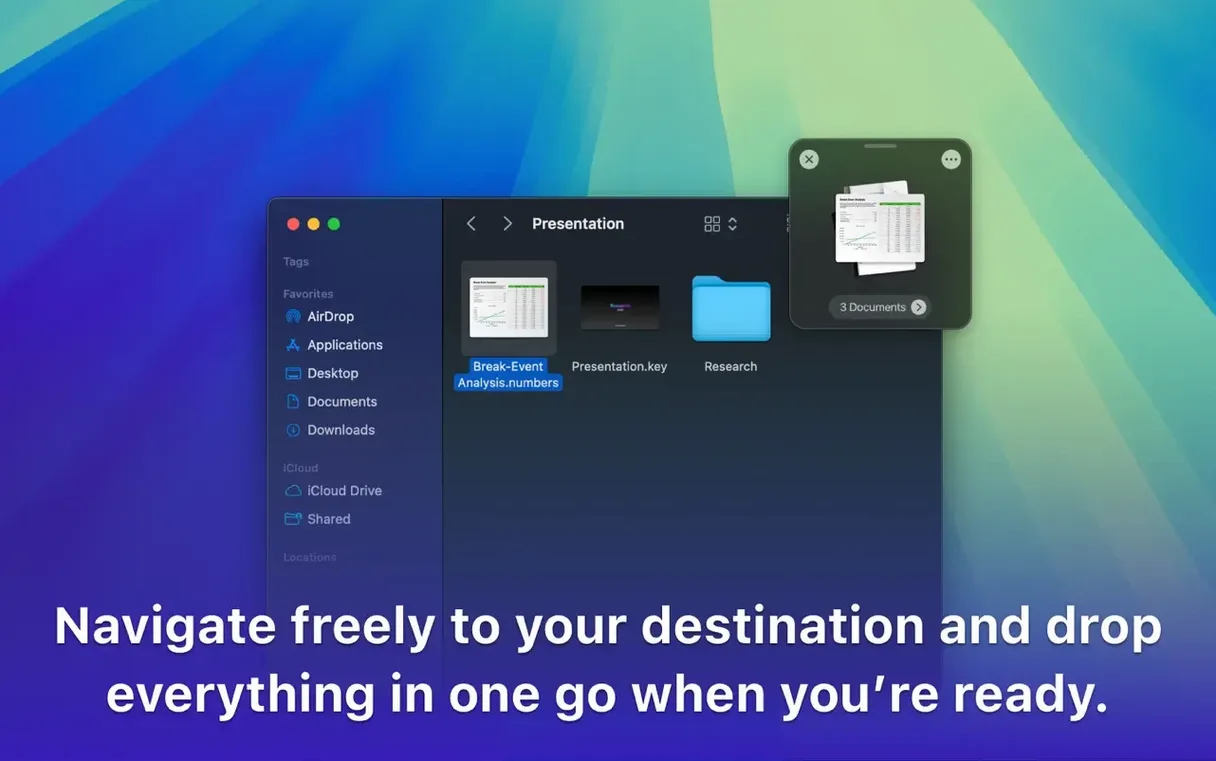
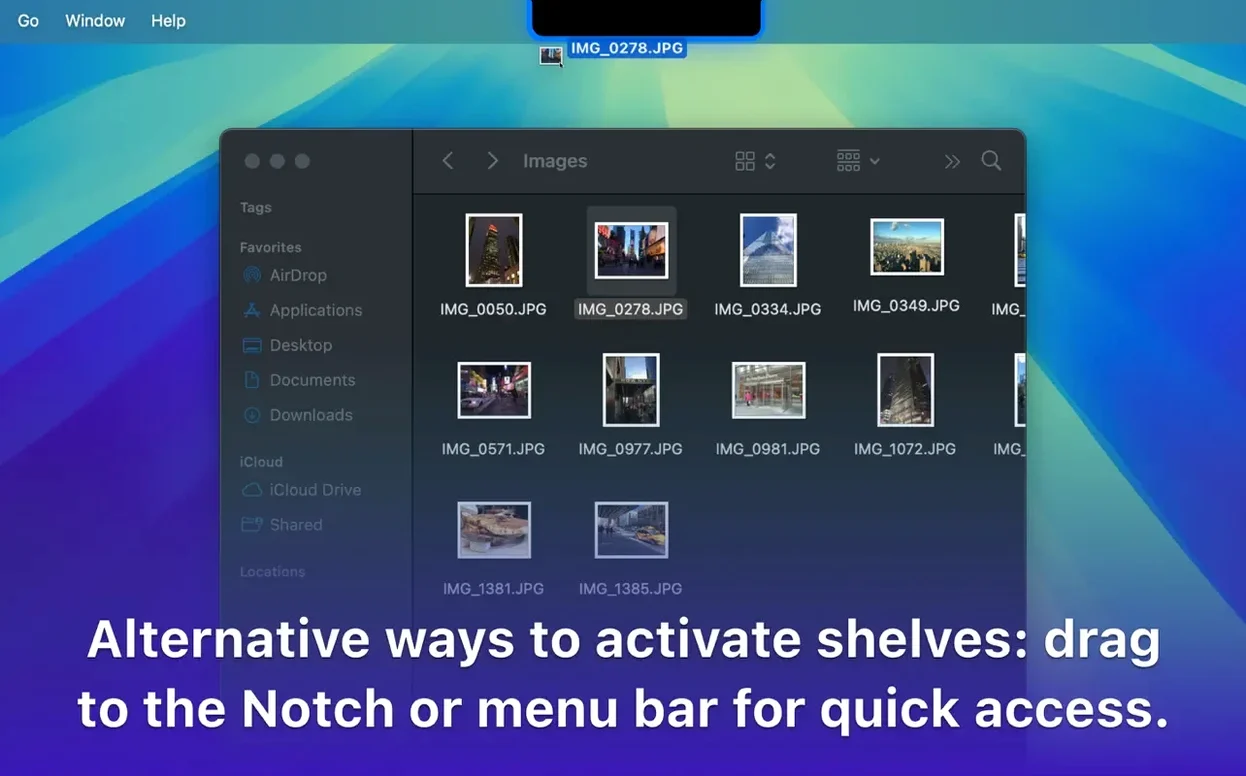
Here is a realistic use: you are organising a project folder. You need to gather three PDFs from different Finder windows, a screenshot from the desktop, and a link from Safari, then drop them all into a single upload dialog in your browser. Without Dropover, you would either open multiple Finder windows side by side or drag items one at a time. With Dropover, you drag and hold each item — a small grey shelf appears on screen. Drop the PDFs, the screenshot and the link into it. Once everything is collected, you drag the whole shelf’s contents at once into the browser’s upload area. That is it.
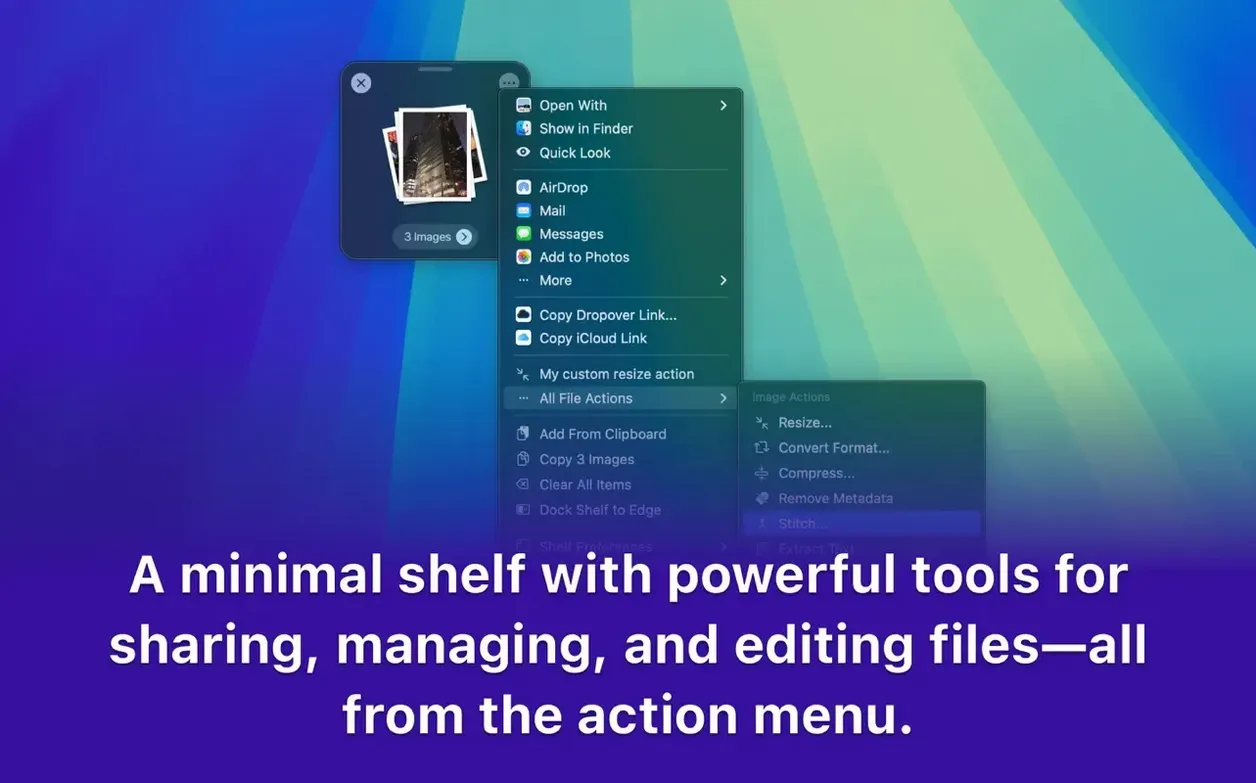
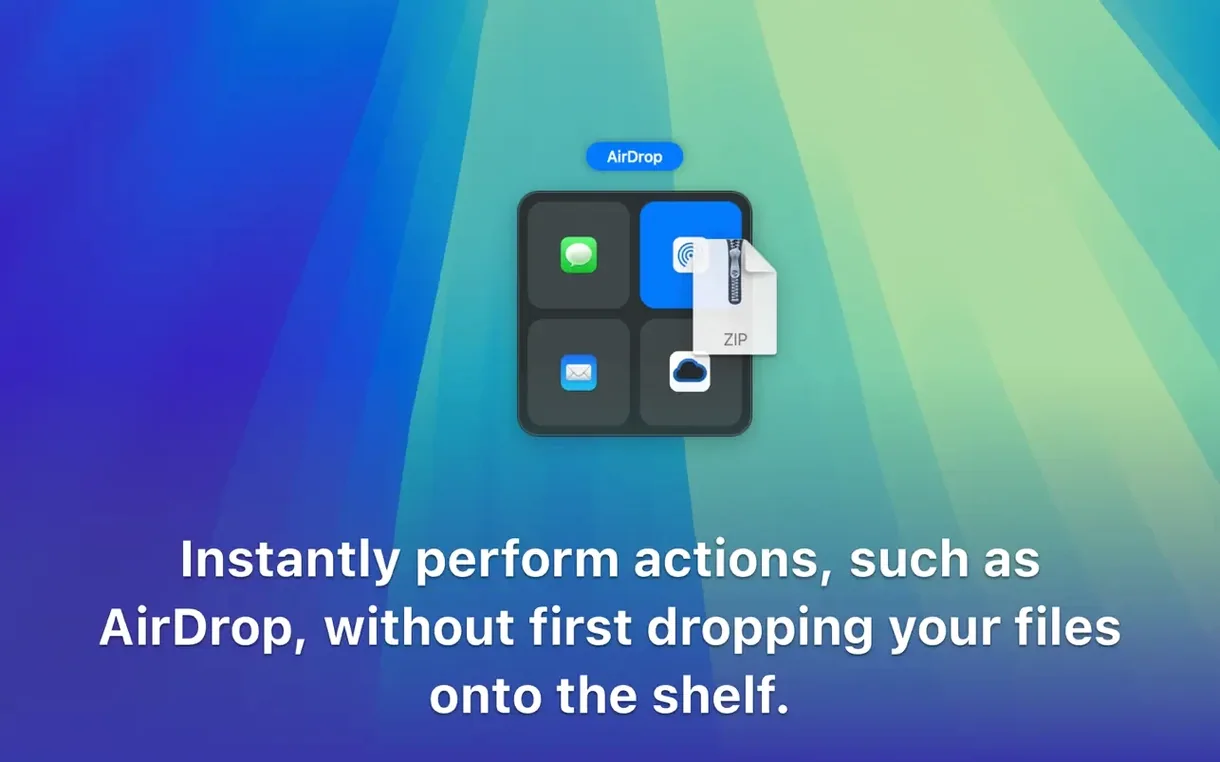
The shelf can also rename items before you move them, create an archive, or share them via the system share sheet. It works across applications, spaces and full-screen windows. Shortcuts support means you can automate common grouping tasks if you need to repeat the same arrangement regularly.
Pulling images from a dozen tabs into a mood board
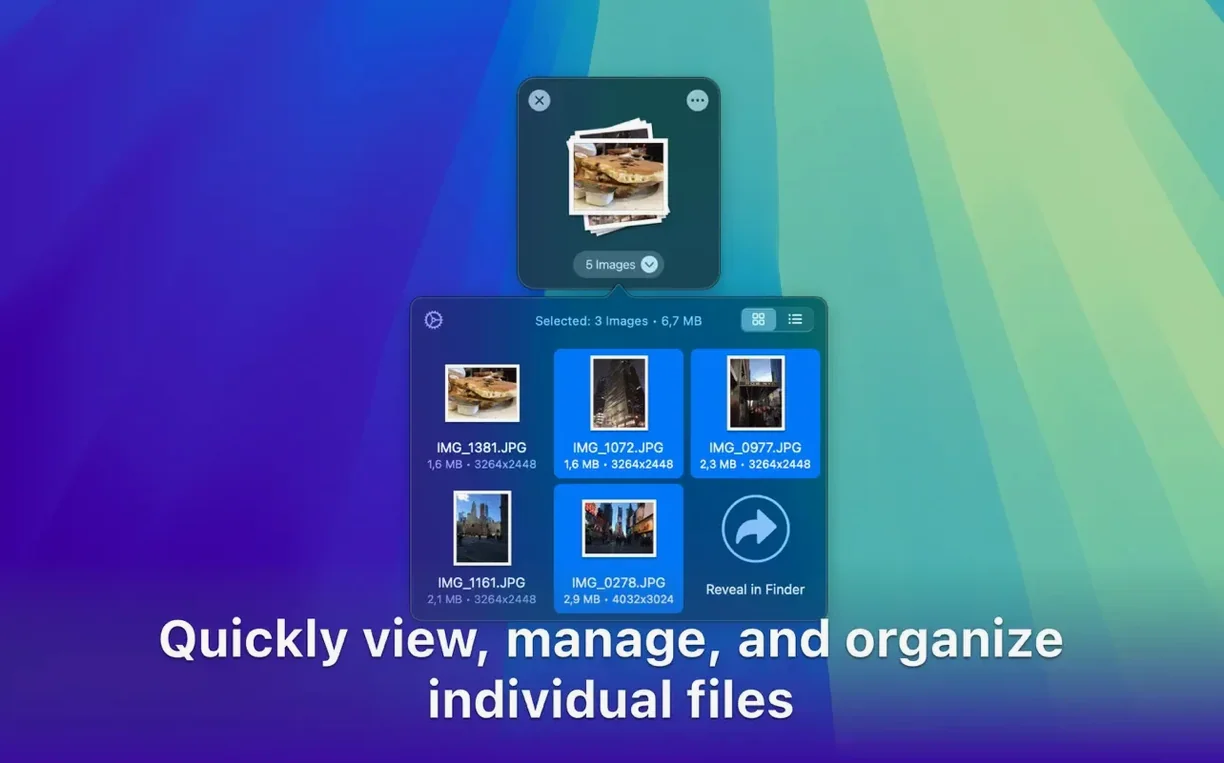
A designer working on a mood board needs to pull images from a dozen browser tabs, a few local folders, and a Pinterest board. Without a staging area, each image has to be saved to the desktop, then manually re-uploaded or dragged into the design tool. With Dropover, the designer drags each image into the shelf as they browse. Once the collection is complete, they open the design app and drag the whole shelf contents onto the canvas. The same approach works for a researcher gathering screenshots, PDF excerpts and web clippings before dropping them into a shared document or a cloud folder.
Training yourself to reach for the shelf on the side you rarely use
Dropover is a tool you need to train yourself to reach for. Here are a few ways to make it part of your routine without overthinking it:
- Keep the shelf on the side you rarely use. If your main work happens on the left half of the screen, set the shelf to appear on the right edge. That way it stays out of the way until you need it.
- Use it for one-off uploads. Next time you are attaching files to an email or uploading to a web form, try gathering everything in the shelf first. It saves the back-and-forth between Finder and the browser tab.
- Try it with links and text. Dropover is not limited to files. Dragging a URL from Safari or a line of text from Notes into the shelf works just as well. It is handy for collecting research before pasting into a document.
- Adjust shelf transparency. If the shelf feels intrusive, reduce its opacity in the preferences. It becomes a faint overlay that only catches your attention when you need it.
- Give it a week. The first few days feel deliberate. After that, reaching for the shelf becomes automatic, especially when you notice how much time it saves during file-heavy tasks.
What Dropover offers that other Mac utilities don't
Dropover vs. Yoink
Yoink is the closest competitor. Both create a temporary shelf for dragged items. Yoink’s shelf stays visible on the side of the screen and can hold items indefinitely. Dropover’s shelf appears only when you start dragging, which some users find less distracting. Yoink also offers a file preview panel and a history of recently removed items, while Dropover focuses on the immediate drag-and-drop workflow. Neither app is a clear winner — it depends on whether you prefer a persistent dock-like shelf or a temporary one that appears on demand.
Dropover vs. DragThing
DragThing is an older utility that predates macOS’s Dock. It creates custom docks and shelves for files, folders and applications. It is far more configurable but also more complex to set up. Dropover is simpler: you drag, you drop, you move on. DragThing is better suited for users who want a permanent launcher and file organizer, while Dropover is designed for quick staging during a single session. For most users, Dropover is easier to adopt without spending time on configuration.
Dropover vs. Pastebot
Pastebot is a clipboard manager, not a file staging tool. It stores text, images and files you have copied, then lets you paste them later. Dropover handles drag operations, not clipboard history. If you frequently copy and paste rather than drag and drop, Pastebot might be a better fit. But if your workflow involves dragging items from multiple sources, Dropover is the more natural choice. Some users run both: Pastebot for clipboard history, Dropover for file staging.
Changes in this build
Release 5.4.0 has landed. The full changelog is available from the developer, as usual.
Before it goes on the Mac
- macOS 12 or later
- Apple Silicon or Intel 64-bit processor
Questions from the room
What can I store in the Dropover shelf?
Files, folders, images, links and text — anything you can drag on macOS.
Does Dropover work across different workspaces?
Yes, the shelf follows you between windows, applications and Spaces.
Installing it on the Mac
It’s a 33 MB download for macOS 12 and later — Apple Silicon and Intel boxes both handled, three steps from disk image to dock.
- Open the downloaded disk image.
- Drag the Dropover application icon onto the Applications folder alias.
- Once copying finishes, launch the app from Launchpad.
Notes from the control room
Sign in or open a catalogue account to leave a note.
No notes from the room yet. If you have used this build for a week, a short note helps the next person.