Home › Utilities › Find Any File

Find Any File 2.6.1 (Mac)
Updated
The catalogue note
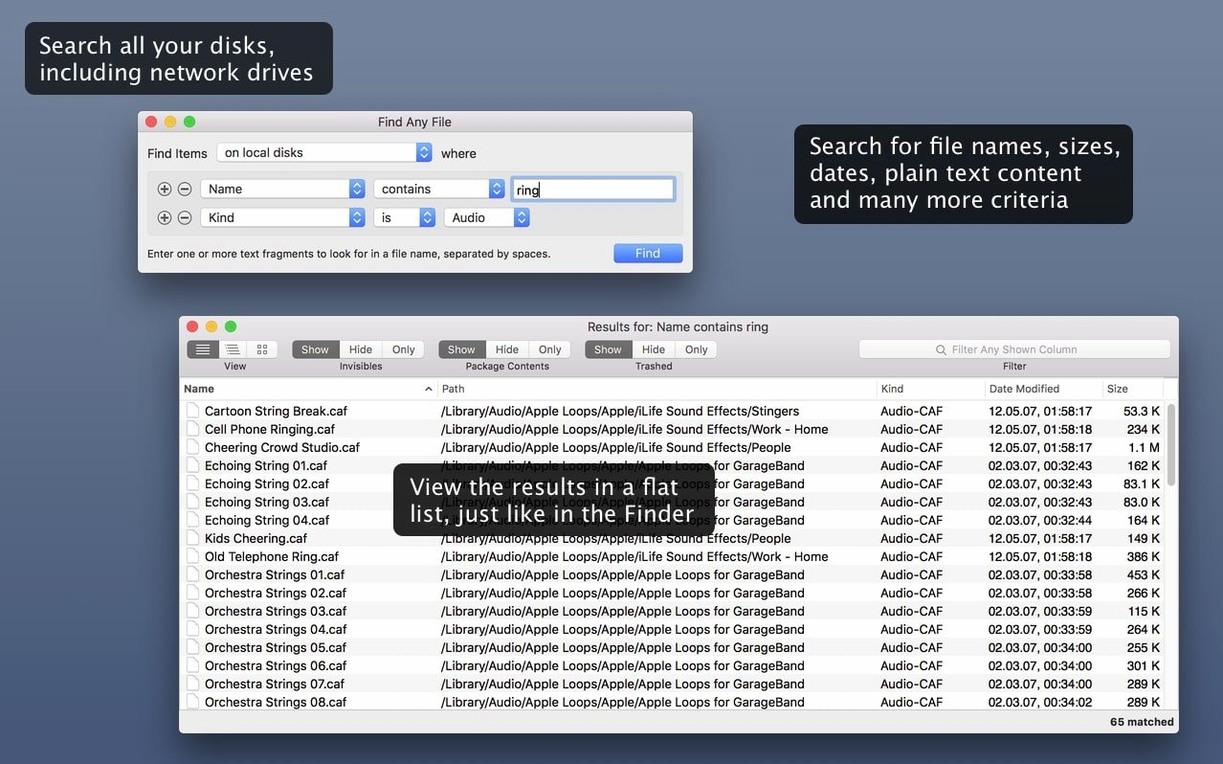
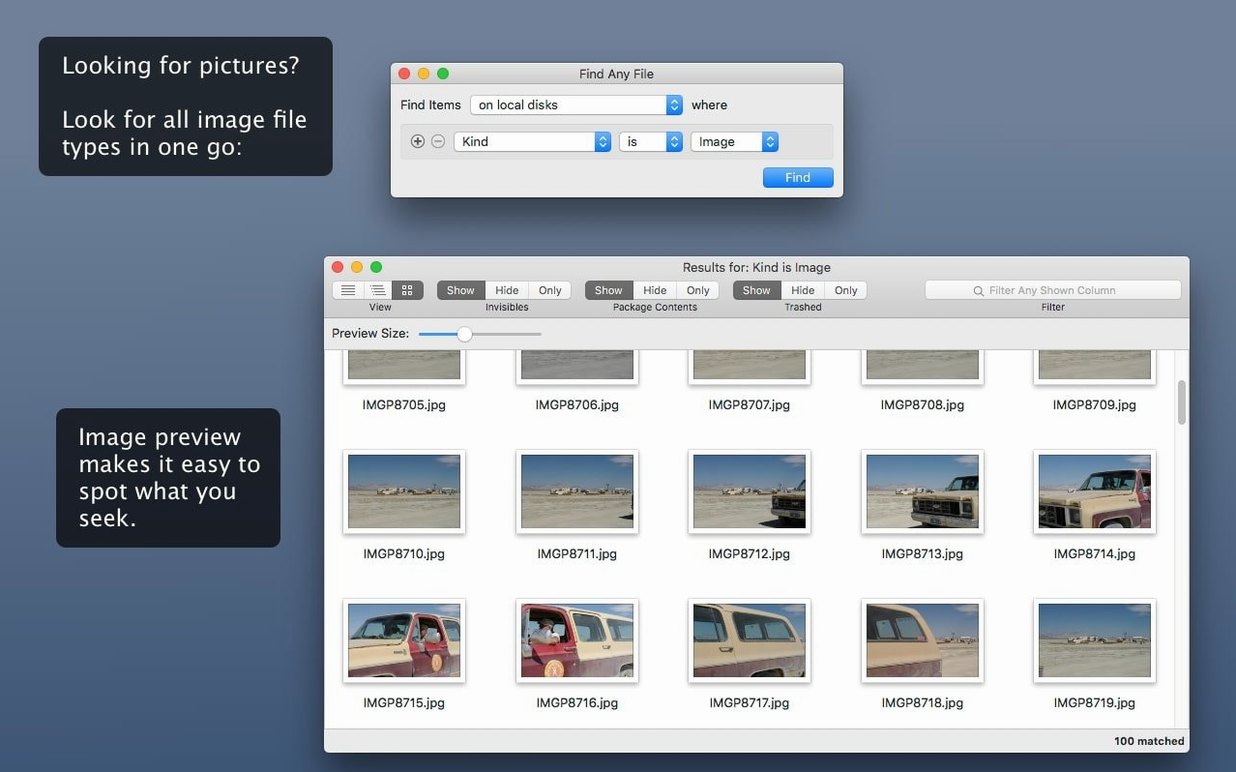
Spotlight is quick until it isn't. When you need a file that sits on a disk Spotlight never indexed, or you want to filter by size and date in one go, the built-in search starts feeling limited. Find Any File (FAF) works alongside it, not instead of it. It digs through volumes Spotlight ignores, including mounted servers, and presents results in a hierarchical folder view that mirrors how you actually organise things.
What it covers
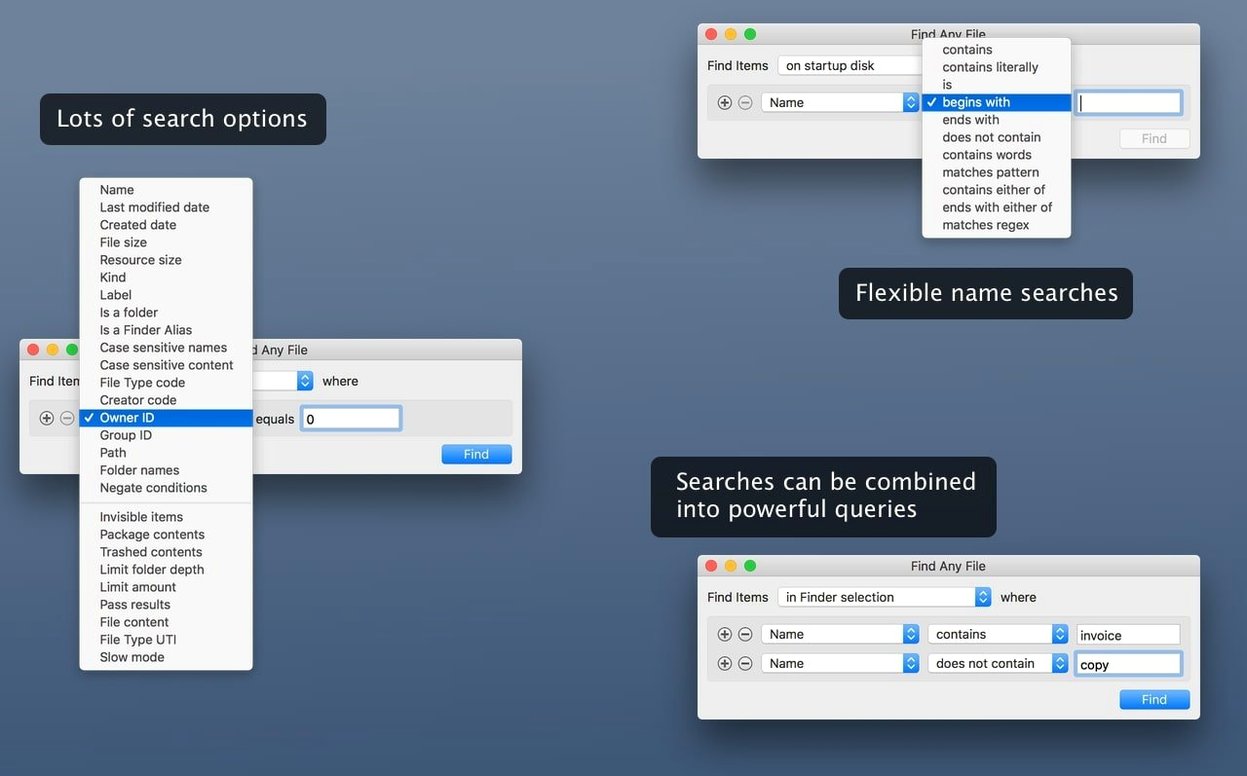
- Search by name, date, size and plain text content
- Scans disks not indexed by Spotlight, including server volumes
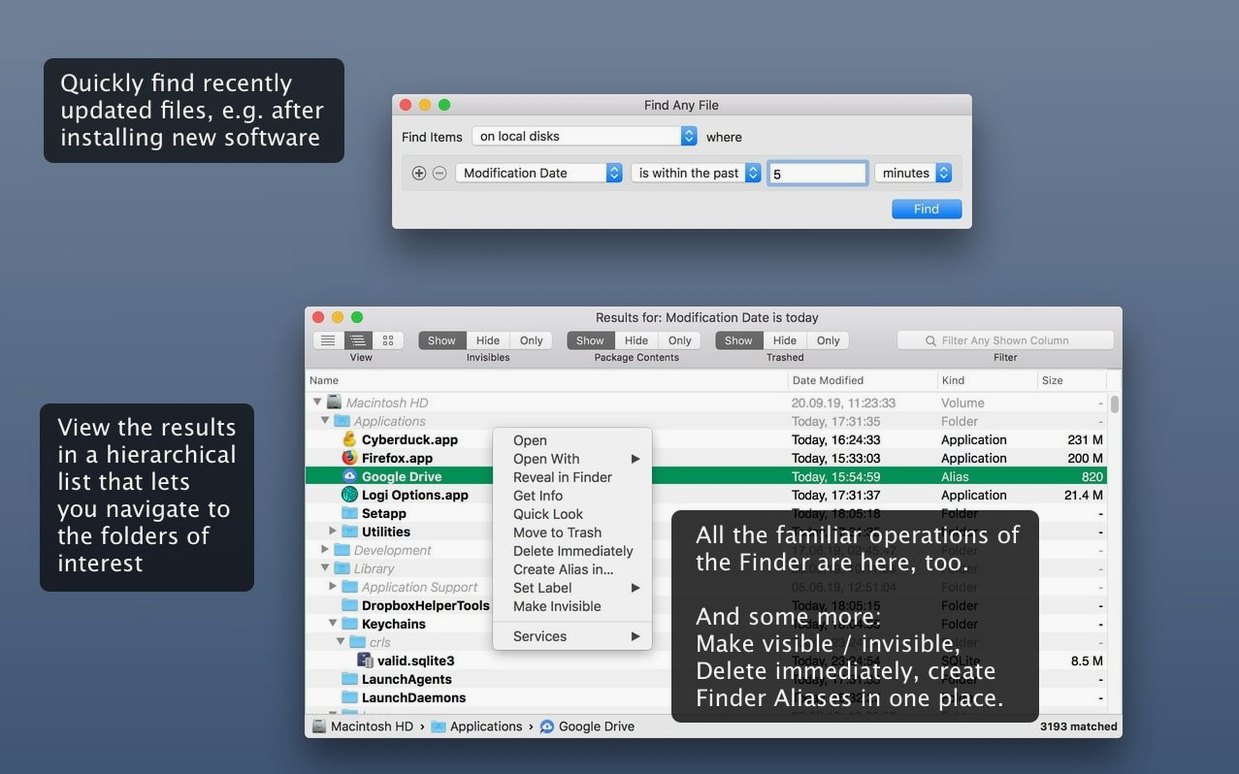
- Shows results in a folder tree, not a flat list
- Companion to Spotlight – it does not replace searching email, Word or PDF documents
For anyone maintaining external drives or network volumes
Anyone who maintains external drives, works across network volumes, or simply wants a second opinion when Spotlight draws a blank. Tembo is mentioned as another tool for improving Spotlight results, but FAF takes a different route: it reads the file system directly rather than relying on the metadata index.
Doesn't index or slow down your Mac in the background
Does it index my drive in the background and slow things down? No. Find Any File reads the file system on demand, not continuously. There is no background daemon, no database build, no scheduled scans. The search runs when you launch it and stops when you close the window. That is why it can search disks Spotlight never touches – it does not need a pre-built index to work.
Can it replace Spotlight entirely? Not really, and it is not meant to. FAF finds files by name, date, size and plain text content. It cannot search the inside of Word documents, PDFs, emails or database files. For those, you still need Spotlight or the app that created them. Think of FAF as the tool you reach for when Spotlight returns nothing and you know the file is there.
Does it work on network drives? Yes. Because FAF does not rely on a local index, it can browse mounted server volumes, NAS shares and external disks formatted with file systems Spotlight may not index. The search is slower over a network connection, but it works where Spotlight often gives up.
Is it safe for system folders? FAF can see inside system folders and packages that Spotlight skips by default. You can search there, but the app does not modify anything. It only reads file metadata and plain text content. What you do with the results is up to you.
Try a name search on a familiar folder first
After you have dragged the app to Applications and bypassed Gatekeeper, start by running a simple name search on a folder you know well. Get a feel for the hierarchical view – files appear inside their enclosing folders, so you can see the path without switching to the Finder. This view is the main reason people stay with FAF; it shows context that a flat list cannot.
Try the size and date filters on a drive with many files. Set a minimum file size to find large video or audio projects that have accumulated over time. Or restrict the date range to locate files modified in the last week. These two filters alone can save time when you are cleaning up storage or hunting for recent work.
If you often search network volumes, let FAF finish a full scan once and note how long it takes. Subsequent searches on the same volume will still be slower than local scans, but you will know what to expect. Consider narrowing the search to a specific subfolder rather than the whole share to speed things up.
The plain text search is useful for configuration files, logs and scripts. It reads unformatted text only, so do not expect it to find words inside a formatted RTF or a PDF. But for shell scripts, plist files and source code, it works well.
Finds files Spotlight misses without rebuilding an index
Find Any File, Tembo and EasyFind all aim to cover ground that Spotlight leaves uncovered, but each approaches it differently.
Tembo is mentioned on the developer page as another tool for improving Spotlight results. It works by rebuilding a separate index that is more thorough than Spotlight's default. This gives it fast search speeds once the index is built, but it requires disk space for that index and a one-time setup. FAF, by contrast, does not build or maintain an index at all – it trades instant results for the ability to search any mounted volume without preparation.
EasyFind searches file names and plain text content without an index, much like FAF. It offers a flat result list with previews, and its interface is simpler. FAF's hierarchical view is the main differentiator: you see files inside their parent folders, which helps when you are trying to understand where something lives on disk. EasyFind also cannot search inside bundles and packages as thoroughly, while FAF explicitly opens those up.
None of these three apps indexes email, rich text or PDF content. All of them work alongside Spotlight, not against it. The choice comes down to whether you prefer the speed of an indexed search (Tembo), the simplicity of a flat list (EasyFind), or the folder-tree view and direct disk access (FAF).
Requires macOS 10.11 or later, Intel and Apple Silicon
Find Any File version 2.6.1 requires macOS OS X 10.11 or later and runs on both Intel and Apple Silicon Macs. The download is a disk image that you mount and drag to Applications. Gatekeeper may block the first launch because the app is not signed with an Apple developer certificate. The developer provides a Terminal command to bypass this – you press Enter after the command runs, and the app opens normally.
The interface is compact. A search bar at the top, filter fields for size and date, and a results area below. No installer, no background processes, no menu bar icon. It sits in your Applications folder until you need it and quits cleanly when you close the window.
Because FAF reads the file system directly, searches on large volumes with thousands of files take longer than Spotlight queries. That is the trade-off for being able to find any file mac download that Spotlight would miss. The app does not slow down other tasks while searching – it uses whatever CPU and disk bandwidth is available without locking the system.
Version 2.6 added AppleScript support, so you can automate searches from scripts or integrate FAF into a larger workflow. The same update introduced columns for Comments, Trashed and Hidden, and made finding file comments more reliable. If you use Finder comments to tag files, this version will pick them up more consistently.
For anyone who needs to find any file mac on drives that Spotlight ignores, FAF is a straightforward addition to the toolkit.
Changes in this build
- AppleScript support added in 2.6
- Columns for Comments, Trashed and Hidden added
- Finding comments made more reliable
Before it goes on the Mac
- macOS 10.11 or later
- Intel and Apple Silicon
- English interface
Questions from the room
Does Find Any File replace Spotlight?
No. It is a companion to Spotlight and does not search email, Word, PDF or similar document contents.
Can it search drives Spotlight does not index?
Yes. It can search disks not indexed by Spotlight, including server volumes.
What criteria can I search by?
Find Any File searches by name, date, size and plain text content.
Installing it on the Mac
- Mount the disk image and run Open Gatekeeper friendly.
- Press Enter to bypass Gatekeeper in the Terminal window.
- Drag the app to the Applications folder.
- Start the app once copying is complete.
Notes from the control room
Sign in or open a catalogue account to leave a note.
No notes from the room yet. If you have used this build for a week, a short note helps the next person.